Courier updates not arriving
Parcels get picked up or delivered but the order doesn't move? Use the webhook badge, the recent updates and a test to find the cause and fix it.

On this page
The courier has picked up or delivered the parcel, but the order is stuck where it was? Most of the time the webhook token or secret is the cause. Work through the checks below one at a time.
First, look at the badge
- Open Settings › Couriers. The Couriers tab shows each courier’s webhook in one line.
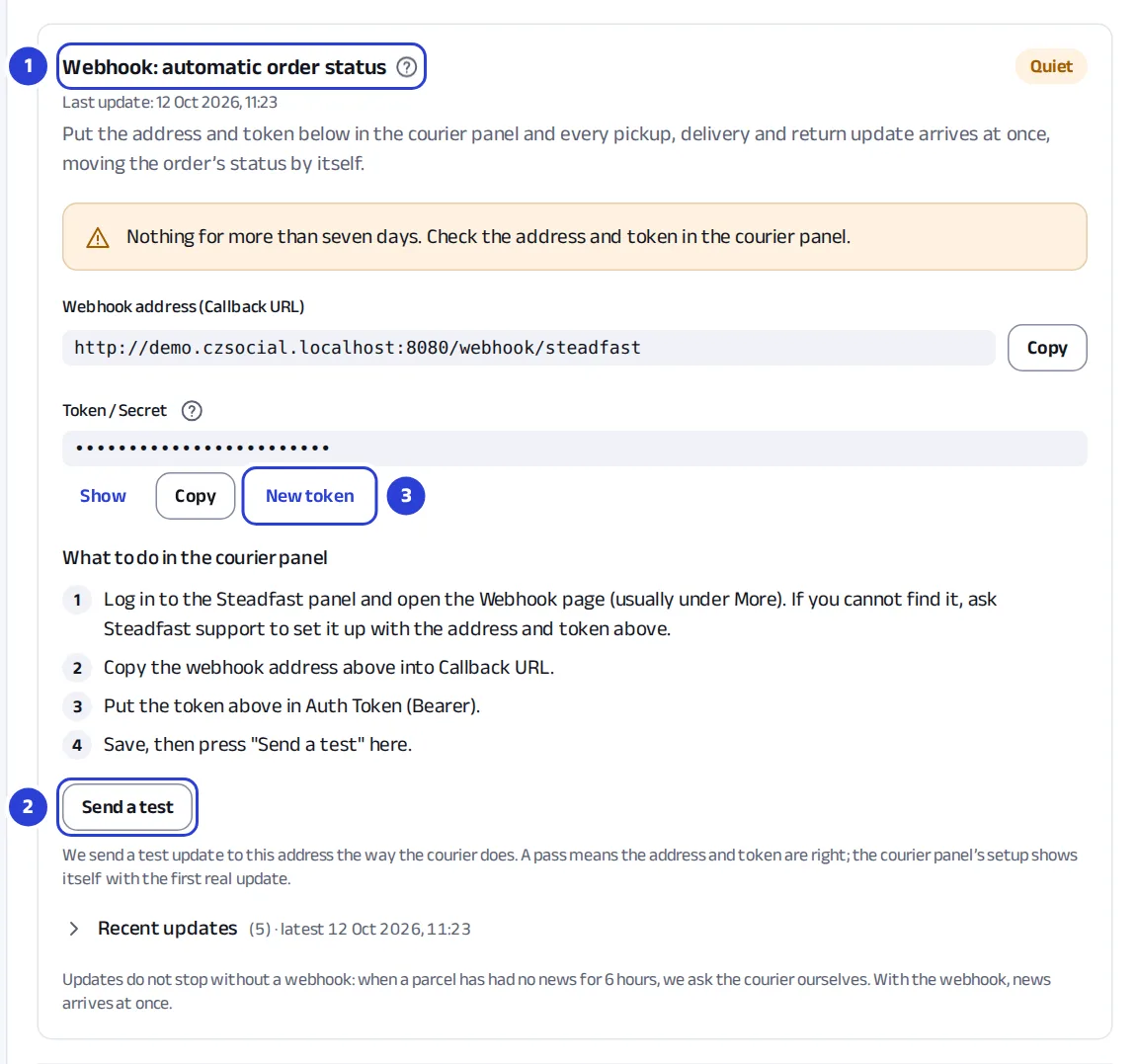
- Press Open beside the courier that has gone quiet. On its card, find Webhook: automatic order status at the bottom. There is a badge next to the title 1.
| Badge | Meaning | What to do |
|---|---|---|
| Working | Updates are arriving | Nothing |
| Not set up | Not a single update has come from this courier yet | Check that the address and token are in the courier panel (Setting up the webhook) |
| Token mismatch | The last update arrived, but we refused it because the token didn’t match | Copy the token into the courier panel again |
| Quiet | Updates used to arrive, but nothing for more than seven days | If you have parcels on the way, check the address and token in the courier panel |
Good to know
If you haven’t sent a parcel for a week, Quiet is normal. The first update for a new parcel turns it back to Working.
What the recent updates say
Press Recent updates on the card (it starts folded, with the count and the latest time on its line) to see the last 5 updates with their time and a badge:
- Applied to the order: the update reached the order. All good.
- Queued: it arrived and will reach the order within seconds.
- Nothing to change: an update that doesn’t change the order’s status. Nothing to worry about.
- Refused: the token or secret didn’t match, so we didn’t accept it. See token copied wrong below.
- Unknown parcel: the update arrived fine, but this parcel isn’t on any of your orders. See parcels booked in the courier panel below.
- Could not read: the courier sent something we couldn’t read. Tell support.
Send a test
Press Send a test 2 on the card. We send a test update to your address exactly the way the courier would.
- “The address works and the token matches.”: our side is fine. If updates still don’t come, the problem is in the courier panel’s settings.
- “The address could not be reached.”: try again in a minute. If it keeps happening, tell support.
- “The address did not answer properly”: tell support, with the number shown.
Tip
A passed test means our address and token are right. Whether the courier panel is set up correctly shows itself with the first real parcel update.
Common causes
The token was copied wrong, or you made a new one
Copying can add a space before or after the token, or miss part of it. And New token 3 stops the old token at once.
- On the card, press Copy next to Token / Secret.
- In the courier panel’s webhook page, delete the old token, paste the new one and save.
- Back on our card, press Send a test.
Pathao: the Integration Secret is missing
When the card says “The Integration Secret is not saved yet”, Pathao can’t verify our address and won’t send updates. Copy the Integration Secret shown on Pathao’s Webhook Integration page into Pathao Integration Secret on our card and save it. Then press Save in Pathao again. Details: Pathao webhook.
Carrybee: the check did not pass
When you press Add Webhook, Carrybee checks our address and the card shows the result. “Carrybee’s check did not pass” means the Webhook Secret in Carrybee is not the one on our card: copy ours (Token / Secret) into Carrybee’s Webhook Secret and press Add Webhook again. If Carrybee’s page says the header’s “value should be exactly” a code, save that code on our card first (details). Details: Carrybee webhook.
Parcels booked in the courier panel
When a parcel is booked straight in the courier’s own panel instead of from your dashboard, we don’t know which order it belongs to, so its updates show as Unknown parcel.
- Open the order.
- On the Courier card, press Add a consignment manually.
- Choose the courier, enter the consignment id and save.
From then on, updates for that id reach the order. For a parcel added by hand, our background check asks Steadfast, Pathao and Carrybee by its id once the courier is connected; with Paperfly or a courier that isn’t connected, the webhook is the only source of news.
Updates don’t stop without a webhook
When a parcel has had no news for 6 hours, we ask the courier ourselves. You can change this in Settings › Couriers, Checkout & charges tab, under Hours without news before we ask the courier, anywhere from 1 to 72 hours (details).
To check right now, open the order and press Refresh status on the Courier card. It asks the courier straight away. Parcels added by hand don’t have this button.
When to contact support
If everything above checks out and updates still don’t come, or Could not read keeps appearing, open a support ticket. Include:
- Which courier, and what the card’s badge says.
- The time and badge of the last few lines in Recent updates (a screenshot is best).
- One order number and its consignment id that didn’t get its update.
- What Send a test showed.
Watch out
Never put a token, a secret or your courier password in a ticket. We don’t need them.
See also: Setting up the webhook, Steadfast webhook, Paperfly webhook, Following your parcels.