My profile
Change your name, language and theme, your login email and mobile number, and your password in the profile, and what happens when someone asks to take your account back. Whatever you change here changes in all your panels at once.

On this page
Your profile is yours, not a store’s. Whether you change it inside a store, on your account’s pages or in the admin panel, it is the same everywhere.
Opening your profile
- Inside a store: press your name at the bottom of the menu (Account is written under it), then Profile.
- On your account’s pages (My stores, Wallet and so on): press your name at the bottom of the menu (Profile is written under it).
- On a phone: press More in the bottom bar, then your name (and Profile inside a store).
The top of My profile shows your name, email, mobile and how long you have been a member.
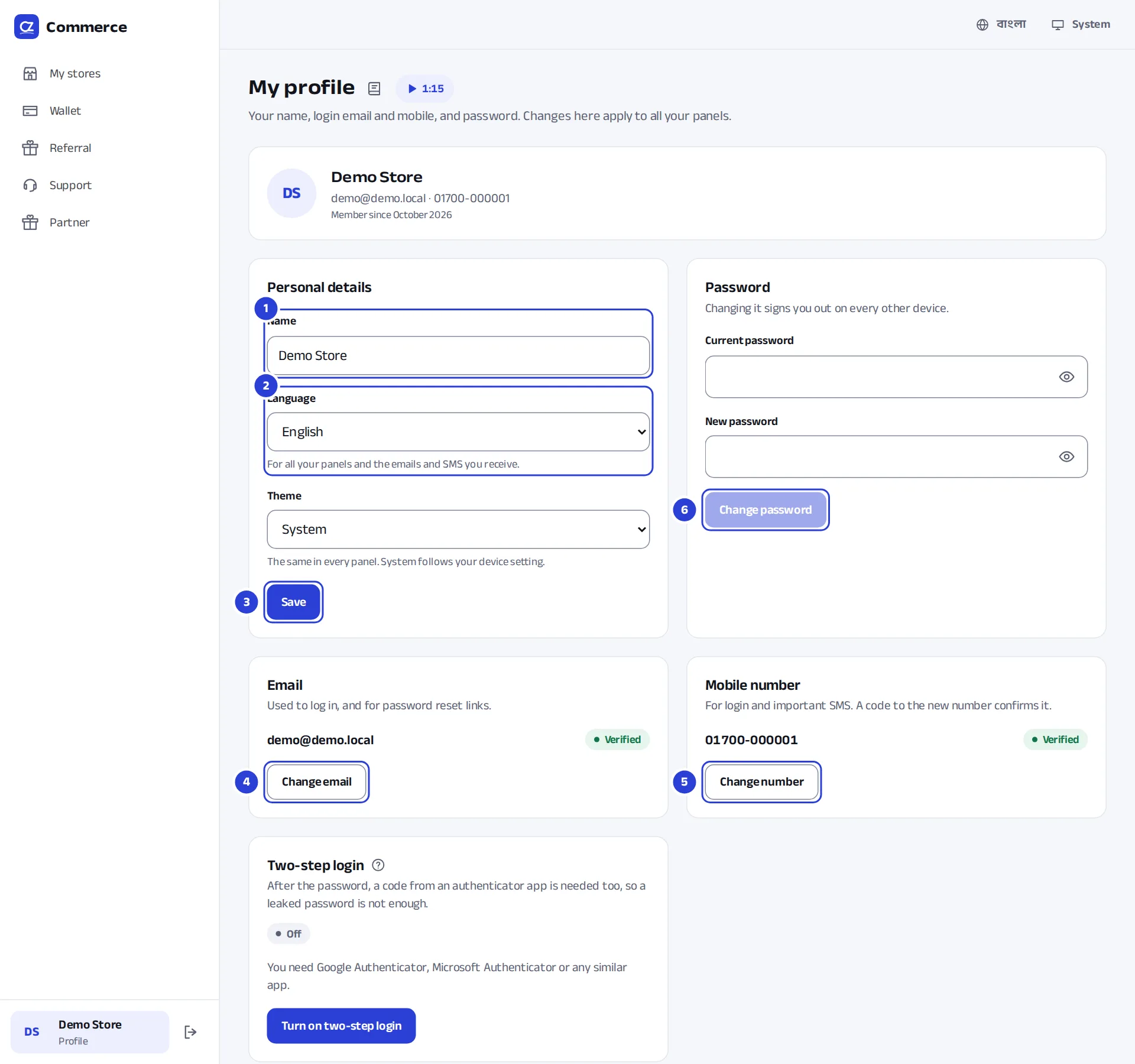
Name, language and theme
- In Personal details, correct your Name 1 (2 to 80 characters).
- Choose the Language 2: Bangla or English. All your panels, and the emails and SMS you receive, use it.
- Choose the Theme: Light, Dark or System (follows your phone or computer).
- Press Save 3.
The buttons in the top bar change language and theme too (language and theme).
Changing your email
Sign-in and password reset links go to this email. It is marked Verified or Not verified.
- In the Email card press Change email 4.
- Enter the New email.
- For safety, enter your Current password.
- If the old email is verified and has been hacked or closed, tick I can no longer get into the old email (hacked or closed) (see below).
- Press Send confirmation link. If your account already has a verified mobile number, an authenticator app or a verified email, we first ask for a code to make sure it is you (confirming it is you): type it and press Confirm. Then a link goes to the new address.
- Open the link in the new mailbox and press Yes, verify my email. Only then does the email change, and the new address counts as verified. Every other device is signed out.
The link works for 24 hours. Until it is opened the old email stays in use, and the card says where the link went. An email that belongs to another account can’t be used. A verified old address is told at once, with a button to cancel the change, and for 7 days it can still be used to reset the password (as a recovery that waits 24 hours). At most 5 confirmation links can be sent a day.
Mobile number
You can sign in with your mobile number too, and important SMS come to it. Every account needs a verified number, and one number has one account.
- In the Mobile number card press Change number 5.
- Enter the New mobile number, for example
01812345678. - Enter your Current password.
- If the old number is verified and that SIM was lost or stolen, tick My old SIM was lost or stolen (see below).
- Press Send code. If your account already has a verified number, an authenticator app or a verified email, we first ask for a code to make sure it is you (confirming it is you): type it and press Confirm. Then a 6-digit code is texted to the new number.
- Type the code; the sixth digit checks it by itself, no need to press Verify. “Mobile number changed.” means you are done. Every other device is signed out, the old number gets an SMS and your verified email a note, and for 7 days the old number can still receive a password reset link.
The code works for 5 minutes; after 5 wrong tries you need a new one. No SMS? Press Send again; the password and confirmation code aren’t asked again. A new code can be sent 60 seconds after the last one, 3 times at most; then the form starts over.
Watch out
Without a verified number the panels can’t be used: after signing in, Verify your mobile number comes first. Enter the number and password, press Send code, type the SMS code, and everything opens. Log out beside it lets you leave instead.
Verifying with WhatsApp
When the platform has it on, a new (or unverified) number first gets Verify with WhatsApp instead of an SMS: on a phone the button opens WhatsApp with the message written; on a computer scan the QR or press Open WhatsApp Web / Desktop; then tap Send. The message must come from the new number’s WhatsApp; once it arrives the number changes, with no code to type. Send the code on WhatsApp and Send the code by SMS stay below; a WhatsApp code that can’t be delivered goes by SMS by itself.
Confirming it is you
A password alone can’t change your email or mobile number, turn on two-step login or cancel an account recovery: someone who learned it must not be able to take the account. So we ask for a 6-digit Confirmation code from where your account is already reached: an SMS to your verified mobile number, or the code from your authenticator app, or a code emailed to your verified email. The first one goes by itself. The code works for 5 minutes, allows 5 wrong tries, and works only for what you asked to do.
- A newly set up authenticator app counts here only after 7 days, unless the account has no other way. So someone who gets hold of your session can’t add their own app and change your email or number straight away.
- An account with nothing verified needs the password only.
Lost the SIM or the phone? Under the code, Can’t use this? Another way: lists the other ways your account has (SMS to my mobile, Authenticator app, Code by email). With only one way, it suggests verifying another one too so there is a way next time; if you need it now, contact support.
Lost the old SIM or email
For 7 days after a change, the old email or number can still ask for a password reset, and the change is reported there. If the old SIM was lost or stolen, or the old email was hacked, that is a risk: whoever has it could try to take the account back. So tick, on the change form:
- My old SIM was lost or stolen, or
- I can no longer get into the old email (hacked or closed).
Then the old one can no longer reset the password or take the account back, gets no cancel link, and any recovery asked through it is cancelled. It is still told of the change once, with no link in it, so if it wasn’t you who made the change, the real owner holding it can contact support. The box only shows when the old one is verified.
Waiting account recovery
If someone changes your account’s email or number, you can take the account back by asking for a password reset with the old email or number of the last 7 days. A thief with your old SIM could ask the same way, so such a recovery takes effect only after 24 hours:
- A “take your account back” link goes to the old email or number (it works for 24 hours). Setting a new password there shows when (Dhaka time) the account comes back. Until then the account works as before, and the new password doesn’t work yet.
- The account’s current verified mobile and email are told by SMS and email, with a cancel link. A red notice shows at the top of every panel page: Someone asked to take your account back. If the cancel link says it no longer works, sign in and cancel from that notice; if you can’t sign in, contact support right away.
- Unless someone cancels within 24 hours, the account goes back to the old email or number, and the new password takes over.
Not you? Cancel it, either way:
- Open the link in the SMS or email and press Cancel the request. Opening the link does nothing by itself; only the button does.
- Or sign in, press Cancel the request in the notice at the top, and enter your Current password and a confirmation code.
A password reset through the account’s current email or mobile cancels it too. Cancelled, the account stays as it is, and that old email or number can never take the account back again (only support can let it back in, after checking whose account it is). The old one is told the request was cancelled; if the account really is theirs, they have to contact support, who check whose account it is. Changing your password once afterwards is a good idea.
When the recovery goes through:
- The old email or number is back, verified; an email or number put in during the 7 days before the request, or since, comes off.
- An authenticator app turned on in the 7 days before the request is removed, with its recovery codes.
- Staff added to your stores in that time, or whose role or status changed then, are switched off (not deleted), and open invitations are cancelled.
- Your stores’ courier webhook tokens are made new: paste each new one into that courier’s panel. The email lists courier, domain, role and payment changes made in that time, for you to check.
- If the old email or number belongs to another account by then, the recovery does not go ahead and nothing changes; both sides are told to contact support.
- Every device is signed out and every reset link stops working.
- The verified email and mobile can’t be changed for 7 days (“…its verified email and mobile number can’t be changed for 7 days.”); contact support if you need it sooner.
- The account’s ways are told, and so are the ones taken off.
Good to know
Your account has a verified mobile, and someone confirmed the email through the account’s sign-up link? The mobile gets an SMS at once, and for 24 hours reset links go to the mobile. If the account isn’t theirs, the person with the link can press This is not my account: the address comes off the account and you are told.
Changing your password
- In the Password card enter your Current password.
- Enter the New password. The list underneath ticks off the rules: at least 8 characters, not part of your name or email, not an easy guess.
- Press Change password 6.
The new password can’t be the same as the old one. Changing it signs you out on every other device; only this one stays signed in.
When the password is changed or reset, your verified email is told (when and how), and your verified mobile gets an SMS (one an hour at most). If it wasn’t you, reset the password right away and contact support.
Forgot the password? Reset it from the sign-in page (forgot your password).
Messages from CZ Commerce
In the Messages from CZ Commerce card of your profile, choose how you get CZ Commerce’s tips and offers (such as help opening your shop or getting the first order): Tips and offers by email 1 and Tips and offers by SMS 2 turn on and off separately; each switch saves at once (“Saved”).
The Unsubscribe link at the bottom of those emails turns the emails off too.
Account, billing and security messages are not affected; they always come.
Security
Further down the same page are the Two-step login and Where you are signed in cards. See sign-in security. Signing in with Google or Facebook is in the Linked accounts card: linking and unlinking Google or Facebook.