Setting up the Paperfly webhook
Put our address and token in Paperfly's webhook settings, tick Select All under Event Subscriptions and save, then send a test from here.

On this page
With the webhook, Paperfly sends every pickup, delivery and return the moment it happens, and the order moves by itself. You set it up once.
Good to know
Connect Paperfly first (Connecting a courier). The webhook address and token only appear once it is connected.
Copy the address and the token
- Open Settings › Couriers.
- On the Couriers tab, press Open beside Paperfly. On its card, find Webhook: automatic order status.
- Tap Copy next to Webhook address (Callback URL) 1.
- Tap Copy under Token / Secret 2.
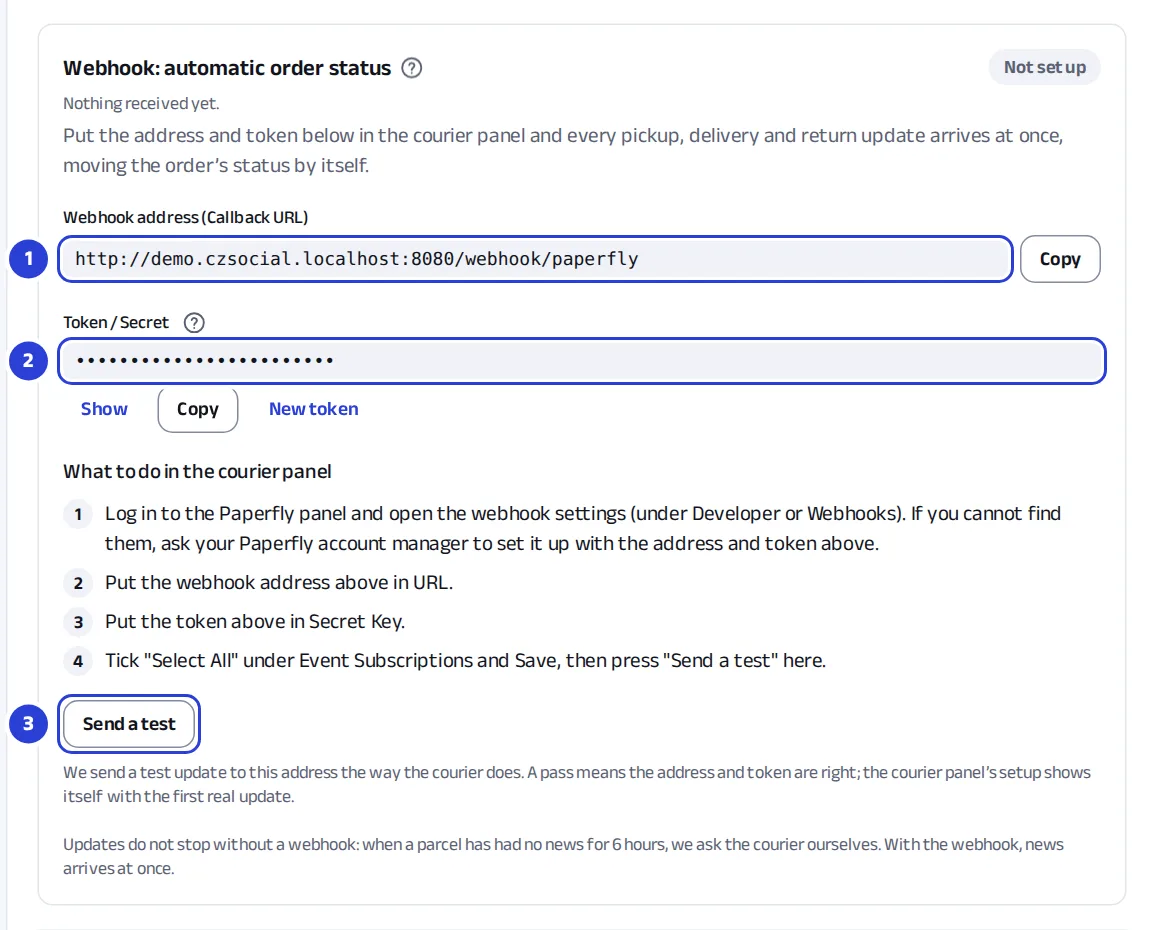
The address looks like https://your-store.{root}/webhook/paperfly.
Paste them in the Paperfly panel
- Log in to the Paperfly panel and open the webhook settings (under Developer or Webhooks).
- Paste the address in URL.
- Paste the token in Secret Key.
- Under Event Subscriptions, tick Select All.
- Press Save.
Tip
Can’t find the page? Send the address and token to your Paperfly account manager and ask them to set it up.
Check that it works
Back in your dashboard, press Send a test 3. We send a test update the way Paperfly does.
- “The address works and the token matches.” means our side is right.
- With the first real update the card says Working and shows which header Paperfly sends the token in (“Paperfly sends the token in this header: …”). Handy when you talk to support.
- Token mismatch means the token in Paperfly’s Secret Key field is wrong: copy it in again.
If you make a new token
New token stops the old token at once. Paste the new one in Paperfly’s Secret Key field and save, or updates stop arriving.
Good to know
Paperfly has no API for cancelling a parcel: cancel it in the Paperfly panel. With the webhook in place, the cancellation reaches the order by itself.
More: What a webhook is and why · When the webhook doesn’t work