Stock and stock history
See what is on hand, held for orders and available for every size and colour; record deliveries and counts, set low-stock alerts and follow every stock movement.

On this page
The Stock page in the left-hand menu holds all of the store’s stock. Its tabs: Stock, Purchases and Suppliers (if you may record purchases and your plan has them; see Suppliers and purchases), and History.
Three numbers to know:
- On hand: what is physically on the shelf.
- Held for orders: ordered but not shipped yet, so set aside.
- Available: on hand − held. This is what the store can sell.
The stock list
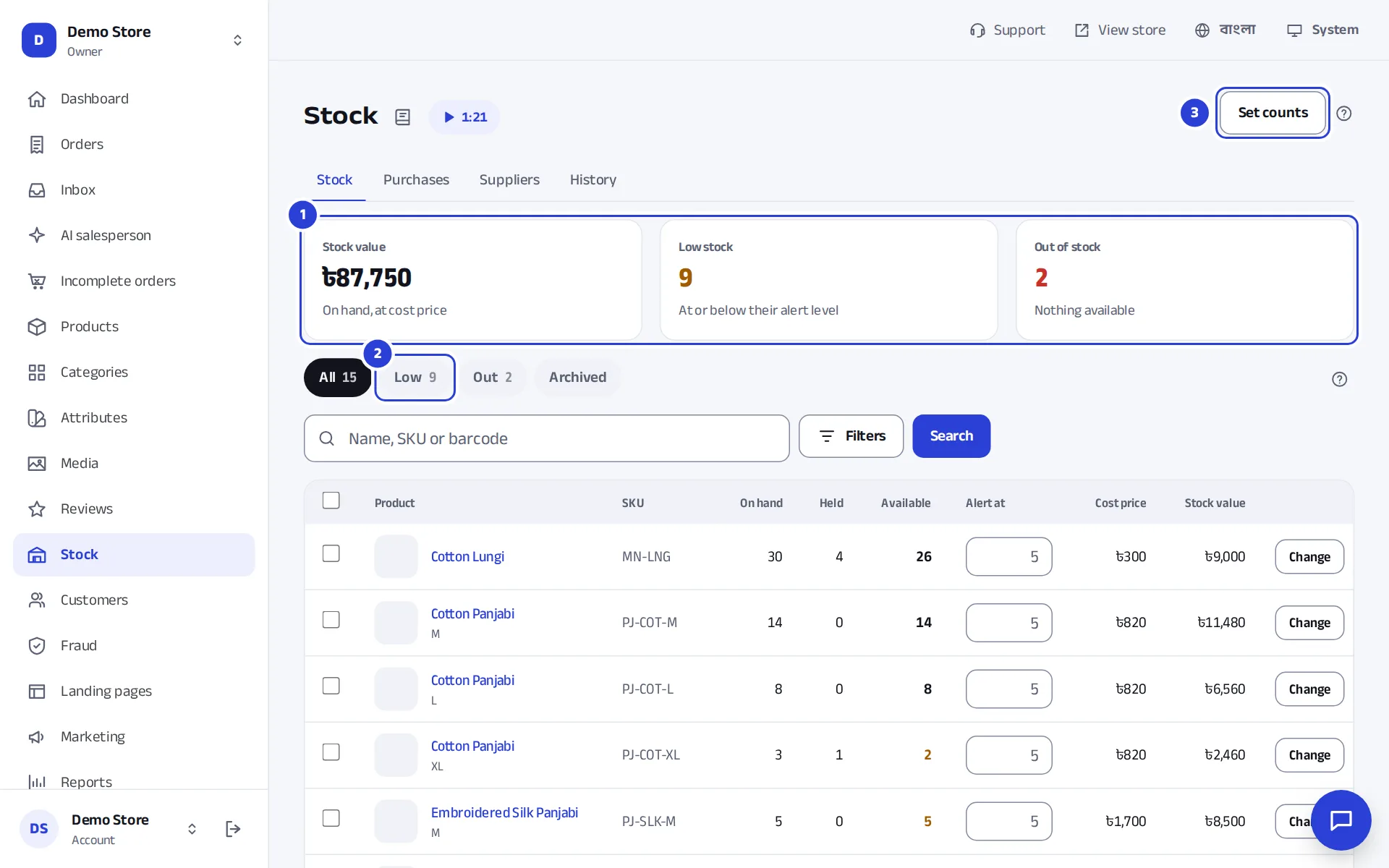
On the Stock tab each row is one variant (e.g. “Panjabi · M”). Only products that track stock are listed.
- The three boxes at the top: Stock value (on hand at cost price; if you may not see cost prices, Tracked takes its place: how many variants count stock), Low stock and Out of stock. Variants without a cost price are left out of the value, and the box says how many. Pressing Low stock or Out of stock narrows the list to them.
- All, Low, Out and Archived narrow the list (with how many beside them). Search by name, SKU or barcode; Filters has the category and the sort order (By name, Least available first, Most on hand first, Highest stock value first).
- Available turns amber at the alert level and red when nothing is left.
- Type a variant’s own level in its Alert at box; it is saved when you leave the box. Left empty, the store’s level applies (Stock settings) and shows faintly in the box.
- Change opens that variant’s stock sheet. Without permission to change stock the button says View, and the sheet shows only the numbers and history.
Low stock
Low lists the variants whose available stock is at or below their alert level. The dashboard’s to-do count uses the same rule, and opens this list.
- Only active products that track stock are listed; archived products and variants are left out.
- When stock first drops to the alert level you get an SMS or an email, as set in Stock settings, at most once a day per variant. If the daily summary email is on, it has a “Low stock” part too.
- When a bulk change, a stock count or an import takes several variants low at once, you get one alert for all of them (“N variants are low”; the email names the lowest ones) instead of one per variant.
Counting stock
To set many variants at once, after a stocktake or a tidy-up:
- Press Set counts at the top of the page. The On hand column turns into Counted boxes.
- Type what you counted in each row. The difference from before shows beside it. Rows left empty don’t change.
- Add a Note in the box above the list if you like, then press Apply (N rows) in the bar at the bottom. The bar’s ✕ ends counting without setting anything.
- All rows are set together. If any row is below what orders hold, nothing is set and that row turns red; fix it and apply again.
- Every change is kept in History as Counted.
Adding or removing stock for many variants
When the same number of pieces arrives, or is damaged, for many sizes and colours at once:
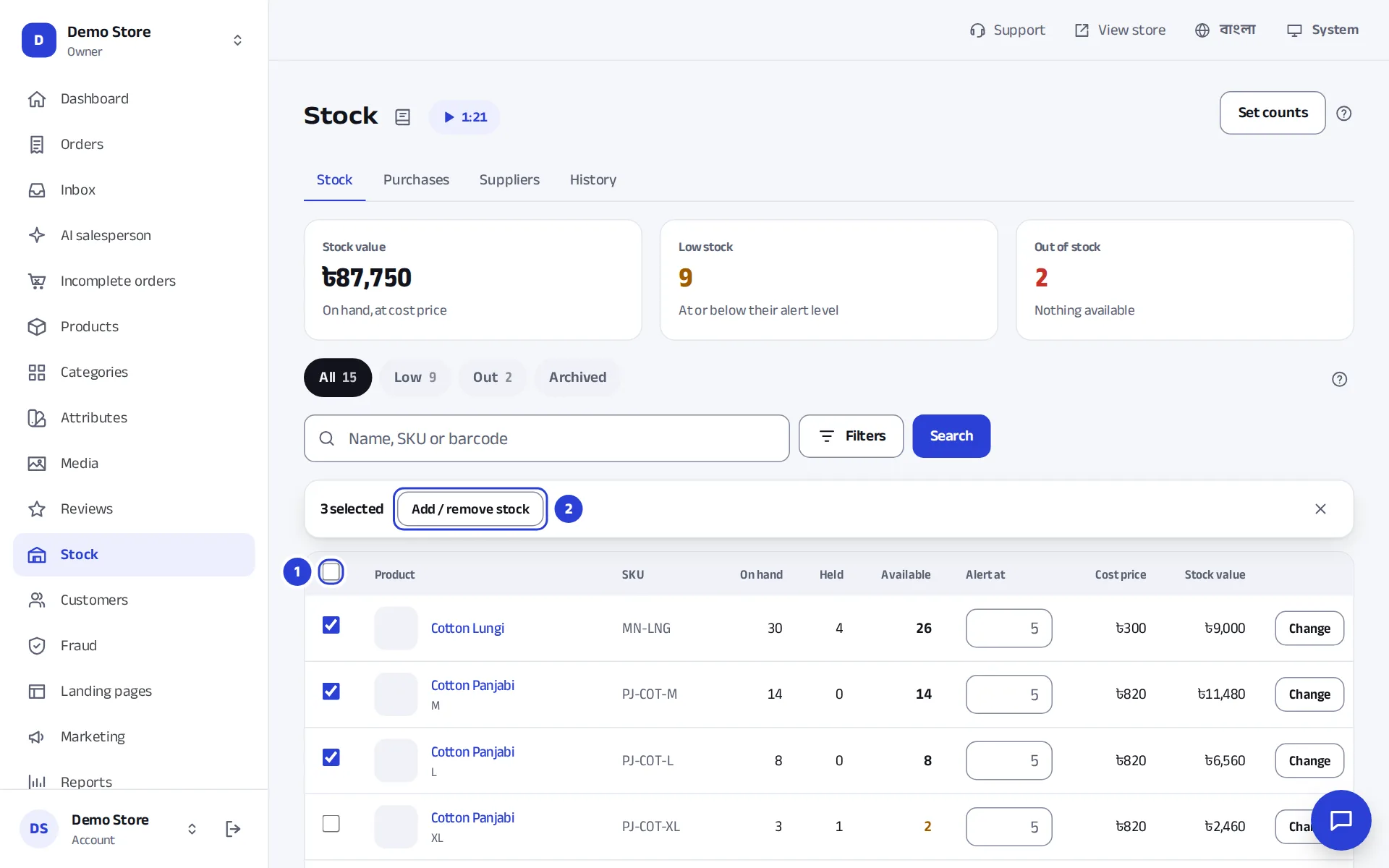
- Tick the box beside each variant on the Stock tab (the box in the header 1 ticks every variant on the list).
- Press Add / remove stock 2 in the bar that appears.
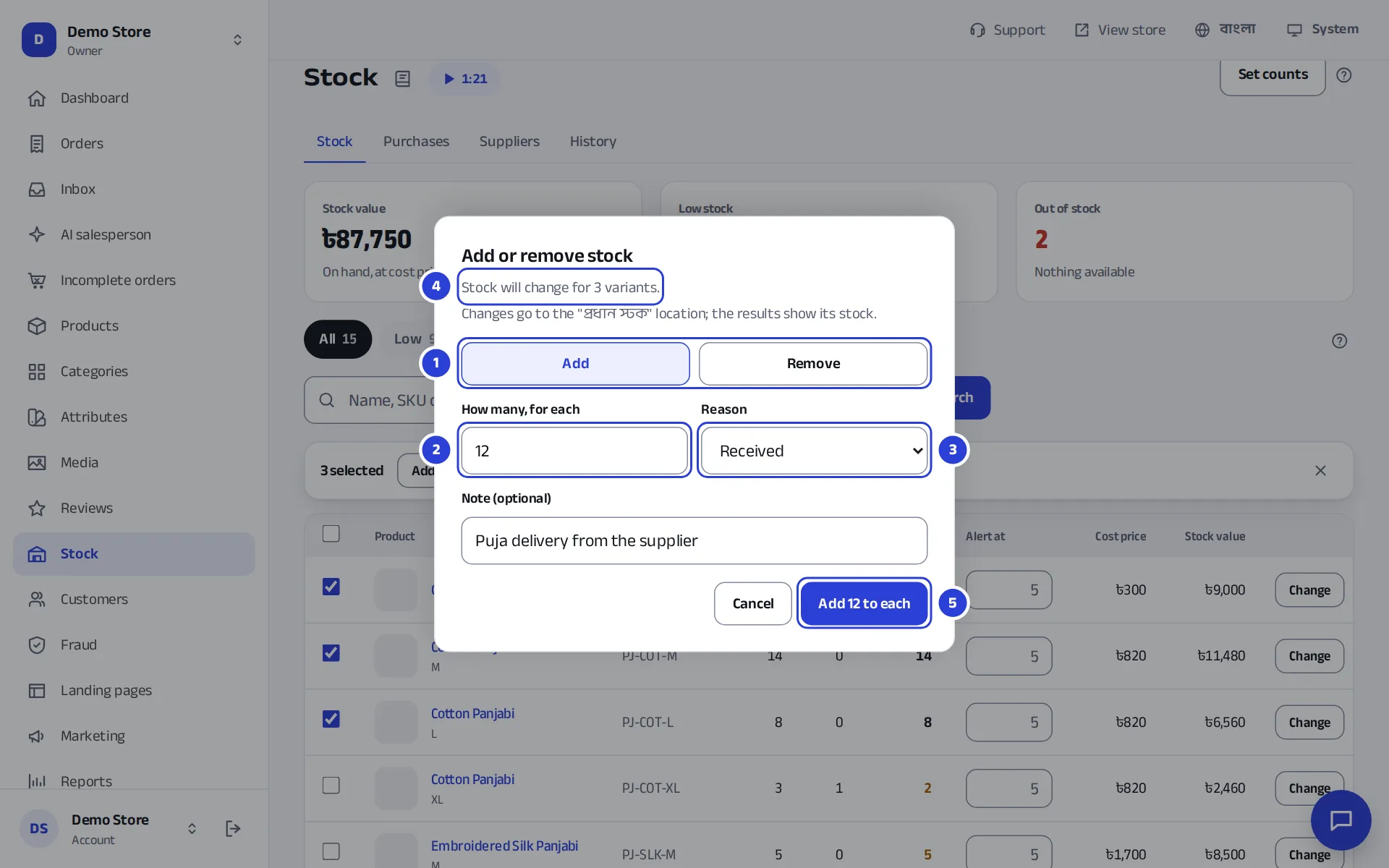
- Choose Add or Remove 1, type How many, for each 2, pick a Reason 3 (Received for new goods, or damaged, lost, correction and the others) and, if you like, a Note.
- The line at the top 4 says how many variants will change, and the line under it names the stock location that changes (the store’s default). Press Add N to each or Remove N from each 5.
- Each variant changes on its own and gets its own line in History, just as if you had changed it by hand. Low-stock alerts and the store’s numbers follow at once.
- Removing more than a variant has Available (on hand minus what orders hold) is not allowed, as with a single change. Such a variant is skipped and the rest still change; the popup then lists what was skipped and why.
- Pressing twice, or retrying after a lost connection, changes the stock only once.
- Up to 500 variants can change in one go.
You can do the same for whole products from the product list; see Change many products at once.
Changing one variant’s stock
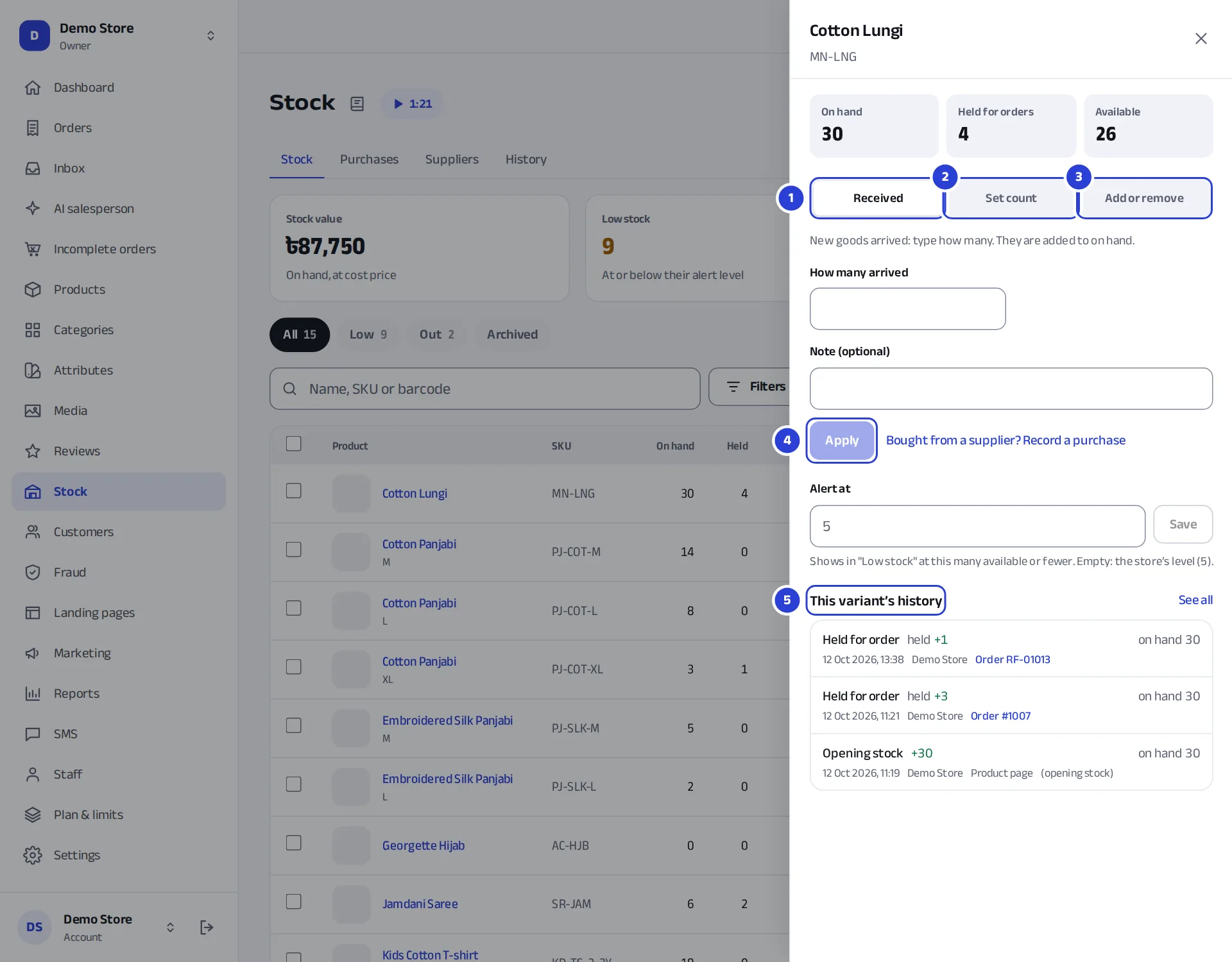
Change on the stock page, or the stock cell on a product’s page, opens the stock sheet: the three numbers on top, then what you are doing:
- Received 1: new goods arrived; the number is added to on hand. Bought from a supplier? Press Bought from a supplier? Record a purchase instead, so the price is kept too.
- Set count 2: what you counted becomes On hand.
- Add or remove 3: damaged, lost, expired, sample, own use, found, correction, returned to supplier or other. Removing needs a Reason.
Once you type a number, the sheet shows what on hand will be. Press Apply 4. The sheet also has the variant’s Alert at level and its last 50 movements 5; See all opens the full history.
Good to know
For a brand-new product or variant, type the Opening stock in the stock cell instead; it is booked when you save. You can’t set stock below what orders are holding.
Stock history
The History tab lists every stock movement in the store, newest first: when, which product, what happened, how many, on hand after, who did it and what it was for (an order or purchase number opens it). History is never deleted.
- Filters: dates, what happened, reason, product, staff and more (below). The search box takes a product name or SKU.
- Download CSV: the file holds what the filters show (up to 10,000 rows).
- When nobody did it by hand (a store order, say), Who says Automatic.
| In the history | When it happens |
|---|---|
| Received | Goods received on the stock sheet, in bulk, or from a purchase |
| Opening stock | The opening stock of a new product or variant |
| Counted | A count set on hand (Set counts on the page, or Set count on the sheet) |
| Adjustment or a reason (like Damaged) | Stock added or removed by hand |
| Moved to another variant | Stock moved from one variant to another of the same product, on the product page |
| Held for order | An order came in |
| Hold released | An order was cancelled, an edit changed its items, or it was not confirmed in time |
| Shipped | The order was shipped |
| Parcel cancelled, held again | A shipped order went back to confirmed (its parcel was cancelled before pickup) |
| Returned | Goods from a returned parcel went back on the shelf |
| Import | An import file set the stock |
History filters
Filters opens a panel (from the bottom on a phone); pick and press Show results. Several choices in one filter find rows matching any of them; different filters must all match.
- Date: from and to (Bangladesh time, both days included).
- What happened: one or more of the events in the table above, like Received and Returned. With more than one stock location, transfers too.
- Reason for a change by hand: Damaged, Lost, Counted and so on, one or more.
- Stock on hand: Went up or Went down. Holds and released holds don’t change what is on hand, so they never match.
- Product: type a name or SKU and pick a product; every variant of it shows.
- For: an order number or a purchase number (like PO-1001).
- Who: one or more staff members, and Automatic: what nobody did by hand.
- Location: with more than one stock location, which one.
See all on the stock sheet opens just that variant’s history, with an “Only …” chip on top; its × brings back every product.
Filters that are on show as chips above the list; × takes one off, Clear all takes them all off. The row above holds ready-made filters: Changes by hand, Received, Returns, Damaged or lost. To keep your own, use Save filters. The filters live in the page’s address, so a link opens the same list, and Download CSV uses the same filters.
Stock locations
Each store keeps its stock in one place, and every number is for that place. Only when your plan includes several stock locations does a Stock locations part show at the bottom of this page, where you can add a New location, Make default and Hide one. The store shows a product in stock when any location has it; an order holds each item at the default location when it has enough, else at the location that does.
How orders move stock
- New order (store, landing page or entered by hand): stock is held. If there isn’t enough, the order is not placed, so the last piece can never be sold twice. An order from a shopper who typed no code (an unverified order) holds only a few pieces for a short time, sometimes none; see stock for unverified orders.
- Not confirmed: after the hours set in Stock settings the held stock goes back on sale and the order shows Stock released. Confirming it holds the stock again. An order moved back from Confirmed to New or On hold gets the full hours again from then. These keep their stock however long they wait: an order whose customer sent an advance (waiting for your check or verified), an order you entered yourself, and an order you put On hold yourself (say, the customer wants it after Eid).
- Past the month’s order limit: an order that arrives while the plan’s monthly order limit is used up is hidden and holds no stock. It still holds none when it appears: confirming it, or Hold now, takes the stock. See Orders past the limit.
- Cancelled before shipping: the hold is released.
- Shipped: the held pieces leave the shelf (On hand goes down).
- Parcel cancelled before pickup and the order goes back to confirmed: the pieces are held again.
- Returned: the goods go back into stock. For returned courier parcels you can choose which pieces go back on the shelf; see Returned parcels.
Stock settings
Settings → Stock holds the store’s stock rules:
- Release stock after this many hours (in the Unconfirmed orders card): a new order holds its stock. If it is not confirmed within these hours, the stock goes back on sale and the order list shows Stock released. Confirming it later, or Hold now on the order page, holds the stock again; if it sold meanwhile, you see which products are short and by how much. 12 hours by default, 168 (7 days) at most; 0 means never. For orders from shoppers who typed no code it is 6 hours at most, whatever you set (why).
- Store low-stock limit: a variant without its own level shows in Low stock when this many or fewer are available, and the store shows “Only N left”. 5 by default.
- Tell me when stock is low: by SMS (to your number in SMS settings) or email (to the store owner’s email), at most once a day per variant. Only SMS is on to start with.
- When you buy stock, the cost price becomes (in the Cost price card): The average (old and new stock together), The last price paid or Unchanged, I set it myself. It applies when you receive a purchase.
When you are done, press Save at the bottom of the page. This page is for people allowed to change settings.
Read next: Adding a product, Order statuses.