SEO & AI search
How your store shows in Google, Bing and AI search such as ChatGPT: the home page title and description, Search Console verification, AI search on or off, return policy and delivery time.
On this page
Settings › SEO & AI search sets how your store shows in search. Product and category SEO titles and descriptions are in their own editors; for store pages see Store pages.
Every field is optional. Your store shows in search without them: every product, category and page is in the sitemap on its own.
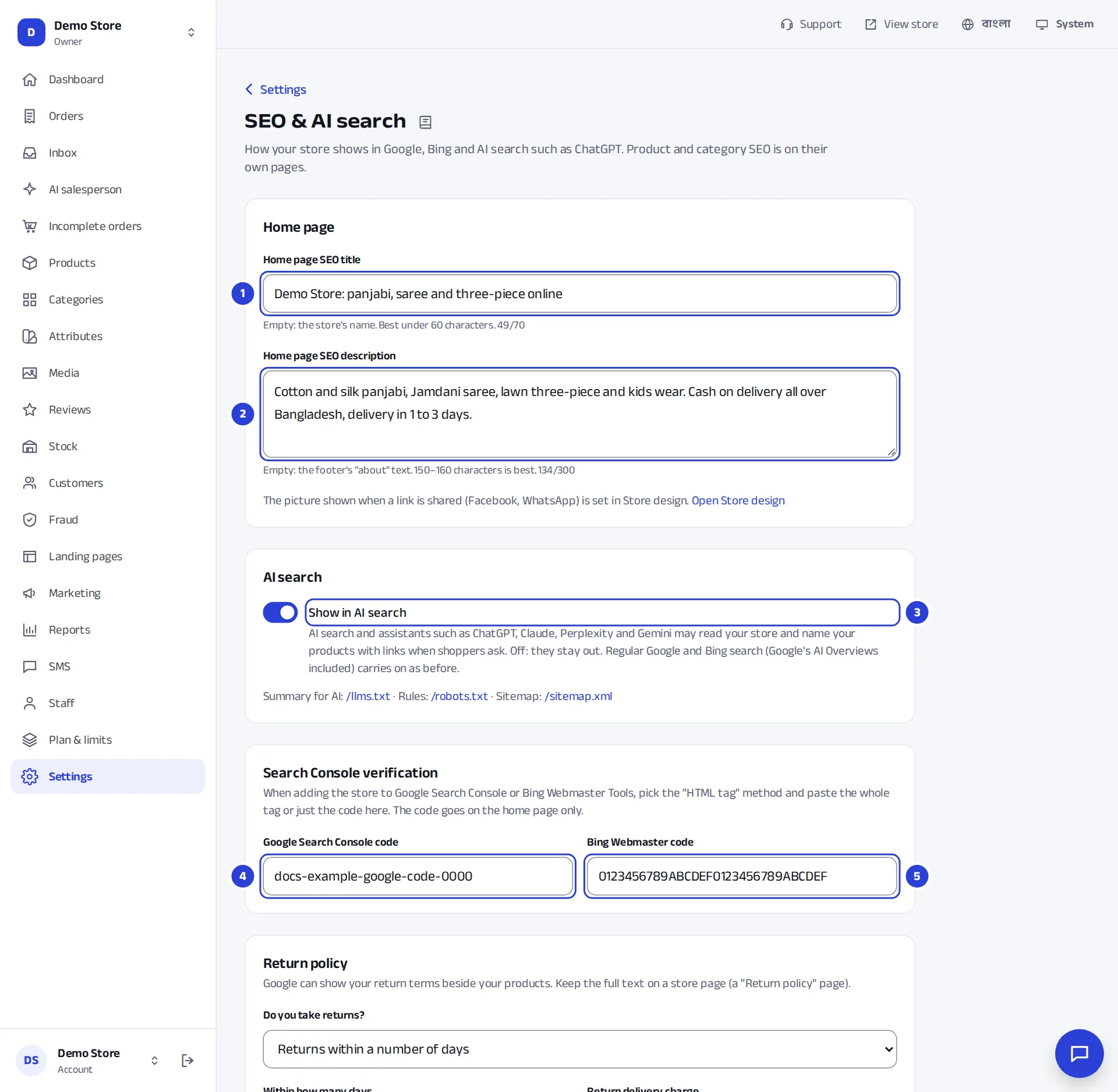
Home page
- Home page SEO title 1: the home page’s name in Google’s results (up to 70 characters, best under 60). Empty: the store’s name.
- Home page SEO description 2: the short text under the name (up to 300 characters, 150–160 is best). Empty: the footer’s “about” text.
- The picture shown when a link is shared (Facebook, WhatsApp) is set in Store design.
Google Search Console and Bing verification
Search Console shows which pages Google has found, which searches bring your store up, and any problems.
- In Google Search Console, add your store’s full address as a “URL prefix” property.
- Pick the “HTML tag” verification method and copy the tag it shows.
- Paste the whole tag, or just the code inside
content="…", into Google Search Console code 4. Press Save. - Go back to Search Console and press “Verify”.
- Once verified, submit
sitemap.xmlunder “Sitemaps” in Search Console.
Bing Webmaster Tools works the same way; put its code in Bing Webmaster code 5.
- A code has only letters, digits,
-and_. Anything else (a whole script, say) shows: “This doesn’t look like a verification code.” - The code goes on the home page only. If you have your own domain, add that domain in Search Console.
Watch out
Whoever’s code is in place can see your store’s search data in Search Console. Don’t paste a code someone you don’t know gave you; clear the field when you no longer need it.
AI search
Show in AI search 3 is on to begin with. While it is on, AI search and assistants such as ChatGPT, Claude, Perplexity and Gemini may read your store and give shoppers your products’ names, prices and links when they ask.
/llms.txtafter your store’s address holds a short summary for AI: the store’s name, description, contact, return policy, pages, categories and the newest 100 products with prices./robots.txtnames the AI bots: while the switch is on they may read the store (except the cart, checkout and order pages).- Off: these bots stay out and
/llms.txtis gone. Regular Google and Bing search (Google’s AI Overviews included) carries on as before. - A change reaches the store within minutes; AI search reads it again in its own time.
Return policy
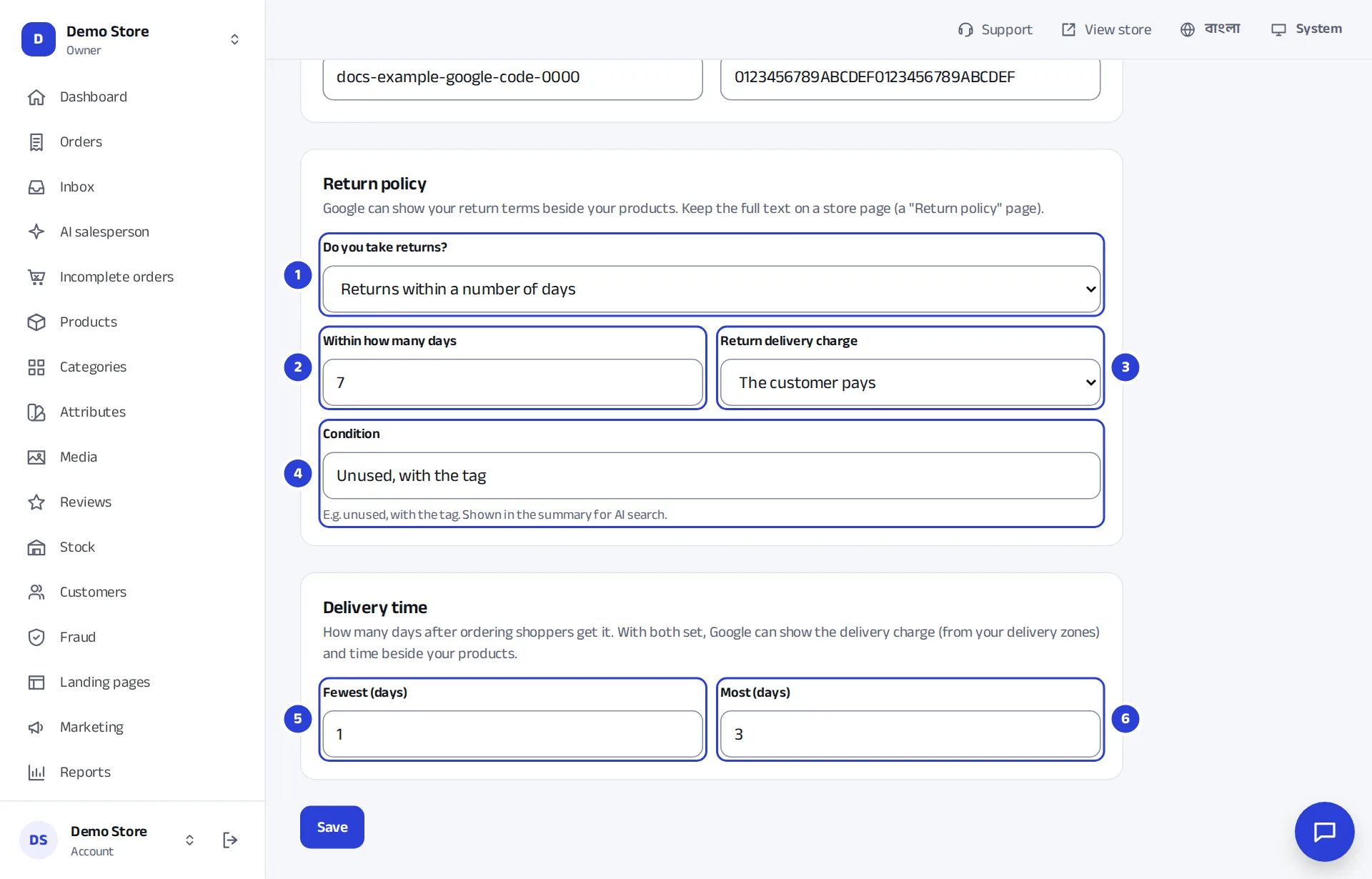
Google can show your return terms beside your products. Pick in Do you take returns? 1:
- Don’t say: nothing is stated (the default).
- No returns: returns are not accepted.
- Returns within a number of days: Within how many days 2 (1–365), who pays the Return delivery charge 3, and optionally a Condition 4 (e.g. “unused, with the tag”). The condition shows in the summary for AI search.
Keep the full terms on a store page, such as “Return policy”.
Delivery time
How many days after ordering shoppers get their order: Fewest (days) 5 and Most (days) 6. With both set, Google can show the delivery charge and time beside your products. The charge comes from your delivery zones (cheapest to dearest), free delivery rule included. With either one empty, no delivery details are sent.
Redirects and product feeds
Two more things sit at the bottom of the page:
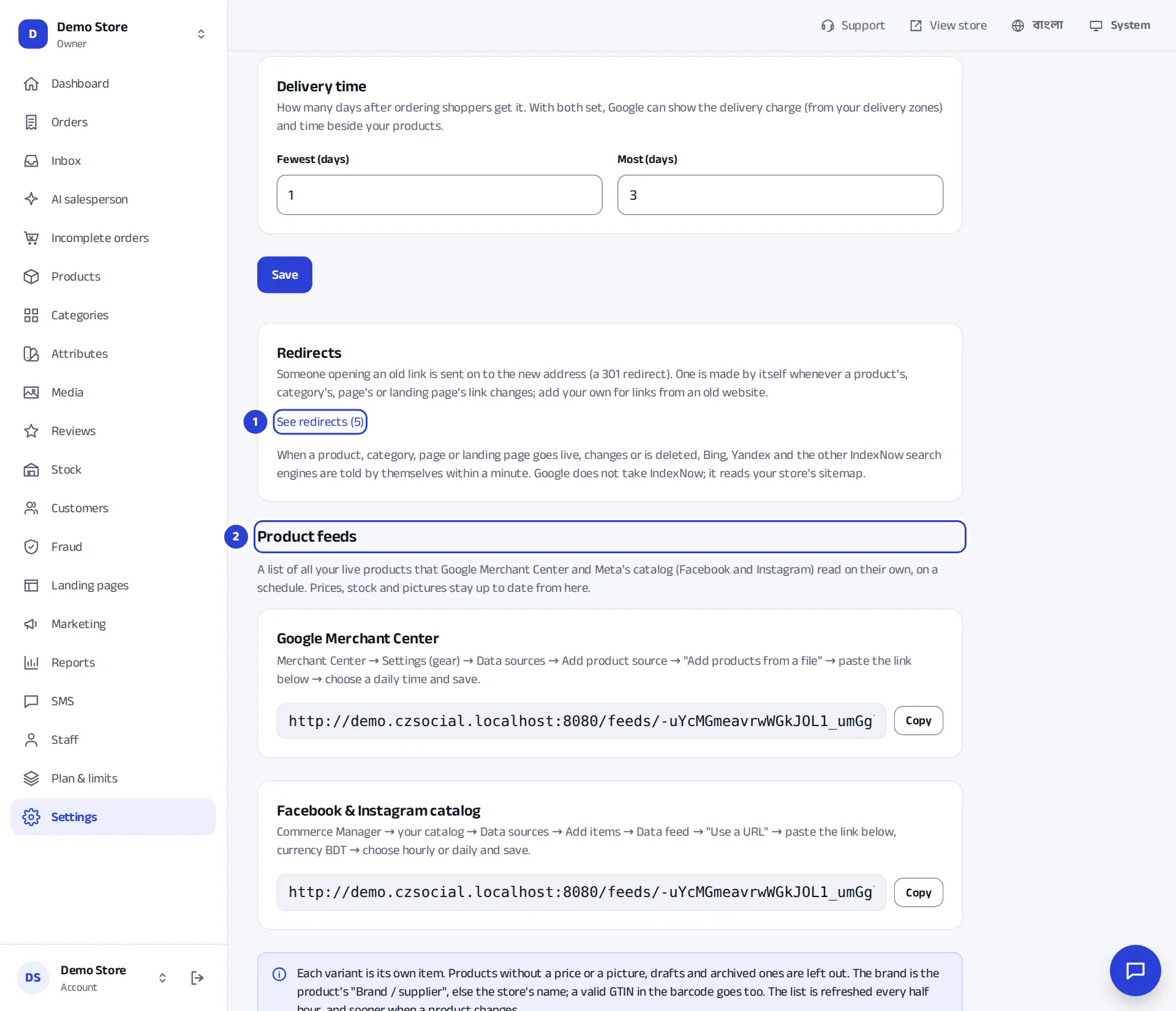
- The Redirects card: See redirects 1 opens the list of old links and where they lead. More in Redirects.
- Product feeds 2: the links for Google Merchant Center and the Facebook and Instagram catalog, shown with the marketing permission. More in Product feeds.
What the store does for search on its own
- Sitemap:
/sitemap.xmllists every published product (with pictures), category, store page and landing page, up to 1,000 products per file. - Product data (structured data): price, the old (crossed-out) price, stock, barcode (when it is a valid GTIN), new condition, a flash sale’s end date, and the delivery and return details above. Google can use them to show price and stock beside your products.
- Home page: the store’s name, logo, contact and social pages.
- Category and all-products pages: the list of products shown on the page.
- Landing pages: the page’s product (at the page’s prices) and its questions and answers.
Tip
Put the real barcode from the product’s pack (8, 12, 13 or 14 digits) in the barcode field and Google can recognise the product. A code of your own goes as a separate code.
Google decides when it reads a page and what it shows; this information only helps it read your store correctly.
See also: Store pages, Store design, Own domain.