Product reviews
Customers whose order was delivered give its products stars and a few words. You publish, hide or reply; nobody can change the words or the stars. Optionally, an SMS asks for a review after delivery.
On this page
The Reviews page in the menu on the left holds every review of your products. Only a customer whose order is “Delivered” can review, so every review comes from a real purchase, and the store marks it Verified buyer.
How customers review
- Once an order is “Delivered”, the store’s order tracking page shows a Review your products button under it, when the customer opened the order with an SMS code. The order page in the customer’s account shows the same button. Opening an order with only its number and mobile shows no button: someone else may know those two.
- With the review request SMS on, the customer gets a link to the same page by SMS.
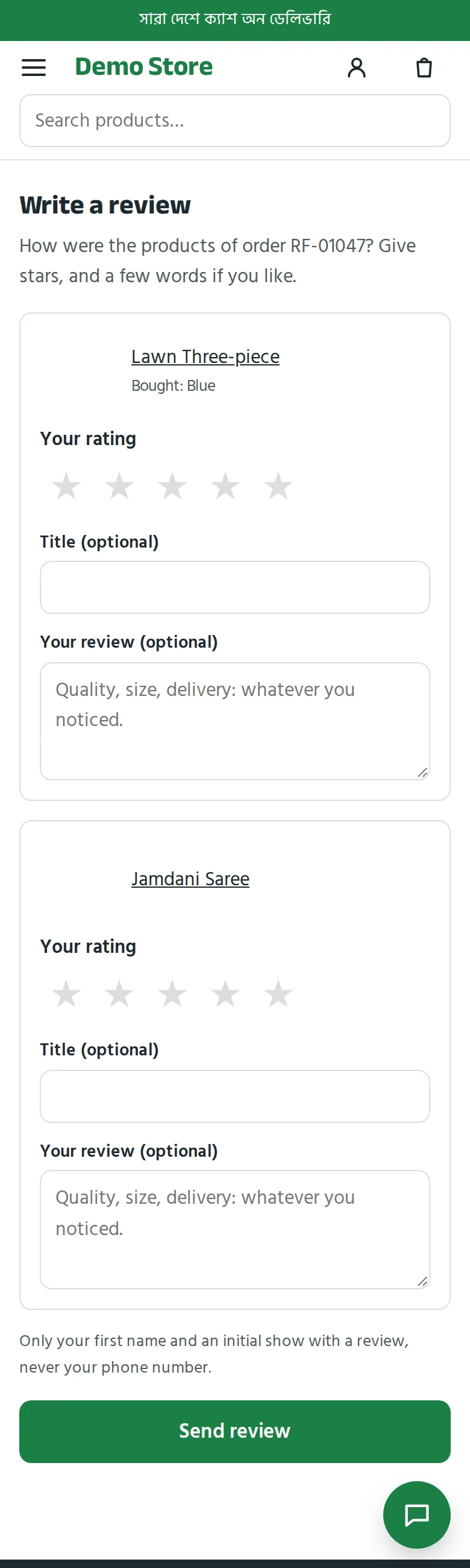
- The link opens the order’s products. Each gets 1 to 5 stars and, if they like, a title and a few words; they send everything at once with Send review.
- Each product of an order is reviewed once. The same product bought in two sizes is one review; a combo is reviewed as the combo.
- No sign-in: the link itself shows the order is theirs. It works for 60 days.
- A review shows the first part of the customer’s name and the first letter of the last part (such as “Rahim U.”), never the phone number.
The page
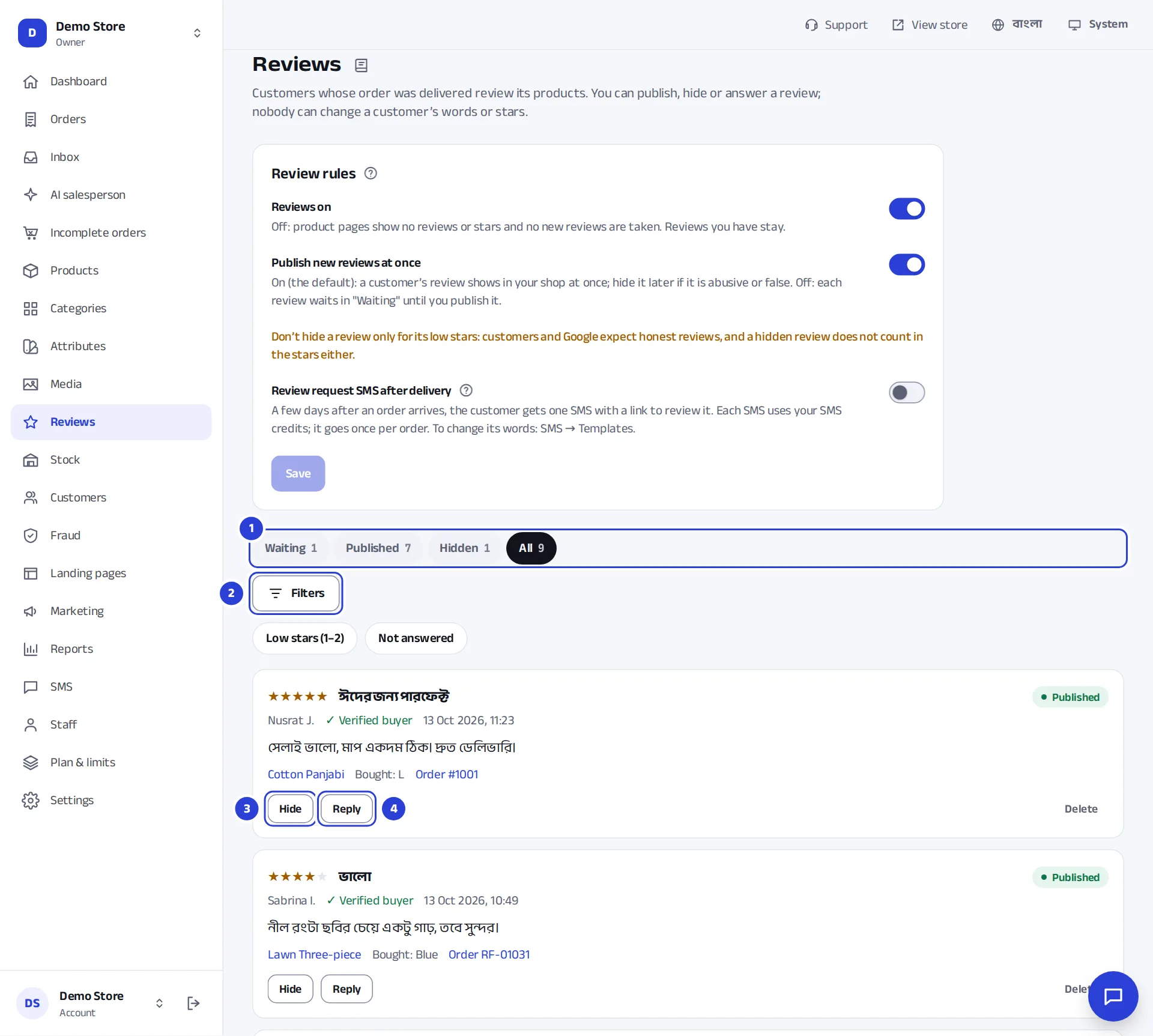
- The review rules at the top, the reviews below, newest first.
- Tabs 1: Waiting, Published, Hidden, All, each with its count (the count follows the filters that are on).
- Filters 2 narrows the list: see Filters below.
- Each review shows: the stars, title, the customer’s words, name, date, the product (opens the product), what was bought (such as “M / Red”) and the order (opens the order).
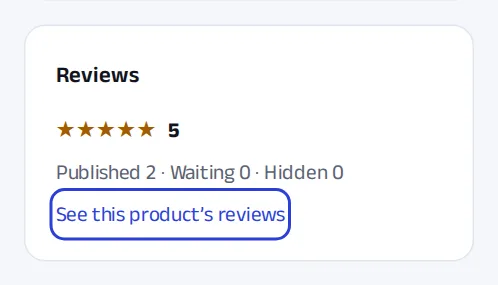
- On a product’s page, the Reviews card on the right shows its average stars and how many reviews are published, waiting and hidden; See this product’s reviews opens this page with that product’s reviews only.
Filters
Filters opens a panel (from the bottom on a phone, from the side on a computer). Pick what you need and tap Show results; nothing changes until then.
- Stars: one or more, such as 1 and 2 stars together.
- Reply: Answered or Not answered.
- Product: type a product’s name or SKU and pick it. See this product’s reviews on a product’s page sets this for you.
- Review date: from and to (Bangladesh days, both days included).
Each filter that is on shows above the list as a chip; tap its × to take it off, or Clear all to take them all off (the tab stays). The tab counts follow the filters, so with 1 star picked, Waiting shows how many 1-star reviews wait.
Quick filters above the list do it in one tap: Low stars (1–2) and Not answered. Save filters keeps the filters you picked under a name of your own, only for you; Arrange renames, orders or deletes them.
The filters are in the page’s address too: copy the link to share exactly this list, and the browser’s Back goes to the filters before.
Publish, hide, reply and delete
- Publish: the review shows in your store and counts in the stars.
- Hide 3: the review no longer shows in your store or counts in the stars. On the review page the customer sees “Not shown in the shop”. You can publish it again later.
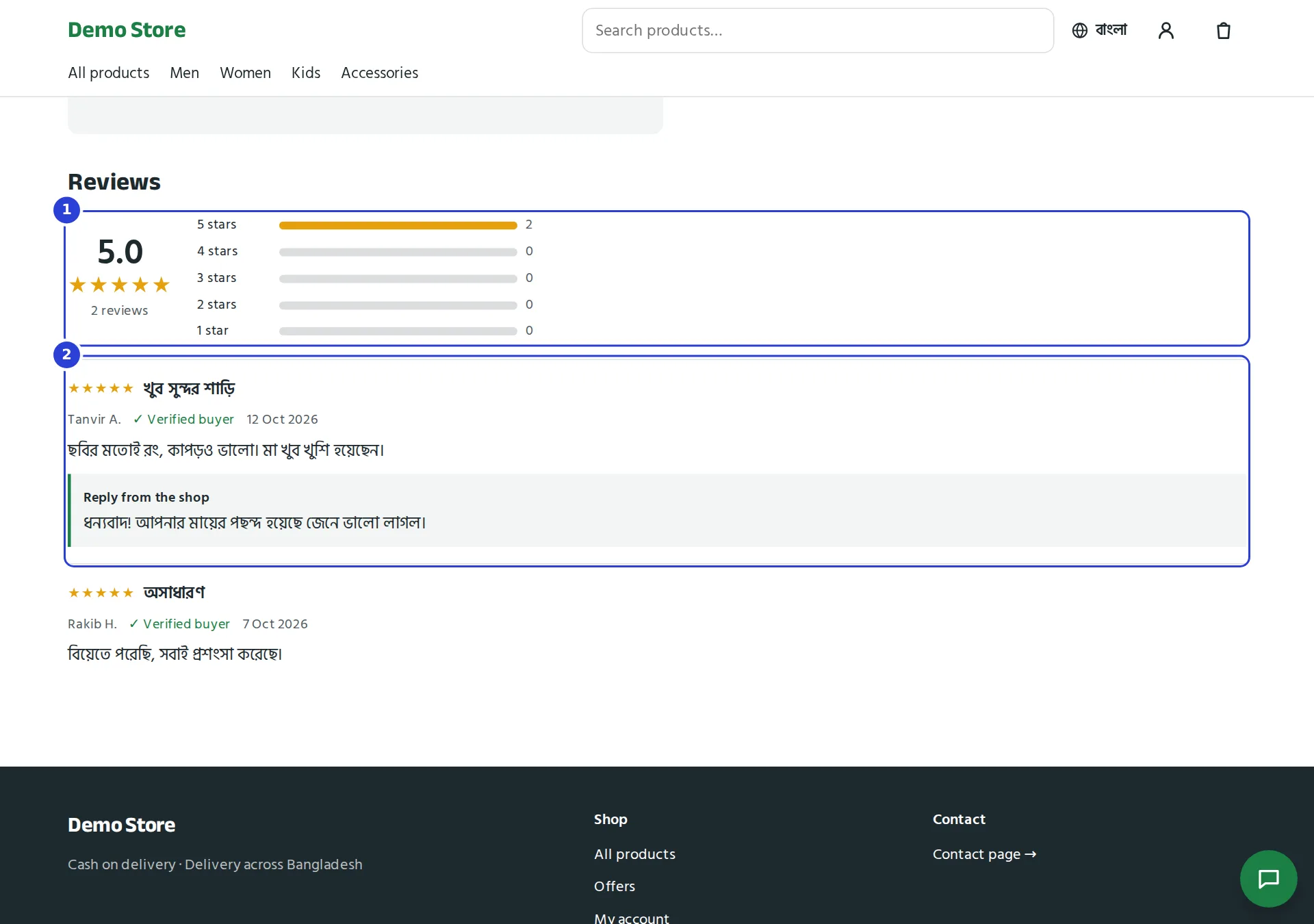
- Reply 4: your reply shows in your store under the review as “Reply from the shop”. You can change or remove it.
- Delete: the review goes for good and cannot come back. Delete only when the customer asks you to (see below).
- Nobody can write a review, or change a customer’s words or stars, you included. This is a rule of the platform, so a store’s stars always come from real customers.
Watch out
Don’t hide a review only because of its low stars. Hide abuse, phone numbers or links, or text that has nothing to do with the product. Customers and Google expect honest reviews; a polite reply to a bad review builds a new customer’s trust.
Review rules
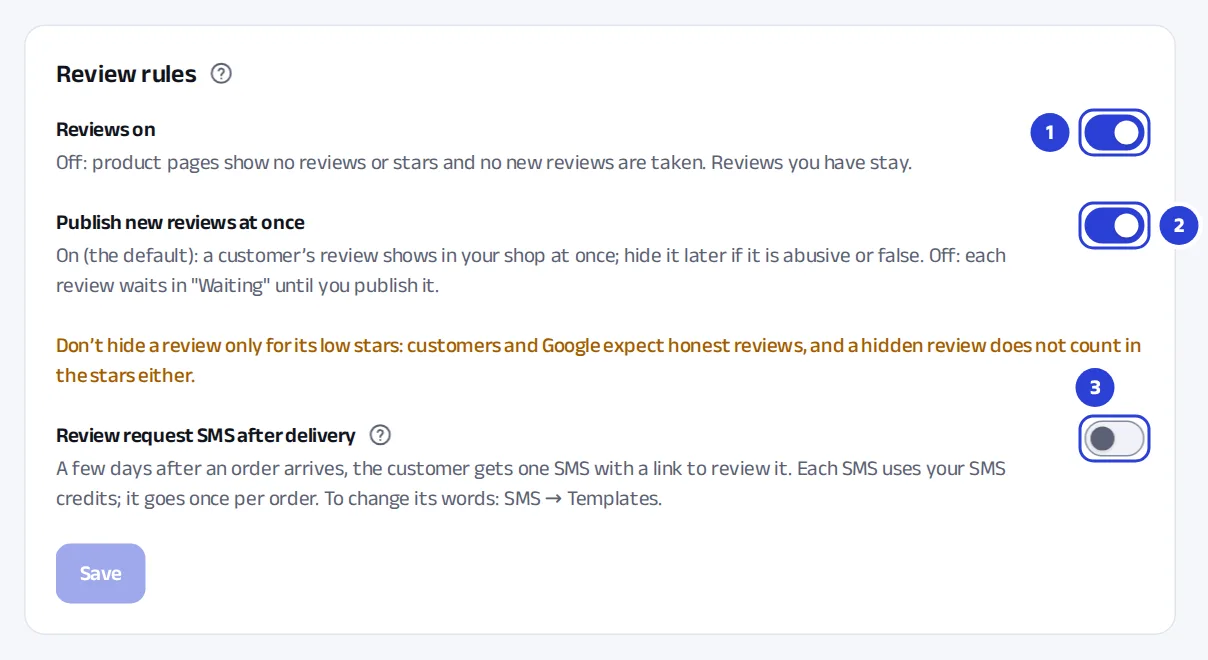
In the Review rules card at the top of the page:
| Rule | At first | What it does |
|---|---|---|
| Reviews on 1 | on | Off: product pages show no reviews or stars and no new reviews are taken. Reviews you have stay. |
| Publish new reviews at once 2 | on | On: a customer’s review shows in your store at once; hide it later if you must. Off: each review waits in Waiting until you publish it. |
| Review request SMS after delivery 3 | off | See below. |
Press Save when done. Changing the rules needs the permission to change settings.
Review request SMS after delivery
When it is on, a few days after an order is marked “Delivered” the customer gets one SMS with a link to the review page. The text, for example:
Your Store: How was order #1024? Leave a review: https://…/t/…
- Days after delivery: 1 to 30 days, 3 at first.
- It goes once per order. An order whose every product is reviewed already gets none.
- Never at night: between 10 pm and 9 am (Bangladesh time) none goes; one that comes due then goes after 9 am.
- Orders delivered before you switch it on get none: it goes only to an order whose chosen days after delivery have passed, by no more than 2 days.
- Each SMS uses your SMS credits like any other SMS, within the store’s SMS limits for the day.
- Blocked numbers get none, and nor does a number that asked your store for no more SMS (a “STOP” reply, or the link in a recovery SMS).
- To change its words: the SMS page’s Message text tab, the Review request (on/off: Products → Reviews) card (the same rules as every SMS). It is switched on and off only here, in the review rules.
How it shows in your store
- On the product page, under the name: the average stars and how many reviews, such as “★★★★☆ 4.5 (12)”; tapping it goes to the reviews below.
- Below the description, the Reviews part: the average, how many reviews have each number of stars 1, and the newest 5 reviews 2, each with Verified buyer, what was bought and your reply. With more, See all reviews opens all of them, 10 a page.
- Product cards (home, categories, search) show small stars and the count under the name.
- Only published reviews show and count. A product without a published review shows no stars and no reviews part.
- For Google, the product page’s data (structured data) carries the average stars, the number of reviews and a few of the newest reviews, exactly what the page shows. Google may then show stars beside the product in its search; whether it does is Google’s choice.
When a customer asks to remove their review
When a customer asks you to remove their review, find it, press Delete and confirm. The review goes for good and leaves the stars. When a customer wants all of their data removed, tell the platform’s support; their reviews go with it.
Permissions
- Seeing the page needs See products.
- Publishing, hiding, replying and deleting need Change products, categories and stock.
- Changing the review rules needs the permission to change settings.