Suppliers and purchases
Write down who you bought from and at what price, put the goods in stock with one tap when they arrive, let the cost price follow, and see what you owe each supplier.

On this page
The Purchases and Suppliers tabs of the Stock page keep the record of what you buy. A purchase is one invoice: from whom, on which date, which products, how many, at what price. When the goods are in your hands, tap Goods received and the stock goes up by itself.
The store owner, admins and managers see these two tabs (and anyone whose custom role has Suppliers and purchases (sees cost prices too)), when the plan includes suppliers and purchases. Order staff never see purchases or cost prices.
The purchases list
The Purchases tab lists every purchase, newest first: Number, Date, Supplier (“Open market” when there is none), Lines (lines and pieces), Total, Paid, Due and Status (Draft, Received or Cancelled). Tap a row to open it.
- Search by purchase number, invoice number or supplier.
- Filters: status, supplier, dates (From, To) and Only with money due.
- The line above the list shows what you owe all suppliers together (Payments and dues).
Suppliers
The Suppliers tab lists the people you buy from: name, phone, Bought, Due and Last purchase.
- Tap New supplier.
- Give the name. Phone, email, address and note are optional. Write a Bangladeshi mobile any way you like (01711-222333, 8801711222333); write a foreign number starting with +.
- Tap Save.
- Two suppliers cannot have the same name.
- Tap a name to open its details beside the list: contact, every purchase from them and every payment. From there, Edit supplier or Record a purchase from them.
- For someone you no longer buy from, choose Deactivate in the row’s ⋯ menu. An inactive supplier is not offered for new purchases; the old records stay. Activate again in the same menu brings them back.
- Delete: a supplier with no purchases is deleted; one with purchases is only deactivated (history is never lost).
Good to know
Bought on the open market? You do not need a supplier: choose Open market (no supplier) on the purchase.
Recording a new purchase
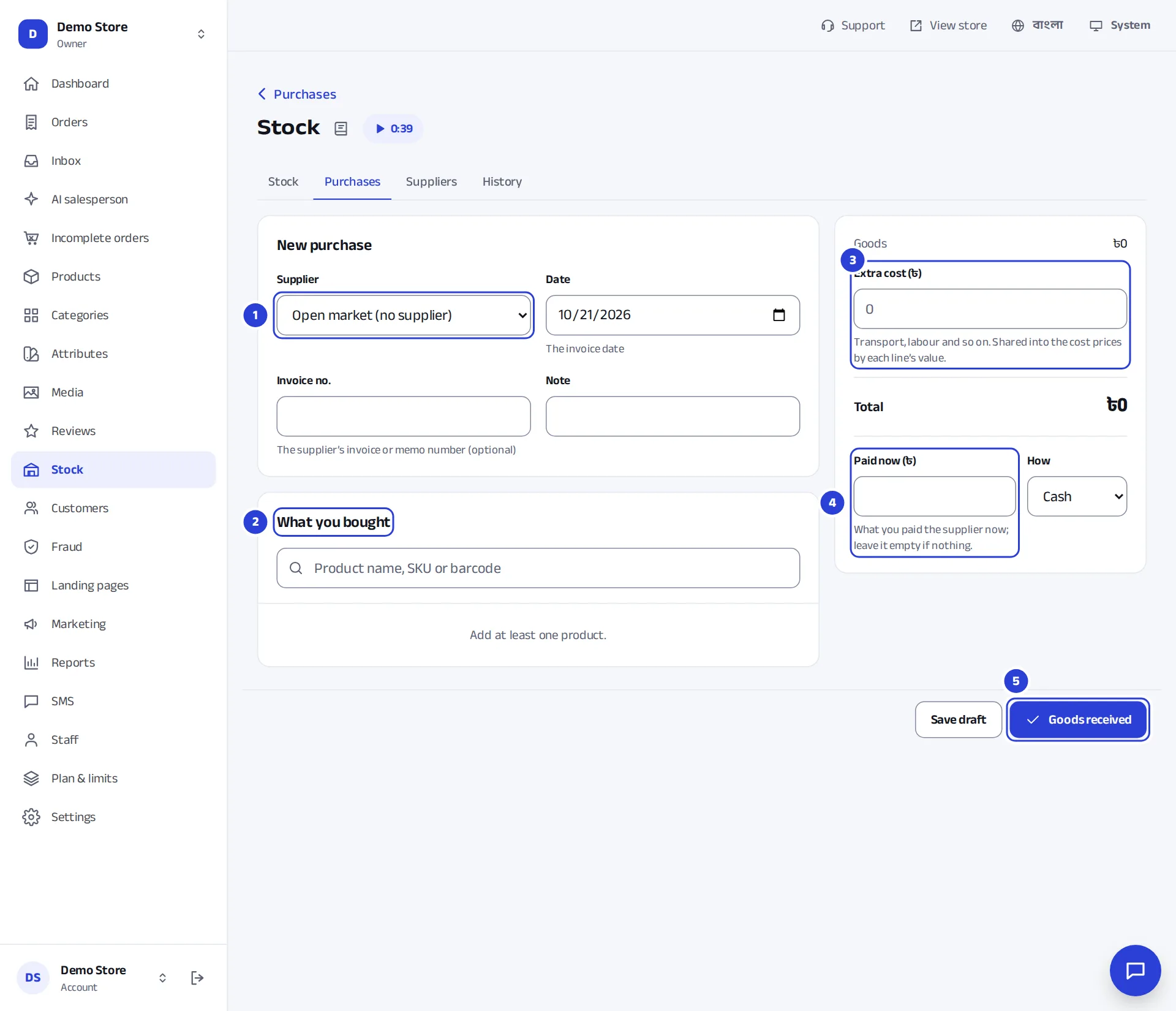
- On the Purchases tab, tap New purchase.
- Choose the Supplier 1. Not in the list? Choose + New supplier, type the name and tap Add.
- Give the Date (the invoice date) and, if you have one, the Invoice no.
- Under What you bought 2, search by product name, SKU or barcode; tap a variant to add it as a line.
- On each line, give the Quantity and Unit cost (৳). The unit cost starts at the product’s current cost price; under the line you see what the cost price will become once the goods arrive.
- Transport, labour or other costs go in Extra cost (৳) 3. They are added to the total and shared into each product’s cost price by the line’s value.
- Paid the supplier something already? Fill in Paid now (৳) 4 and How.
- Tap Save draft, or Goods received 5 straight away if the goods are already in your hands.
- A draft can be changed as often as you like. Nothing happens to the stock.
- Don’t need the draft? Cancel purchase (it stays in the list as “Cancelled”) or Delete draft. Either way, delete its payments first if it has any.
- A purchase holds up to 200 lines.
- Numbers are given for you: PO-1001, PO-1002…
Goods received
Goods received first opens a confirmation: for each line, the stock before and after, and the cost price before and after. Tap Yes, put it in stock and:
- Each line’s quantity is added to stock. The History tab shows it as “Received”, with the purchase number and the supplier’s name.
- The cost price changes as your stock settings say:
- The average (old and new stock together) (default): the stock you had at its old price and the new goods at the new price, averaged. With 10 on hand at ৳80, 10 new at ৳100 and ৳100 of extra cost for the line, the new cost price is (800 + 1,000 + 100) ÷ 20 = ৳95. With no cost price before, it is this purchase’s price (extra cost included).
- The last price paid: this purchase’s unit cost plus its share of the extra cost.
- Unchanged, I set it myself: the cost price does not change; you set it on the product page.
- The purchase becomes Received. This happens once.
Watch out
A received purchase can no longer be changed or deleted. If something was wrong (fewer arrived, you sent some back), lower that product’s stock on the stock page with the reason Returned to supplier.
A line with an archived variant cannot be received: restore the variant first, or remove the line from the draft.
Payments and dues
Record every payment to the supplier in the Payments part of the purchase.
- Tap Add payment. The amount starts at what is still due.
- Choose How (cash, bKash, Nagad, bank or other), the date and, if you like, a note.
- Tap Add payment.
- All payments together cannot pass the purchase total.
- Remove a wrong payment with ✕; the due is worked out again.
- Due = the total of received purchases − what you paid. Money paid in advance on a draft is kept on the purchase and counts towards the due once the goods are received.
- The top of the Purchases list shows what you owe all suppliers together; tap it to see only purchases with money due. The Suppliers tab shows each one’s due.
- The stock part of Reports shows the last 30 days of purchases and the suppliers’ dues.