Checkout form
Choose what customers are asked when they order: optional or required fields, up to 5 questions of your own, district and thana picked from the address, and the page's text.

On this page
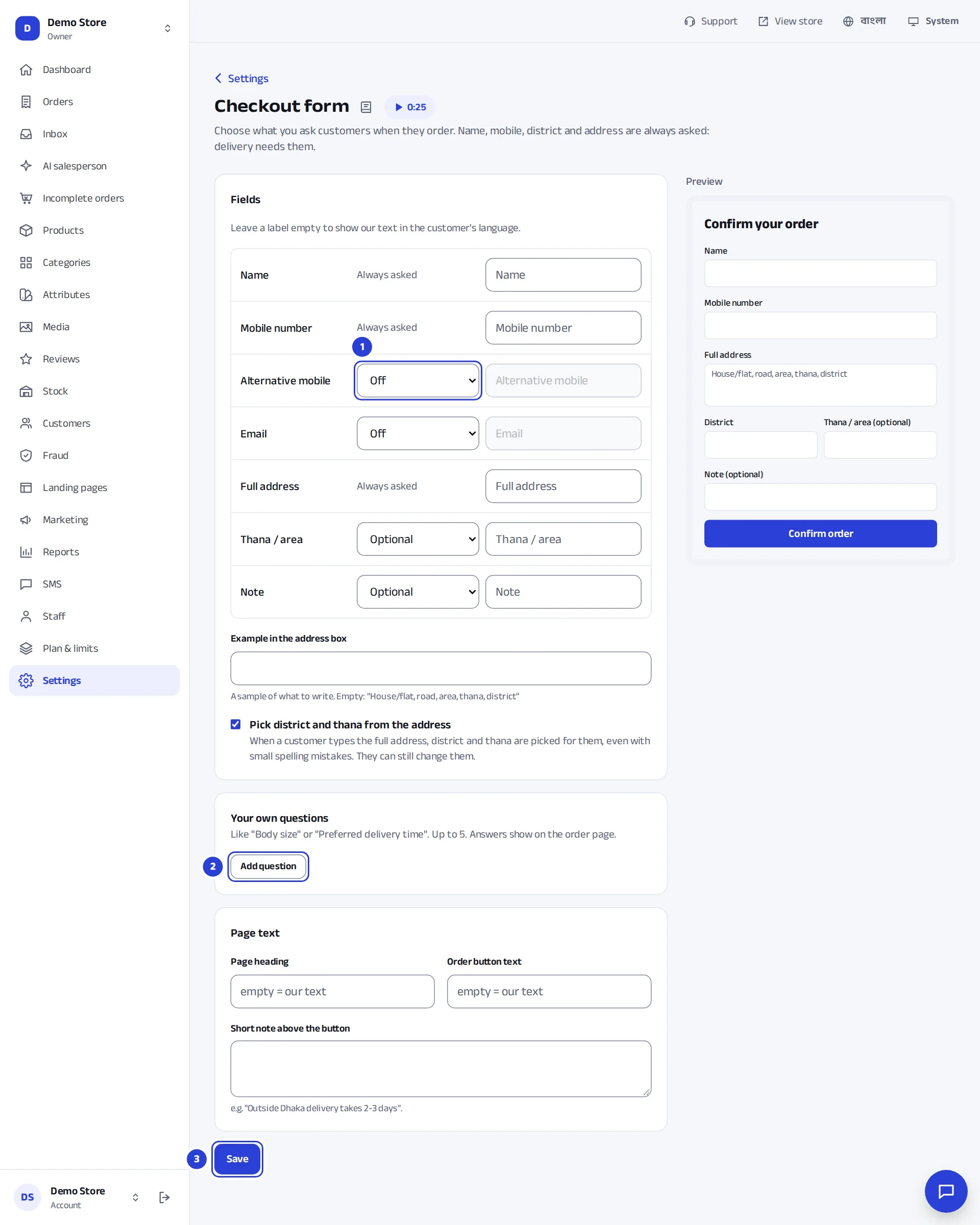
Choose what the checkout page asks a customer who orders from your store in Settings › Checkout form. The Preview on the right shows it exactly as customers will see it. Don’t forget to press Save at the end. Only the owner and admins can change it.
Good to know
This form is used by the store’s checkout page and by every landing page’s order form: what you change here (fields, names, optional/required, your own questions, the notice, picking district and thana from the address) shows on landing pages too. A landing page’s product picker, heading and button text stay in the landing page editor.
Fields that are always asked
Delivery needs Name, Mobile number, Full address and District, so they can’t be turned off and show Always asked. You can still rename them, for example “Home address” instead of “Full address”.
Optional or required fields
| Field | Choices | To start with |
|---|---|---|
| Alternative mobile | Off, Optional or Required | Off |
| Off, Optional or Required | Off | |
| Thana / area | Optional or Required | Optional |
| Note | Off, Optional or Required | Optional |
- Under Fields, pick Off, Optional or Required in the list beside a field 1.
- If you like, type your own label in the box on the right (up to 80 characters). Empty shows our text in the customer’s language.
- Press Save 3.
Customers see “(optional)” next to an optional field and can leave it empty.
Example in the address box is the faint sample text inside the address box (up to 120 characters). Empty shows “House/flat, road, area, thana, district”.
District and thana from the address
With Pick district and thana from the address on (it starts on), district and thana are picked by themselves as soon as the customer types the full address, even with small spelling mistakes. Customers can still change them. Ordering on a phone gets quicker, and fewer parcels go to the wrong district.
Your own questions
Like “Body size” or “Preferred delivery time”. You can add up to 5.
- Under Your own questions, press Add question 2.
- Type the Question (up to 80 characters).
- Pick the Answer type: Short text, Long text or Pick from a list.
- For a list, type the Choices separated by commas, e.g.
M, L, XL. At least 2, at most 20. - Tick Required if an order should not go through without an answer.
- Reorder with ↑ and ↓, and Delete what you don’t need.
- Press Save.
Answers show with their questions on the order page (order details).
Page text
Page text has three fields. Empty shows our text.
- Page heading: “Confirm your order” to start with.
- Order button text: “Confirm order” to start with.
- Short note above the button: up to 300 characters, e.g. “Outside Dhaka delivery takes 2-3 days”.
What the form can’t ask
No text on the form may ask for a PIN, an OTP code or a password: not a field name, an example, a question, the heading, the button or the note. Shoppers never type those on a shop page, and a form asking for a bKash PIN would be a scam page. Such a save is refused with “The checkout form cannot ask for a PIN, an OTP code or a password. Shoppers never type those on a shop page. Please reword that text.” Write it another way (for a product with pins, “Design” or “Colour”).
See also: Payment methods, Delivery charges and zones, Store design.