Linking and unlinking Google or Facebook
Link Google or Facebook to your account from the security part of your profile, so one button signs you in, and unlink it when you no longer want it.

On this page
With Google or Facebook linked, Continue with Google or Continue with Facebook on the sign-in page signs you in (signing in with Google or Facebook). They are in the lower part of My profile, in the Linked accounts card (opening your profile). Only you see it, signed in as yourself; our support team can’t see or change it, even when they are inside your store.
What the card shows
- Each linked Google or Facebook 2: the email it had when you linked it, and when it was linked, with Unlink 3.
- Link Google or Link Facebook 4 for each way that is on on the platform and not linked yet.
- If the account has no password: This account has no password. To set one, use ‘Forgot password’. 1
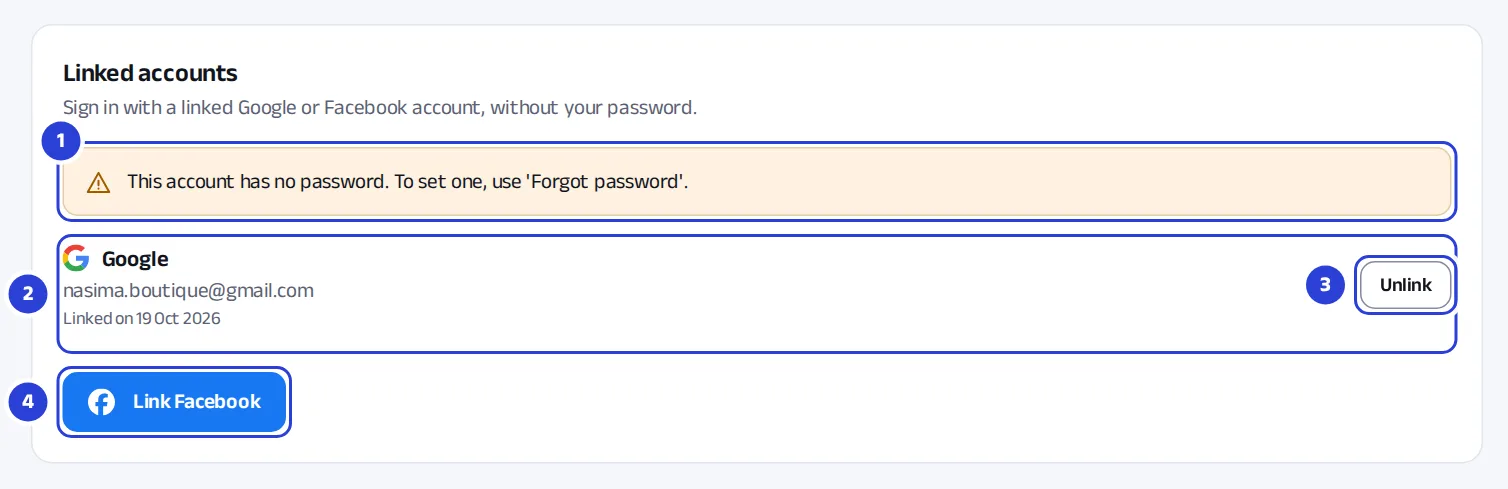
An account can have one Google and one Facebook linked, and a Google or Facebook account can be linked to only one of our accounts.
Linking
- In the Linked accounts card press Link Google or Link Facebook.
- Type your current password (an account with no password skips this), then a Confirmation code is asked for: an SMS to your verified mobile, your authenticator app’s code or an emailed code (confirming it is you); with no password, always the SMS code. Enter it and press Confirm.
- Google’s or Facebook’s page opens. Choose the account you want to link and allow it.
- You come back to your profile, which says Google is now linked.
- You are told whenever something is linked, by SMS and email, with a link to this card. If it wasn’t you, unlink it straight away (that signs out whoever used it) and change your password.
- “This Google account is linked to another account” means another merchant account already has it. Unlink it there first, or choose a different Google or Facebook account.
- Finish within a few minutes in the same browser, or start again.
Unlinking
- On the linked Google or Facebook line press Unlink.
- Enter the Confirmation code and press Confirm.
- The line disappears. That Google or Facebook account no longer signs in to yours, and every other device is signed out (the one you are using stays signed in): whoever signed in with it is out.
You are told about unlinking too. The Google or Facebook ID and email we kept for it are deleted then.
The last way in can’t be unlinked
With no password and only one Google or Facebook linked, it is the account’s only way in; unlinking it would lock you out, so it is refused. Such an account’s Password card on the same page says so too 1. Set a password first:
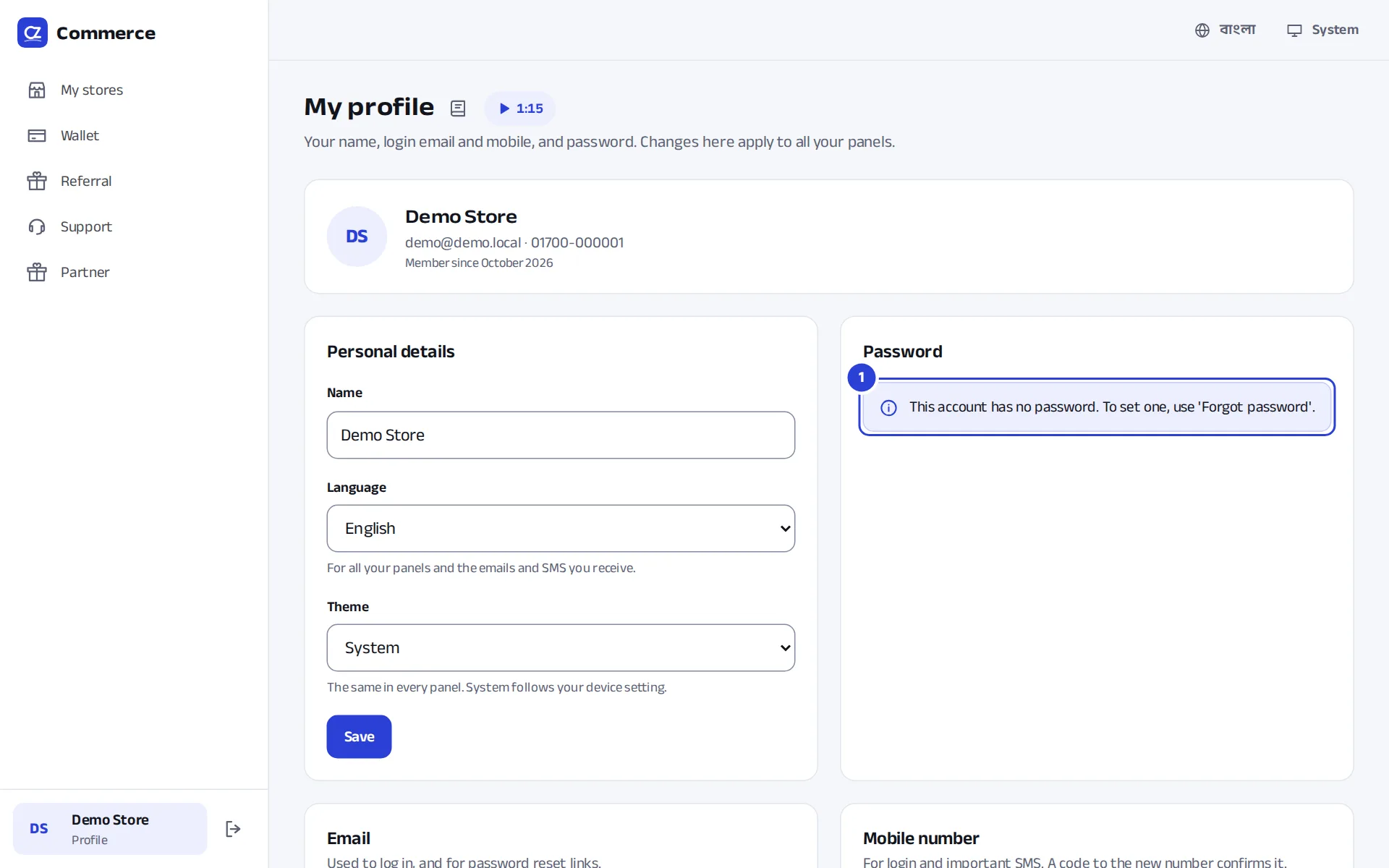
- On the sign-in page press Forgot password? and enter your account’s email or mobile (forgot your password).
- Open the link and set a new password. (This signs you out everywhere.)
- Sign in with the new password and press Unlink again.
After an account recovery
When someone takes the account back through an old email or number (account recovery), any Google or Facebook account linked in the 7 days before the request (or during the wait) is removed: whoever held the account may have linked their own. Older links stay. The recovery email lists what was removed and what is still linked. After a recovery, look at this card, unlink any you don’t know, and link your own again if one of yours was removed.
When platform support steps in
Platform support can see which Google or Facebook is linked to your account and remove one (for example when someone else linked theirs); every device is then signed out and you are told. When support forces a password reset or signs your account out everywhere, any Google or Facebook linked in the last 7 days is removed too, and the notice you get names it. If it was yours, link it again here.
Tip
If you see a sign-in you don’t recognise (if something looks wrong), check this card too. Your Google or Facebook account’s own security matters as well: keep two-step verification on there too.
See also: signing up and signing in with Google or Facebook, sign-in security.