The order page
Everything about one order in one place. Change its status, call the customer and record the outcome, verify advance payments by TrxID, keep notes, see the fraud check and edit the order.

On this page
Click an order number in the list to open its page. At the top: the order number, its status and payment status, when it came in and where from (and Outage request with the time the shopper asked, for an order made from a request kept while the server was down). Next to them are Edit order while the order can still be edited, the Invoice and Packing slip print buttons, and PDF and Picture (PNG) to download the bill and send it to the customer (The bill as a PDF or a picture). On a phone the buttons wrap onto a second row as needed and PDF is left out (on a phone, Invoice prints to a PDF instead). “‹ Orders” above the title takes you back to the list.
If the order repeats an earlier one (the same phone or device, the same products, quantities and address, within the duplicate check’s window), an amber warning sits at the top; click it to open that order.
Below that, the page has two columns. On the left: the customer (with their device, IP and blocks), the items, payments and the timeline. On the right: Next step, the courier record, courier booking, Order source, Call and, last, Send SMS. The timeline takes the left column’s full width. On a phone it is one column, starting with the right one.
Change the status
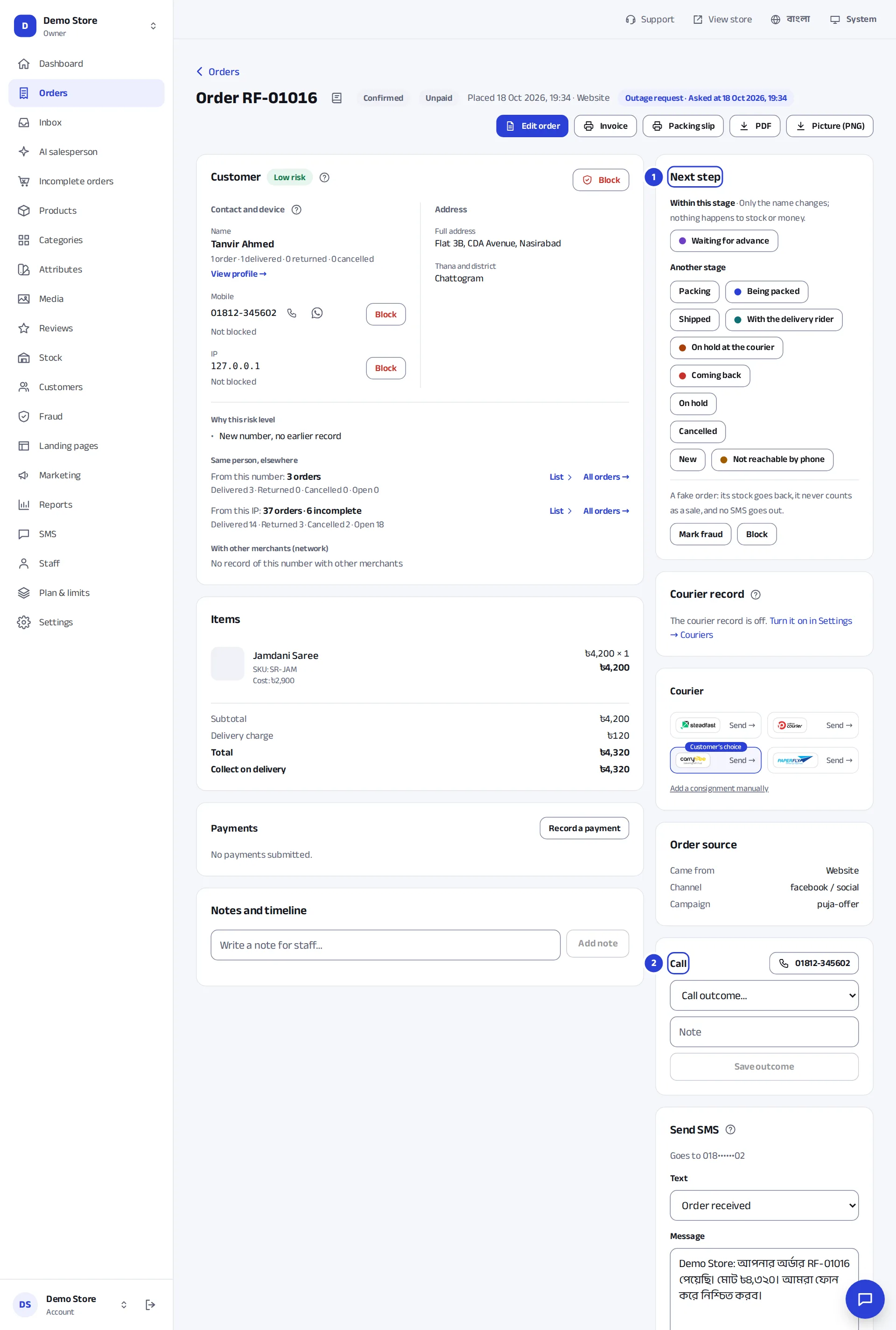
The Next step 1 card only offers the statuses this order can move to now.
- Press the status you want, e.g. Confirmed.
- For Cancelled, On hold or Returned, type a Reason; it can’t move without one.
- Press the “Change: …” button below.
- The reason goes into the timeline; a cancellation reason also shows at the top of the card.
- Returned and Cancelled have no further steps; the card says This order has no further steps.
- What each status means and where it can go: Status tabs. What happens to stock: How orders move stock.
- When the order’s stage has statuses of your own, the card has two parts: Within this stage (only the name changes, nothing happens to stock or money) and Another stage. See Set a status on an order.
- The courier booking card is in the same column; see Booking a courier. While the parcel is with the courier, the card says so: cancelling, holding, returning or moving the order back starts with Cancel / request return on the courier card.
- Moving a shipped order to Returned asks What came back?: tick what goes Back on the shelf; see Stock on return.
- If confirming fails because stock ran out, a red note lists each short product (“needs 3, 1 available”) with Edit order and Cancel the order beside it.
- An order whose stock was let go (not confirmed in time, or one that holds none, like an unverified shopper’s) says so in an amber note at the top; confirming it, or Hold now, holds the stock.
Call to confirm
Use the Call 2 card to phone the customer and record how it went.
- Tap the phone number button on the card to call from your phone.
- After the call, pick the outcome under Call outcome….
- Add a Note if you like.
- Press Save outcome.
| Outcome | What happens by itself |
|---|---|
| Confirmed | A New order becomes Confirmed. |
| Asked to cancel | An order that is New, Confirmed, Packing or On hold is Cancelled, with your note as the reason. |
| Call later | Set a time in Call back at. When the time comes the order shows up under Call-backs due in the dashboard’s to-do list (while it is New or On hold). |
| No answer, Not interested, Wrong number | Only recorded; the status stays. Hold or cancel it yourself if needed. |
The last outcome shows on the card, like “Last call: No answer”, and under the status in the list. Every call is kept in the timeline. Saving a new outcome clears the previous call-back time.
The customer card
The Customer card sits at the top of the left column. It has two parts, side by side on a wide screen and one under the other on a phone:
- Contact and device: the name, under it this customer’s record (orders, delivered, returned, cancelled) and View profile (the customer profile). Then the mobile number with two small icons beside it: the phone (tap to call) and WhatsApp (opens a chat; hover it to read “Contact on WhatsApp”). The alternative mobile, email, device and IP follow when there are any.
- Address: the Full address, Thana and district, answers to your own checkout questions and the Customer note.
A blocked customer shows This customer is blocked beside the title; a risk-checked order shows its level there too (from Low risk to Blocked).
Device, IP and blocks
There is no separate “Fraud and blocks” card any more; it all lives in the customer card.
- Under the mobile, email, device and IP is its state (e.g. Not blocked or “Blocked · 7 days left”), with a small Block or Unblock button beside it. Each one opens the block dialog for just that identifier.
- The device is a random id the store gives the browser (shown short; hover it for all of it).
- An IPv6 address offers Block the whole /64, since one phone keeps getting new addresses.
- Block beside the card’s title opens the block dialog with the mobile and device ticked, where you can also tick Cancel this order too.
At the bottom of the card, under a line:
- Why this risk level: when the order was risk-checked, the reasons, e.g. “Earlier parcels: 2 delivered, 3 returned (40% success)”.
- Same person, elsewhere: one line per source (From this number, From this device, From this IP) with its orders and checkouts, and under it delivered, returned, cancelled and open. List opens the recent ones in place; All orders shows them in the order list.
- With the fraud network in your plan, At other shops (network): this number’s record at other shops.
Blocking needs permission to manage customers; without it you see the states but no buttons. When a rule put the order On hold, Why on hold: at the top says which, e.g. over a limit, a blocked device, or many unverified orders from one network. For the last, the bar also has a button to release that network’s holds together (releasing a network’s holds together). More: Fraud checks and the blocklist.
The courier record
The Courier record card sits right under Next step in the right column, so you see it before confirming or sending: how many parcels this customer took and returned at your couriers, the success ratio over all of them and a row per courier. It is looked up in the background as soon as the order comes in; Check again asks again now. When it is off, the card says The courier record is off. with a Turn it on in Settings → Couriers link. What the numbers mean and how to turn it on: Customer’s courier record.
Order source
The Order source card shows:
- Came from: website, landing page, manual, recovery, or a chat (Messenger, Instagram, a post’s comments, your website chat).
- Channel: for orders entered by hand, where you got them (Facebook, phone call…); otherwise the ad source (utm_source / utm_medium).
- Campaign: the ad campaign, if any.
- Landing page and Coupon, if any.
An order taken in a chat has Open the chat under them, for staff who can see the inbox. When the order can no longer be edited, the card says why.
Items
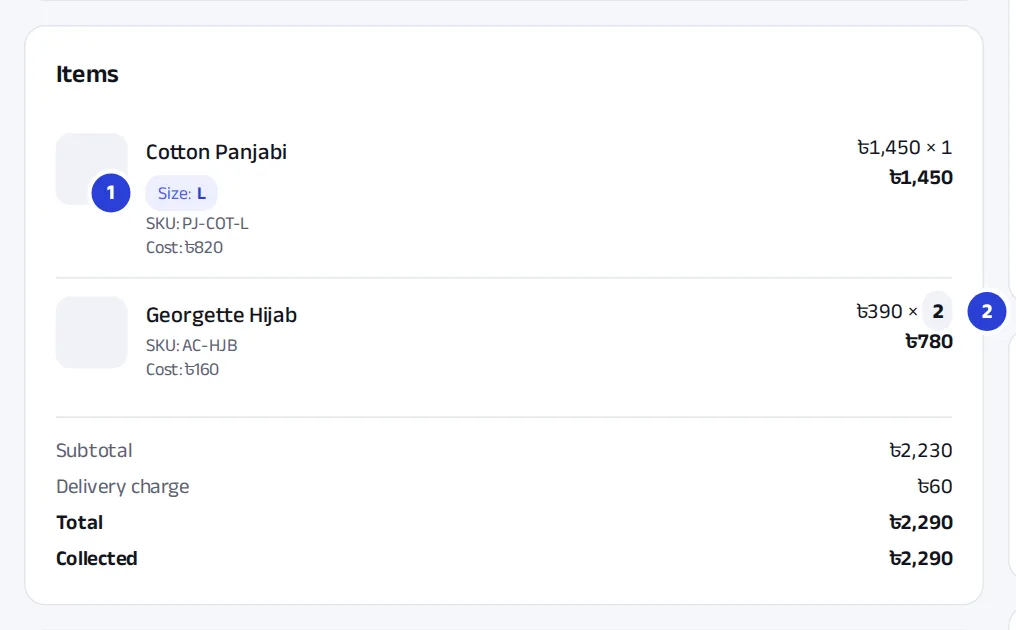
The Items card lists each product by name, with its size/colour as chips under it 1, named after your attributes (“Size: L”, “Color: Blue”; just the value when the name isn’t known), and the SKU on its own line below. On the right: price × quantity and the line total; a quantity above one is in bold 2 so nobody packing the parcel misses it. A combo stays together under its name, its parts listed smaller below it.
Payments
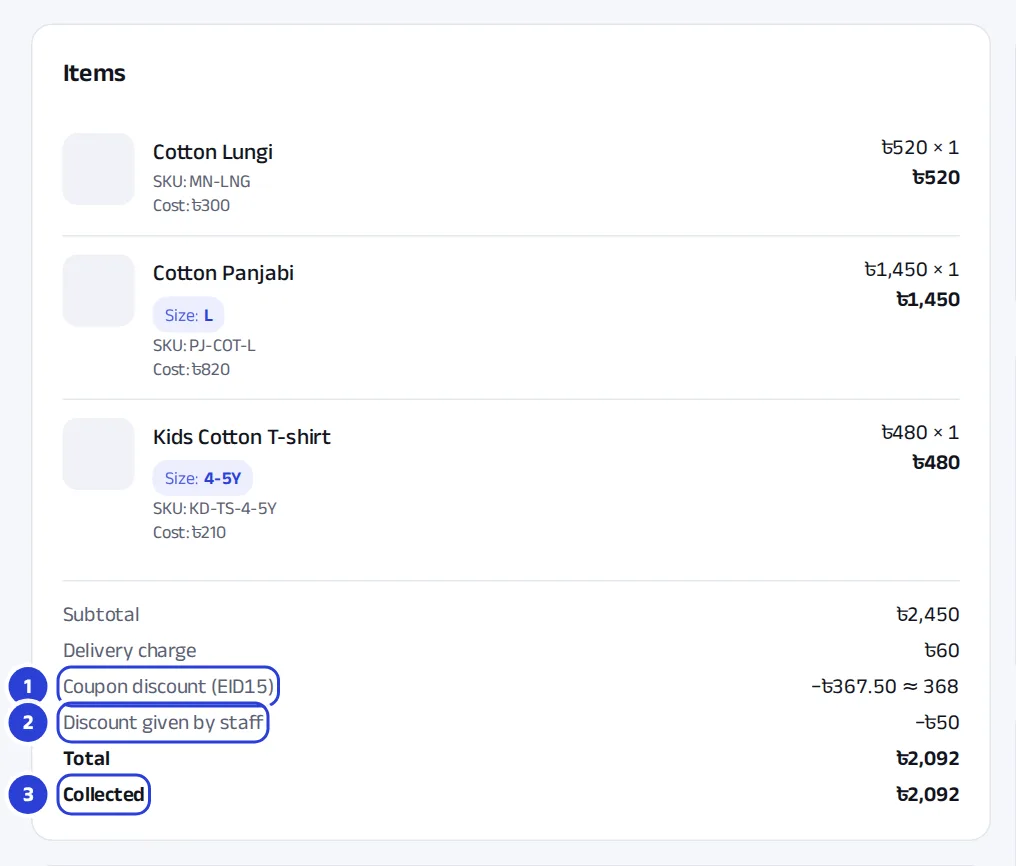
Under the items you see Subtotal, Delivery charge, Discount, Total, Paid, Advance required when your store asks for one, and Collect on delivery (what the courier will collect). A percent coupon’s discount is whole taka, rounded up in the shopper’s favour; its line shows the exact amount beside it, like “−৳67.70 ≈ 68” (the invoice too). Everything else uses the whole taka. Once the order is delivered that last line reads Collected instead: nothing is left to collect.
The discount has a line for each reason it was given: the coupon’s, with its code 1, the landing page’s offer, and a discount given by staff 2. On a delivered order the last line is Collected 3.
Cash on delivery collected
When the courier delivers the order (or you set it delivered), its payment status becomes Paid by itself; a partly delivered order is Paid when the advance and what was collected cover its total, else Partial. The Payments card shows an automatic entry you can’t edit, like “Collected by courier · Steadfast · ৳1,130 · 19 Oct”. When the courier pays it out, the entry adds “Steadfast paid out 20 Oct (SFC-…) · charges ৳… · reached you ৳…”. If the order comes back after all, the entry goes and the payment status follows what was paid ahead. This entry is never counted again as a payment: the dashboard counts courier money through the courier’s payouts. Orders delivered before this change were set Paid once, when it came in.
Verify a customer’s TrxID
When a customer pays by bKash, Nagad, Rocket or bank at checkout and enters the TrxID, it shows in the Payments card as To verify, with the amount and Sent from.
- Check your bKash/Nagad app or bank statement: did that amount really arrive with that TrxID?
- If it did, press Verified. If not, press Reject.
The choice is final: a verified or rejected payment can’t be changed afterwards. If a teammate decided it a moment before you, you’ll see a message saying it was already verified or rejected.
Verifying raises Paid, lowers Collect on delivery, and moves the payment status from Unpaid to Partial or Paid. If that SMS is on, the customer hears that the money arrived. Verify advance payments in the dashboard’s to-do list gathers every payment waiting for you.
Record a payment yourself
Got money by phone or in hand? Record it:
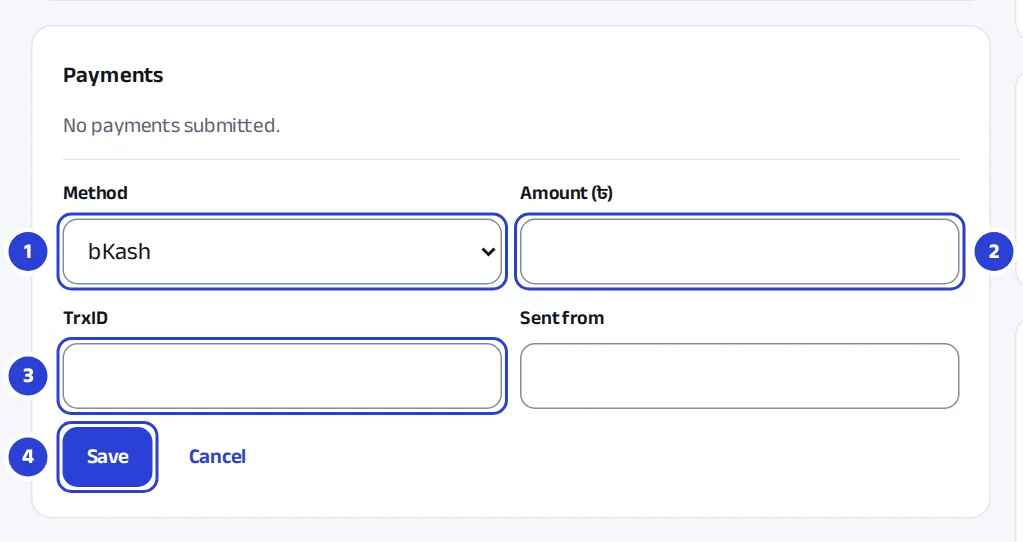
- Press Record a payment.
- Choose the Method 1: bKash, Nagad, Rocket, Bank or Cash.
- Enter the Amount (৳) 2.
- Add the TrxID 3 and Sent from if you have them.
- Press Save 4.
- A payment you record counts as verified straight away.
- The same TrxID can’t be used twice (unless the earlier one was rejected), which catches one payment being claimed for two orders.
- Setting advance rules and payment methods: Payment methods.
Give money back (refund)
When you send money back to the customer (an advance on a cancelled order, or money after a return), record it so the figures stay right:
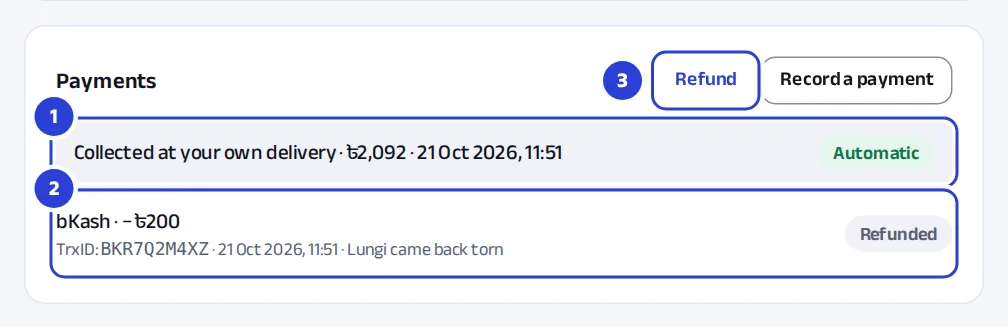
- In the Payments card, press Refund 3.
- Pick how it went back (bKash, Nagad, Rocket, bank or cash), type the amount, the TrxID of your transfer if any, and a note.
- Press Save.
- You can refund up to what the customer paid (the advances, plus the cash on delivery once delivered, less earlier refunds); more is refused.
- It shows in the card as Refunded, lowers Paid (on an order still to deliver, the courier then collects that much more), and comes off the dashboard’s Cash received on the day you record it. Once everything paid has gone back, the payment status becomes Refunded.
- The order’s totals under the items show it too: Paid (the advances), then Refunded (−) and Net collected (what stayed with you: the advances and the cash collected, less the refunds). The printed invoice and the bill sent in a chat show the refund as well.
- On a delivered order, a refund lowers the order’s sales (Reports, the dashboard’s sales and profit, by the day the order was placed) and the customer’s Spent, since that money was not really a sale. A refund doesn’t say whether it was for the goods or the delivery charge, so it counts as goods money first; only an amount above what the customer paid for the goods comes off the delivery charge. Money sent back before the delivery (an advance returned, then paid at the door again) changes no sales. If some pieces came back and you told which, refunding them doesn’t lower the sales a second time.
- The timeline and the activity log say who recorded it.
- The orders list’s Advance filter has Refund due: orders with money paid on an order that came back or was cancelled, or more paid than the order now comes to, not refunded yet.
The automatic collection entry 1 stays on top of the card; each payment and refund is listed under it 2.
Download files
An order with digital products has a Download files card under the items. It says how many files there are and where they stand:
- Not open yet: the files open once the order is fully paid or delivered; the customer then gets the links by email.
- Open, with the time the download email went (or that the order has no email).
An order for code products (gift cards, keys, accounts) has a Digital codes card instead or as well: see Codes on the order page.
Resend download email sends the customer the download email again, with a button that works for another 7 days. It shows when the files are open and the order has an email, for staff who can change orders. Each send is in the timeline (Download links emailed to the customer, Sent again) and in the store’s activity log.
Notes and timeline
The Notes and timeline card holds the order’s whole history, newest first: Order placed, every status change (your own statuses included, named as they were then) with its reason, calls, payments, edits, courier bookings (courier logo and tracking number), every opening of the print page (Printed), notes and every SMS this order caused: which text (e.g. Order confirmed), the sender ID it went out from, shown as it is (like innerc or 096…; hover it for whether it went through our gateway or your own; which gateway), then to which number, smaller (the middle digits hidden, like → Customer 017••••••43), the whole text and how it went (Waiting, Sent, Delivered, Failed or Not sent, with the reason). The sender is the one really used for that SMS when it went, not today’s setting; an SMS that never went (for example no credit) or was sent before 18 October 2026 shows no sender. SMS only at the top shows just the SMS; All shows everything again.
To add a note, type it and press Add note. Notes are for your staff only, never the customer.
When our support team worked on the order from inside your store (support mode), the entry says so under it: “Your name (CZ support: their name)”.
Send an SMS
The Send SMS card in the right column, under Call, sends this order’s customer an SMS yourself.
The card says which number it goes to, and how many SMS credits are left (or that it goes through your own SMS gateway).
- Under Text, pick one of your SMS texts (Order received, Order confirmed, Shipped, Delivered, Cancelled…, and your own statuses that have an SMS) or Your own words. The text comes filled with this order’s name, number, amounts, tracking link and your store’s name.
- Change the words under Message if you like. Under the box, characters and parts are counted: 70 characters a part in Bangla (67 a part when longer), 160 in English (153 when longer). Each part takes 1 credit; 6 parts at most.
- Press Send SMS. The SMS shows in the timeline at once as Waiting, then Sent; the timeline says who sent it.
- It goes by the same rules as the automatic SMS: your credits or your own gateway, the daily limits, the blocklist (a blocked number is refused). With too few credits it isn’t sent, and the message has a Buy credits link.
- A text whose automatic SMS is off still goes when you send it from here; the card says so under the picker.
- Free and trial stores send the default texts as they are: the box can’t be changed, and the choice reads Your own words (paid plans). Changing the words and your own words need a paid plan or your own SMS gateway.
- Up to 10 SMS an hour for one order (300 an hour for the whole store), so a slip can’t text a customer all day.
- If the order’s mobile number isn’t valid, the card says so instead; fix the number with Edit order first.
- Your own words can’t hold a link (other than the tracking link), and never go to a number that asked for no more SMS.
- Staff who can change orders see this card; it can’t send in support mode. Every send is also in the store’s activity log.
Edit the order
If the customer wants a change before the parcel goes out, press Edit order.
- You can change the name, phone, alternative number, email, address, district and thana, note, items and quantities, delivery charge and discount.
- Editing works only while the order is New, Confirmed, Packing or On hold and no parcel is booked with a courier. Once the parcel is with the courier or shipped, it can’t be edited.
- Changed items move the held stock with them. Change the items or the district or thana and the delivery charge box empties, so it is worked out again (your zones, the free-delivery amount, the weight, or the courier the customer chose at checkout at that courier’s rate); a charge you type stays. A coupon’s discount stays inside Discount and is worked out again for the new items and delivery charge (a percent coupon follows the goods, free delivery follows the new charge).
- If the customer already paid more than the new total, the timeline says how much is owed back and the order page shows To refund.
- Save changes records in the timeline what changed.
- Items already on the order keep the price they were sold at; an item you add takes today’s price, a running flash sale’s too. If the new total is more than what was paid, the payment status becomes Partial.
Read next: The order list, Printing, Entering an order by hand, Your own order statuses.