Support tickets
For a problem or a question, open a ticket from Support on the dashboard. Attaching files, what each status means, email when we answer, and closing a solved ticket with a rating.

On this page
Something not working, or a question? Open a ticket from Support on the dashboard and our team answers there. You also get an email when they do.
Who can open tickets
From Support, tickets are opened by the account owner, the person who created the account. Someone who only works in other people’s stores as staff can’t open one there; but ask the AI assistant (or, on a sensitive matter, it does so by itself) and it opens a ticket on the owner’s account: the ticket is in the owner’s list, the owner gets an email at once, and our replies go to the owner.
Ways in:
- Support in the account menu (your name at the bottom of a store’s left menu), or in the menu of the account’s pages.
- Support in a store’s top bar (opens the Support page in a new tab).
- For a suspended store, Write to support on its suspended screen.
Opening a ticket
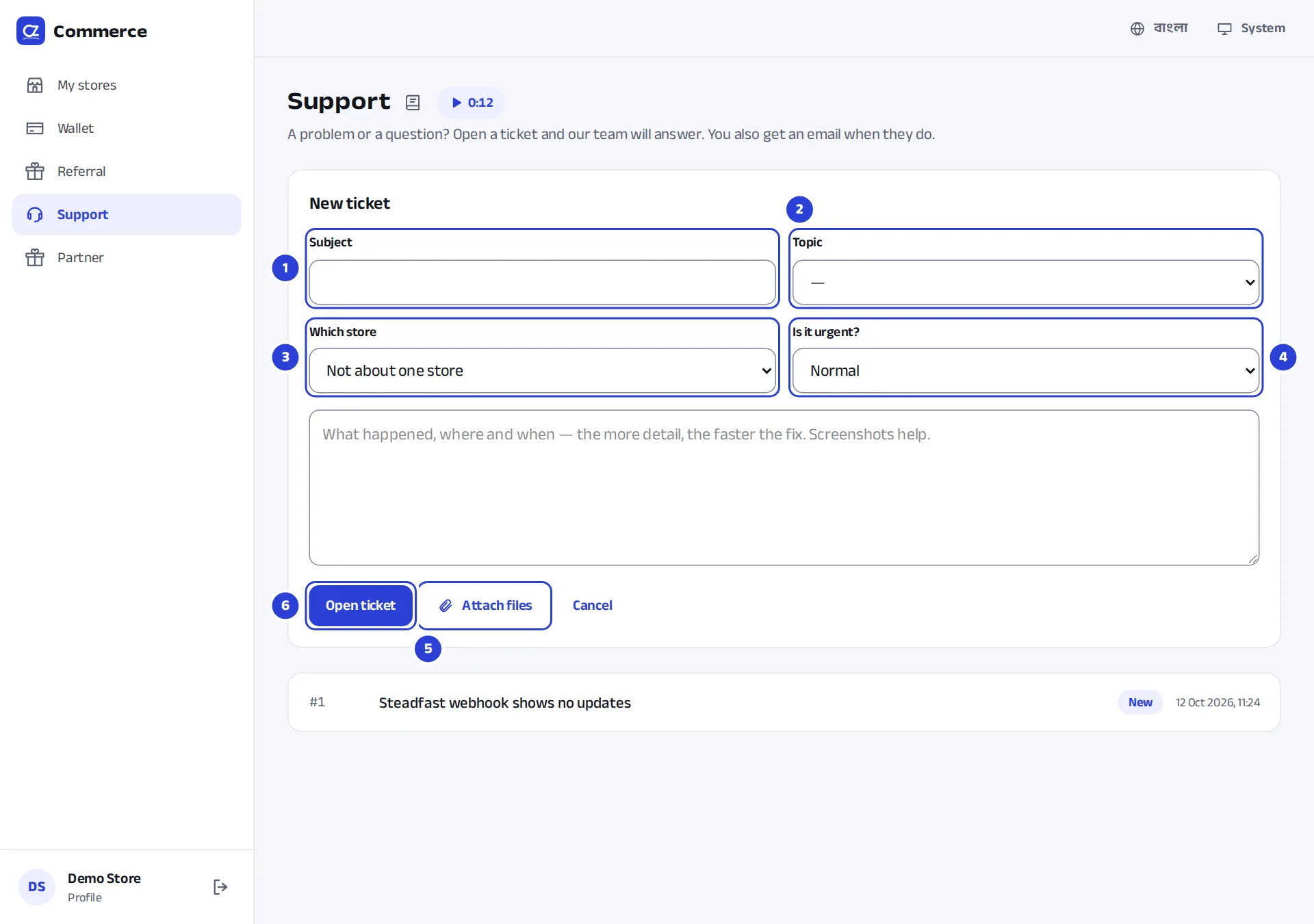
- On Support press New ticket.
- Write the Subject 1: the problem in one line, such as “Pathao booking fails” (at least 3 characters; a shorter one is pointed out under the field, and your message and files stay).
- Pick the Topic 2, for example Billing & payment, Technical problem, Courier, SMS, Domain or Other. The right topic reaches the right person faster.
- In Which store 3 choose the store it is about, or Not about one store.
- Is it urgent? 4: usually Normal. Choose Urgent (sales are blocked) only when selling has stopped; we look at those first.
- Describe it in the big box below (what to include).
- If it helps, press Attach files 5 to add screenshots or files: up to 5 per message, each up to 10 MB.
- Press Open ticket 6. The ticket opens with its number (#…).
What to include
The clearer the ticket, the faster the fix. Include:
- What you were trying to do, and what happened.
- Which page, and when (date and rough time).
- The order number, product name or courier tracking number, whichever applies.
- Any message on the screen, word for word, or a screenshot of it.
- Whether it happened on a phone or a computer.
Watch out
Never put your password, a two-step code or a courier API key in a ticket. Our team never asks for them.
Ticket statuses
| Status | Meaning |
|---|---|
| New | You opened it; no answer yet |
| Waiting for us | You wrote last; it is our turn |
| Waiting for your reply | We answered or asked you something |
| Resolved | Marked as solved |
| Closed | Closed; no more replies |
The list on Support shows each ticket’s number, subject, status and the time of the last message.
Replies
- When our team answers, your account’s email gets a note with a link to the ticket.
- Open the ticket, write in Write a reply… and press Send. You can attach files here too.
- Writing on a Resolved ticket opens it again.
- A Closed ticket takes no more replies. If the problem comes back, open a new ticket and mention the old number.
Close and rate
- At the bottom of the ticket, in Is it solved?, give 1 to 5 stars if you like.
- Press It is solved.
The ticket becomes Resolved and closes by itself after 7 days. Our team can mark it solved too. Your rating helps us improve support.
See also: common questions.