Importing products from Excel or CSV
Download the template and add or update hundreds of products at once. The whole file is checked first and imported only when nothing is wrong. Also covers downloading products, orders and customers to Excel.

On this page
Instead of entering products one by one, put them in an Excel or CSV file and upload it in one go. Uploading the same products again updates them rather than adding copies. Open Products › Import.
Import and export come with plans that include “CSV/Excel import & export” (what your plan includes). Without it, the import page says “CSV/Excel import and export are not in your plan.” with See plans, and the products list has no Export (Excel) button. Importing and exporting products take the Change products, categories and stock permission.
Download the template
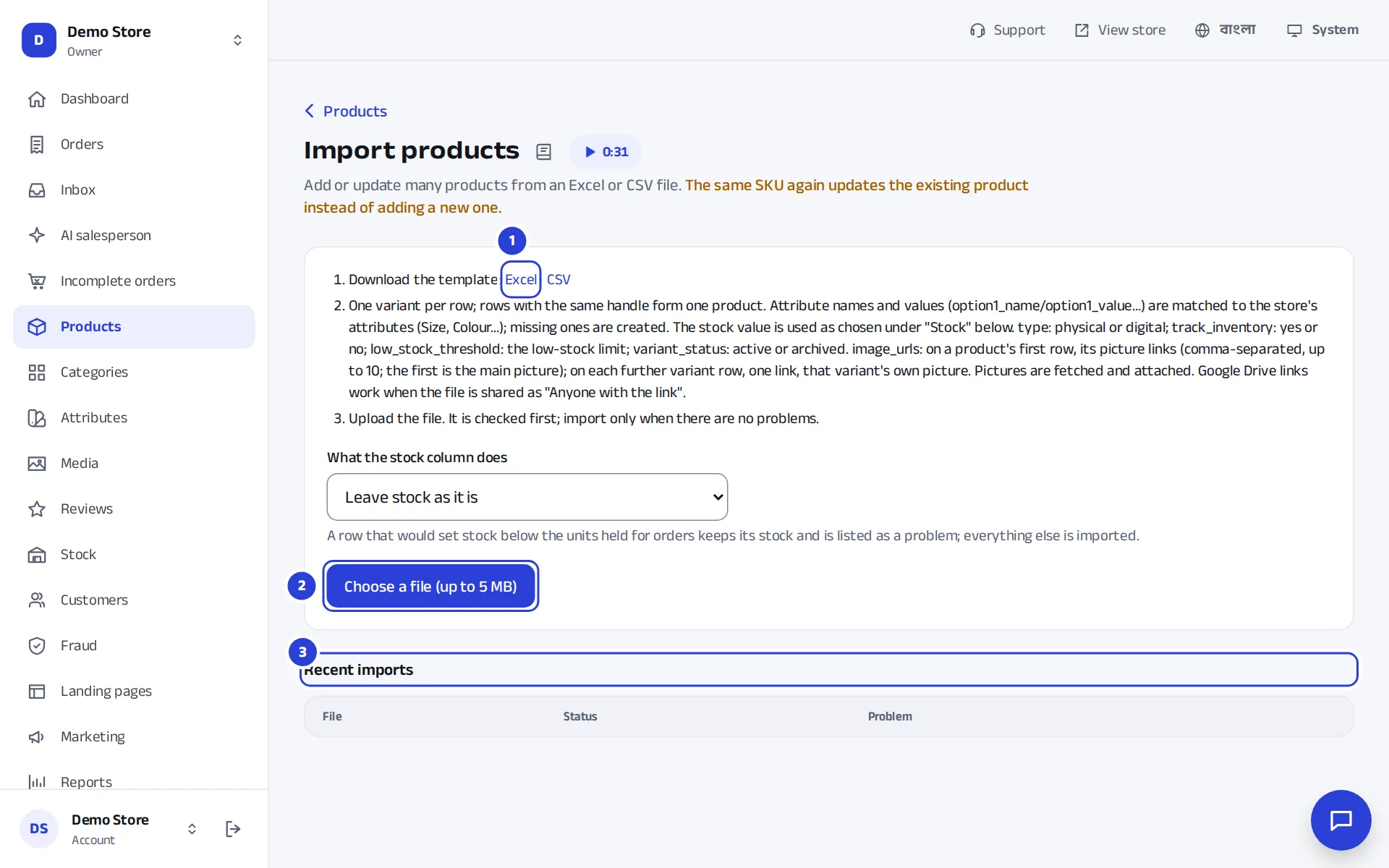
- On the Download the template: line, press Excel 1 or CSV.
- The file holds three example products: a panjabi in two sizes, a T-shirt in two colours with pictures, and a bottle of oil without attributes. Look at them, add your own products and delete the examples. The picture links in the example are placeholders; put your own in their place.
Tip
Already have products? Use Export (Excel) on the Products page. It has the same columns, so you can change prices or stock and import it straight back.
The columns
One variant per row. Rows with the same handle form one product.
| Column | What to put in it |
|---|---|
handle |
The product’s link, e.g. cotton-panjabi. Left empty, it is built from the title; a Bangla one is written out in English letters. |
title |
The product name. Required on the first row of each product. |
description |
The long description, plain text or simple HTML (what is kept). |
short_description |
The short description (shown under the price, above the order buttons): plain text, each line kept on its own line, or simple HTML with bold, italic and bullet lists. Up to 1,000 characters (what is kept). |
status |
draft, active or archived. Empty makes a new product a draft. |
type |
physical (the default) or digital. Combos can’t be imported. Empty keeps an existing product’s type. |
category |
The category path with >, e.g. Women > Saree > Jamdani. Separate several with a vertical bar |. |
tags |
Tags separated by commas. |
vendor |
Brand or supplier. |
track_inventory |
yes or no: whether the product’s stock is counted. Empty keeps it as it is; a new product counts stock (a digital one never does). |
option1_name … option3_name |
Attribute names, e.g. Size. Put them on the product’s first row. |
option1_value … option3_value |
This row’s values, e.g. M. |
sku, barcode |
The variant’s codes. |
price |
The price, required. E.g. 1450 or 1450.50. |
compare_at_price, cost_price |
Compare-at price and cost price. |
weight_grams |
Weight in grams. |
stock |
A number for the default location; what it does is picked on the import page (below). |
low_stock_threshold |
The variant’s low-stock warning level (low stock). Empty keeps it. |
variant_status |
active or archived: switch a variant off or on again. Empty keeps it as it is. |
image_urls |
On a product’s first row: the product’s pictures, up to 10, separated by commas; the first is the main image. On each further variant row: one link, that variant’s own picture. See Pictures. |
The rules
- Up to 5 MB and 10,000 rows per file,
.xlsxor.csv. - Column names go in the first row. You need at least
titleorhandle, andprice. Unknown columns are reported as problems. - What gets updated: a product with the same
handlein your store is updated; otherwise a new product is created. Variants are matched by SKU first, then by attribute values. - An SKU may appear only once in the file and must not belong to another product already.
- If the existing product has attributes, the file must use the same attribute names. Later rows that repeat an attribute name must repeat it exactly.
- ৳ signs, commas and spaces in prices are ignored. Weight and stock are whole numbers.
- What
stockdoes is chosen under What the stock column does on the import page, before you pick the file: Set stock to this number (like a count), Add this number to stock (new goods arrived) or Leave stock as it is. Until you pick, it is Leave stock as it is in a store that already has stock, and Set stock to this number (like a count) in one that has none yet. An empty cell never changes a variant’s stock. A row that would set stock below what orders hold keeps its stock and is listed as a problem; the rest is imported. - Categories go up to 3 levels. Missing categories are created.
- When updating, an empty
description,short_description,vendor,tagsorstatuskeeps the old value. Products and variants that are not in the file are never deleted. - If the new products in the file would take you past your plan’s product limit, the whole file is stopped.
Pictures
- First row of a product: the product’s pictures (its gallery), up to 10. The first one is the main image.
- Each further row (a variant): at most one link, that variant’s own picture. When a shopper picks the variant, its picture shows. It is also added to the product’s pictures if it isn’t there yet. Two or more links on a variant row is a problem on that row (“one image per variant”). Leave the cell empty and the variant keeps the picture it has (a new variant gets none, so the main image shows).
- The first variant sits on the product’s first row, so it has no cell of its own: when the other variants have their own pictures, the first variant gets the main image (the first link), unless you already gave it a picture in the editor.
- A product holds at most 30 pictures from a file, the first row’s and the variants’ together.
- Separating links: a comma is best (
https://…/1.jpg, https://…/2.jpg). A space, a new line,;or|also work. - Links must start with
https://. Each picture is up to 10 MB and must be a real image (JPEG, PNG, WebP, GIF or AVIF); large ones are made smaller. - Google Drive: a share link works (
https://drive.google.com/file/d/…/view?usp=sharing,…/open?id=…and the like) if the file is shared as “Anyone with the link”. Otherwise the import lists “Drive file is not shared publicly” for that row. Dropbox file links (?dl=0) work too. - A link that fails just leaves that picture out, and the import carries on; it is listed as a problem on its row, with the reason. A link imported before is not downloaded again, and a picture your store already has (uploaded, or under another link) is used from your Media instead of being stored again, so it takes no more space.
- An export writes each variant’s own picture on its row (with our link to it), so you can edit the file and import it back with the same pictures.
Descriptions
A description can be plain text or simple HTML, as the product editor makes it. When it is imported, only the editor’s formatting is kept:
- paragraphs (
p; adivbecomes a paragraph) and line breaks (br); - bold, italic, underline and strike-through (
strong/b,em/i,u,s); - two heading sizes,
h2andh3(anh1becomesh2, anh4becomesh3); - lists (
ul,ol,li) and quotes (blockquote); - links that go to
http,https,mailto,telor a page of your own site.
Every other tag (scripts, pictures, tables, styles…) is dropped, and its text is kept. Plain text stays as typed; in your store, a blank line starts a new paragraph.
A short_description keeps only bold, italic, bullet lists and line breaks: headings and quotes become plain lines, a numbered list becomes a bullet list, and a link keeps only its text.
Check first, then import
- Press Choose a file (up to 5 MB) 2 and pick your file.
- The file is checked by itself. The status goes Waiting, Checking, then Checked. Nothing is written yet.
- A line tells you how many rows and products there are, and how many are new or updates.
- When it says there are no problems, press Import. The same file goes on: no need to upload it again.
- When the status goes from Waiting and Importing to Done, the products are in your list. A large file goes in 50 products at a time; if our server restarts meanwhile, the import carries on by itself from where it stopped within a few minutes, and nothing is written twice.
- A checked file waits for a week. After that it is no longer kept and Import says so: upload the file again.
- Some problems only show while importing, such as a picture link that doesn’t work or a stock that would go below what orders hold. Those rows keep what they had, the rest is imported, and you see “Imported, but 2 rows had problems (below).” with the table of problems. Fix those rows and import the file again if needed.
When problems are found
If the check finds problems you get their number and a table: Row (the line in the file; the header is line 1), Column and Problem. In that case nothing was written. Fix the file and upload it again.
Common ones: an empty price, the same SKU twice, another word in status, spaces or symbols in handle, categories deeper than 3 levels.
When the whole file is refused
Some files can’t be read at all. The status then says Failed (or the file is turned away as you pick it), with the reason and what to do. The limits behind them:
- up to 5 MB per file, and an Excel file may unpack to at most 30 MB;
- up to 10,000 rows, 100 columns in a row and 50,000 characters in a cell;
- up to 12 MB of text in all (text repeated in many cells counts each time);
- your store’s attribute list holds up to 100 attributes with 200 values each (Attributes); a file that needs more is stopped.
A file that isn’t a real .xlsx or CSV, or an empty one, is refused too. Split a big file into smaller ones, or save it again as .xlsx or CSV in Excel, and import again. If an import stops on an unexpected error, what was imported so far stays and you can import the same file again: nothing is added twice.
Recent imports
Recent imports 3 lists your last 20 files with their status and the number of problems. A file is one row from its check to its import; one that was checked but not imported says Check beside its name. Click the name, or Open in its menu, to see the details (and to import a checked file). A Failed import says why.
Downloading to Excel
| What | Where | What is in it |
|---|---|---|
| Products | Products › Export (Excel) | Every variant, archived ones too (combos are left out). Same columns as the import, cost prices included. |
| Orders | Orders › Export (Excel) | The orders in the current tab, search and filters. |
| Customers | Customers › Export (Excel) | Everyone, most recent buyers first. |
| Incomplete orders | Incomplete orders › Download CSV | The list as filtered. |
- The order file has number (as written when the order was made, prefix included), date, status (the main stage, plus
status_namewith the name shown, like your own status), payment, customer, address, items, amounts, the amount due and the courier: the courier the parcel was actually booked with (else the one the order was meant for), itsconsignmentid,courier_cod(what the courier was sent to collect),collected(what it reported collecting),courier_charges(its delivery and COD charges as it reported them) andcourier_paid_at(when it paid you), so you can match the courier’s statement row by row. Theextra_fieldscolumn has the answers to your own checkout questions, as “question: answer” separated by;. Staff without access to reports don’t get the ad source (UTM) columns. - The customer file has name, phone, address, counts of orders, deliveries, returns and cancellations, total spent, whether blocked, and the note.
- Anything a shopper typed that looks like an Excel formula (starting with
=,+,-or@) is saved as plain text, so opening the file never runs it.
Large lists: the Exports page
- Up to 2,000 rows the file downloads as soon as you press the button, as before.
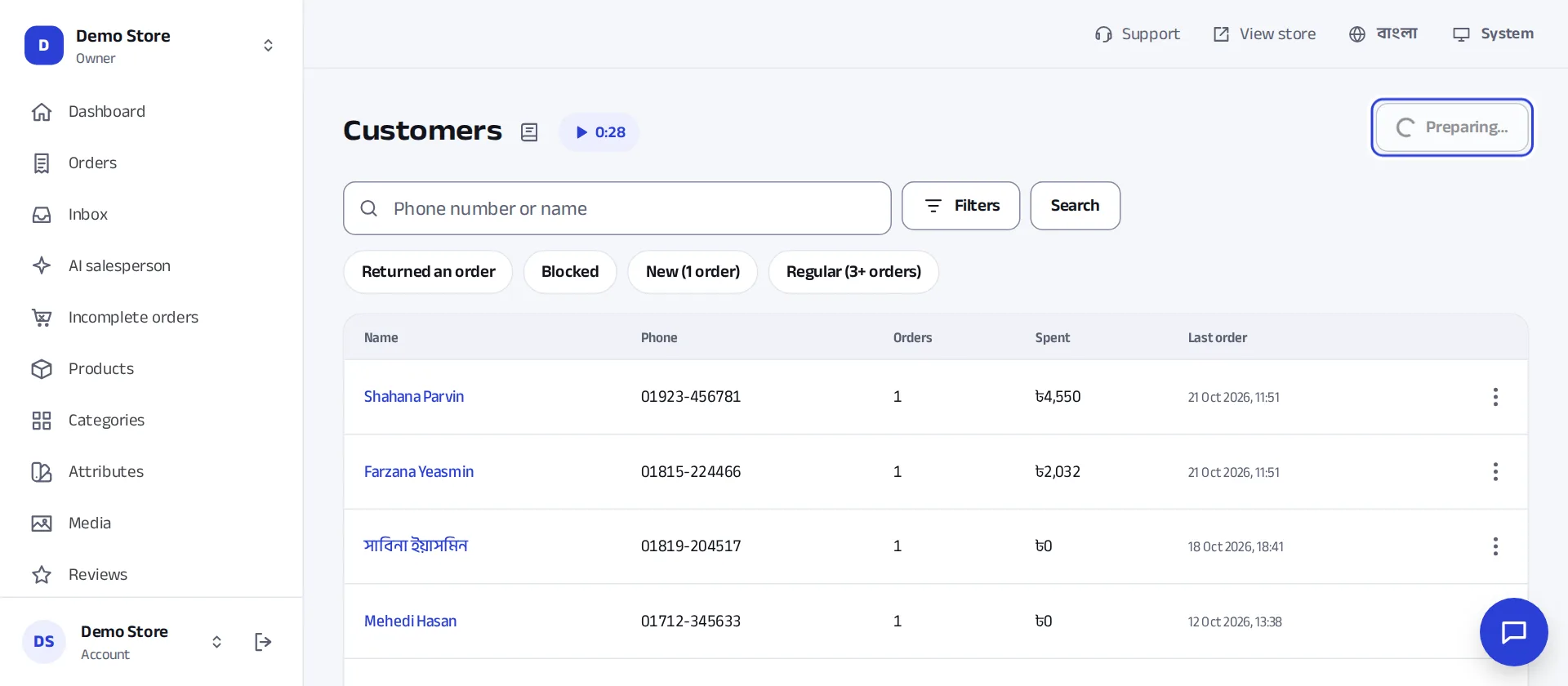
- A longer list (up to 300,000 rows) is made in the background, so your panel and your store stay fast. The button shows Preparing… and you can keep working. When the file is ready you get an email, and a notice at the top of the panel with Download.
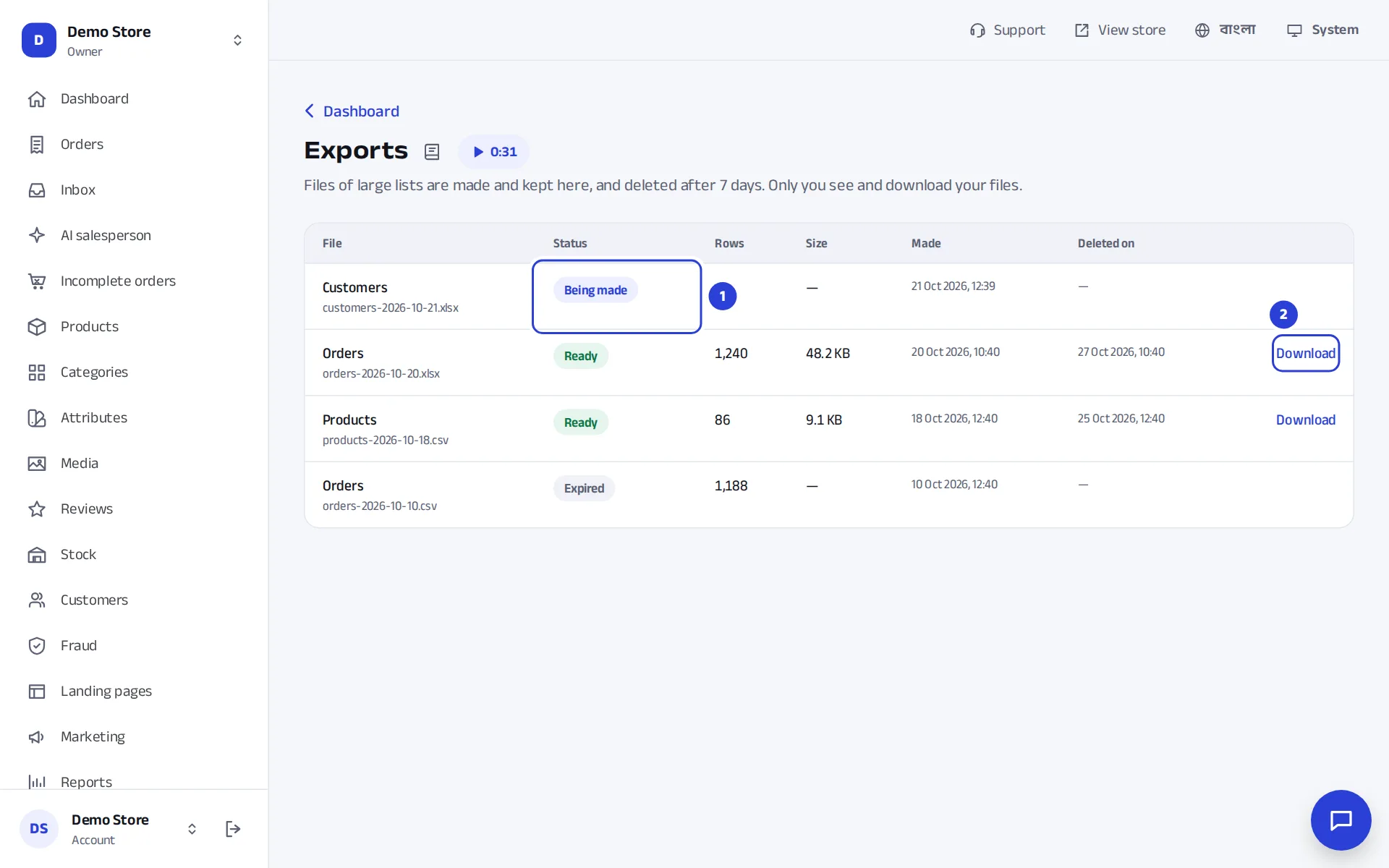
- Every large export is on the Exports page (the notice and the email take you there): its state, rows, size, a Download link and the day it is deleted. Files are kept 7 days, then deleted; make a new export when you need it again.
- Only the person who made an export sees and downloads it, and only while they still have the same permission (orders, customers and incomplete orders: “Export orders”; products: managing products). Downloading needs you signed in, and the link the panel hands your browser works for one minute only, so the file can’t be passed around by link. The email has no file in it, only the way to the Exports page.
- One person can have up to 3 exports in the making at once.
On the Exports page, an export still being made says Being made 1; a ready one has Download 2 until the day it is deleted.
Read next: The product list, Adding a product, Categories.