Plan & limits (dashboard)
The Plan & limits page in your store's dashboard: which plan is running, days left, how much of each limit is used, what the plan includes, SMS credits and active add-ons, and the store's billing for whoever may handle it.

On this page
Plan & limits in the dashboard’s left menu shows at a glance which plan is running, when it ends, and how much of each limit is left. Every staff member can see this page. Whoever may handle the store’s billing (the owner always) also buys, renews and changes the plan here, with add-ons, SMS credits and invoices (below).
Current plan
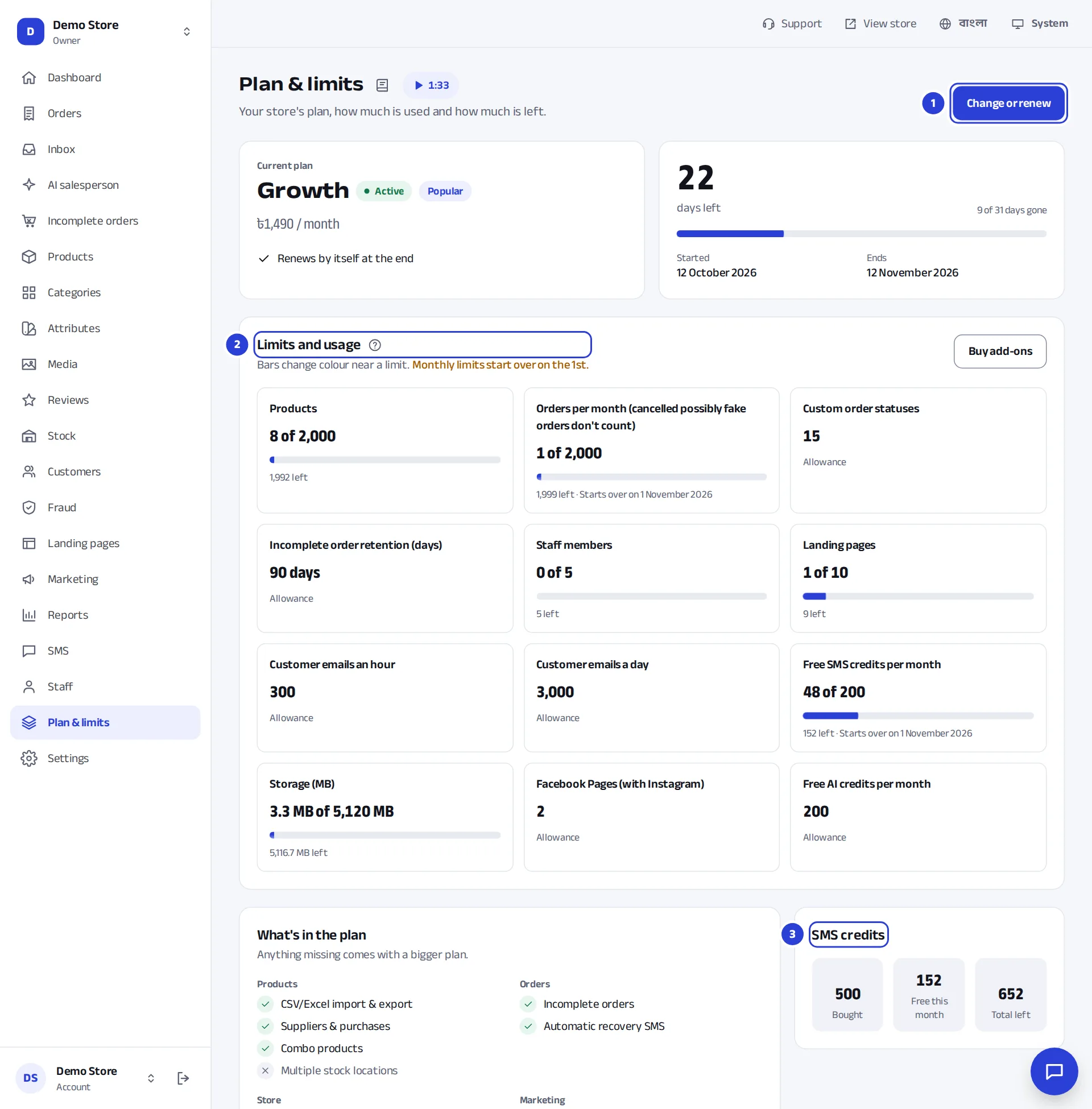
The Current plan card shows the plan’s name, status and price:
| Status | Meaning |
|---|---|
| Free | The free plan; “The free plan never expires.” |
| Trial | A free trial is running; it goes back to the free plan when it ends |
| Active | A paid plan is running |
| Payment due | The renewal isn’t paid; pay by the last day or the store moves to the free plan |
On a paid plan, a line below says how renewal will go: “Renews by itself at the end”, “Auto-renew is off” or “The plan stops at the end of this period”. If a move to a smaller plan is booked, you’ll see “Next period: …”.
A plan made just for your store has the Custom plan badge and the note: “CZ Commerce made this plan for your store alone. To change it, write to support. Buying another plan ends this one.” When its price changes from the next renewal, “From the next renewal: …” shows.
The card beside it shows the days left in large figures, a bar for the period (yellow with 7 days left, red with 3), and the Started and Ends or Trial ends dates. With a payment due, Pay by shows in red.
Limits and usage
Limits and usage 2 has a card per limit: how much is used, how much is left, and a bar.
- At 80% the bar turns yellow; at 100% it turns red and says Limit reached.
- With no ceiling, it says Unlimited.
- Monthly orders, monthly free SMS and monthly free AI credits start over on the 1st of each month (Dhaka time); the card shows the date.
- Cards marked Allowance are not counted, they only show the limit (like how many days incomplete orders are kept).
What happens at a limit:
| Limit | At the limit |
|---|---|
| Products | No new products can be added, and archived ones can’t be made active or draft again. Archived products don’t count. Beyond the limit after a smaller plan, they become inactive (below) |
| Staff members | No new invitations can be sent. Only invitations still open count; an expired one holds no place. Beyond the limit after a smaller plan, they become inactive (below) |
| Landing pages | No new landing pages can be made. Beyond the limit after a smaller plan, they become inactive (below) |
| Storage (MB) | No new images or files can be uploaded |
| Orders per month (cancelled possibly fake orders don’t count) | Every order counts when it arrives: from the store, a landing page or made by hand. A cancelled order (any status in the cancelled stage) gives its count back only when it may be fake: the shopper was not verified (typed no SMS code, was not signed in with that phone, used no verified device), your store never delivered an earlier order of that phone placed from the same device, and no parcel of it was shipped. An order the platform put on hold, or rated high risk, always gives it back. A verified shopper’s order gives it back too when it is past the day’s order budget (5 from one number, 8 from one device, 30 from one network in 24 hours, more at a busy store: a real shopper never orders more on a sale day, and the next orders are still taken), or when your fraud rules flagged it as over a number’s or device’s limit or as a duplicate. An order made by hand gives it back only when cancelled within 1 hour of being made (a typo or a duplicate); so does a store order placed from the network your staff were using the panel from. An order counted last month gives nothing back to this month. There is no cap. The order’s timeline says whether the place came back, and why not. Fake orders use the limit too until you cancel them; cancelling is how you clear them. At the limit orders keep coming in and shoppers notice nothing, but new ones are left out of the list, reports, exports and the new-order SMS until there is room: you cancel fakes, upgrade or buy an add-on, or the next month starts (the 1st, Dhaka time). They then show verified shoppers’ and known customers’ orders first and ones with a sign of a fake last, holding no stock until you confirm them; waiting, you can cancel them or block a number masked (orders past the limit); one cancelled while hidden never shows, and one waiting over 7 days is cancelled. The card counts this month’s orders and says how many more wait hidden, the same figures as the Orders page’s notice; a heads-up comes at 80% (the month’s order limit) |
| Custom order statuses | No new statuses, and archived ones can’t be restored. Beyond the limit after a smaller plan, the newest become inactive (below). The card shows only the limit; how many are active shows on Settings › Orders (Your own order statuses) |
| Customer emails an hour, Customer emails a day | Emails aren’t lost: they wait and go out when there is room again (for up to 48 hours). Your own SMTP has no such limit (order emails) |
| Free SMS credits per month | The card shows this month’s use. After them, bought credits are used; with none left, SMS don’t go out (SMS credits) |
| Facebook Pages (with Instagram) | The card counts the connected Pages (their Instagram isn’t counted). No more Pages can be connected (connect a Facebook Page). Beyond the limit after a smaller plan, the last connected become inactive (below); the card says how many and links to Settings › Inbox and Facebook Pages |
| WhatsApp numbers | Counts your shop’s own connected WhatsApp numbers (never CZ Commerce’s verification number). No more numbers can be connected (connect WhatsApp). Beyond the limit after a smaller plan, the last connected become inactive (below) |
| Free AI credits per month | Every plan has them (the inbox and the AI salesperson are in every plan, plans). The card shows this month’s use. After them, bought credits (or ones our team added) are used (buying AI credits); with none left, the AI stops answering and chats go to your team (AI credits) |
When a limit reaches 80% and an add-on can raise it, whoever handles billing gets a Buy add-ons link right on the card, which opens the add-ons in the billing section below; everyone else sees “The store’s owner can buy an add-on to raise this limit.” See add-ons.
When your plan gets smaller
When the store moves to a smaller plan, drops to the free plan, or an add-on runs out, whatever is beyond the new limits becomes inactive. Nothing is deleted or archived:
- Products beyond the products limit become drafts: they aren’t sold and can’t be published.
- Landing pages beyond the landing pages limit are unpublished and can’t be published again.
- Staff beyond the staff limit can’t open the store (a session they have open stops too), and an invitation still open can’t be accepted while the staff fill the limit. The owner is never affected.
- Your own order statuses beyond the limit (the newest) can’t be put on orders, and couriers’ news doesn’t use them; orders already in one keep showing it. They are marked on Settings › Orders.
- Facebook Pages beyond the limit (the last connected, with their Instagram) stay connected but are inactive: no messages or comments come in, none can be sent and the AI doesn’t answer there. They work again at once, with no need to connect again.
- WhatsApp numbers beyond the limit (the last connected) stay connected but inactive in the same way; the number’s card says Inactive — beyond your plan’s limit.
- Stores beyond your plans’ stores limit stop taking new orders, as before (more stores than your plans allow).
The newest ones become inactive first; the ones that were live, and the oldest, stay active within the limit. The owner gets an email saying what became inactive. On the products, landing pages and staff lists a notice says how many, and each inactive row shows Inactive — plan limit.
Each one comes back by itself, exactly as it was (live, published or able to sign in), once there is room: upgrade, buy an add-on, or archive or delete others.
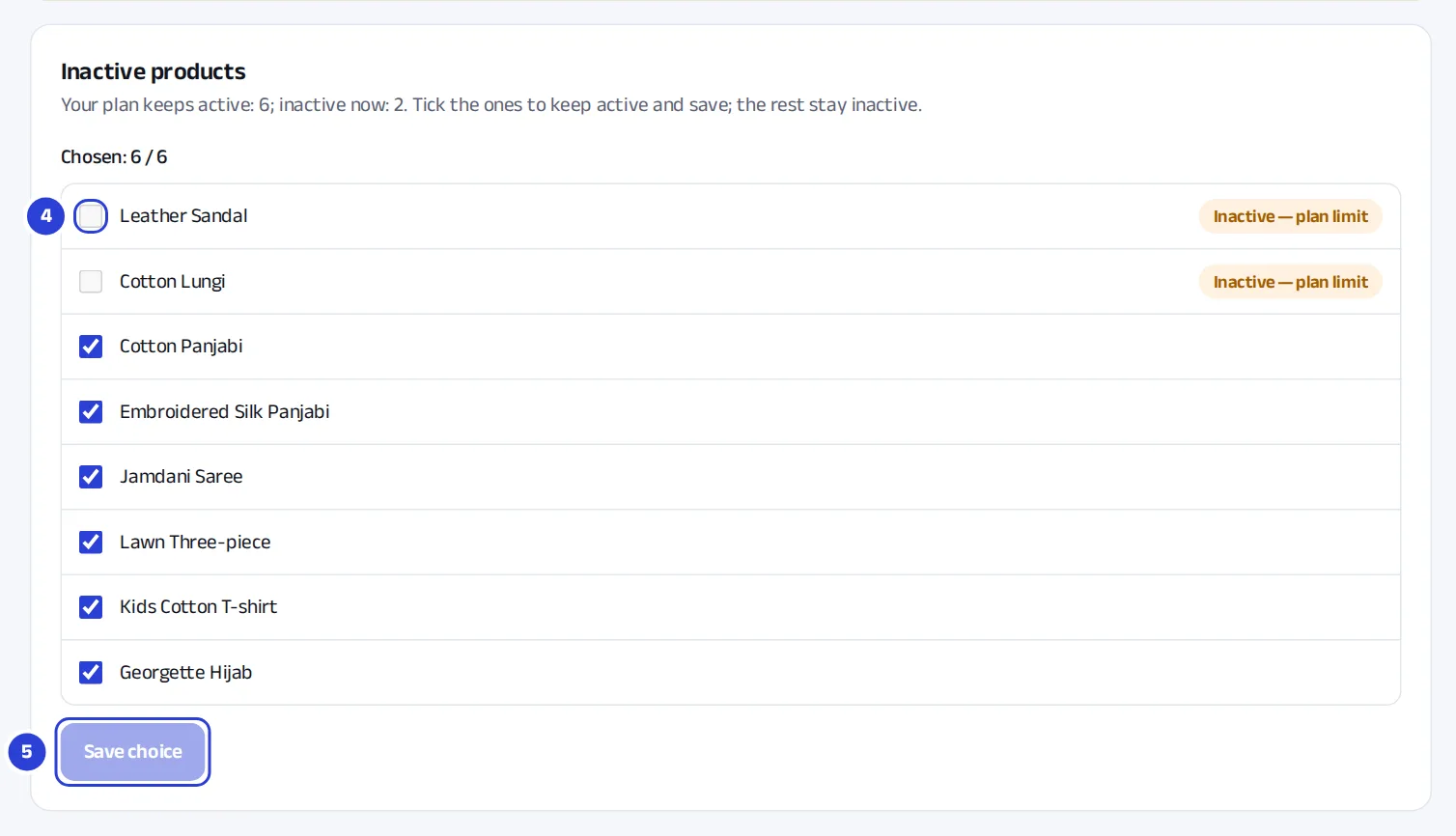
To choose which ones stay active, use the lists under Limits and usage on this page: one for each kind with inactive items. Tick the ones to keep 4 (at most the limit) and press Save choice 5; the rest stay inactive. Whoever manages products, landing pages or staff can choose for them.
What’s in the plan
What’s in the plan lists the on/off features in groups: ✓ beside what you have, ✗ beside what you don’t. Anything missing comes with a bigger plan.
SMS credits and add-ons
- The SMS credits 3 card has three figures: Bought (credits you bought), Free this month (the plan’s monthly free credits, which lapse at the month’s end) and Total left. Need more? Buy them with SMS credits in the billing section below (SMS credits).
- The Add-ons card lists this store’s active add-ons with their end dates.
Billing on this page
The owner, and anyone the owner gave the billing permission (the billing permission), get more on this page: Choose a plan (on the free plan) or Change or renew 1 at the top, and a Billing section at the bottom. Nobody else sees any of it.
The Billing section holds:
- The plan’s name, the date it runs until, and its status: Free, Trial, Active or Payment due. With a payment due it says the last day to pay; with a cancel booked, “Goes to the free plan at the period end”.
- This store’s Open invoices, each with Pay (paying an invoice).
- The buttons:
- Choose a plan or Change or renew: the plans open right below (choosing and changing plans).
- On an active paid plan, Auto-renew and Cancel at period end (or Undo cancel) (renewal).
- Add-ons (add-ons), SMS credits (buying SMS credits) and AI credits (buying AI credits).
- The wallet that pays: Your wallet for the owner, the owner’s name for anyone else (such as “Rahim’s wallet”), and what is in it. Purchases come out of it first; the rest goes through CZ Pay. The owner tops it up from Top up and transactions; everyone else sees “Only … can add money to this wallet.”
- For the owner only, the Coupon or promo code card (coupons and promo codes).
- Invoices: this store’s invoices and their credit notes, newest first; the buttons above show All, Invoices or Credit notes. Receipts (top-ups) belong to the account, so they are not here (invoices).
Everything is paid from the store owner’s wallet, whoever presses the button. When someone other than the owner buys or pays, the owner gets an email saying who, what, and what came from the wallet. Details: billing and wallet.
See also: Billing and wallet, Add-ons.