Running your store on your own domain
Open your store at shop.yourname.com or www.yourname.com. Add one CNAME record in your DNS and we set up SSL for you. Growth and Pro plans, or the Custom domain add-on.

On this page
Your store runs on a free address from day one. You can also run it on a domain you own, such as shop.example.com. You buy the domain somewhere like Namecheap or GoDaddy and connect it here. We take care of the SSL certificate (https).
Which plans have it
- Your own domain comes with the Growth and Pro plans. On other plans, buy the monthly “Custom domain” add-on.
- A store can have up to 3 domains of its own (for example both www and the root domain, or a second brand).
- The Free address always stays in the list and keeps working.
- Connecting, checking, making primary and removing domains is for the store owner and staff with permission to change settings.
Without it in your plan the page says: “Your own domain comes with the Growth and Pro plans (or the “Custom domain” add-on).”
When your plan no longer has it
If your plan gets smaller, or the add-on or a trial ends, a domain you connected becomes inactive (it shows “Inactive — not in your plan” with a link to upgrade):
- Shoppers who open your domain go to the same page on your free address (a permanent redirect, so links and search engines follow it).
- Every link the platform makes uses the free address meanwhile: the page’s canonical address, the sitemap, product feeds, emails and SMS.
- Nothing is removed: the domain, its DNS setup at Cloudflare and its SSL certificate are kept, so it works again the moment your plan (or the add-on) has it, with nothing to set up again.
- Couriers’ updates for parcels sent earlier keep coming.
Connect a domain
- Open Settings › Your own domain.
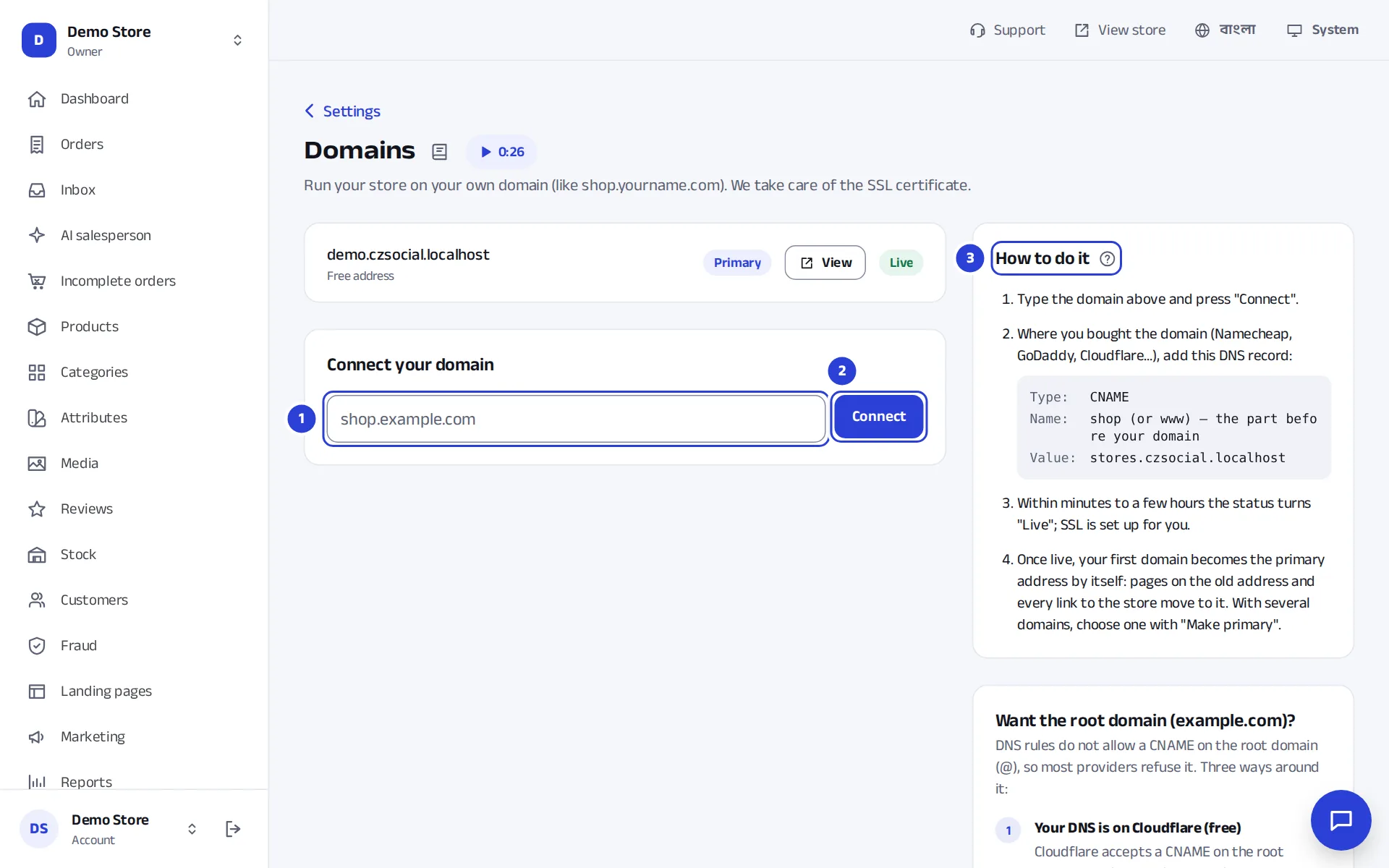
- Under Connect your domain, type the domain in the box 1, for example
shop.example.comorwww.example.com. Nohttps://needed. - Press Connect 2. You’ll see “Domain added. Now set up the DNS record.” and the domain shows in the list as Waiting.
Type a root domain without www (like example.com) and a yellow warning shows under the box right away, because most providers don’t allow a CNAME there (the root domain).
Add the DNS record
Where you bought the domain (Namecheap, GoDaddy, Cloudflare…), add a new record in the domain’s DNS settings. The exact record is shown under the domain in the list (“DNS record for this domain:”) and in the How to do it 3 card on the right.
| Field | What to enter |
|---|---|
| Type | CNAME |
| Name | The part before your domain: shop for shop.example.com, www for www.example.com |
| Value | The address shown on the page, starting with stores. (e.g. stores.{root}) |
Copy the value from the page exactly. Domains like .com.bd work the same way: for shop.example.com.bd the name is shop.
The root domain (no www)
DNS rules don’t allow a CNAME on a root domain like example.com (name @), so most providers refuse it. Three ways around it:
- Your DNS is on Cloudflare (free): Cloudflare accepts a CNAME on the root too (CNAME flattening). Name
@, value the address shown on the page. If your DNS is elsewhere, open a free Cloudflare account and switch the domain’s nameservers; this is the best option. - Your provider has ALIAS / ANAME: some do (Namecheap, Porkbun, DNSimple…). Type
ALIAS, name@, value the address shown on the page. - Neither: use www. Connect
www.example.comhere (CNAMEwww) and use your provider’s “URL forwarding / redirect” to sendexample.comtohttps://www.example.com. Customers who type the root domain still reach the store.
Status
| Status | Meaning |
|---|---|
| Waiting | The domain is added; checking starts soon |
| Verifying | The DNS record and SSL are being checked |
| Live | All good, SSL is in place; the store opens at this address |
| Problem | The domain was blocked or moved away; see below |
- After you add the record it usually takes a few minutes to a few hours. We check every 10 minutes by ourselves, and while the page is open it shows the latest status every 20 seconds.
- Don’t want to wait? Press ⋯ at the end of the row, then Check again now (once a minute). A Live domain doesn’t have this button.
- Under the domain you see “last checked …”; until it is live, a short note from the check (in English) and the DNS record it needs show there too.
- SSL needs nothing from you. Live means https works.
- On Problem, fix the DNS record, then press ⋯ and Check again now. We also look again by ourselves: every half hour at first, less often the older the domain is, and at least once a day. Once it’s right it turns Live again. If that doesn’t help, Remove the domain and connect it again.
- A Live domain is checked again every 4 hours. If Cloudflare says three times in a row (about half a day) that it was moved elsewhere, deleted or blocked, it turns Problem: the store and the links in your SMS and emails go back to the free address, and we email the store owner. One odd answer, or a check that is still pending, changes nothing.
Stuck on Verifying for a long time? See When a domain or SSL is stuck.
Make it the primary address
Your first own domain becomes the store’s main address by itself the moment it shows Live: it gets the Primary label. With more than one domain (www and the bare domain, say), choose which one is the main address:
- Wait until the domain shows Live.
- Press ⋯ at the end of its row, then Make primary. The domain gets a Primary label.
From then on store pages open at this address, and every link to the store uses it: View store and View product in the dashboard, the order SMS and emails, the tracking QR code on invoices and labels. Visitors who come to an old address (the free one included) are sent to the new one automatically, so old links keep working. Pressed too early, it says: “A domain can become primary once it is live (DNS and SSL done).”
Good to know
Courier webhook addresses always stay on the free address. Connecting your own domain changes nothing in the courier panels.
The “are you a person” box (CAPTCHA) at checkout and on the order forms works on your own domain too, with nothing to set up (CAPTCHA).
Remove a domain
- Press ⋯ at the end of the row, then Remove.
- Confirm. The store no longer opens at that address.
If you remove the primary domain, the store goes back to its free address. Delete the record from your provider’s DNS too.
If something goes wrong
- “This feature is not included in your plan. Please upgrade.”: change your plan or buy the add-on.
- “A store can have up to 3 domains of its own.”: remove one first.
- “This domain is already on this store, or it is one of our own store addresses.”: the domain is already in this store’s list (look below the box), or it is one of our own store addresses (
….{root}), which can’t be added as your own domain. A domain on another store gives the message below instead. - “Another store has added this domain. If it is yours, add the TXT record below to its DNS and try again.”: someone else connected your domain first. Add the TXT record shown under the box at your domain provider, wait a few minutes and press Connect again: the domain moves to your store. A domain another store added but never got working is yours to connect after 72 hours even without the record.
- “This domain was with another store until recently. If it is yours, add the TXT record below to its DNS and try again.”: the domain was on another store in the last 90 days. Add the TXT record shown below and press Connect again.
- “This domain’s DNS already points at us. To show it is yours, add the TXT record below to its DNS and try again.”: our CNAME is already on the domain (perhaps from an old store). Add the TXT record the same way and try again.
- The TXT record’s name starts with
_cz-verify.followed by your domain (like_cz-verify.shop.example.com), its value withcz-verify=. Copy both exactly from under the box; the value is for your store only. - “Too many requests. Please try again shortly.”: a store can connect or remove domains at most 10 times an hour, and Check again now works once a minute.
- Parts of our own address and IP addresses are not accepted as a domain.
See also: Add-ons, Store design.