Store settings
Every store setting in three groups (web chat and the inbox's Facebook Pages included), each linked to its article, plus the General card with the word that opens the dashboard from your store address and the store's default language for customers.

On this page
The dashboard’s Settings page gathers how your store looks, sells and stays safe in one place. The owner, admins and staff with a custom role that includes settings see it.
The three groups
Store & brand
- Store design: theme, colours, logo, home page and footer (store design).
- Store pages: about us, return policy, contact and similar pages (store pages).
- Your own domain: the store on your own domain (your own domain).
- Support button: WhatsApp, call or Messenger (support button).
- Web chat: your own live chat on the store’s website; customers’ messages arrive in the Inbox (live chat on your website).
Selling & delivery
- Orders: how order numbers look, and statuses of your own on orders (order numbers, your own order statuses).
- Checkout form: what you ask customers when they order (checkout form).
- Payment methods: cash on delivery, bKash/Nagad, advance payment (payment methods).
- Delivery charges & zones: inside and outside Dhaka, free delivery (delivery charges and zones).
- Couriers: Steadfast, Pathao, Carrybee, Paperfly, in four tabs: the couriers, checkout and charges, customers’ success ratio, and status mapping (connecting a courier).
- Stock: how long orders hold stock, low-stock alerts and how buying stock changes the cost price (stock settings).
Customers & safety
- Inbox and Facebook Pages: connect your Facebook Pages to the inbox, how long the AI waits after your team replies, and comments (connecting a Facebook Page).
- Automatic recovery SMS: reminders for unfinished orders (automatic recovery SMS).
- SMS & email: order updates to customers, credits and templates (SMS and email).
- Staff: who sees and does what (staff and roles). Shown only to those allowed to manage staff.
On the right (below on a phone), the General card holds these settings, explained next.
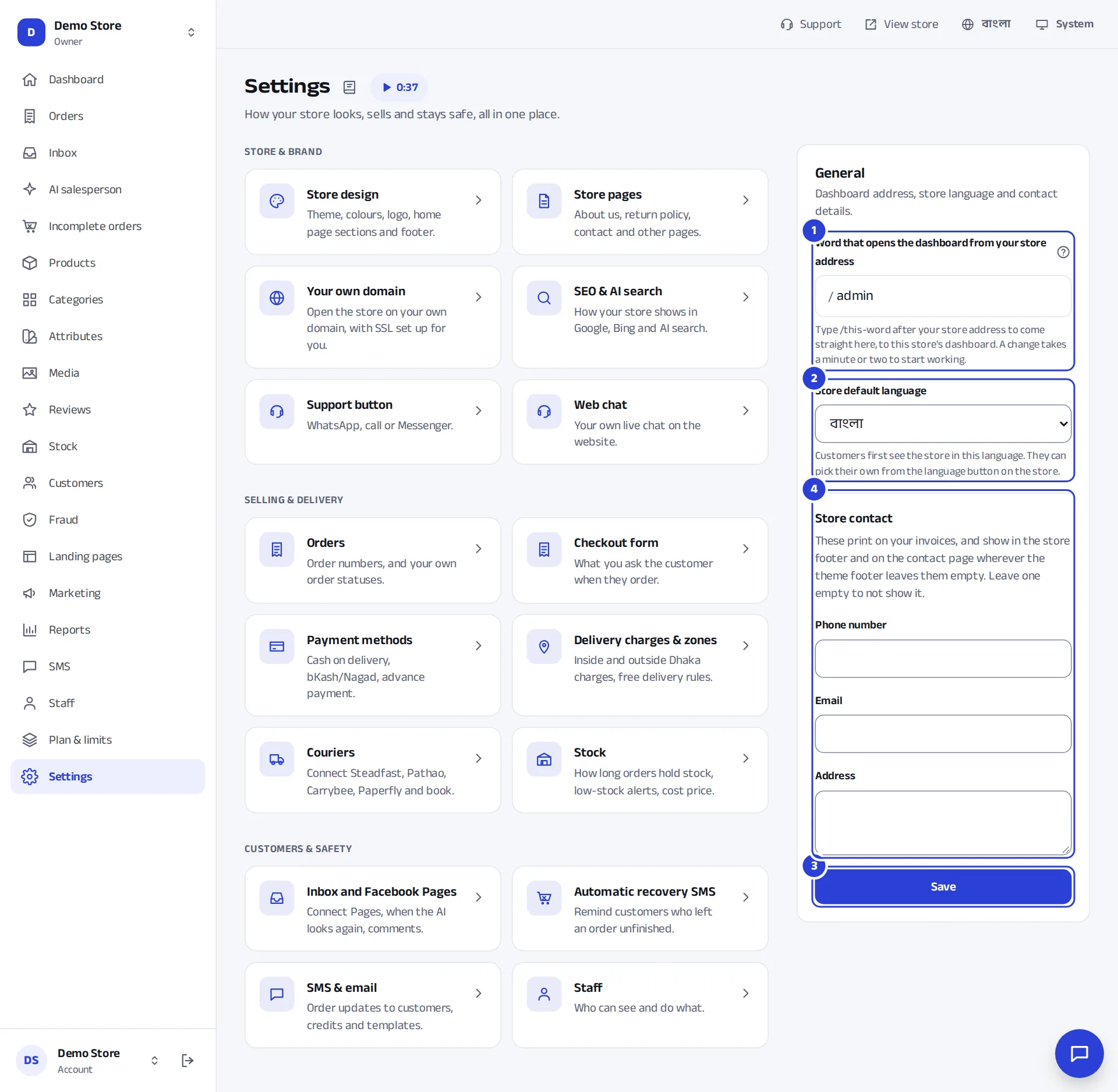
The word that opens the dashboard
Your store’s address followed by /admin, for example rahim-fashion.{root}/admin, takes you to this store on the dashboard (dashboard.{root}/s/rahim-fashion/). Whatever comes after the word comes along: /admin/orders opens the orders. It works the same on your own domain. It is only a shortcut: the dashboard has its own address and its own sign-in, so the word doesn’t need to be secret.
To use another word:
- Open Settings.
- In the General card, type it in Word that opens the dashboard from your store address 1.
- Press Save 3.
The rules:
- 3 to 31 characters: lowercase English letters, numbers and hyphens, not starting with a hyphen.
- A few words the store itself uses are not allowed, such as
api,webhook,cart,checkout,products,accountandsearch.
Good to know
After a change, only the new word leads to the dashboard (it takes a minute or two to start working); the old one no longer does. The dashboard itself stays at
dashboard.{root}, so bookmarks of it keep working (signing in).
Store language
Store default language 2 sets the language customers first see the store in: Bangla or English. Customers can pick their own from the language button on the store.
- Choose the language in Store default language.
- Press Save.
Good to know
This is only the store’s language for customers. The language of your own dashboard is separate and comes from your profile (language and theme).
Store contact
Under Store contact 4, your Phone number, Email and Address print on your invoices and show in the store footer and on the contact page wherever the theme footer leaves them empty; empty a field and press Save to stop showing it.
See also: the dashboard tour.