Printing invoices and packing slips
Print the invoice or the packing slip (the parcel's label) for one order or up to 100 at once, on A4 paper, a label printer or an 80 or 58 mm thermal printer.

On this page
Each parcel takes two papers: the invoice goes inside (what was bought and for how much), the packing slip goes on the outside (who it goes to and what to collect). The print page opens in a new tab.
Print one order
- Open the order page.
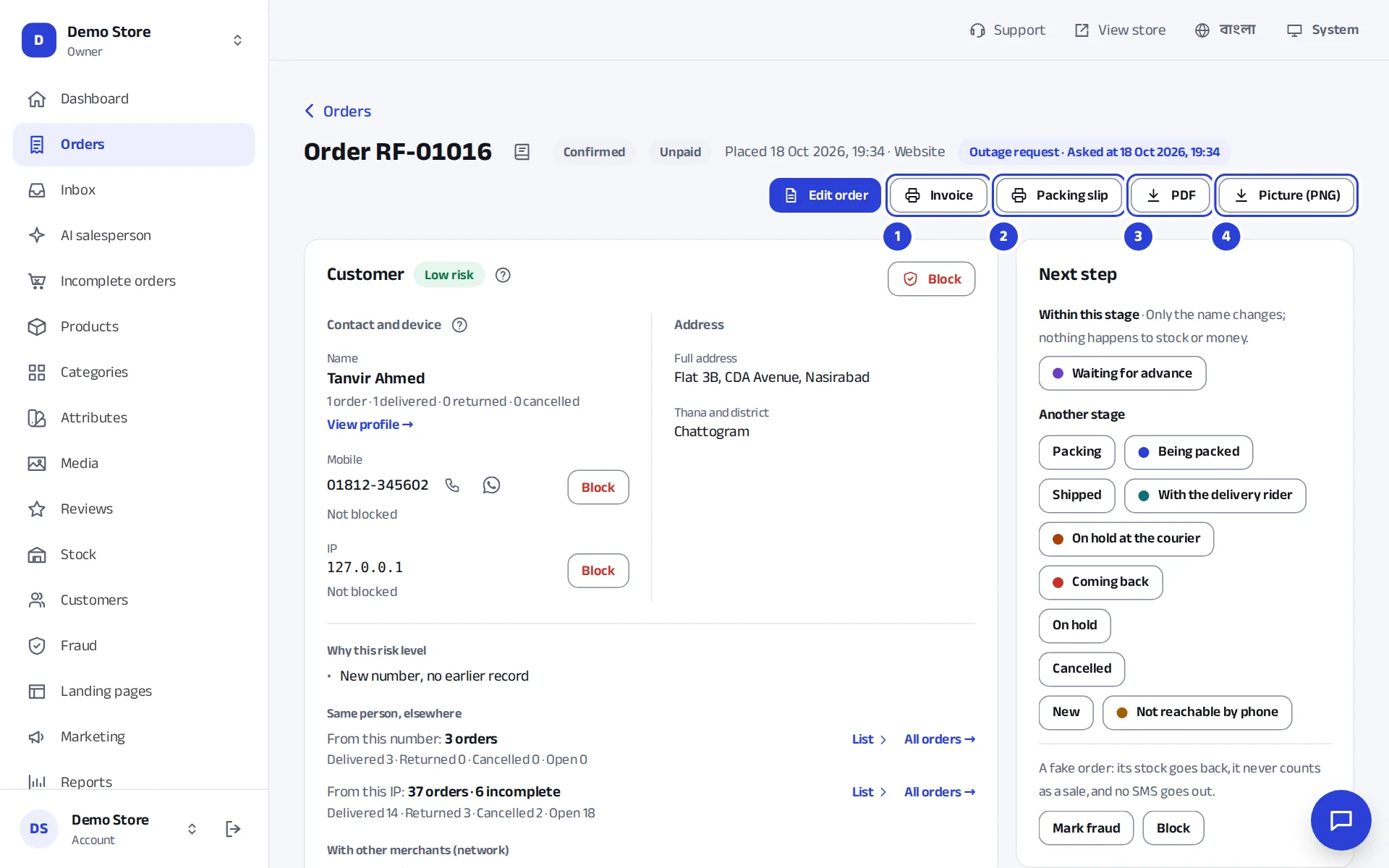
- Press Invoice 1 or Packing slip 2 at the top.
- In the new tab, set the paper size and press Print.
Print in a row’s menu in the order list also opens the invoice. Each time the print page is opened, the order’s timeline notes it (Printed).
The bill as a PDF or a picture
To send the bill to a customer (WhatsApp, email), press PDF 3 or Picture (PNG) 4 on the order page, or on the print page when it shows one order’s invoice.
- It is exactly the A4 invoice you print: the same layout, words and fonts (Bangla prints correctly everywhere, even where Bangla fonts are missing).
- Picture (PNG) gives one picture per A4 page, 1080 px wide. A short order is one page; a long one gets a link per page.
- It takes a few seconds the first time; the same bill again comes at once. After the order changes, a new bill is made.
- When the AI salesperson sends a customer their bill on Messenger or Instagram, it sends this same picture.
- If it says the bill cannot be made right now, press Open the print page beside the message and choose “Save as PDF” in the print window, or try again in a little while.
Many orders at once
- In the Orders list, tick the orders. For example, open the Confirmed tab and tick the header box to pick the whole page.
- Press Print in the selection bar.
- The new tab shows how many orders it holds. Switch from Invoice to Packing slip if you need to.
- Press Print.
- Up to 100 orders at a time; with more selected you get the first 100. They are sorted by order number.
What the invoice and the packing slip show
| Invoice | Packing slip | |
|---|---|---|
| Your logo (or store name) | Yes | Yes: only the logo, or the store name when there is no logo |
| Your phone, address and email | Yes | No |
| Order number and Date | Yes | Yes |
| Customer’s name, phone, alternative number, address, thana and district | Yes (Billed to) | Large (Deliver to) |
| Product names, size/colour, SKU, quantities and prices | Yes | No |
| Subtotal, delivery charge, discount (with the coupon), total, paid | Yes | No |
| Advance payments: bKash/Nagad, amount and TrxID | Yes | No |
| Collect on delivery amount, or Paid in full | In a box | In a large box; when paid, Collect nothing |
| Barcode | Of the order number | Of the courier’s tracking id (the order number until booked) |
| Courier, delivery zone and weight | Courier and tracking id | Yes |
| QR code: the order’s tracking page on your store | Yes | Yes |
| Customer note | Yes | No |
| Answers to your own checkout questions (More details, e.g. “Size: XL”) | Yes | No |
| Thank you for shopping with us! and an Authorised signature line | Yes | No |
- On a thermal printer the invoice is a shorter receipt: your logo, name, phone and address, the order number and date, the customer’s name, phone and address, the items, the totals and payments, the QR code and the thank-you line. The barcode, courier, notes, extra details and signature line are on the A4 invoice only.
- The packing slip never shows product names or prices, so nobody handling the parcel can tell what is inside. Check the items against the invoice while packing.
- Phone numbers, order numbers and tracking ids always print in English digits, so riders can dial them and hub scanners can match them.
- Any ordinary barcode scanner reads the barcodes. Scan one into the order list’s search box to find the order.
- The QR opens the order’s tracking page on your store. It asks for the customer’s phone number before showing anything, so a stranger who scans it sees nothing.
- The logo, your phone, address and email, and the colour of the bar at the foot of the invoice come from your store design (the published Footer, the same details the store’s footer shows). With no phone there, the footer’s WhatsApp number prints, else the support button’s number. A detail left empty is simply not printed.
- A small “Powered by Coder Zone BD” line prints at the bottom. Plans that remove it from your store’s footer remove it here too.
Paper size
Choose under Paper. Each document remembers its own paper on this computer, so you don’t have to pick it again next time.
Invoice:
- A4: an ordinary printer. One order per page.
- Thermal 80mm and Thermal 58mm: receipt printers. All orders one after another, with a cut line between them.
Packing slip:
- A4 (4 per sheet): four labels per page on an ordinary printer. Cut along the dashed lines and stick them on.
- Label 4×6 in, Label 3×3 in, Label 2×3 in: label printer stickers. One order per label.
- Thermal 80mm and Thermal 58mm: labels on a receipt printer, one after another.
In the print dialog, use the same paper size as chosen here, at 100% scale. On a label printer, the printer’s own settings need the same label size too. If a small label is hard to read on screen, enlarge it with − and + at the top; this does not change the print.
Tip
Print the packing slip after booking the courier and its barcode carries the courier’s tracking id. See Booking a courier.
Read next: The order list, The order page.