My stores
The "My stores" page keeps all your stores in one place, each with your role and buttons into its dashboard and storefront, plus opening another store, how many you can have, and which take orders past your plan.

On this page
My stores lists every store you own or work in as staff, a card for each. Open it with All stores in the store switcher at the top left, or from the menu of the account’s pages. With several stores and none opened yet in this browser, signing in brings you here too.
The account’s pages
Outside a store, the menu on the left (the bottom bar on a phone) has the account’s own pages:
- My stores: your stores.
- Wallet: balance, top-ups and the invoices of all your stores (billing and wallet).
- Referral: rewards for referring others (referral programme).
- Support: tickets to our team (support tickets).
- Partner: your partner link, commissions and payouts; only once you are one of our partners (partner programme).
Wallet, Referral and Support are the account owner’s; someone who only works in other people’s stores sees My stores alone (and Partner, if a partner). Your name at the bottom of the menu opens your Profile (my profile).
Store cards
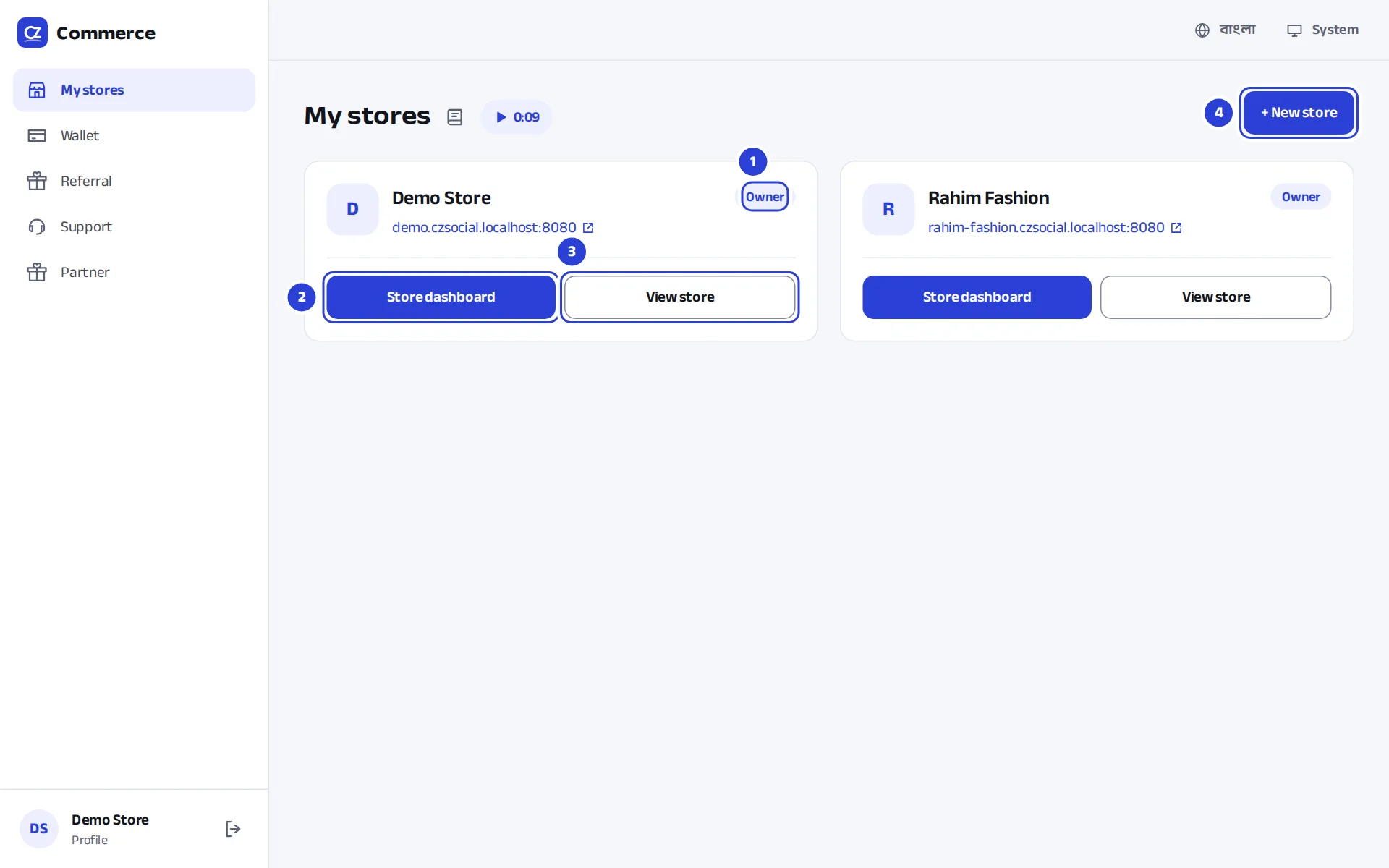
Each card shows:
- The store’s name and its address. The address opens the store in a new tab.
- Your role in the top corner 1: Owner, Admin, Manager, Order staff or Custom (a role the owner made). It decides what you see in the dashboard (staff and roles).
Your own stores come first, then the ones where you are staff.
Into a store’s dashboard
- On the store’s card press Store dashboard 2.
- The store opens right here, with no new sign-in: you are already signed in for every store you have.
Its pages are under the store’s own path, for example dashboard.{root}/s/rahim-fashion/. From inside a store, the switcher at the top left takes you to another one (several stores). What the dashboard holds: dashboard tour.
View store
View store 3 opens your store in a new tab, the way customers see it.
Several stores and the store limit
One account can run several stores, each with its own products, orders, staff and plan. To open another, press New store 4 at the top (opening a store).
How many you can open depends on the plans’ “stores” limit:
- Everyone can open a first store (the Free plan’s limit).
- After that, your limit is the highest store limit among your stores’ plans.
- At the limit, opening another shows “Your plan limit (…) is reached. Please upgrade.” Upgrade one of your stores’ plans (plans and prices).
Good to know
Someone who joined a store only as staff can open a store of their own too. That first store gives them their own account (a staff member’s first store). The email must be verified first (verify your email).
More stores than your plans allow
When a trial ends, a store’s plan runs out or a store moves to a smaller plan, you can end up with more working stores than your plans’ “stores” limit. The extra stores then stop taking new orders. Nothing is deleted.
Which stores keep taking orders:
- A store with its own plan always takes orders: a plan you paid for, one we gave, one in its payment-due days, or a running trial. Each such store takes one place.
- The free-plan stores share the places left, in this order: the ones you chose; then the ones taking orders now; then those with the most confirmed orders in the last 30 days; last, the one opened first.
- With only one working store, it is never paused.
In a paused store:
- Shoppers can still browse, but the cart and checkout say “This store is not taking new orders right now. Please try again later.” and the order form doesn’t open. The order button on landing pages is off too.
- No new orders can be entered by hand, and recovery SMS for incomplete orders wait.
- The dashboard, earlier orders, products and all data stay as they are.
- Its card on this page says Not taking orders. A red notice sits at the top of every page of its dashboard, with Choose a plan for this store and Choose which stores take orders.
Choosing which stores take orders
When there are more free-plan stores than places, this page shows a Which stores take orders card. Only the account owner sees it.
- Tick the stores that should take orders. You can’t tick more than there are places.
- Press Save.
- A store your choice leaves out stops taking new orders at once.
- A paused store can be opened again once a month (Dhaka calendar month). Once that is used, the card says the date you can change it again. Need it open now? Choose a plan for that store.
- A change that opens no paused store can be made as often as you like.
- Without a choice, the order above decides by itself.
Warnings before a store stops
- When a plan change (a trial ending, a plan running out or a smaller plan) means a store will stop, it keeps taking orders as usual for another 24 hours.
- At the start of those hours the store’s owner gets an email saying when it will stop, and another one at the moment it stops. If you choose a plan for the store or change your choice in between, the second email doesn’t go.
- Meanwhile the store’s dashboard shows a yellow notice with the date it stops, and its card on this page says “Stops …”.
- Before a trial ends: emails go 3 days and 1 day before the end. If a store will stop taking orders when the trial ends, the email names it, and that store’s dashboard shows the yellow notice from 3 days before. No SMS is sent for this.
A suspended store
When the platform suspends a store, its card shows a red Suspended badge in place of your role. Its storefront, orders and dashboard are off. Opening it shows This store has been suspended with the date and the reason, and the owner gets Write to support there (when a store or account is suspended).