Several stores and the store switcher
One sign-in opens every store you own or work in. The switcher at the top left moves between them. Opening another store, a staff member's first store of their own, and what an owner and a staff member each see.

On this page
One sign-in at dashboard.{root} opens every store you have: the ones you own and the ones you work in as staff. Each store keeps its own products, orders, staff and plan, and moving between them takes one tap.
The store switcher
At the top left of a store’s dashboard (in the top bar on a phone) is the store you are in: its logo or first letter, its name, and your role there. Press it to open the switcher:
- Your stores, each with your role in it. A tick marks the one open now. If you own stores and also work in someone else’s, they are listed apart: Your stores first, then Where you are staff.
- A suspended store stays in the list with a red Suspended badge (when a store is suspended).
- With more than 8 stores, a Find a store box at the top narrows the list by name or address.
- New store: open another store (below).
- All stores: the My stores page, a card for each store (My stores).
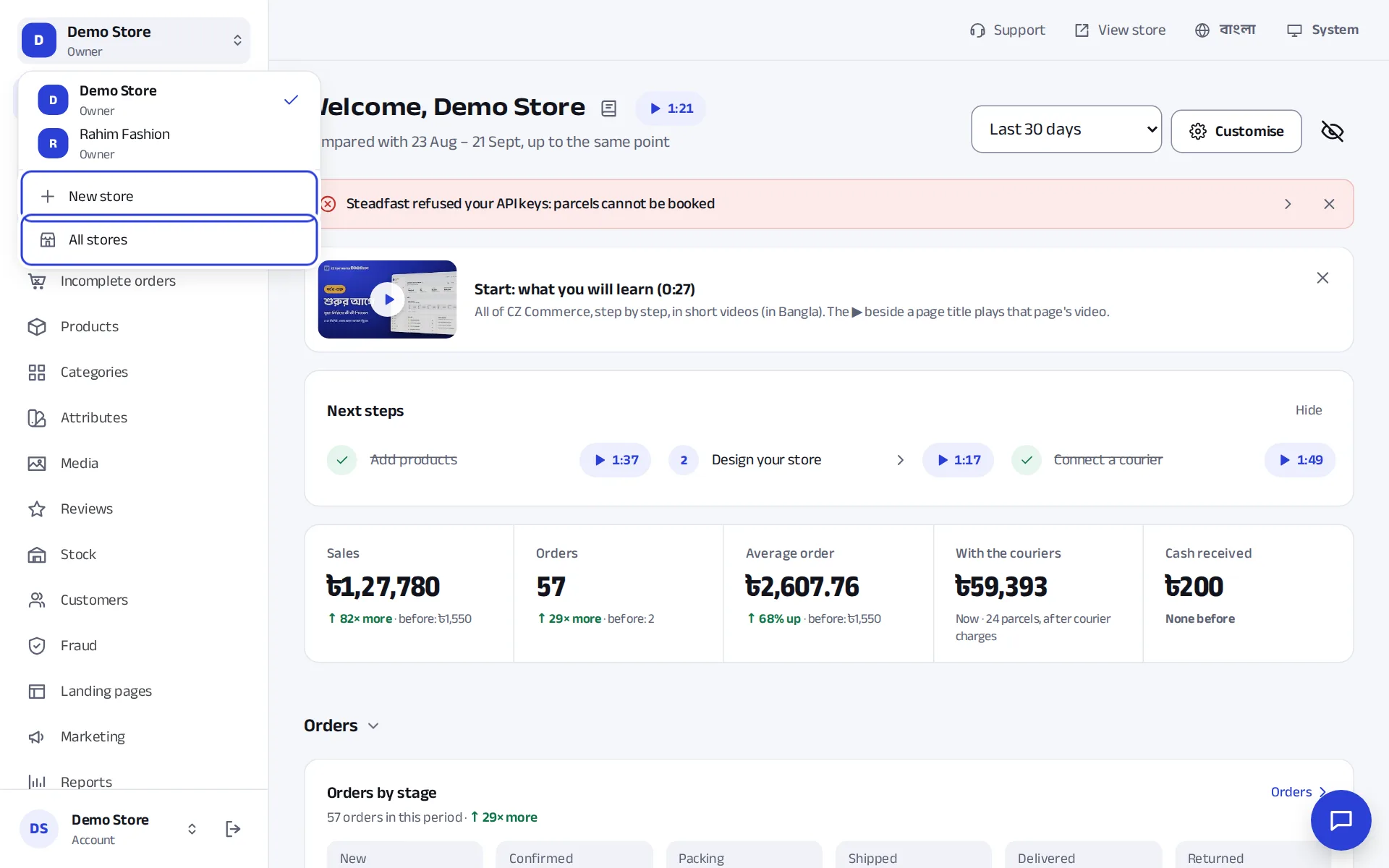
Picking a store opens its home page, not the page you were on: an order or a product of one store doesn’t exist in another. The page loads afresh, so nothing of one store ever shows in another.
Tip
Every page of a store has its own address on the dashboard, such as
dashboard.{root}/s/rahim-fashion/orders. Two stores can be open side by side in two tabs, and a link to a store’s page (in an email or a bookmark) opens that store directly.
Where you land after signing in
- With one store, its dashboard opens straight away.
- With several, the store you opened last in this browser; without one, My stores.
- With none yet, Open your first store.
Opening another store
Press New store in the switcher, or on My stores. The form is the same as for the first store (opening a store). The new store opens as soon as it is made, with you as its Owner, and from then on it is in the switcher.
How many stores one account can have depends on its stores’ plans (the store limit).
A staff member’s first store of their own
Working in someone else’s store doesn’t stop you having your own. If you joined only as staff, New store is there for you too:
- Press New store in the switcher.
- Fill in the form. Above the button it says that this is your first store of your own and you become its owner: tick that you agree to the Terms of Service and the Privacy Policy.
- Press Open store.
That first store makes you a merchant: you get your own account, with its wallet, referral and support, beside the stores where you stay staff. Nothing changes in those stores; their owners still decide what you can do there.
What the owner and staff see
| Account owner | Staff only | |
|---|---|---|
| Stores in the switcher | Their own stores, and any where they are staff | The stores they work in |
| Pages inside a store | Everything in their own stores | What their role allows (staff and roles) |
| The account menu | Profile, Wallet, Referral, Support, Log out | Profile and Log out |
| Billing on Plan & limits | Always, in their own stores | Only where the owner gave them the billing permission (billing) |
The account menu is at the bottom of the left menu: your name with Account under it (on a phone, under More). Wallet holds the balance, the top-ups and the invoices of all your stores (billing and wallet).
Your profile, language and theme are yours, the same in every store (my profile).
See also: signing in, the dashboard tour.