Support button and website chat
A floating button in the corner of your store so customers reach you on WhatsApp, by phone or on Messenger in one tap, and your store's own live chat on the website.

On this page
The support button is a round button floating in the corner of your store. One tap and customers reach you on WhatsApp, by phone or on Messenger, so questions about a product get answered before they order.
Good to know
This button is for your customers. To ask CZ Commerce for help yourself, see support tickets.
Turn the button on
- Open Settings › Support button.
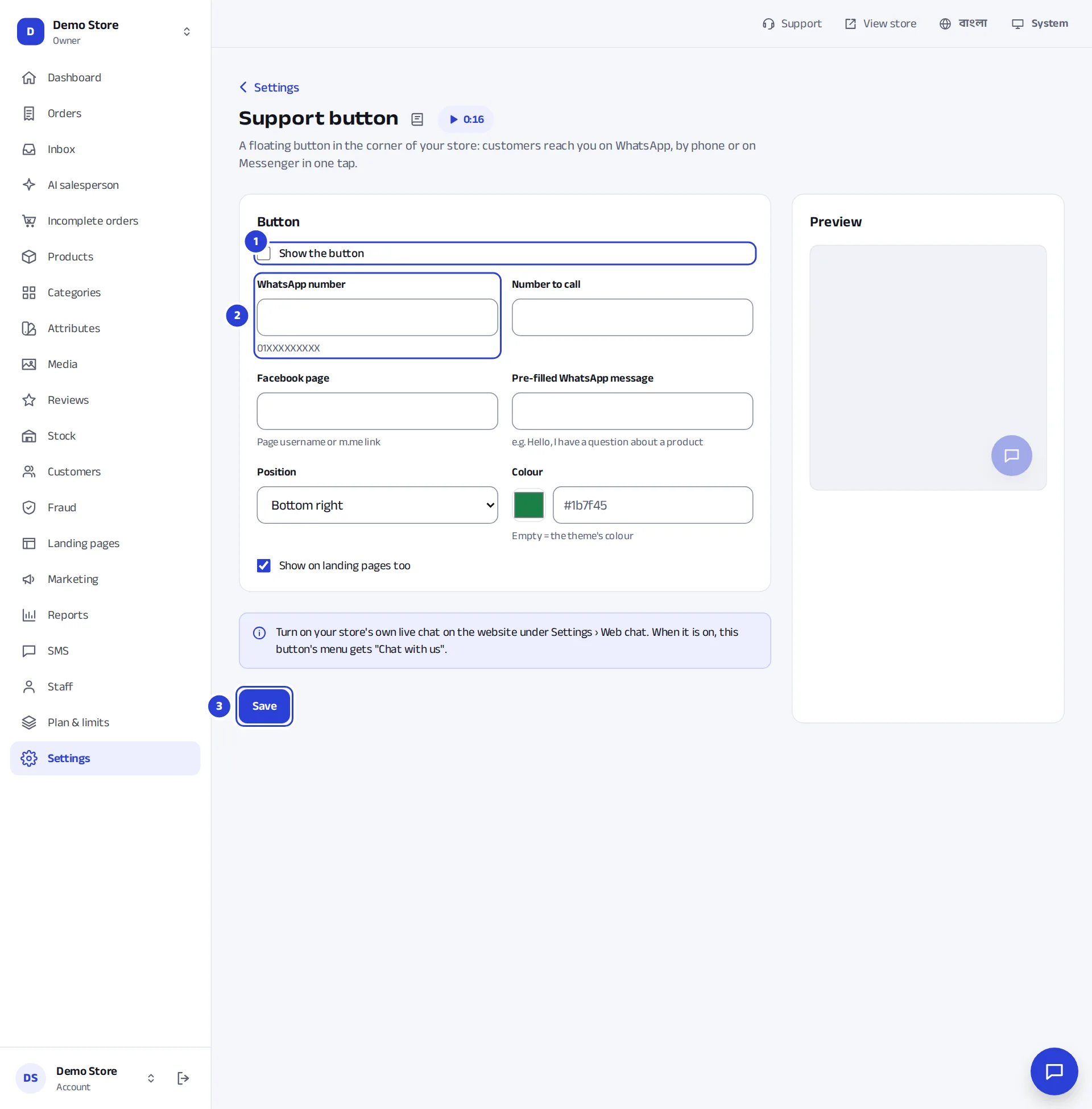
- Tick Show the button 1.
- Add at least one channel: WhatsApp number 2, Number to call or Facebook page.
- Press Save 3.
The Preview on the right shows how the button will look. With the button on but no channel, you’ll see “Add at least one channel (WhatsApp, phone or Messenger).” Without a channel the button doesn’t show on the store.
The channels
- WhatsApp number: a Bangladeshi mobile number like
01XXXXXXXXX. Any other kind of number is not saved. - Pre-filled WhatsApp message: the text already in the box when the customer’s WhatsApp opens, e.g. “Hello, I have a question about a product”. Up to 300 characters.
- Number to call: tapping it calls you straight from the customer’s phone.
- Facebook page: your page’s username or
m.melink. Tapping it opens a Messenger chat with your page.
With one channel, the button opens it directly. With more, a small menu opens and the customer picks one.
Where and how it shows
- Position: Bottom right or Bottom left.
- Colour: empty uses the theme’s main colour.
- Show on landing pages too: on to start with. Turned off, the button shows on store pages only.
Live chat on your website
Your store has its own live chat for the website. Customers write to you from any store page or landing page, and their messages land in your inbox, where you reply. Third-party chat widgets (Tawk.to, Crisp, Tidio) are gone and can no longer be added.
Good to know
Web chat is part of the inbox, which CZ Commerce turns on store by store for now. Without it the page says “Web chat is not in your plan. Write to our support to turn it on.” Only the owner and admins can change these settings.
Turn the chat on
- Open Settings › Web chat.
- Tick Show the chat on the website.
- If you like, write a Greeting (up to 300 characters): what customers see first when they open the chat. Left empty, they see “Welcome! Ask us anything here.”
- Under Questions before the chat, set Name, Mobile number and Email to Don’t ask, Ask, may be skipped or Must be given. Nothing is asked at first: customers can write straight away. Mobile numbers are not verified.
- The chat is off on the checkout page at first, so it doesn’t distract someone who is ordering. Tick Show it on the checkout page too to show it there as well.
- Press Save.
Where customers see it
- With the support button on, its menu gets “Chat with us”. With the button off (or on a landing page where the button isn’t shown), the chat brings its own round button. A number on it shows unread replies.
- It loads a few seconds after the page opens, or as soon as the customer does something, so pages stay fast. Store and landing page previews never show it.
- In the same browser the chat follows the customer from page to page and is still there on a later visit (for 30 days after their last message). A customer signed in to your store is linked to their customer record.
In the chat
- Typing shows both ways: customers see “Typing…” while you or the AI write, and you see the customer typing in the inbox (The chat). The customer’s messages get ✓ (“Sent”), then ✓✓ (“Seen”) once someone at the store opened the chat or the AI read them.
- While the AI salesperson answers in live mode, a small line under the message box says “Replies may be automated.”
- Under the box a line says “This shop sees your messages; they are kept for one year.”, followed by a “Privacy” link to your privacy page: a published store page with the link
privacyorprivacy-policy, otherwise the platform’s. - The chat does not take orders. The AI’s replies can carry product cards with one button, “View this”: it opens the product page, where the chat opens again by itself. Customers order at your website’s checkout (CAPTCHA, SMS code and fraud shield as always); an order that came through a card shows as
web_chatin Where orders come from. - One customer can send at most 10 messages a minute, each up to 1,000 characters; customers can’t send pictures yet. Messages are kept for one year.
See also: Inbox, Store design, Checkout form.