Media
All of your store's pictures in one place. Upload several at once, find one by name, rename it, give it alt text, crop it, see where it is used and delete unused ones (they wait in the trash for 7 days). The same picture is never stored twice.

On this page
Every picture you upload (product photos, category pictures, attribute value pictures, the logo, theme and landing page pictures) is kept in one library. Open Media from the menu on the left, right under Attributes.
Because everything comes from this library, a picture you already have can be used again anywhere without uploading it again, so your storage is not used twice.
The library
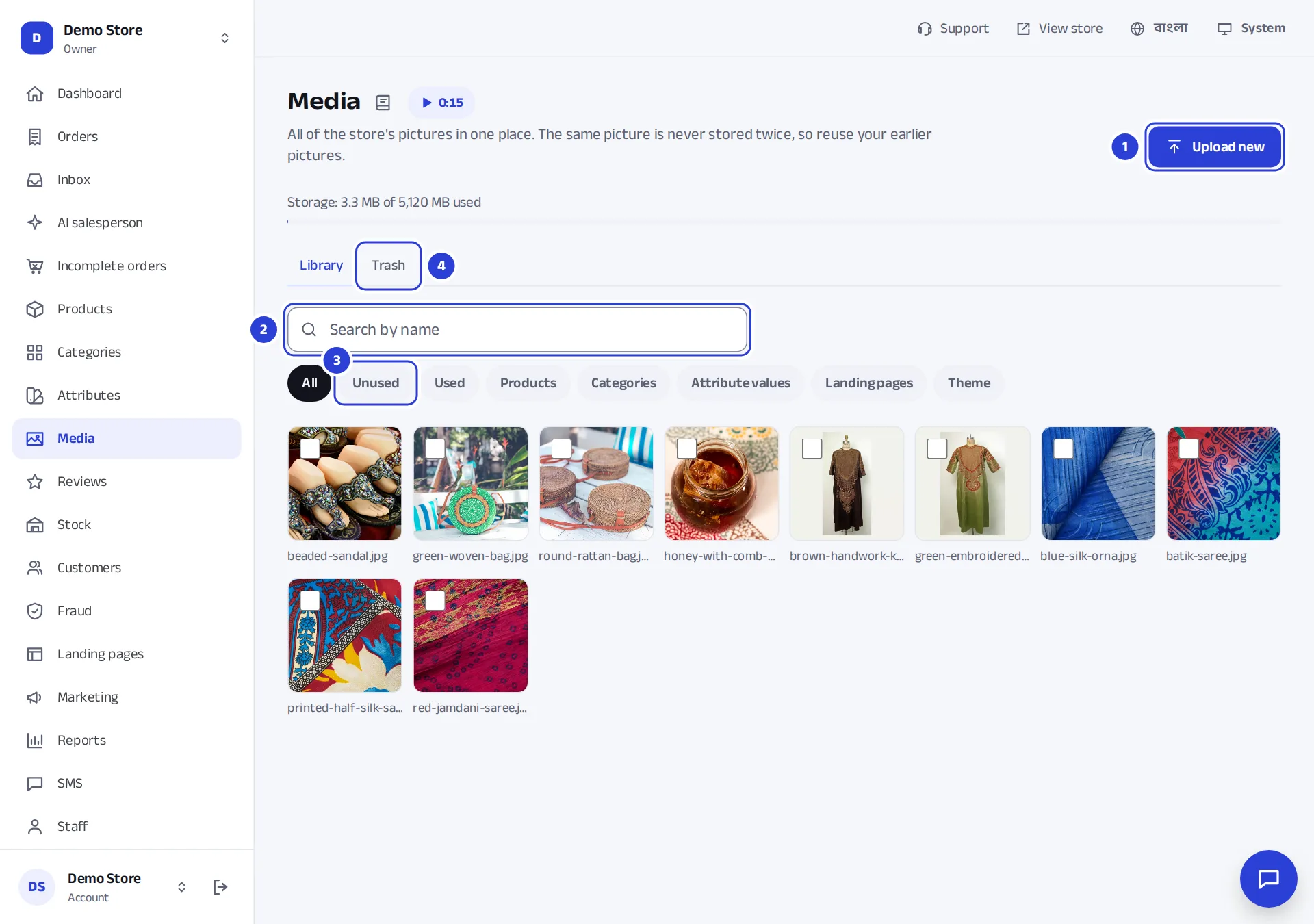
The newest pictures come first. Under each one is its name.
- Search by name: type in Search by name 2. The name, the file’s own name and the alt text are searched.
- Filters 3: All, Unused, Used, or only the pictures used in Products, Categories, Attribute values, Landing pages or the Theme.
- A picture nothing uses shows the Unused label.
- At the top you see how much of your plan’s storage is used (pictures in the trash count too, see Trash).
More pictures load as you scroll down (or press Show more). Upload new 1 is at the top right, and deleted pictures are on the Trash 4 tab beside the library.
Upload pictures
- Press Upload new at the top of the page (or drag pictures from your computer anywhere onto the page).
- Drag pictures into the box, or press Choose files. You can choose many at once.
- Each picture shows its progress. When it is done it appears in the library.
JPG, PNG, WebP, GIF or AVIF, up to 10 MB each. Large phone photos are made smaller in your browser before they are uploaded, so you can use camera photos as they are.
Your plan sets how much storage the pictures may take (plan limits). A picture that would go past it is not uploaded: delete pictures you no longer need for good, or empty the trash, to make room.
Good to know
If you upload a picture the library already has (the same file, even with another name), it is not uploaded again: the one already in the library is used and you see “This picture is already in the library, so that one was taken.” If that picture is in the trash, it comes back from there and you see “This picture was in the trash, so it was brought back from there.”
Details: name, alt text and where it is used
Press a picture to open its details:
- Name: the name the library shows and searches. Rename it to find it easily later.
- Alt text: one line saying what the picture shows. Google and people using screen readers read it. On product pages and product cards the store uses it; left empty, the product name is used.
- Press Save name and alt text.
- The dimensions, file size, type, and when and by whom it was uploaded.
- Where it is used: every product, category, attribute value, landing page and the theme (live or draft) that shows it, as links.
- Copy link copies the picture’s address.
Crop a picture
- In the details, press Crop.
- Choose a ratio: Free, 1:1 (square), 4:5, 3:4 or 16:9.
- Drag the frame to move it; drag a corner or side to make it bigger or smaller. With the keyboard, the arrow keys move the frame (on a corner or side, they resize it); hold Shift for bigger steps.
- Press Save as a new picture.
The cropped picture is saved as a new picture named “
Delete pictures
- One picture: in its details, press Delete, then Move to trash when asked.
- Several: tick the box on each picture, then press Delete in the bar that appears and Move to trash when asked (All shown ticks every picture on the screen).
A deleted picture does not disappear at once: it goes to the trash, where you can restore it for 7 days. Pressing Undo in the message that appears after a delete brings it straight back too.
A picture that is still used somewhere is not deleted: you see where it is used, so you can remove it from there first.
Good to know
Old saved versions of landing pages and past orders keep a copy of a picture. They do not stop a delete; once the picture is deleted for good they simply show no picture. Bringing back an old landing page version whose picture is in the trash brings the picture back to the library too.
Trash
Deleted pictures stay for 7 days under the Trash tab of the Media page. The tab shows how many pictures are in it.
- Each picture says who deleted it and when, and in how many days it is deleted for good.
- Restore: the picture goes back to the library exactly as it was (name, alt text and all).
- Delete for good: deletes the picture for good now. You are asked first, with how much space it frees.
- Several at once: tick the box at the left of each picture, then press Restore or Delete for good in the bar that appears.
- Empty trash: deletes every picture in the trash for good. You are asked first, with how many pictures and how much space.
After 7 days, pictures in the trash are deleted for good by themselves. A picture deleted for good cannot be brought back.
Good to know
Pictures in the trash still take storage space: under the storage bar at the top you see how much of it is in the trash. Emptying the trash (or deleting pictures for good) frees the space.
- Pictures in the trash are not shown in the library, in search or in the media popup, so they cannot be used anywhere. Restore one first if you need it.
- Uploading a picture that is in the trash does not store it again: it comes back from the trash to the library.
- Only people who may delete pictures can see the trash, restore pictures and delete them for good (Change products, categories and stock).
Choosing a picture anywhere else
Wherever you add a picture (a product’s Images, a variant’s picture, an attribute value’s picture, a category’s picture, the logo and theme sections, landing page sections), the media popup opens:
- Library: your earlier pictures, with the same search and filters. Press a picture to choose it; where several can be used (a product’s pictures, a landing page gallery) press them in the order you want them, and each shows its number. Press again to take one out.
- Upload new: drag or choose new pictures. When they are uploaded you are taken back to the library with them already chosen.
- On a computer the chosen picture’s details show on the right: rename it, give it alt text or Crop it right there (on a phone, press Details). A crop made here is the one chosen.
- Press Use to put the chosen pictures in place. Where a picture can be taken off, Remove picture is there too.