Domain not going live
Your own domain stuck on Waiting, Verifying or Problem? Check the usual DNS record mistakes, root domains, Cloudflare and timing, and fix it.

On this page
You connected your own domain but the status won’t turn Live? Almost always the cause is the DNS record. Go through the checks below.
Read the status
Open Settings › Your own domain. Each domain shows its status:
| Status | Meaning |
|---|---|
| Waiting | The domain is added; we haven’t registered it with Cloudflare yet. Takes a minute or two |
| Verifying | Cloudflare is looking for your DNS record and issuing the SSL certificate |
| Live | DNS and SSL are both done; the store opens at this address |
| Problem | Cloudflare has stopped or lost the domain (see below) |
Under the domain you’ll see when it was last checked and a short note from Cloudflare, in its own words. For example, pending / pending_validation means Cloudflare hasn’t found the record yet. If the note mentions an error, you can send it to support exactly as it is.
We check again by ourselves every 10 minutes, and the page updates itself while it’s open. To check right after fixing your DNS, choose Check again now in the domain’s menu.
Check the DNS record
The record shown under How to do it 1 must be exactly what you have where you bought the domain (Namecheap, GoDaddy, Cloudflare…).
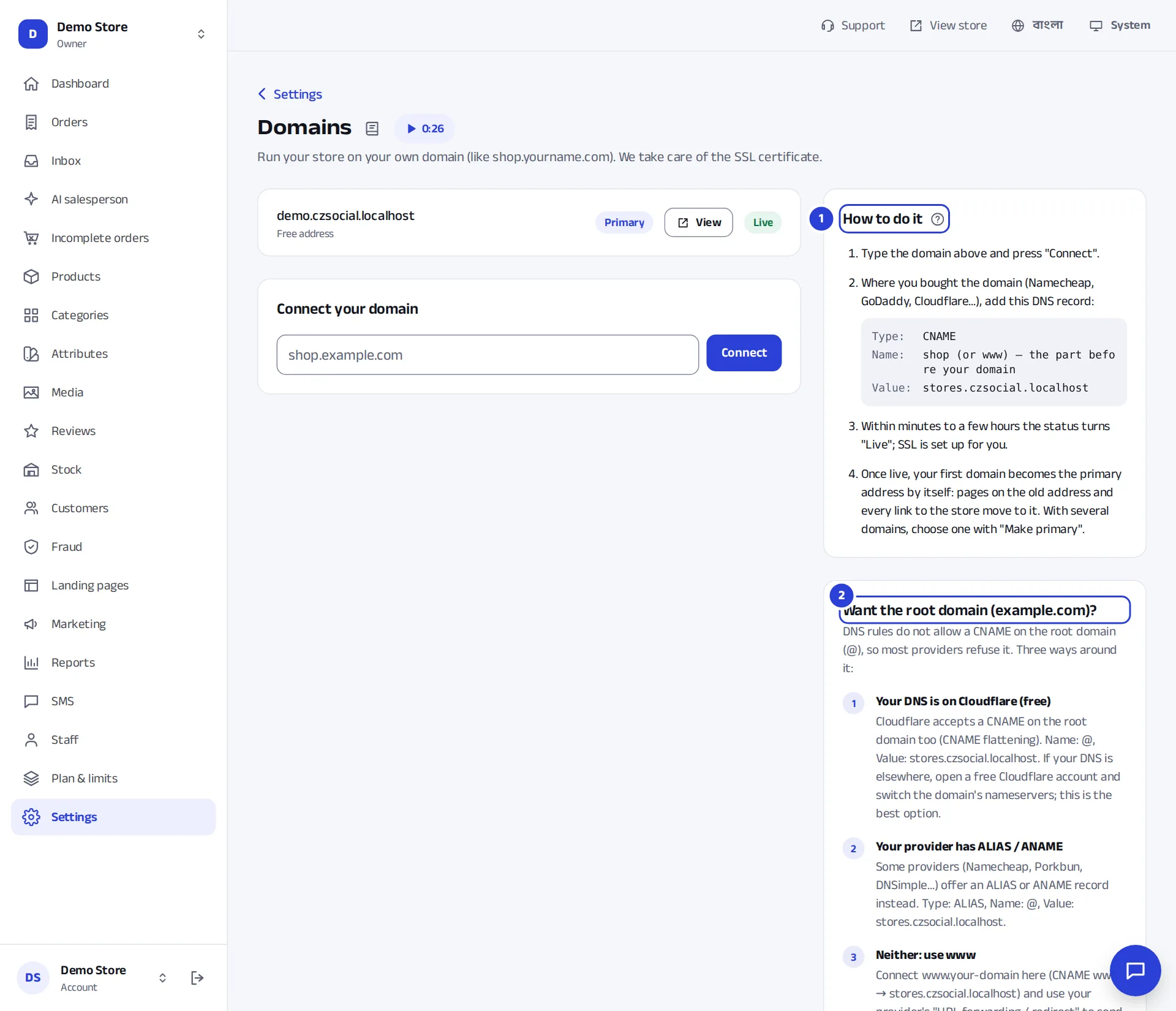
The most common mistakes:
- The full domain in Name: for
shop.example.com, Name is justshop. Many providers add your domain on the end, so typing it all givesshop.example.com.example.com. - Extra bits in Value: Value is only the address shown on the page. No
https://in front and no/at the end. - An old record is still there: delete any A, AAAA or other CNAME record with the same name. Two records for one name stop ours from working.
- The wrong type: the type is
CNAME(or ALIAS on a root domain, see below).
A root domain, without www
Most providers don’t allow a CNAME on a root domain (@) like example.com. The page’s Want the root domain (example.com)? 2 box lists three ways around it:
- Move your domain’s DNS to Cloudflare (free), which accepts a CNAME on the root domain.
- If your provider has an ALIAS or ANAME record, use that.
- If neither works, connect
wwwand use your provider’s URL forwarding to send the root domain tohttps://www.….
Your domain’s DNS is in your own Cloudflare account
If your domain’s DNS is in your own Cloudflare account, switch our record from the orange cloud (Proxied) to grey (DNS only). With the orange cloud, traffic stops at your Cloudflare and the check never finishes.
How long it takes
Usually a few minutes to a few hours. With some providers a DNS change can take up to a day. If the record is right, wait; deleting and re-adding it over and over only makes it take longer.
Status “Problem”
Problem means Cloudflare had trouble with the domain. We still look at it again by ourselves, every half hour at first and less often as days pass (at least once a day), and Check again now in its menu looks at once. If it stays Problem after you fix the DNS:
- Fix the DNS record as described above.
- Choose Remove in the domain’s menu.
- Under Connect your domain, type the domain again and press Connect.
If it still ends up as Problem, write to support.
“This domain is already on this store, or it is one of our own store addresses.”
Despite its words, this message means the domain is already in this store’s domain list (look below the box: it may still be pending), or it is one of our own store addresses (….{root}), which can’t be added as your own domain. A domain that another store has gives “Another store has added this domain…” instead: add the TXT record shown and press Connect again (details). Still stuck? Open a support ticket. A store can have up to 3 domains of its own.
Make it primary only once it’s live
The Make primary button only appears on a Live domain. Making it primary moves the store’s pages to the new address; the dashboard and the courier webhooks keep working on the old one. Let it go live first, then make it primary (details).
What to send support
In your ticket, include the domain, its status, the note under it exactly as shown, and a screenshot of your provider’s DNS page.
See also: Connecting your own domain, What the statuses mean.