Creating your account
Open a free account with your name, email, mobile number and a password, and a referral or promo code if you have one. A 6-digit SMS code confirms the number, an email link confirms the address.
On this page
Opening an account is free, needs no card and takes a few minutes. One account runs all your stores.
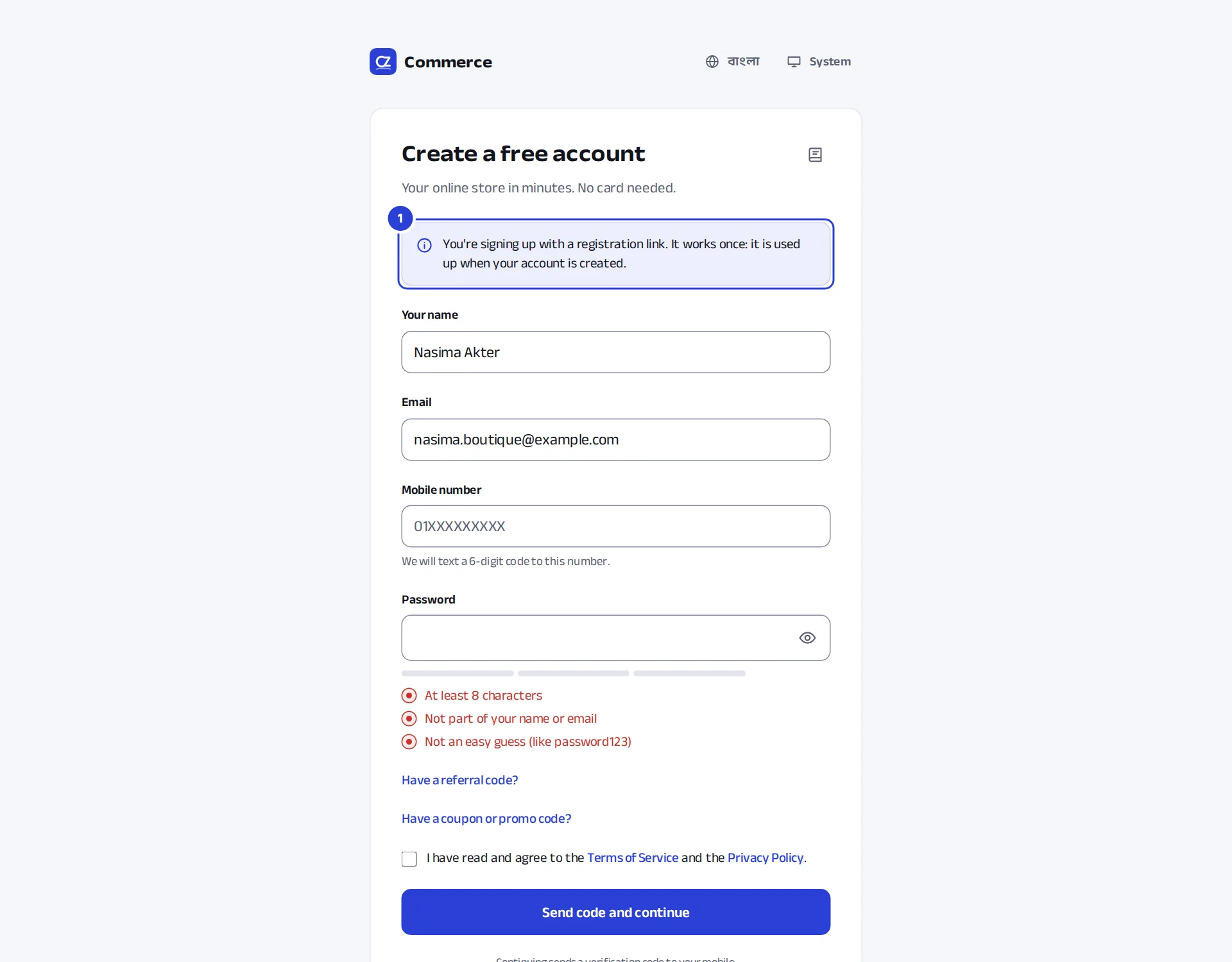
Fill in the form
- Press Start free on our website, or Create a free account on the dashboard’s sign-in page (
dashboard.{root}). - Type Your name (at least 2 characters).
- Enter your Email. The confirmation link goes there, and later any password reset link, so use an address you actually read.
- Enter your Mobile number, for example
01712345678. Bangla digits work too. With WhatsApp verification on, the field is called WhatsApp number: give the number that has WhatsApp, and order news, verification and support come there. - Choose a Password. The list under it ticks off each rule as you type (password rules).
- If someone referred you, open Have a referral code? and enter the code. Coming from a referral link, it is already filled in.
- Got a coupon or promo code from us (such as CZ50)? Open Have a coupon or promo code? and enter it in Coupon or promo code; it is added to your account as the account opens. A link with a code fills it in for you. A code that can’t be used (unknown, ended or used up) shows a message under the field before any SMS goes: fix it or clear the field.
- Read the Terms of Service and the Privacy Policy and tick the box. You can’t continue without it.
- If a box asks you to show you’re a person, tick it. It appears only when the platform has its CAPTCHA switched on.
- Press Send code and continue.
When the platform has them on, you can also sign up with Continue with Google or Continue with Facebook instead of a password; the mobile code is still needed (signing up with Google or Facebook).
Good to know
One mobile number has one account, and so does one email. If you see “An account with this email already exists”, sign in instead, or reset the password if you forgot it.
Verifying the number with WhatsApp
When the platform has it on, Send code and continue first opens Verify with WhatsApp instead of texting a code. It costs nothing and there is no code to type:
- On a phone: press Verify with WhatsApp. WhatsApp opens on the “CZ Commerce” chat with the message already written (such as “Verifying my number on CZ Commerce. Code: CZ-482193”); just tap Send.
- On a computer: scan the page’s QR code with your phone’s camera or WhatsApp’s scanner and tap Send. With WhatsApp Web or Desktop open on the computer, Open WhatsApp Web / Desktop works too.
- As soon as the message arrives, the page goes on by itself and opens the account. The message must come from the WhatsApp of the number on the form; from another number, the page says so.
- The code works for 10 minutes, once.
- WhatsApp won’t open, or your WhatsApp username hides your number? Press Send the code on WhatsApp (a 6-digit code arrives on WhatsApp with a “Copy code” button) or Send the code by SMS below, then enter the code. If the number has no WhatsApp, the code goes by SMS by itself and the page says “WhatsApp couldn’t be reached; the code went by SMS.”
Without WhatsApp verification on the platform, the 6-digit code goes by SMS straight away, as before.
“Registration is closed for now”
Sometimes the platform stops taking new accounts for a while. Then the sign-up page (and every “Start free” button on our website) shows Registration is closed for now 1 instead of the form. Check back later, or write to us through the contact page on our website.
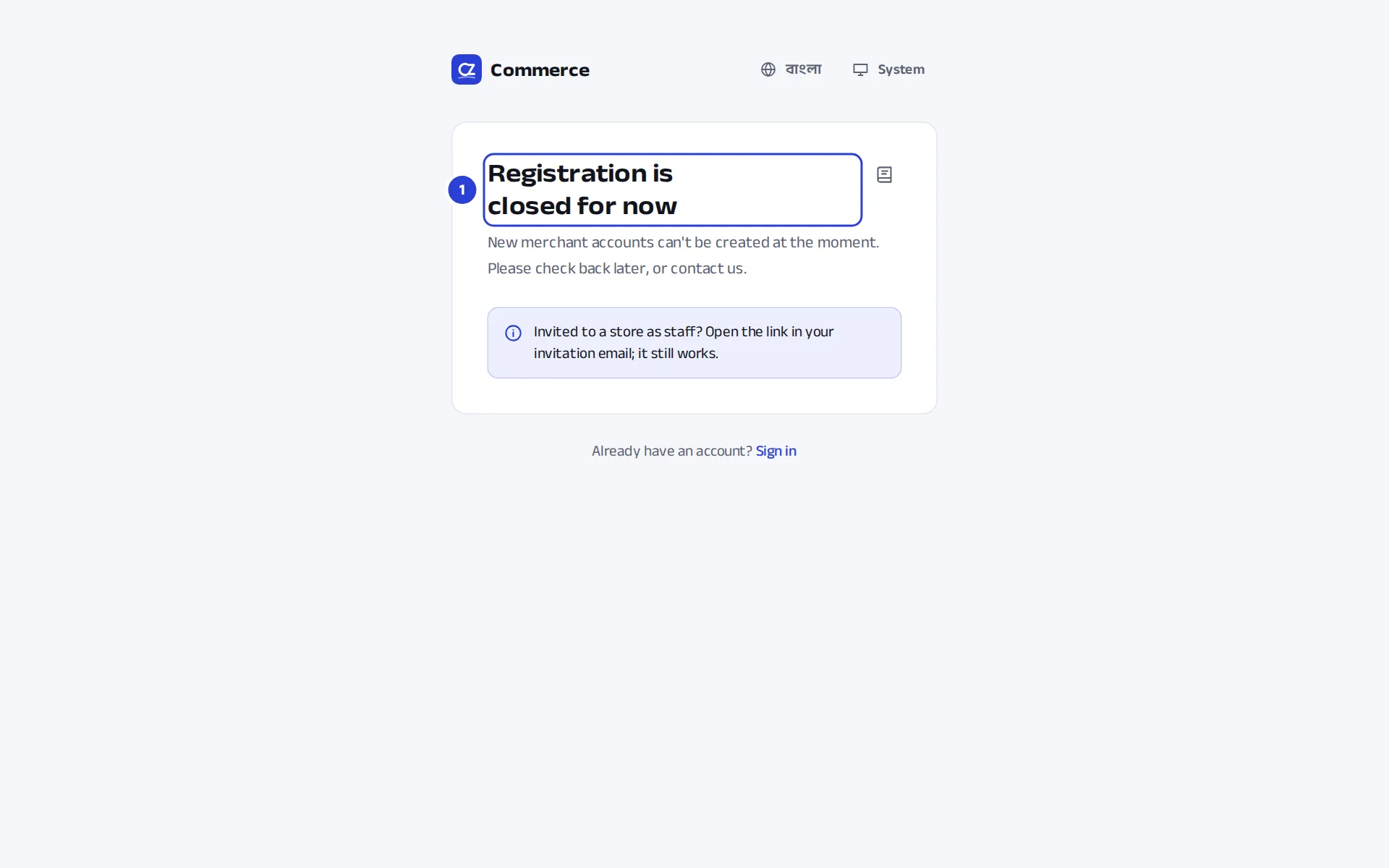
- Invited to a store as staff? That still works: open the link in your invitation email (joining a store).
- Already have an account? Sign in as usual; you can still open more stores.
- Got a registration link from us? It opens sign-up for you (below).
Signing up with a registration link
While registration is closed, we can send you a personal registration link (it looks like https://dashboard.{root}/signup?invite=…). Open it and the sign-up form appears as usual, with the note You’re signing up with a registration link. 1 on top. Fill it in the same way: the code to your mobile, then the account.
- A link works once. It is used up the moment your account is created; nobody else can open an account with it after that.
- It has an expiry date, chosen when it was made (1 to 30 days). Use it before then.
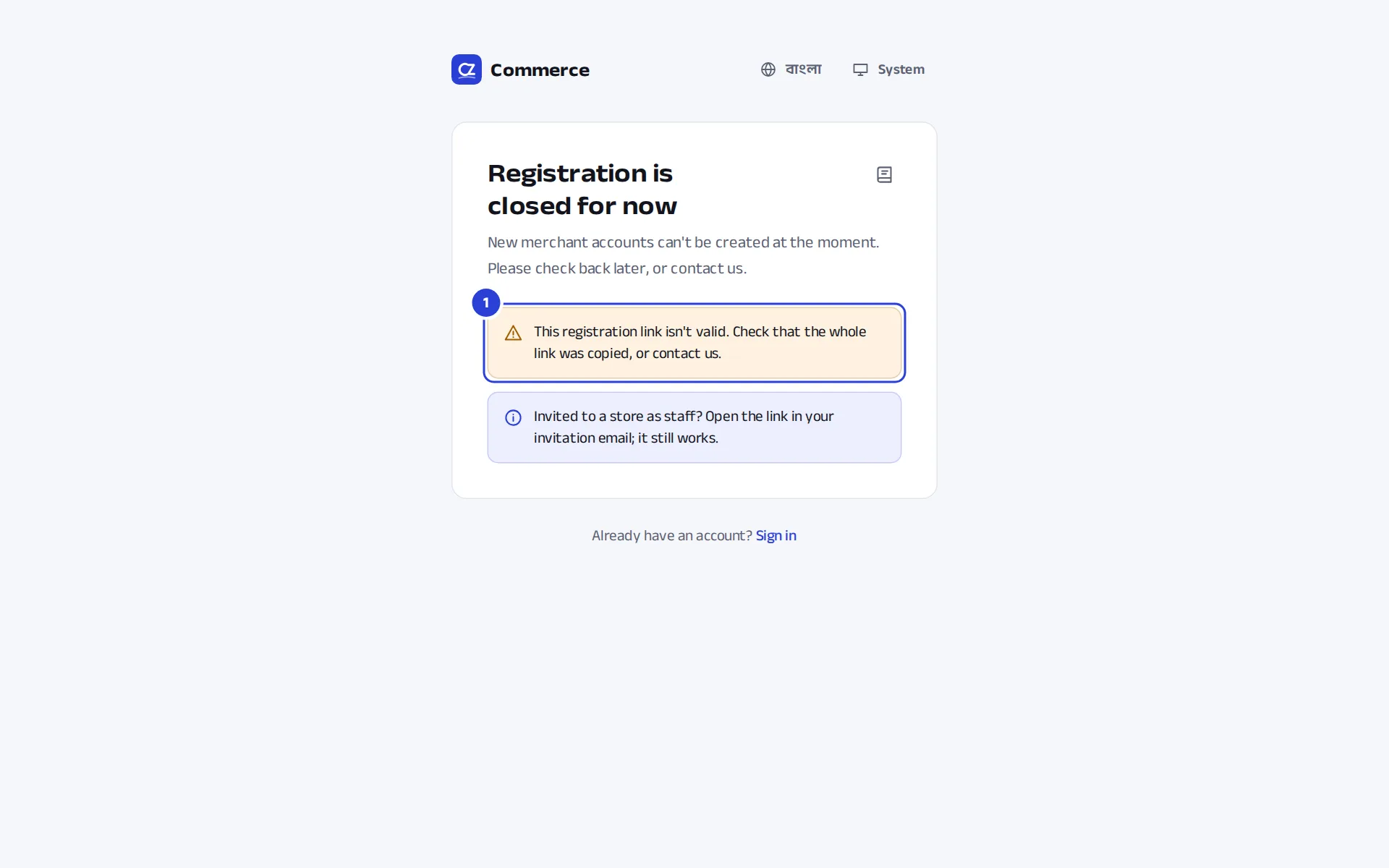
- If the link can’t be used, the page shows Registration is closed for now with the reason: the link has already been used, has expired, was cancelled, or isn’t valid (part of it may be missing: copy the whole link). Ask us for a new one.
- The rest is as usual: the box asking you to show you’re a person (when it is on), and the limits on codes per number.
- When registration is open, the link isn’t needed; signing up with it still works.
Password rules
- At least 8 characters (at most 128).
- No part of your name or email.
- Not a very common password such as
password123or12345678.
The strength bar is only advice. A few long words strung together are easy to remember and hard to guess.
Verify your mobile
When the form is right, we text a 6-digit code to your mobile.
- Type it in Verification code. The sixth digit starts the check by itself; there is no need to press Verify and create account.
- When the code is right, the account is created and the dashboard opens on Open your first store.
About the code:
- It works for 5 minutes. After 5 wrong tries you need a new one.
- No SMS? Press Send the code again after 60 seconds. One number can get at most 5 codes in 15 minutes.
- Typed the wrong number? Press Wrong number? Go back and fix it.
Verify your email
As soon as the account exists, we email you a confirmation link. You have to confirm the email before opening a store; until then, opening one stops with “Please verify your email first.”
- Click the link in the email. It works for 24 hours.
- On the page that opens, press Yes, verify my email. Nothing is verified until you press it, so a mail scanner opening the link can’t do it for you.
- When it says “Your email is verified”, press Go to my stores.
No email? Check the spam folder. Still nothing, or the link has expired: press Resend link in the notice where stores are opened (your stores, or the new store page) and a new link goes out. If that doesn’t help either, tell us through the contact page on our website.
Tip
Typed the email wrong? Sign in and change the email in your profile. Opening the link sent to the new address confirms it.
Next: open your first store.