Categories
Group your products in categories up to 3 levels deep (e.g. Women › Saree › Jamdani). Drag to change their order and place, give them an image, description, link and SEO, and set the product order inside a category and each product's main category.

On this page
Categories help customers find products in your store. A category can sit inside another, up to 3 levels: e.g. Women › Saree › Jamdani. Open Categories from the menu on the left.
Create a category
- In the form at the top, type the Name 1, e.g. “Saree”.
- Choose where it goes in Inside 2. For a top category keep Top level. Only first- and second-level categories are listed, because nothing can go inside a third-level one.
- Press Add 3. The new category takes its place, last among its siblings.
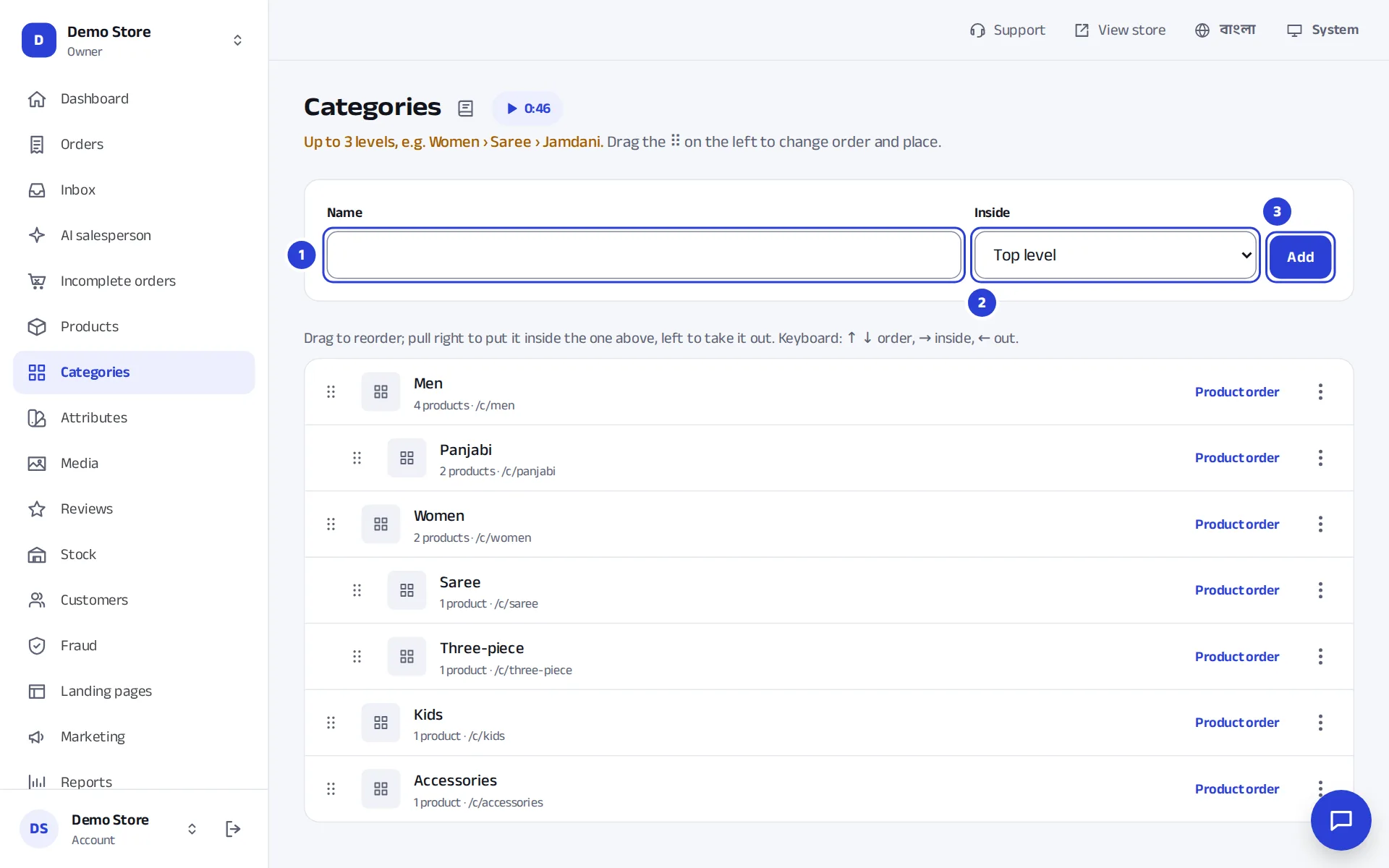
The list below follows your own order, with sub-categories indented. Under each one you see how many products it holds. The store’s menu, the home page’s categories section and the list in the product editor follow the same order.
Change order and place
Grab the ⠿ at the left of a row and drag it (on a phone, press and drag with your finger):
- Up or down changes the order. Sub-categories travel with their category.
- Pull right to put it inside the category just above, pull left to take it one level out. The row shows its new place before you let go.
- Where it would make more than 3 levels, the row gets a red outline and a “Can’t go here” message appears. Letting go there changes nothing.
With a keyboard: Tab to the ⠿ button, then ↑ ↓ change the order, → puts it inside the category above and ← takes it out. If dragging is awkward, the ⋯ menu at the right of each row has Move up and Move down.
Letting go saves at once. The store shows the new order within moments.
Name, link, image and SEO
Press a category’s name (or ⋯ › Edit). A panel opens beside the list (from the bottom on a phone):
- Name: what the store shows.
- Link: the category’s address, e.g.
/c/saree. Lower-case English letters, digits and hyphens only; Bangla is written out in English for you. Two categories can’t share a link. - Inside: another way to move it. Only places that stay within 3 levels are listed.
- Add image: shown in the home page’s categories section. It opens the media popup: take a picture you uploaded before, or upload a new one (see Media). Remove image takes it off.
- Description: shown under the name on the category page.
- Search engines (SEO): the title and description Google shows. Left empty, the name and description are used.
- Show in the store: turn it off to hide the category (see below).
Then press Save.
Watch out
Changing the link breaks the old one. Customers arriving from Facebook posts, ads or messages that use it will see “not found”. Renaming a category does not change its link, so leave the link alone when you only fix the name.
Hide and delete
In the ⋯ menu at the right of each row:
- Hide: the category no longer shows in the store and is marked Hidden. Its products keep selling and still open on their own pages. Show brings it back.
- Delete: after you confirm, the category is gone. Its sub-categories move up one level. Products are kept; they just leave this category, and where it was a product’s main category, the product’s next category becomes the main one.
Good to know
A category with no active products (in it or in its sub-categories) doesn’t show in the store. If a new category is missing, add products to it first.
Product order inside a category
You decide which products a category page shows first:
- Press Product order on the row (on a phone, ⋯ › Product order). The category’s products appear in the order the store shows them now.
- Drag them by the ⠿ into order. With a keyboard use ↑ ↓ (Home/End for the very top or bottom); the ⋯ menu has To the top, Move up, Move down and To the bottom.
- Press Save order.
In the store, a category page starts in “Featured” order: your arranged products first, then the ones arranged in its sub-categories, then the rest, newest first. Shoppers can still sort by newest or by price. A home page section showing a category’s products follows the same order.
Products added later come after the arranged ones. To go back to newest first, press Newest first.
Main category
When a product is in several categories, one of them is its main category. The path at the top of the product page (e.g. Home › Women › Saree), the same path for Google, and “You may also like” further down all come from it. At first, a product’s first category is its main one.
In the Product order panel, products whose main category is this one show ★ Main; otherwise the other category’s name is shown. To make this category a product’s main one, press the product’s ⋯ › Make this the main category. If the main category is hidden, the store uses the product’s next shown category.
Put products in categories
- On the product page, tick categories under Categories on the right. A product can be in several categories (up to 20). See Adding a product.
- In an import file, a path in the
categorycolumn (e.g.Women > Saree) creates missing categories by itself. See Importing from Excel/CSV. - On the Products page, filter by category to see what each one holds.
What isn’t possible yet
- Categories deeper than 3 levels.
- Sending visitors from an old link to the new one after the link changes.
- Arranging more than 500 products at once in Product order; the rest follow the arranged ones, newest first.
- Adding many products to a category from the list at once; use an import for that.
Read next: The product list, Adding a product.