Sign-in security
Two-step login with an authenticator app, staying signed in for 30 days on a trusted device, and seeing every phone and computer signed in to your account so you can sign them out.

On this page
Your account holds money, orders and customer details, so keep the way in safe. Everything here is in the lower part of My profile (opening your profile).
Two-step login
When it is on, signing in asks for the 6-digit code from an authenticator app on your phone after the password. The code changes every 30 seconds, so someone who learns your password still can’t get in without your phone. Google Authenticator, Microsoft Authenticator, Authy or any similar app works. Codes are not sent by SMS.
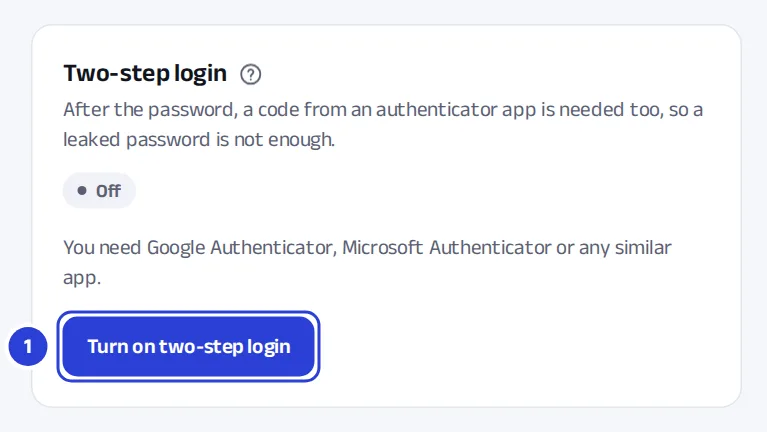
To turn it on:
- Install an authenticator app on your phone.
- In the Two-step login card press Turn on two-step login 1, type Your password in the window and press Continue. It is asked again so a session alone can’t put someone else’s app on your account.
- If your account has a verified mobile or email, a code goes there (confirming it is you); type it in Confirmation code and press Confirm.
- Scan the QR code with the app. If the panel is open on that same phone, press Open in an authenticator app on this phone, or type the Setup key into the app.
- Enter the code the app shows in 6-digit code from the app. The sixth digit turns it on by itself; there is no need to press Turn on.
- Ten recovery codes appear (below). Copy or download them, tick I have saved these codes somewhere safe and press Done.
- The card now says On.
Finish the setup within 10 minutes or start again. Turning it on is reported to your verified mobile by SMS and to your email, and signs you out on every other device; from the next sign-in you need the code (the two-step code).
Recovery codes
When two-step login is turned on you get 10 recovery codes, like abcde-23456. If you lose your phone or the app, any one of them signs you in instead of the app’s code (the two-step code).
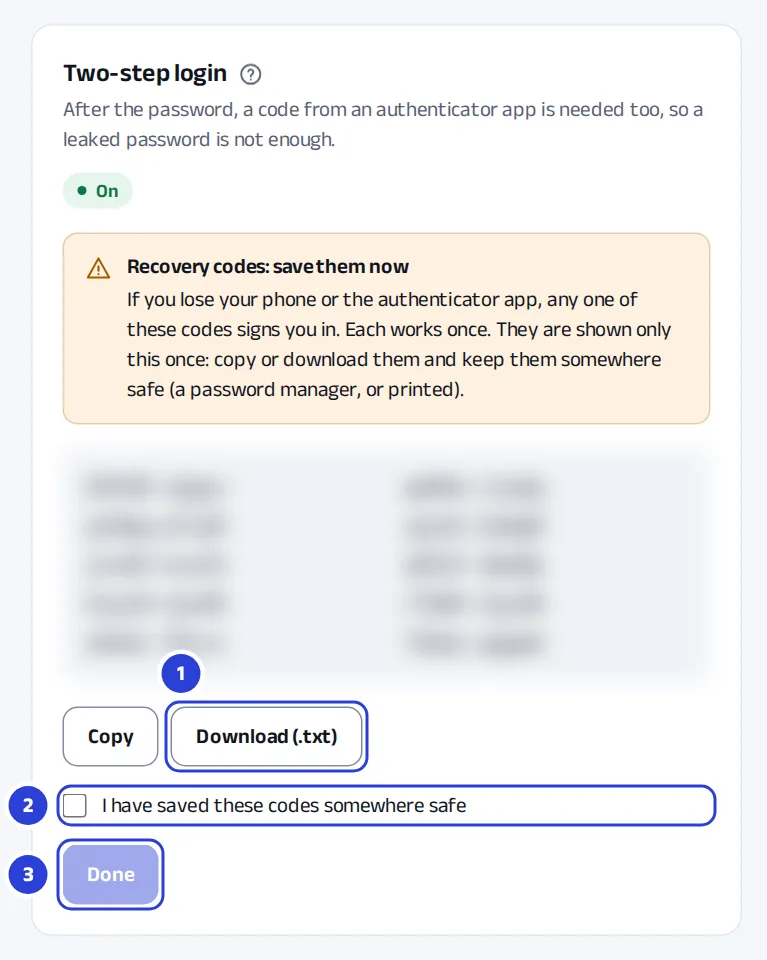
- Shown only once. Copy them or press Download (.txt) and keep them somewhere safe: a password manager, or printed on paper. We keep only a scrambled form, so nobody, us included, can show them again.
- Each works once. A used code is gone; the card shows Recovery codes: {n} left.
- We email you every time one is used, with how many are left. If it wasn’t you, change your password straight away and make new codes.
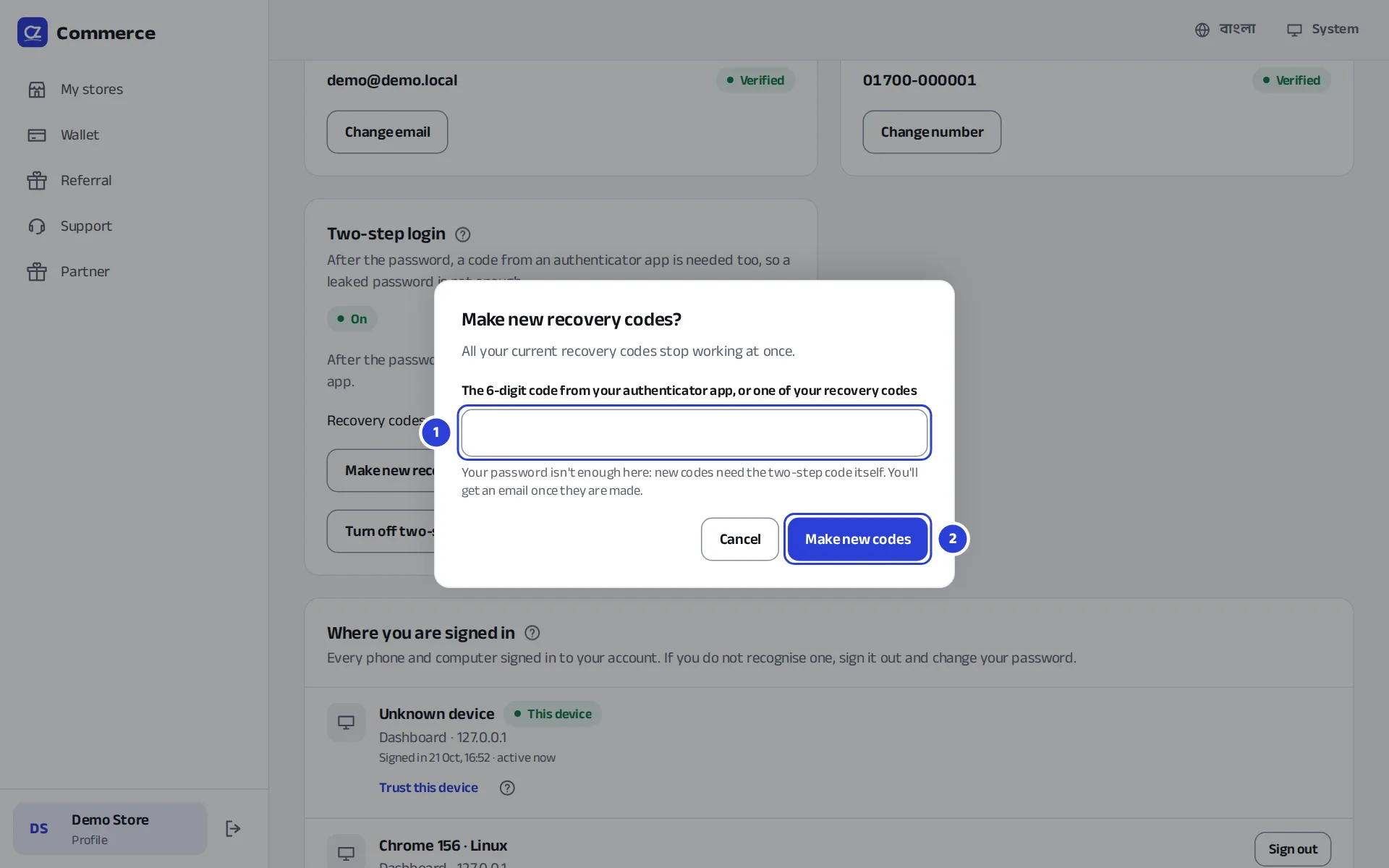
- Running low: with 2 or fewer left, the card warns you. Press Make new recovery codes, enter the app’s current code (or one of your unused recovery codes) in the window and save the 10 new ones. Your password alone is not enough here, so someone who has learned your password can’t make codes of their own. All the old codes stop working at once, and we email you that new codes were made.
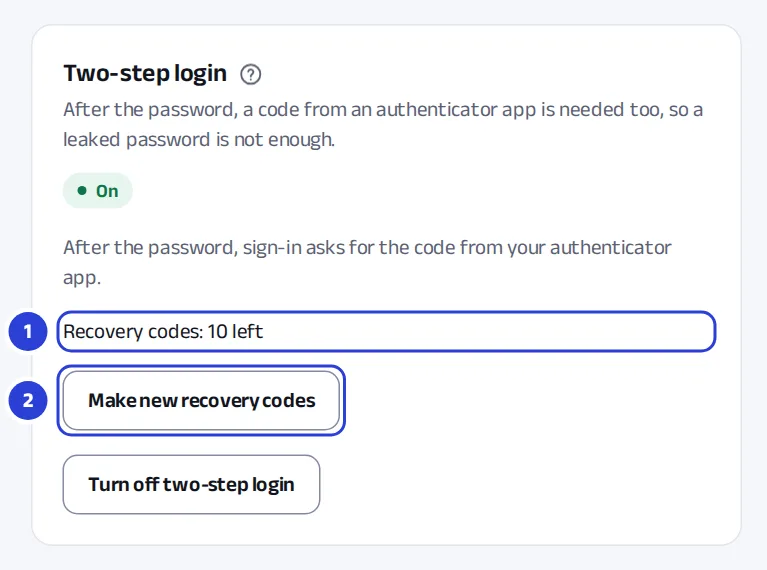
The card shows how many codes are left 1. Make new recovery codes 2 opens a window:
Type the app’s current code (or an unused recovery code) in the field 1 and press Make new codes 2.
The 10 new codes show once, the same way as when you turned two-step login on: press Download (.txt) 1 or Copy, tick I have saved these codes somewhere safe 2 and press Done 3.
A wrong recovery code counts as a wrong attempt, the same as a wrong app code: after 5 wrong attempts in 15 minutes, signing in from a new connection waits a while. Wrong two-step codes also have a daily limit of 10 for the account, wherever they are typed (sign-in, the profile, the admin panel). A right code clears it; a right password does not. Past it, codes are no longer taken from connections you haven’t used lately for 24 hours, a signed-in window that keeps getting them wrong is signed out, and we email you: since a code is only asked for after the right password, change your password.
Turning it off
- Press Turn off two-step login.
- Enter your Current password, then the app’s current code: the sixth digit turns it off by itself (or press Turn off two-step login again).
Lost the app? Press No app? Use a recovery code under the code field and enter one of your recovery codes instead. Turning it off deletes the remaining recovery codes.
Watch out
Lost the phone and the recovery codes too? You can’t get in yourself. Tell us through the contact page on our website; once we have confirmed it is you, our team can turn two-step login off. Moving to a new phone? Turn it off with the old phone (or a recovery code) first, then turn it on again with the new one.
Trusted devices
After every sign-in you are asked Trust this device?
- Trust: this browser stays signed in for 30 days. The end is a fixed date; using it does not extend it. Then you sign in again.
- Not now: you are signed out when you close the browser or after 12 hours without activity. The browser still remembers that you signed in here, so someone guessing your password from elsewhere can’t lock you out of it (you still get the new sign-in email).
- Shared computer: like Not now, and this browser forgets you completely.
- Do not ask again in this browser: tick it and the same answer applies by itself next time in this browser.
On a cyber cafe’s computer, or one everyone in the shop uses, always choose Shared computer.
One sign-in on the dashboard covers all your stores, so trusting this device there covers every store you open in it.
Changed your mind? In the Where you are signed in list, under this device, press Trust this device or Stop trusting.
- A trusted browser signing in from a new internet connection still gets the new sign-in email (once a day per connection).
- Changing or resetting the password, turning two-step login on or off, or pressing Sign out other devices makes every other browser forget that it was trusted or that you signed in there; the browser you did it from stays as it was.
Where you are signed in
The Where you are signed in card lists every phone and computer signed in to your account, one per line:
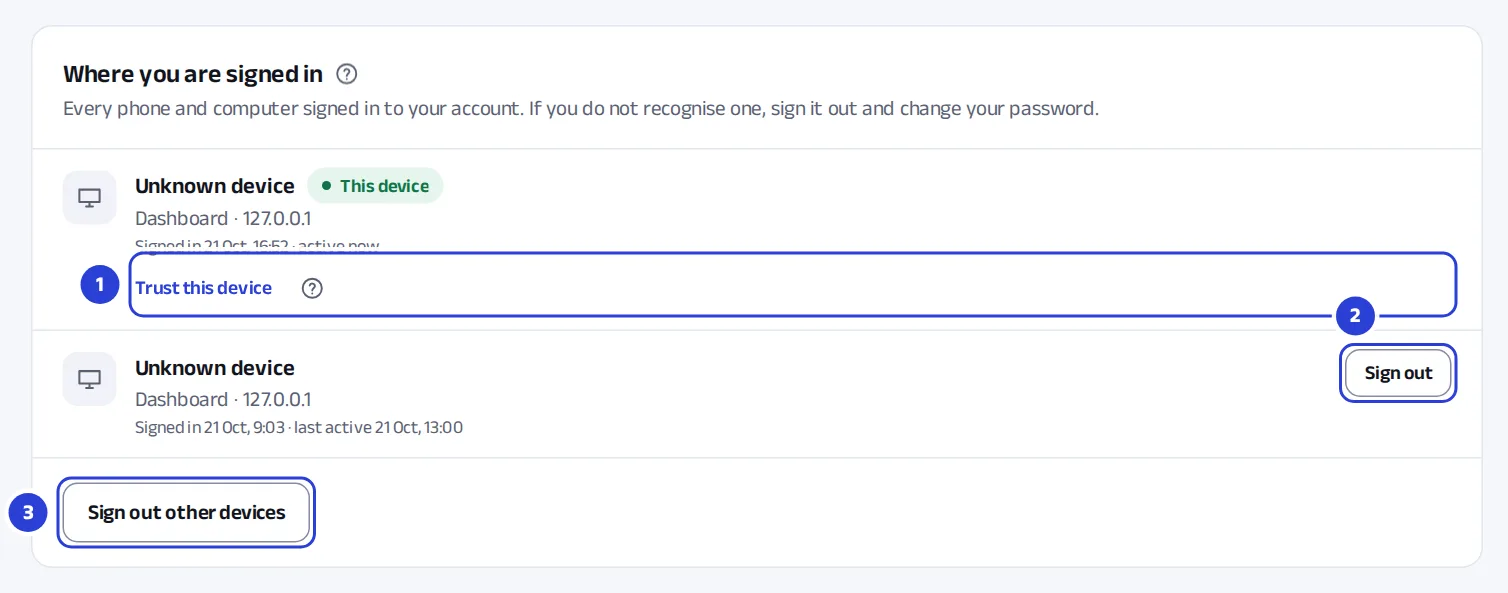
- The browser and kind of device, and where: Dashboard (
dashboard.{root}) or Admin panel, with the IP address. Older sign-ins can still say Merchant portal or “Store dashboard: the store’s name”. - When it signed in and when it was last active.
- Badges: This device (the one you are using), Trusted (with the date it stays signed in until), Support access (our support team inside your store).
- Under this device, Trust this device 1.
To sign out another device:
- Press Sign out 2 on its line. That device is signed out at once.
- To end them all together, press Sign out other devices 3 at the bottom. Only this device stays signed in.
The first 6 lines show; “Show … more devices” opens the rest.
If something looks wrong
- Sign out the line you don’t recognise, or press Sign out other devices.
- Change your password straight away (changing your password).
- If two-step login is off, turn it on.
See also: my profile, signing in.