Signing up and signing in with Google or Facebook
Create your merchant account or sign in with your Google or Facebook account instead of a password. Mobile verification and the two-step code still apply.
On this page
When the platform has them on, the sign-in and sign-up pages of the dashboard (dashboard.{root}) show Continue with Google and Continue with Facebook. There is no separate password to remember: Google or Facebook tells us it is you. If a button is missing, that way is off on the platform right now; use your email or mobile and password (signing in).
Good to know
We never see your Google or Facebook password, we don’t take your friends list or contacts, and we never post anything for you. We only receive your name, your email and that account’s ID.
Signing up with Google or Facebook
- On the sign-up page press Continue with Google 1 or Continue with Facebook 2.
- Google’s or Facebook’s page opens. Choose the account you want to use and allow it.
- You come back to our sign-up form. Your name and Email are filled in; correct the name if you like. There are no password fields.
- Enter your Mobile number. It never comes from Google or Facebook; type it yourself.
- Read and tick the Terms of Service and the Privacy Policy, then press Send code and continue.
- Enter the 6-digit code sent to your mobile (verifying your mobile). The account is created only once the code is right.
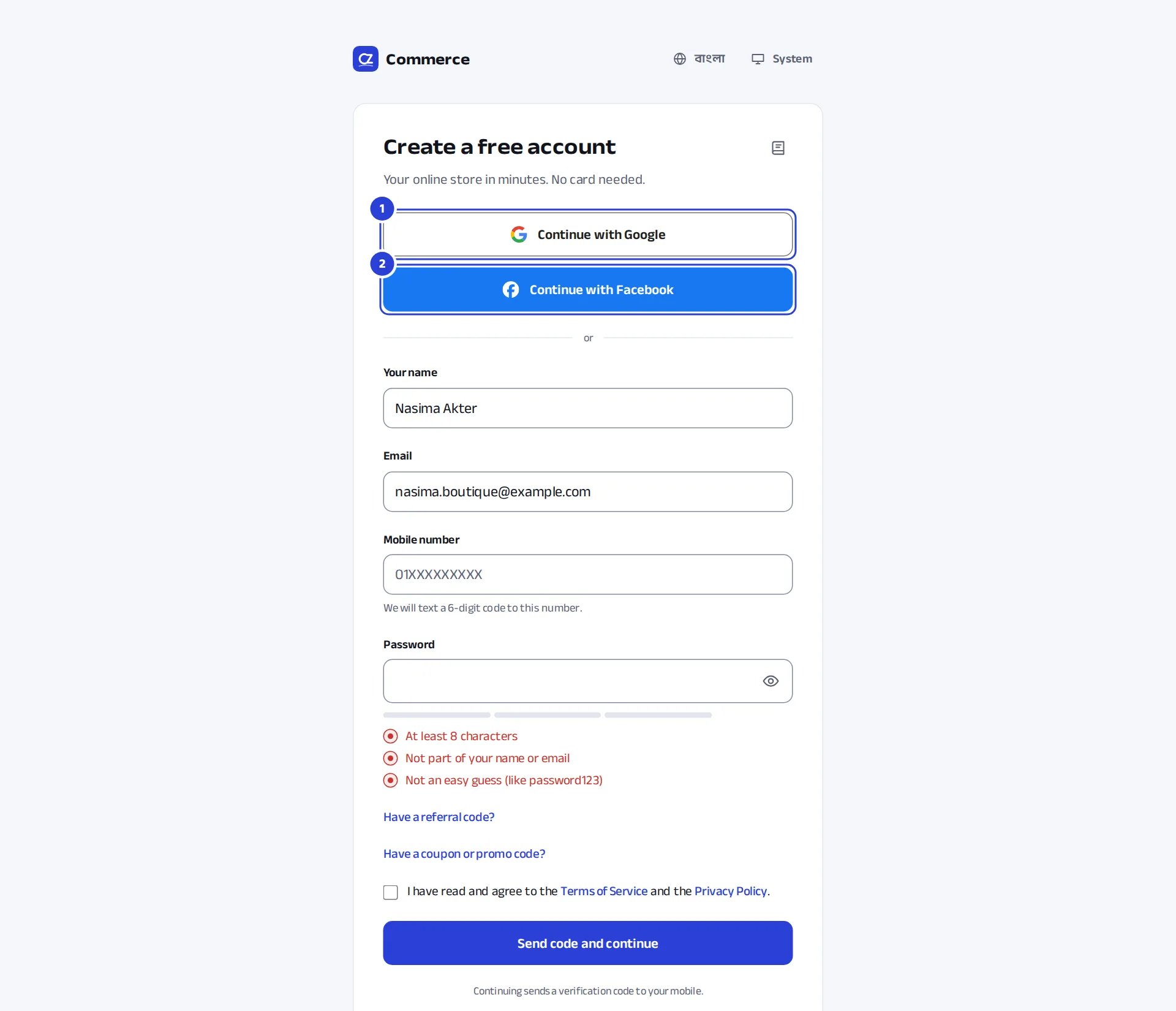
Nobody uses the panel without a verified mobile number, so the mobile code is needed with Google or Facebook too. Referral codes, coupon or promo codes and registration links work as usual (creating your account).
Email verification:
- Google: if Google says the email is verified, it becomes your account’s email, it can’t be changed in the form, and it needs no separate verification. To change it later, use your profile.
- Facebook: we never treat the email Facebook gives as verified. You can change it in the form (if Facebook gives none, type one), and once the account is created a verification link goes there, as with an ordinary sign-up. Open it before opening a store (verifying your email).
An account made this way has no password. To also sign in with a password later, set one through Forgot password? on the sign-in page (forgot your password).
Without a password you can still change your email or mobile number, turn two-step login on or off, and link or unlink Google or Facebook from your profile: where others type their password, you get a code by SMS on your verified mobile instead. You can also join a store you were invited to while signed in, without a password.
Signing in with Google or Facebook
- On the sign-in page press Continue with Google 1 or Continue with Facebook 2.
- Choose your account at Google or Facebook.
- If two-step login is on, enter the authenticator app’s code (or a recovery code). It is asked with Google and Facebook too.
- Once signed in you are asked Trust this device?, as after a password sign-in (after signing in).
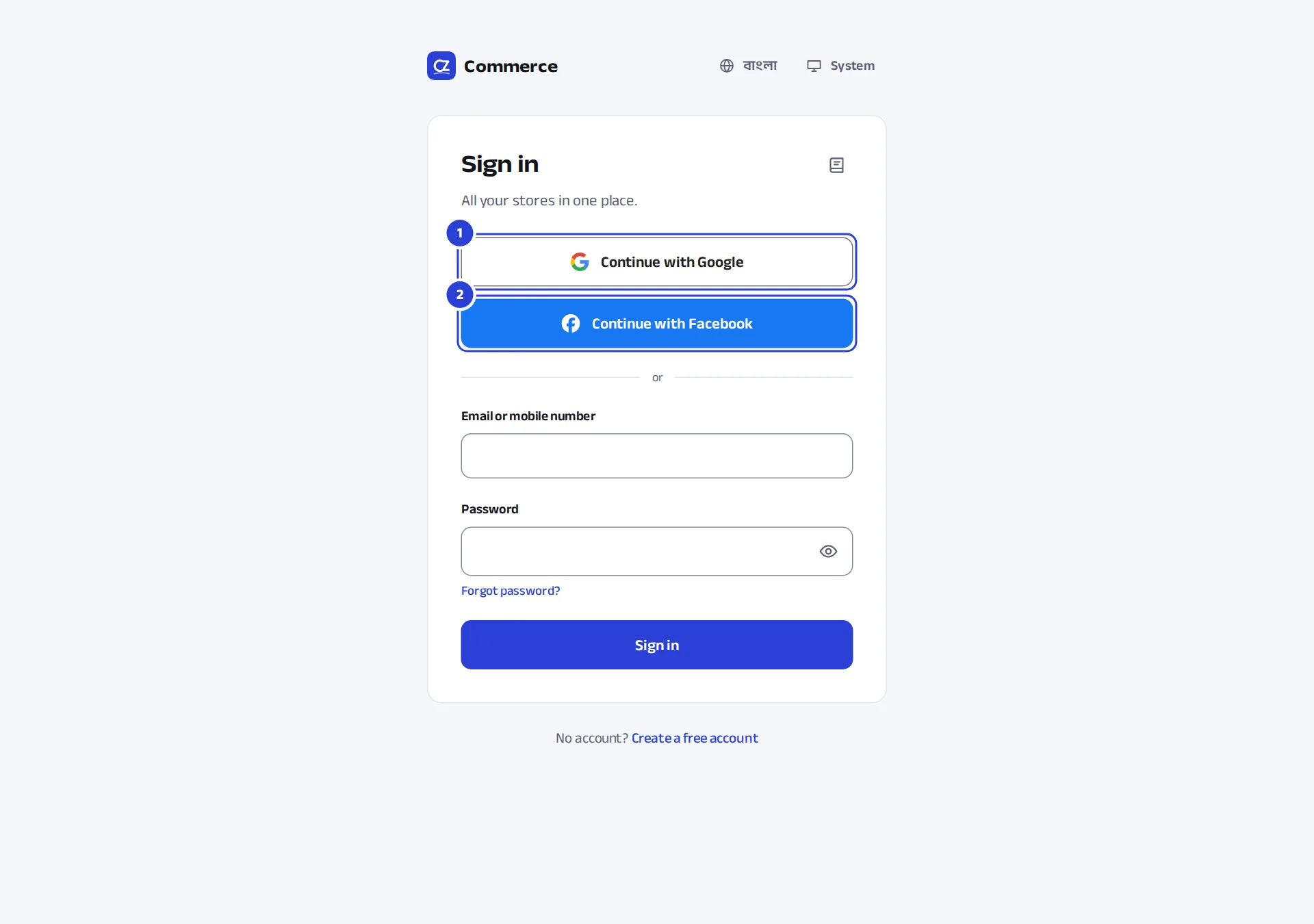
- We recognise your Google or Facebook account by its own ID, not by its email. Changing the email at Google or Facebook doesn’t matter. Pressing the button with a different Google or Facebook account won’t find your account, though.
- Finish within a few minutes and in the same browser. Too slow, or opened in another browser halfway, and it says it expired; start again from the sign-in page.
- Cancelling on Google’s or Facebook’s page changes nothing; you are back on the sign-in page.
- If no account uses this Google or Facebook and signing up with it is off on the platform right now, the page says so, with a link to the sign-up page.
- Platform staff (the admin panel) can’t use Google or Facebook; they always sign in with email and password.
When the email already has an account
If your password account’s email is the same as your Google or Facebook email, we never join the two by ourselves: someone who opened an account elsewhere with your email must not get into your account.
Google (it verifies the email): the sign-in page then says 1:
You already have an account with this email. Sign in once with your password, and you will be asked whether to link Google.
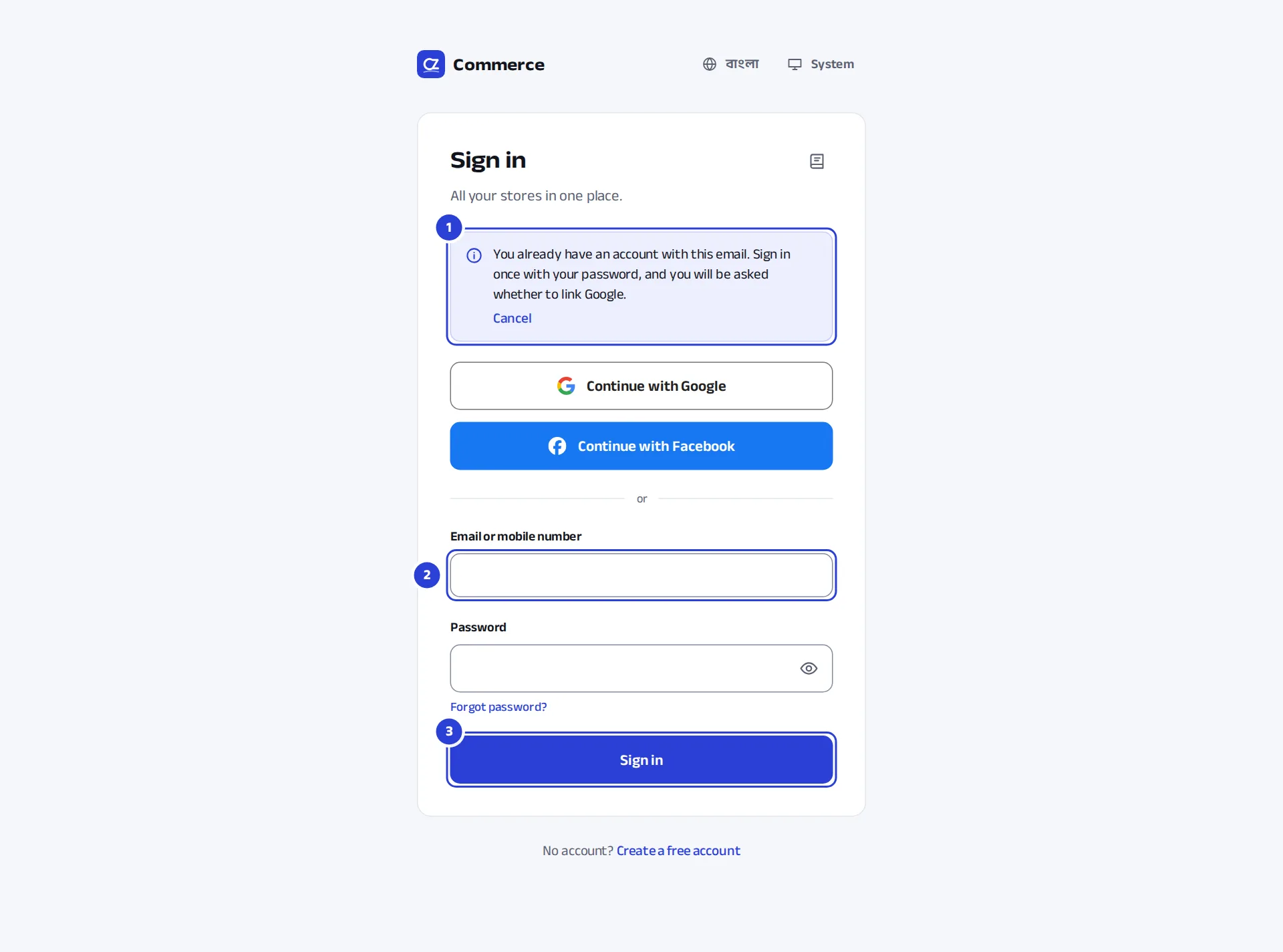
- In the form below it 2, enter your email or mobile and password and press Sign in 3 (and your two-step code if it is on).
- Once you are in, it asks Link Google account n***@gmail.com to this account? (only the first letter of the Google email shows). Press Link Google 4 if it is yours; it says Google is now linked, and from then on the button signs you in. Not yours, or not now? Press Not now 5: nothing is linked and you go on into the panel.
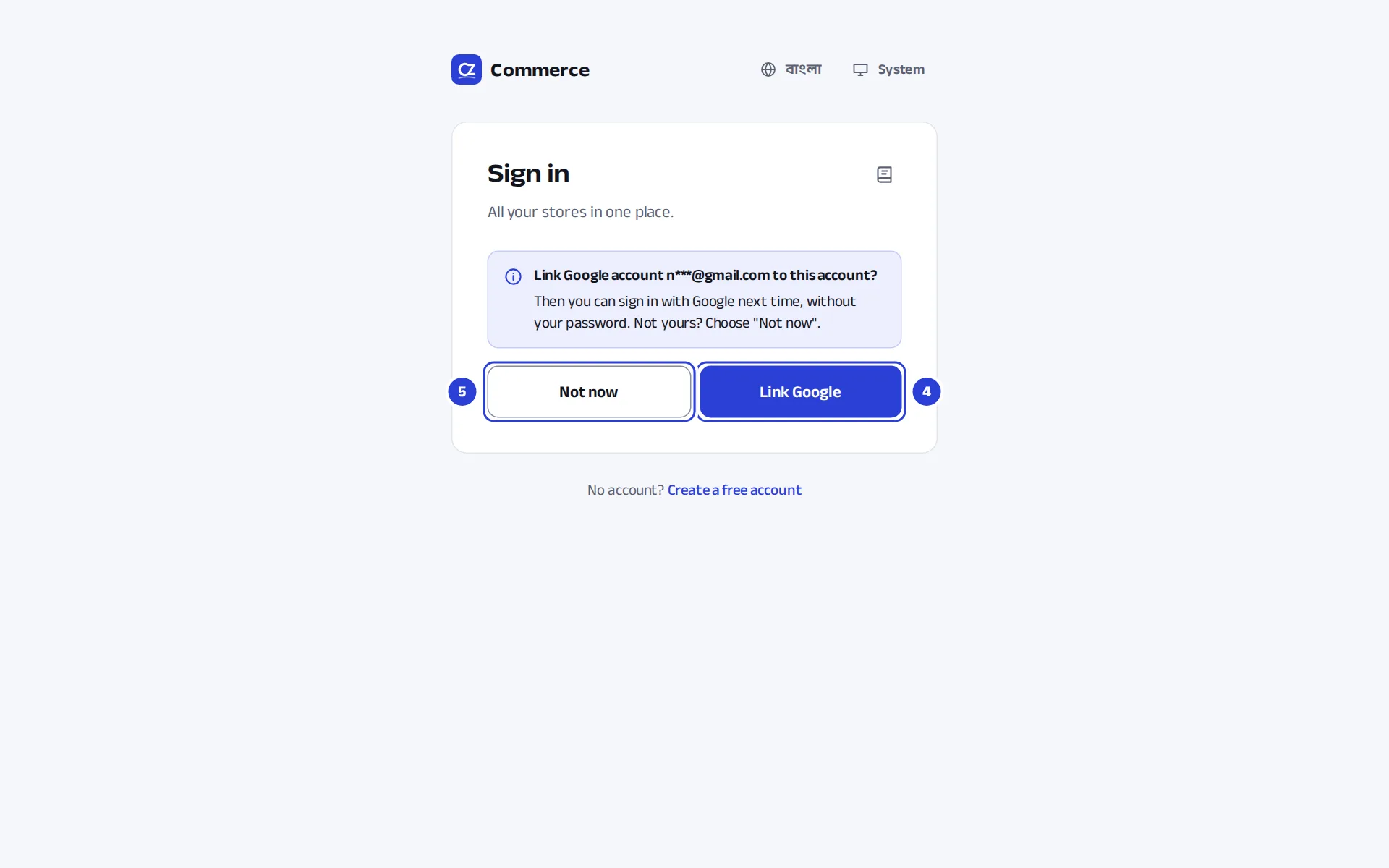
- Forgot the password? Use Forgot password? on the same page to set a new one, then go back to the sign-in page and sign in with it; the question comes then. Opening the reset link in another tab is fine, as long as it is the same browser.
- This works for 15 minutes, once, and only in the browser where you started. Nothing about it is kept in the browser itself, and signing out ends it, so the next person at a shared computer finds nothing. Too late, and you start again from Continue with Google.
- It is offered only to the account with that email. Signing in to any other account in the meantime just signs you in; nothing is asked or linked.
- Don’t want to link? Press Cancel in the notice.
- While platform support holds your account (after they took a way in off it), nothing can be linked for a day; contact support.
Facebook (we never treat its email as verified): the page says you already have an account with this email: sign in with your password first, then link Facebook in Profile → Security (linking Google or Facebook). Nothing waits for your sign-in.
You can also link from your profile once signed in (linking Google or Facebook).
When the platform turns a way off
The platform may turn signing in or signing up with Google or Facebook off for a while; the button then disappears. Your account and its linked Google or Facebook are not removed, and work again once it is back on.
Only ever signed in with Google or Facebook (no password)? Use Forgot password? on the sign-in page to get a link and set a password (forgot your password), then sign in with it. Type your mobile number there and the link comes by SMS to that verified mobile, even when your email came from Google: if you lost your Google account (and its Gmail with it), this is the way back in. Type your email and it goes to that email if it is verified.
Lost your Google or Facebook account?
- On the sign-in page press Forgot password? and type your verified mobile number (01…).
- Open the link in the SMS and set a password.
- Sign in with your mobile number and that password. Then, in Profile → Security, unlink the Google or Facebook you lost and link the new one if you like.
No verified mobile any more? Contact support.
See also: linking and unlinking Google or Facebook, signing in and resetting your password.