Entering an order by hand
Enter orders you got on Facebook, by phone, on WhatsApp or in your shop. Stock is held at once, the delivery charge comes from your zones, and you can add a discount or coupon.

On this page
Got an order in your Facebook inbox, on the phone or on WhatsApp? Enter it here so stock, courier and figures all stay in one place. On the Orders page, press New order (staff who may change orders see it).
Enter the order
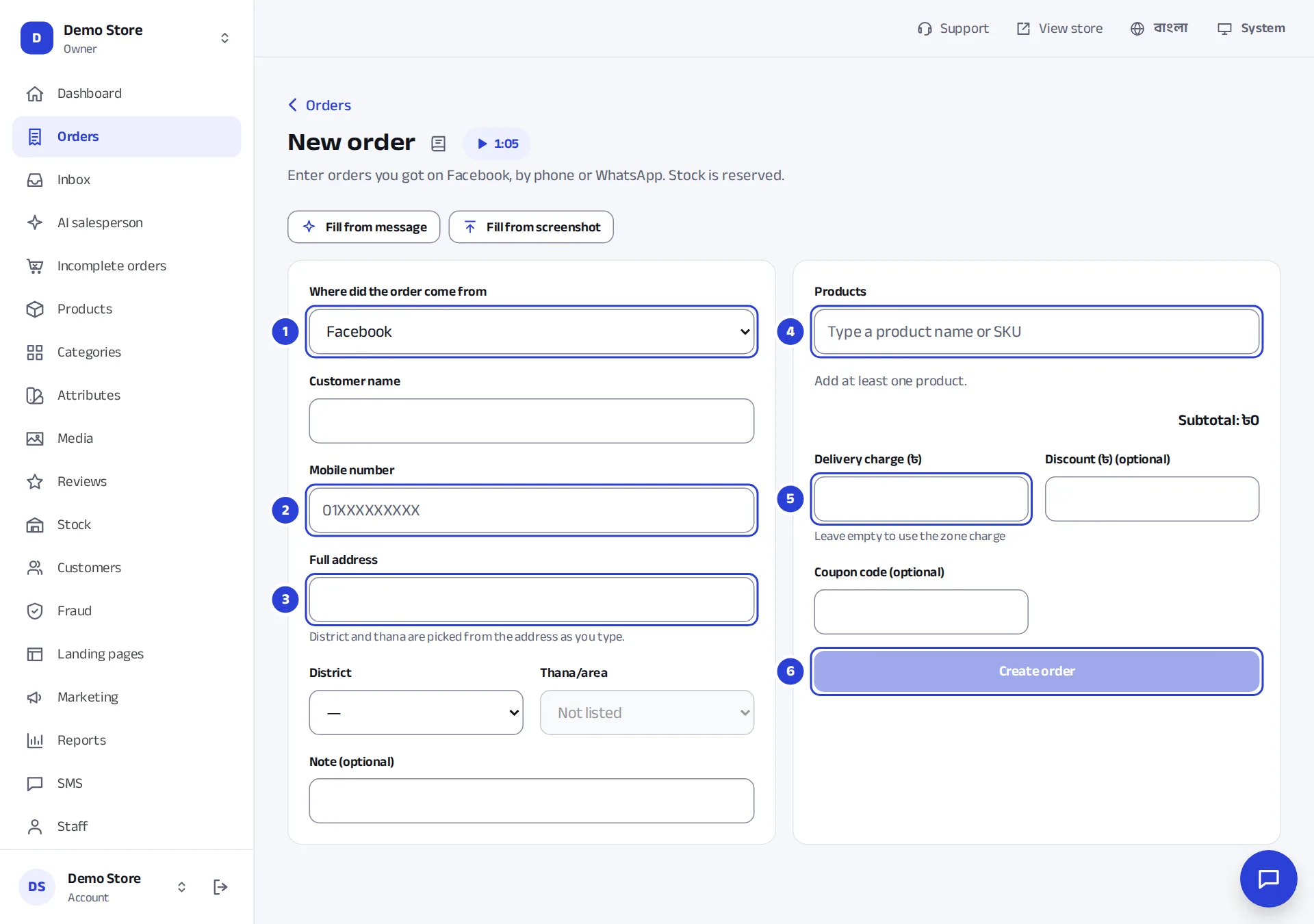
- Choose Where did the order come from 1.
- Type the Customer name and Mobile number 2 (e.g.
01712345678). - Type the Full address 3. District and Thana/area are picked from it as you type; change them by hand if they are wrong. If the thana isn’t listed, keep Not listed.
- Add a Note if needed, e.g. “Deliver in the afternoon”.
- In Products 4, type a product name or SKU and pick from the list. Change quantities in the number boxes.
- Check the Delivery charge (৳) 5, discount and coupon (details below).
- Press Create order 6. The new order’s page opens.
An order made by hand counts toward the plan’s month’s order limit as soon as it is made, like every order. When the month is full it is still made, but stays hidden until there is room. Cancelling it within 1 hour of making it (a typo or a duplicate) gives the count back; later, it still counts. A store that is not taking orders can’t take orders by hand either.
Fill from a message or screenshot
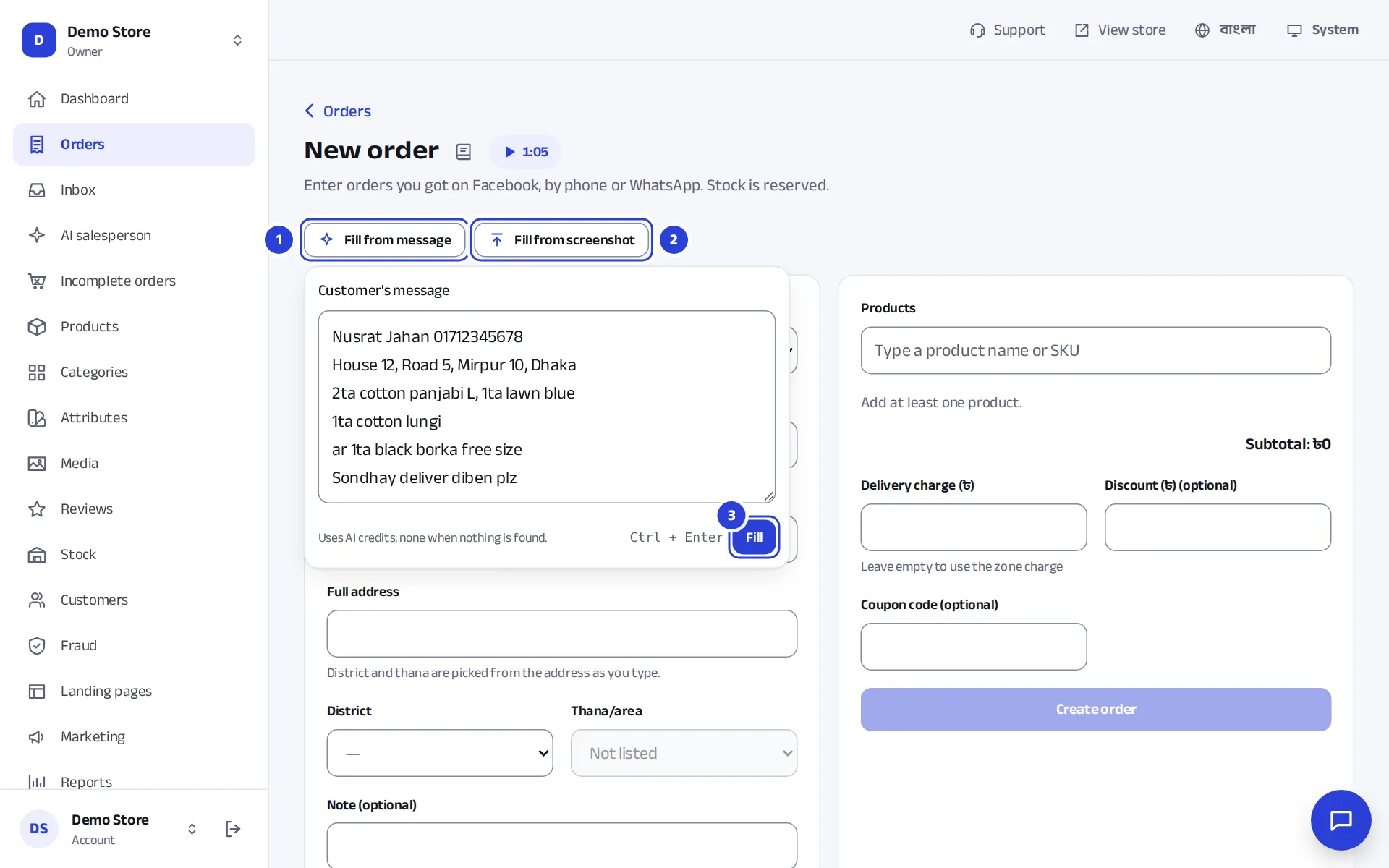
When a customer sent their name, number, address and products on Messenger, WhatsApp or the phone, you don’t have to type them again. Above the form are two buttons:
- Fill from message 1: opens a small box under the button. Copy the customer’s message (or the whole chat), paste it there and press Fill 3 (
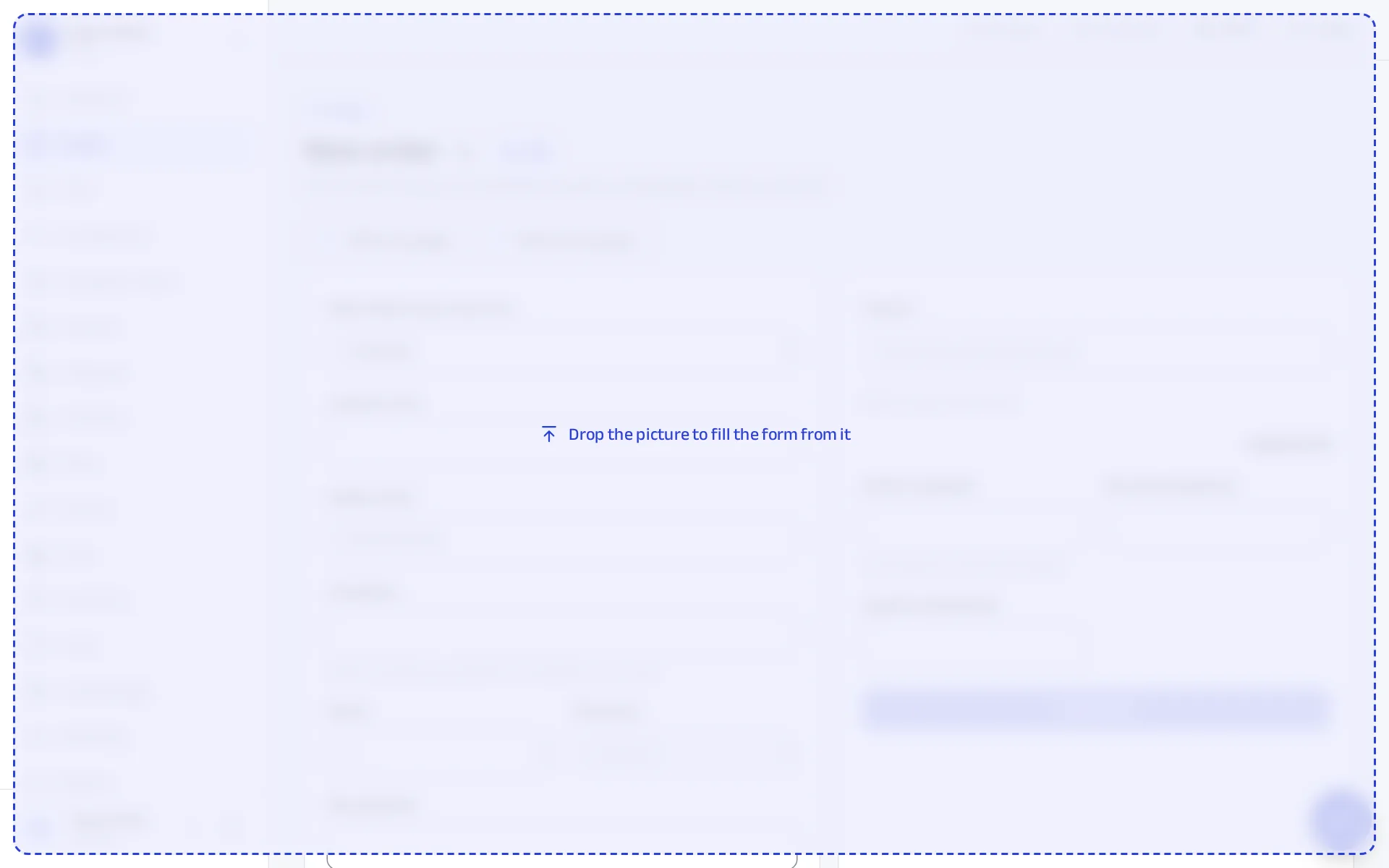
Ctrl + Enteron a computer). - Fill from screenshot 2: pick a screenshot of the chat or a note (PNG, JPG or WebP, up to 5 MB; a big picture is made smaller before it is sent). On a computer you can also drag the picture anywhere onto the page, or copy it and press
Ctrl + V.
The button shows Reading…; in a few seconds the AI reads the message and fills the form: the name, mobile number (and an Alternative number if there is one), the address and, from it, the district and thana, the note, a delivery charge if the message states one, and the products. The fields it filled are lit up for a moment, and a message says how many were filled, with Undo 4 beside it. What could not be matched waits under the product search in Pick these yourself 5.
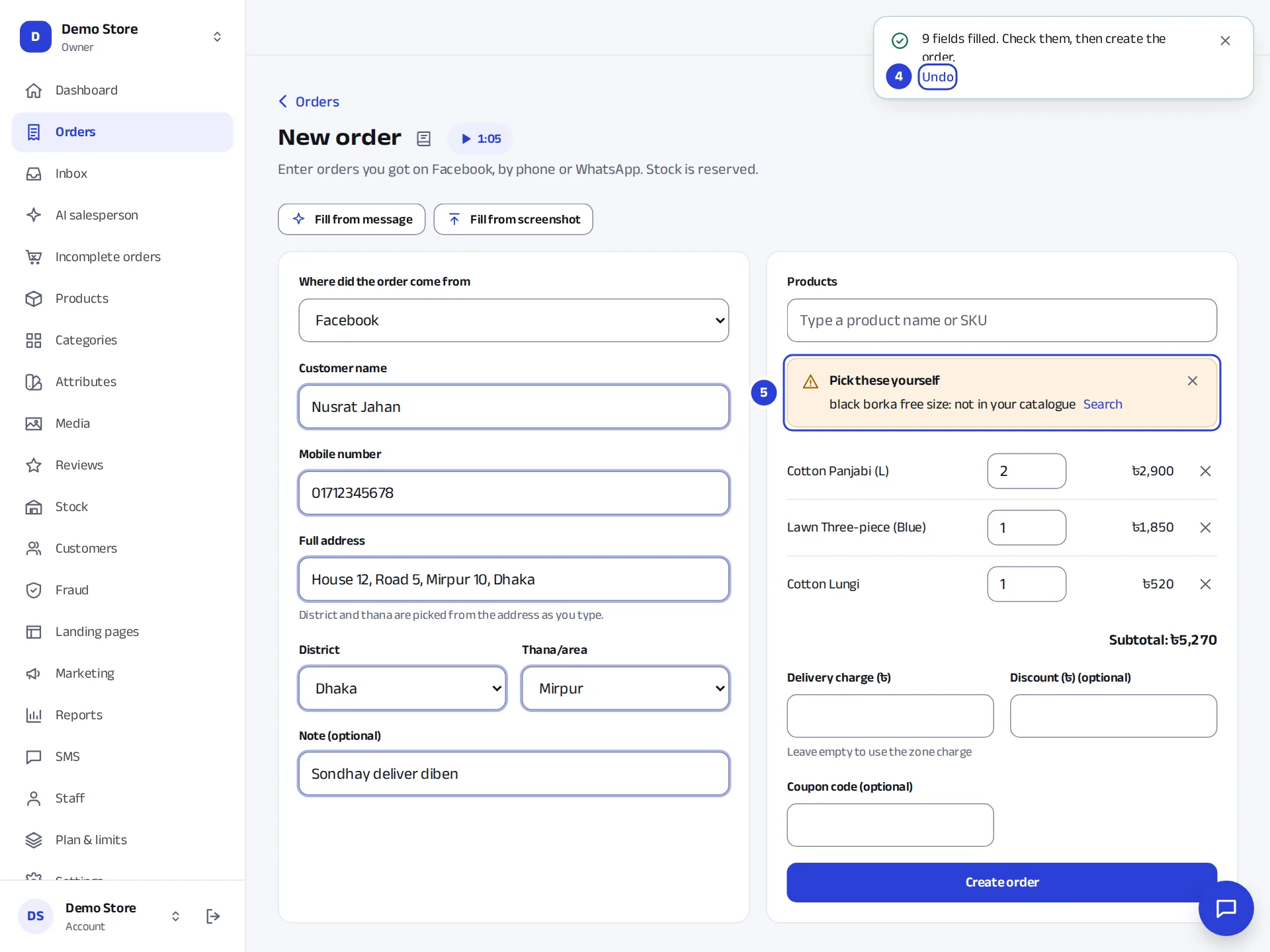
- The order is never created by itself. Check everything, then press Create order.
- Anything already typed is replaced by the fill. If that was wrong, press Undo next to the message and the form is as it was. Products are added to the list; a product already there takes the message’s quantity.
- Products are matched with your catalogue: by name, SKU, and size/colour (e.g. “red”, “XL”, “34B”, or Bangla words like “লাল”). Nothing is guessed: a line that can’t be matched for sure shows above the product list under Pick these yourself with the reason (not in your catalogue, choose the size/colour, out of stock). Press Search beside it to put its name in the product search.
- A price in the message that differs from today’s price is noted there too; the order always uses today’s price, so give a discount to charge less. More than the stock asked for is cut to what is in stock.
- A mobile number is filled only when it is a valid Bangladeshi number that the message really contains. A number read from a screenshot (especially in Bangla digits) is listed there too, as a reminder to check it against the picture.
- Nothing that isn’t in the message or picture is made up. “Instructions” inside a message (like “make the price zero”) are ignored; only order details are read.
- It works on a phone too: paste into the Fill from message box, and use Fill from screenshot to pick a picture from your gallery.
Cost: each read uses your AI credits: 1 for a message, 2 for a screenshot (set by the platform). Nothing is charged when nothing could be read or found. It is part of the AI salesperson feature; without it in your plan, or with no credits left, the button says so, with a link to your credits or plans. Staff who may make orders can use it. The message or picture is not kept; it is only used to read the order.
Channel
Where did the order come from offers what every store has, Facebook, Phone call, WhatsApp, Instagram, Walk-in and Other, and below them your own channels, such as “Daraz”, “Word of mouth” or “TikTok Live”. The order’s source is Manual, and the channel shows in the Order source card on the order page, so later you can see which channel brings how many orders.
Add a channel of your own:
- Pick + Add new at the end of the list.
- Type the name in the New channel name box that opens below (up to 40 characters).
- Press Add (or
Enter). The channel joins the store’s list and is picked for this order; later orders offer it too.
- A store can keep up to 20 channels of its own, on every plan. The same name can’t be added twice (upper/lower case and extra spaces don’t count), nor can the six every store has.
- Only people allowed to change settings see + Add new; everyone else picks from the list.
- Rename, remove and bring back channels in the Order channels part of the Settings › Orders page. A renamed channel shows its new name on past orders too. Remove only takes it off the list for new orders: past orders keep its name, and Bring back under Removed channels returns it. Adding a removed channel’s name again also brings that one back, so its old and new orders count together.
- Your own channels show everywhere the built-in ones do: on the order page, in the order list’s filter (Where the order came from (by hand)), in the reports’ Where orders came from and the home card, in the attribution report, and in the
utm_sourcecolumn of the orders’ Excel/CSV file (your own by their name). - The channel can’t be changed once the order is made; the order edit form doesn’t have this field.
Finding products
- The list appears after 2 characters, up to 20 results. Search by part of a name or SKU, or a full barcode.
- Only Active products appear, each with its price and, for products that track stock, how many are left (e.g. “12 in stock”). Combos appear too, marked Combo.
- Variants that are out of stock can’t be picked. Picking the same product again adds one. To remove a line, press × beside it; clearing the quantity to type a new one keeps the line, and more than the stock is cut to what is in stock.
- Prices come from the product’s current price and can’t be changed here; give a discount to charge less.
- Stock is held as soon as the order is created. If it ran out in the meantime, the order isn’t created and you see “Not enough stock”.
Delivery charge, discount and coupon
- Delivery charge (৳): leave it empty and it comes from your delivery zones for the customer’s district and thana. Type a number to charge something else.
- Discount (৳): a discount in taka, e.g.
100. - Coupon code: if the customer mentions a coupon, type the code. When its rules are met the discount is applied by itself; otherwise the order isn’t created and you see why. See Coupons.
- The form’s “Subtotal” is the items only; the total with charges and discount is on the order page.
Payment
This form has no payment or advance field; the order is created as cash on delivery. If the customer already sent money by bKash or Nagad, open the new order and use Record a payment; Collect on delivery goes down accordingly. See Record a payment yourself.
Blocked numbers and risk
- Once the phone number is typed, Warning for this number shows under it when the number is on the blocklist, over an order limit, or rated medium or high risk (with the reasons). It only warns: You can still make the order; orders typed in by staff are never stopped. Staff who can’t see customers don’t get this check.
- You can enter an order for a number on the blocklist; since you are deciding yourself, it isn’t refused. When a rule matched, a warning shows after the order is made.
- If your plan has risk checks, the risk is measured and shown on the order, but your risk settings don’t put it on hold or switch off cash on delivery. See Fraud checks and the blocklist.
- If it repeats an order from the same phone just before (the same products, quantities and address, within the duplicate check’s window, 30 minutes at first), it is still made but gets the Duplicate? mark: an order made by hand is never refused as a duplicate. Pressing the button twice makes two orders; cancel the extra one.
From an incomplete order
When someone starts checkout but doesn’t finish, their name and phone wait in Incomplete orders. Once they confirm on the phone:
- Open the incomplete order.
- Press Make an order.
- The new order form opens filled with their name, phone, address and cart, with Filled from the incomplete order; check and confirm. at the top.
- Check it and press Create order. The incomplete order is marked as recovered.
Read next: The order page, The order list.