The landing page editor
Arrange sections, set products and offers (combos, quantity prices), colours and font, address and SEO, versions, preview and publishing: everything in the editor.

On this page
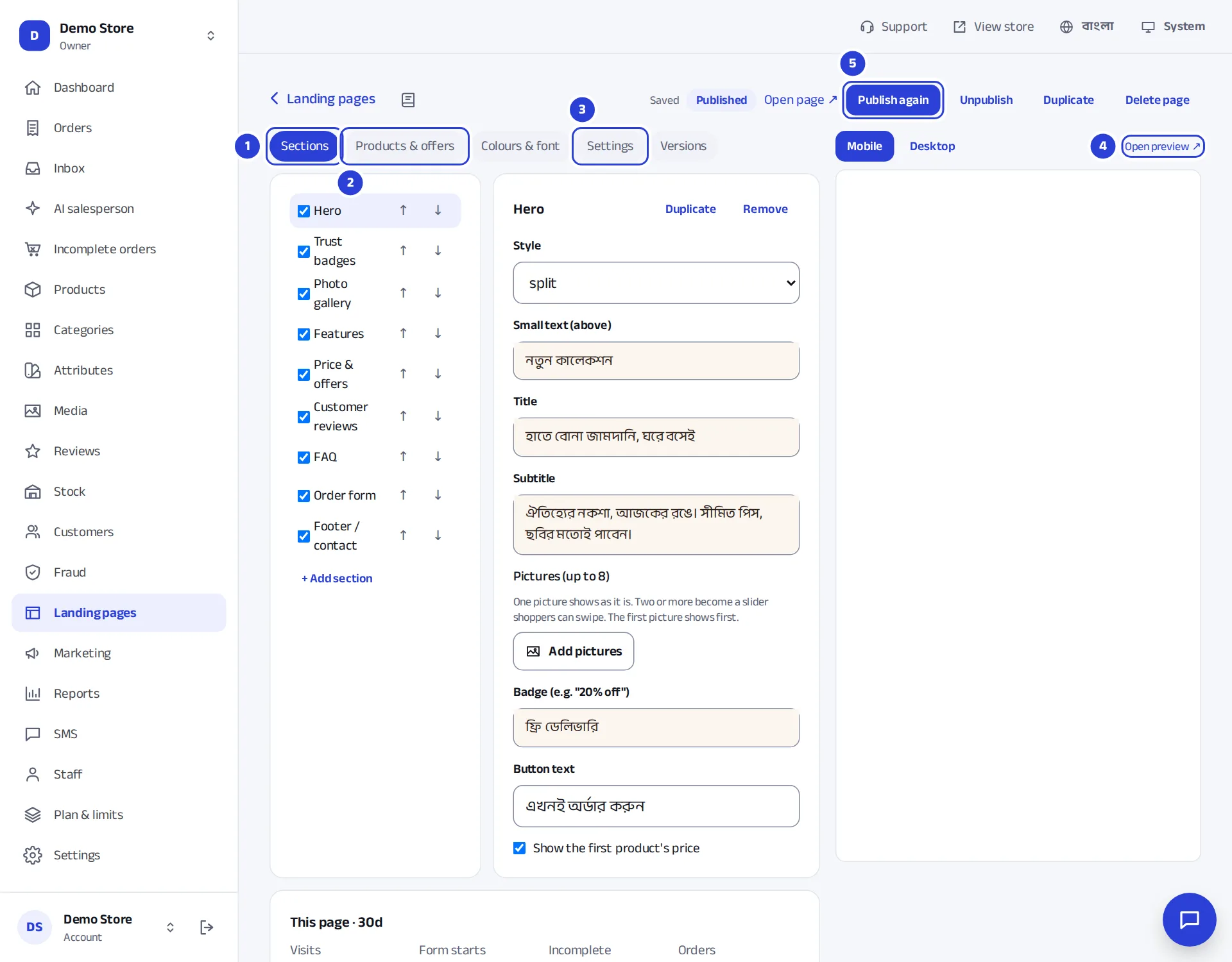
The editor has five tabs on the left and a live preview on the right. Everything saves by itself about a second after you stop typing; the top shows Saving… / Saved. The preview reloads after each save. Landing pages need the Marketing: coupons, flash sales, landing pages permission (owner, admins and managers).
Sections
The Sections 1 tab lists the page’s sections on the left, top to bottom as on the page.
- Tap a section’s name to open its fields on the right.
- Untick it to hide it on the page (it isn’t deleted).
- Use ↑ / ↓ to move it up or down.
- On the right, Duplicate adds a copy just below; Remove deletes it.
- To add one, press + Add section under the list and pick a type. It goes to the bottom.
Some sections have a Style that changes how they look: the hero image, split or minimal; features grid or list; the photo gallery grid or scroll; reviews cards or screenshots; price & offers cards or list. A page holds up to 30 sections.
| Section | What it holds |
|---|---|
| Hero | The top of the page: Small text (above), Title, Subtitle, Pictures (up to 8), Badge (e.g. “20% off”), Button text and Show the first product’s price |
| Video | A YouTube / Facebook video link and a Thumbnail image |
| Features | Up to 8 items, each with an Icon (emoji), a title and text |
| Problem → solution | Problems and solutions side by side, one per line (up to 6), plus a picture |
| Photo gallery | Up to 12 pictures |
| Customer reviews | Up to 12: name, rating (1–5), text and a picture (such as a Messenger screenshot) |
| Countdown / stock | A countdown to Ends at; Show stock: No, Real stock or A number you set (with Left), and Stock text (empty = default) |
| Price & offers | The products, combos and quantity prices from the Products & offers tab; here only a title and a note |
| FAQ | Up to 12 question and answer pairs |
| Trust badges | Up to 6, like “Cash on delivery” and “Delivery nationwide”, with icons |
| Order form | Where shoppers give name, phone and address and order: title, subtitle, Order button text (empty: the checkout form’s button text), Show the note field, Let shoppers pick several products (see below). The form’s fields come from the checkout form |
| “Order now” button | A button like the hero’s: it takes shoppers straight down to the order form. Button text (empty shows “Order now”), a small line under the button (e.g. “Limited stock”), Show the first product’s price, Button width and Button look. Put it between sections as often as you like. Without an order form switched on, the button doesn’t show |
| Text & image | Longer text (a blank line starts a paragraph), picture left or right |
| Footer / contact | A short text, phone, WhatsApp number, Messenger link |
The hero slider: the hero takes up to 8 pictures. Press Add pictures to pick several at once from the media library. Drag them, or use ↑ / ↓, to change the order; the first picture shows first (and is what a shared link shows when the page has no share image). With two or more pictures, the image and split styles show a slider: shoppers swipe it, with arrows on the sides and dots below. With Change pictures by themselves on, the picture changes every Time per picture (3–10 seconds); it stops once a shopper touches it. The minimal style shows only the first picture.
A hero without pictures: the page shows the first product’s own photo (the next product’s if it has none), so a shopper from an ad sees the product first. The photo is only shown, never saved into your page; your own picture always wins. With no product photo at all, the words sit in the middle of the page. On a phone the first screen holds the photo, the price (with “Save ৳…” when there is a discount), the order button and one line, “Cash on delivery · Delivery charge ৳…”: the charge comes from your delivery zones, and it says “Free delivery” when the page pays delivery or the product’s price reaches your free-delivery amount. The order bar at the bottom shows the price too (not when Show the first product’s price is off).
Icons: the emoji in features and trust badges (💵 🚚 ↩️ ✅ 📦 ⭐ and more) show as our own drawn icons in the page’s colour, the same on every phone. An emoji we have no icon for shows as you typed it.
Several products in one order: with Let shoppers pick several products on (it starts on, for new and existing pages), each product and combo on the form gets a tick box. Shoppers can tick several, say sizes 32 and 34, and set a quantity (− / +) beside each one they ticked. The total adds up every ticked item; quantity prices apply to each product on its own. An order needs at least one ticked item. Turned off, only one can be picked, with one quantity box, as before.
The order form’s fields: a landing page’s order form asks exactly what the website checkout asks: name, mobile, alternative mobile and email (when on), address, district and thana, note and your own questions, with the same names and the same optional/required rules. Change them in Settings › Checkout form (checkout form); one change applies to the website and every landing page at once. Show the note field off hides the note box, unless the checkout form makes the note required. The answers are on the order page, the invoice and the export.
Watch out
A page needs exactly one Order form section. With none, or two, a yellow warning shows (“Exactly one order form section is needed”) and the page can’t be published.
When a save doesn’t go through
If a box holds something the page can’t take (too long, a link without https://, a picture that is no longer in your media library), a red banner stays at the top: “The last save didn’t go through — your changes are not saved yet”. It lists each problem with where it is; press Show to jump to that box (the tab and the section with a problem get a small mark). Fix it and the page saves by itself.
Until then your changes are kept in this browser. If you close or reload the page, the editor says “Unsaved changes to this page are kept in this browser” when you come back: Bring them back puts them back in the editor, Discard throws them away. They are kept only in that browser, so finish on the same computer or phone.
Formatting and colours
Titles, subtitles, the badge, feature and problem/solution texts, reviews, questions and answers, the offers note, the stock text, the text & image body, the footer text and the small line under an order button can all be formatted. Click into the box and a small toolbar shows above it:
- Select the words.
- Press Bold (B), Italic (I), Underline (U) or Strikethrough (S). Ctrl+B, Ctrl+I and Ctrl+U work too.
- Text colour or Text background opens the colours: this page’s theme colours first, then white, black, red, green and yellow. For a colour of your own, type a code like
#1f8a4cand press Apply. No colour takes the colour off. - Clear formatting turns the selected words back into plain text.
The box shows the page’s real colours (they follow the theme), so what you see is what shoppers see. When the text and its background are too close to read easily, a yellow warning shows under the box. It doesn’t stop saving, but a darker or lighter colour reads better on a phone.
In the subtitle, reviews, answers, text & image and footer boxes, Enter starts a new line (in text & image, a blank line starts a new paragraph). The other boxes are one line. Problems and solutions take one item per line.
Button labels, links, phone numbers, the order form’s field names and the SEO texts stay plain text: colour there would break the button or the Google result. Character limits count the words only, not the colours or bold. Text on pages made before stays exactly as it was, even with < or & in it.
Products & offers
The Products & offers 2 tab decides what the page sells.
Products
- Type at least 2 letters in Type a product name or SKU and pick a product (variant) from the list. Up to 12.
- Optionally set Name shown on the page (empty = catalog name).
- Price on this page is the price on this page only; empty keeps the catalog price (shown next to it), or the flash sale price while one runs on the product. Old price (struck) shows a crossed-out price.
A page with no product can’t be published.
Combo offers
“Product A + B for one price”. Press + Combo and set Combo name, Combo price and What it includes (products from the list above, with quantities), and a picture if you like. Up to 6 combos, 1–6 products each. The saving against the separate prices shows on the order as a discount.
Quantity prices
“Buy 2, pay 850 each”. Press + Quantity price and set the product, At least (2–100) and Price each. Buying that many or more gets that price for each. Up to 12.
A product with neither a price nor quantity prices of the page’s own takes the product’s own buy more, pay less prices, as on the website (pieces of different colours or sizes count together); the page’s offer card shows them too. Not inside a combo.
Good to know
A product used in a combo or a quantity price must also be in the product list above, or a warning shows.
Colours & font
The Colours & font tab has Theme (any of the store themes), Accent colour (empty = theme’s) and Font (empty = theme’s). It changes only this page, not your store design.
Settings
The Settings 3 tab:
- Page name: for your list only.
- Address (/lp/…): the page link, like
https://your-store.{root}/lp/eid-panjabi. Lowercase English letters, digits and-. An address another page uses won’t save. Saving a published page with a new address takes effect at once, and the old link sends visitors on to the new one (a permanent redirect). Still, don’t change it while an ad runs: an ad’s link should open the page itself. - SEO title and SEO description: what Google and link previews show.
- Share image (1200×630): the picture shown when the link is shared on Facebook or Messenger.
- This page’s Meta Pixel ID (leave empty to use the store’s): a separate Meta Pixel for this page; empty uses the store’s (Landing pages in Facebook ads). Only the owner or an admin can change it; for a manager it is locked.
- Free delivery on this page: orders from this page have no delivery charge.
- Sticky order button on mobile: an order button always at the bottom of the phone screen (on at the start).
- After the order: Thank-you message on the page (your own words in Thank-you text (empty = default) if you like) or Redirect elsewhere (an
https://link in Redirect link (https://…)). - Header: Show the header puts your store’s header at the top of the page (the logo comes from your store design; without one, the store’s name shows); off at the start. Then choose: Stays at the top while scrolling (on at the start), Transparent header (no bar of its own at the top), Stays transparent while scrolling (lightly frosted), Logo only, centred, The store’s menu links, Search button, Bag (cart) button and “Order now” button (jumps to the order form) (on at the start; its Button text empty uses the hero button’s text). The header never covers the hero’s picture. With the sticky order button on mobile, the header’s order button shows on larger screens only.
Versions
The Versions tab lists the last 10 saves with dates; the one in use says current. Restore brings an older one back as a new version. To change the live page, publish again afterwards.
Preview
The preview is on the right: Mobile and Desktop switch the size. Open preview ↗ 4 opens the whole page in a new tab, even as a draft. A draft’s preview (or one with unpublished changes) shows the order form’s product prices and total too, worked out at the draft’s prices. The preview link is for you; don’t give it to customers. Everyone who may edit landing pages (managers too) sees the preview; if it can’t be shown, the editor says so above it.
Publish, unpublish, duplicate, delete
The buttons at the top (next to the status; a published page also has Open page ↗ there):
- Publish 5: the page goes live and says “Published. The live page updates within a minute.” It can’t be pressed while there is a warning or an unsaved change. If the page still holds template sample text (like “পণ্যের নাম এখানে”, “সুবিধা ১”, “এক লাইনে”, or a template’s sample review), a yellow warning “Template sample text is still here” lists each one at the top of the editor; Show beside it takes you to that box. Publishing asks again first; Publish anyway publishes, but shoppers never see the sample text on the live page: the box or review is left out, and a sample hero title becomes the product’s name. The preview still shows the sample text, so you can see where to change it.
- Anything you change after publishing stays in the draft. Press Publish again to take it live.
- Unpublish: the page becomes a draft and the live link stops working.
- Duplicate: a copy of the whole page, as a draft, with “(কপি)” after the name and
-copyafter the address. It counts toward your page limit. - Delete page: after you confirm, the page is gone; its orders stay.
This page’s report
Under the tabs is the This page card for the last 30 days:
- Visitors: how many people opened the page. A phone or browser counts once a day, so a refresh or another look adds nothing. Previews and bots (such as Facebook’s crawler checking an ad) are not counted.
- Form starts: how many started typing in the order form.
- Incomplete: how many typed and left without ordering (Incomplete orders).
- Orders, Delivered and Sales (not counting cancelled).
- Conversion: orders ÷ visitors × 100.
See also: Landing pages · Landing pages in Facebook ads