Adding a product
Build a product with a name, photos, size and colour attributes, prices, stock, categories and SEO. For digital products, attach files that buyers download after paying.

On this page
On the Products page, New product opens the product form: product details on the left, status, categories and brand on the right. Photos, a price and stock are all a product needs to go on sale.
Name and description
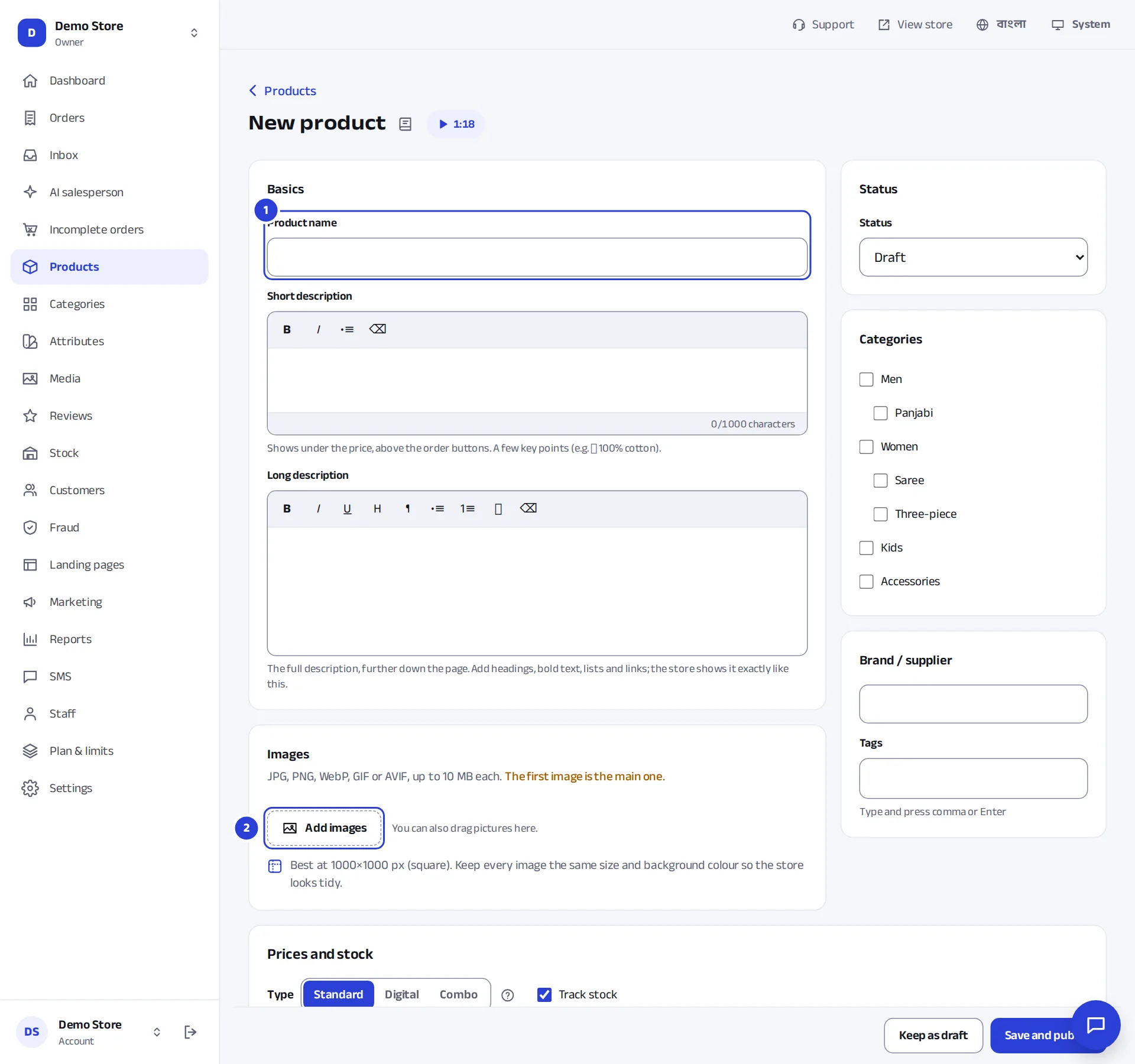
- Type the Product name 1 (up to 200 characters).
- Under Short description, write a few key points (e.g. “✅ 100% cotton”). It shows on the product page under the price, above the order buttons. Bold, italic and bullet lists work, up to 1,000 characters; left empty, nothing shows.
- Describe the product in full under Long description; it shows further down the page. Headings, bold text, lists and links work, and the store shows it exactly like this.
Images
- Under Images, press Add images 2. The media popup opens with all your earlier pictures: press the ones you want in the order you want them (search by name if you have many), or upload new ones under Upload new. Then press Use. See Media.
- The first image is the main one and has a coloured ring. Move images with the ← → under each one; Remove takes one out.
You can also drag pictures from your computer straight onto the Images card. A picture your store already has is never uploaded again: the one in the library is used.
- JPG, PNG, WebP, GIF or AVIF, up to 10 MB each and up to 30 images per product.
- Big phone photos are made smaller in the browser before they upload, so photos straight from the camera are fine.
- Square 1000×1000 px images look best. Keep every image the same size and background colour and the store looks tidy.
Tip
When a customer sends a photo in the inbox, the AI salesperson finds the product by these pictures: each product’s pictures, and the variants’ own pictures where they look different (a colour, say). A clear main image, and a picture for each colour, help it find the right one.
Sizes and colours: attributes and variants
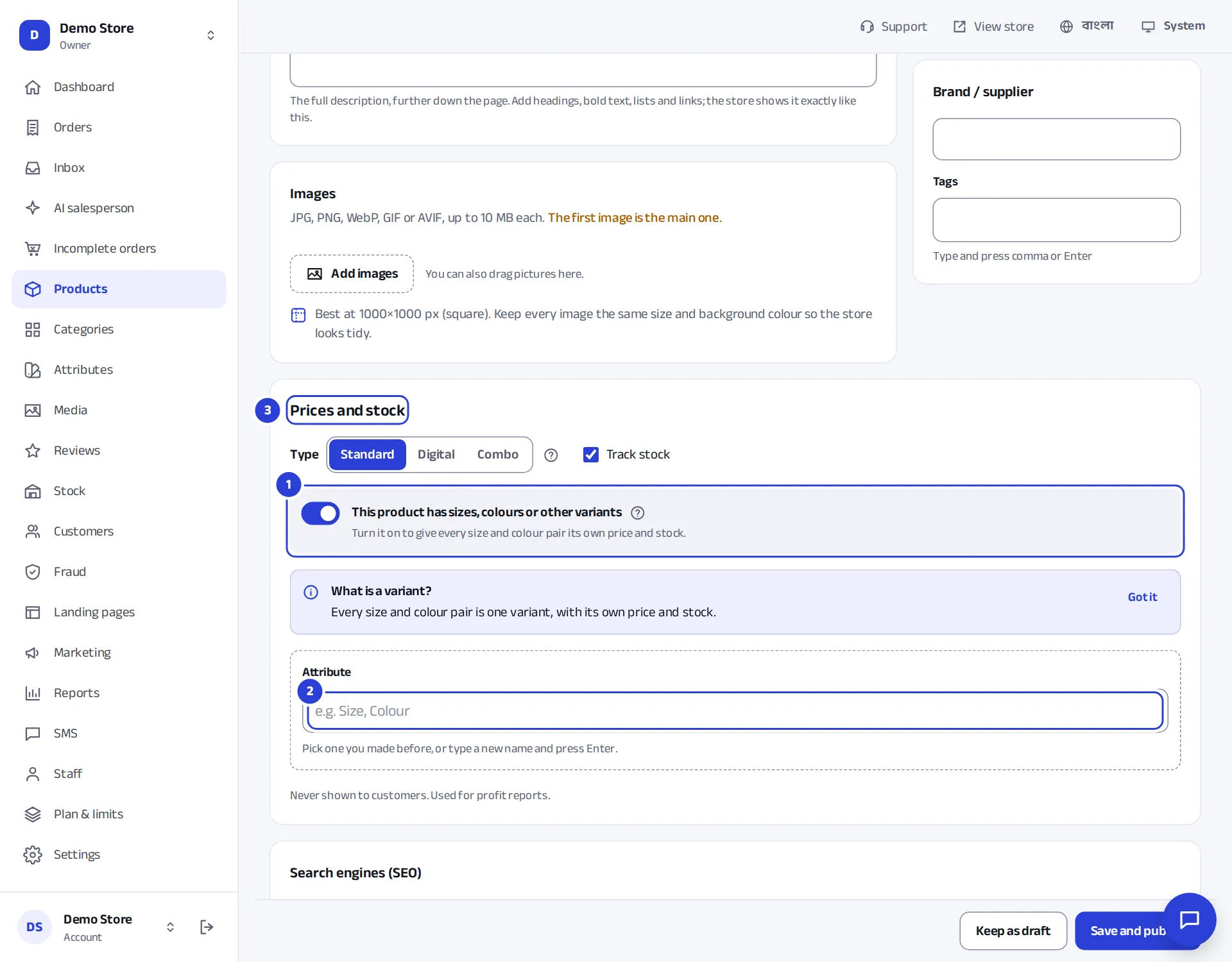
When one product comes in several sizes or colours, turn on This product has sizes, colours or other variants 1 under Prices and stock. Every size and colour pair is one variant, with its own price and stock. With the switch off a product has one price and one stock.
- In Attribute 2 pick an attribute you made before (e.g. Size), or type a new name and press Enter. A new attribute is marked New; under Shows as choose Buttons, Colours or Pictures.
- In the values field type a value and press Enter or comma, or pick one from the list. Values may contain spaces, e.g.
Navy Blue. A new value’s colour or picture can be set right here: the round box beside a colour value picks its colour (well-known names such as Red, Blue or লাল get theirs by themselves), and the small box beside a picture value opens the media popup. Change the colour or picture of an existing value on the Attributes page. - Press Add attribute if you need another one (up to 3). An attribute’s ⋯ menu has Move up (shown first in the store for this product) and Remove attribute.
- The table below 3 gets one row for every pair (e.g. M / Red) by itself. Above it you see how many, e.g. “6 variants (3 Size × 2 Colour)”.
- A pair you won’t sell: ⋯ on its row, then Remove. Pairs left out show above as “2 left out”: press it to list them and + to bring one back; Add all brings them all back.
- Up to 100 live variants per product and 50 values per attribute. Above that the sum shows, e.g. “6 × 5 × 4 = 120, limit 100”.
- An attribute added later gives the existing variants its first value; their prices, stock and history stay.
- Switching a row’s On sale off stops selling that variant but keeps its stock and history (archived). The Archived variants list below can Bring back one, or Move stock from it to another variant.
- When saving would archive or delete a variant, a list shows first, e.g. “Red / M: will be archived, 5 on hand stay”. A variant with history is never deleted. When you remove an attribute you choose there which value keeps its prices and stock.
Tip
The Price (৳), Compare-at price (৳), Cost price (৳) and Weight (grams) headers have two buttons: ↓ copies the first row’s value into every row, ≡ sets one value you type for every row. Tick a few rows and a bar appears: Set price, Set cost price, Add stock, Picture, On/off, Remove. New rows already take the price and cost price from the first row.
The attribute list
Attributes such as size and colour, and their values, live in one list shared by every product in the store, on the Attributes page in the menu. Attributes and values you make in the product form are added there too. Ordering values, giving them a colour or picture, renaming and deleting: see Attributes.
Prices, cost price and stock
Each row of the Prices and stock table has:
| Field | What to enter |
|---|---|
| Price (৳) | The selling price, required. E.g. 1250 or 1250.50. |
| Compare-at price (৳) | The price before the discount, shown crossed out in the store. |
| Cost price (৳) | What you paid. Never shown to customers; used by the profit report. |
| SKU | Your own code, e.g. PJ-M. |
| Barcode | The barcode on the item. |
| Weight (grams) | Used when delivery charges go by weight. |
| Stock | On new rows, Opening stock: how many you have right now. |
| Picture | One of the product’s pictures, or any picture of your media From the library (it joins the product’s pictures too). When a shopper picks this variant, the gallery moves to it. |
-
More columns shows Barcode and Weight (grams) in the table. Cost price (৳) shows only to people allowed to see cost prices.
-
An SKU or barcode can be used only once in the whole store; if another product has it, the save is refused.
-
Once the product is saved, the stock cell shows the number available and Change stock; a product without variants reads “Available 12 · On hand 15 · Held 3”. Record deliveries and counts there; see Changing stock.
Buy more, pay less
To lower the price of each piece when more are bought together, press + Add a buy-more price in Buy more, pay less under Prices and stock. For example, a denim plazo at ৳700 with the offer “2 pieces ৳650 each, 4 or more ৳625 each”:
| Field | What to enter |
|---|---|
| From how many pieces | The pieces this price starts at, 2 to 1,000. 2 means 2, 3, 4… pieces all get it (unless more pieces have a price of their own). |
| How it comes down | Each piece costs (e.g. 650), or Off each piece (e.g. 50: a ৳700 piece costs ৳650, a ৳750 one ৳700). When sizes cost differently, the amount off is the simple way. |
| For which variants | All variants, or Only some variants: then pick the option values (e.g. waist 50 to 65). |
- Pieces of different colours or sizes count together: one blue and one black are 2 pieces. With Only some variants, only those variants’ pieces count.
- What buyers pay below shows, for each price, what that many pieces come to. Up to 6 prices.
- A price can’t be above the variant’s own price, and more pieces can’t cost more each than fewer; a red note says what to fix.
- The website’s cart and checkout, landing pages (for products without a price of the page’s own), orders you take by hand and the AI salesperson all charge the same. The store shows “Buy 2 or more: ৳650 each” under the product’s price and “2+ for less” on its photo.
- During a flash sale the lower of the sale price and this price applies, never both. A coupon comes after, on the lowered price.
- Orders, bills and invoices say “2-piece offer: ৳700 → ৳650” under the line; the sales report shows how much was taken off in all.
- Not for combos: a combo’s price is its offer.
Link and SEO
Under Search engines (SEO):
- Link (slug): the last part of the product’s address. Leave it empty and it is built from the name; Bangla is written out in English letters (“জামদানি শাড়ি” becomes
jamdani-shari). Only lower-case English letters, digits and hyphens, and no two products can share a link. - SEO title (200 characters) and SEO description (500 characters): what Google shows. Optional: with no SEO description, the short description’s text is used, else the start of the long description.
Status, type and stock tracking
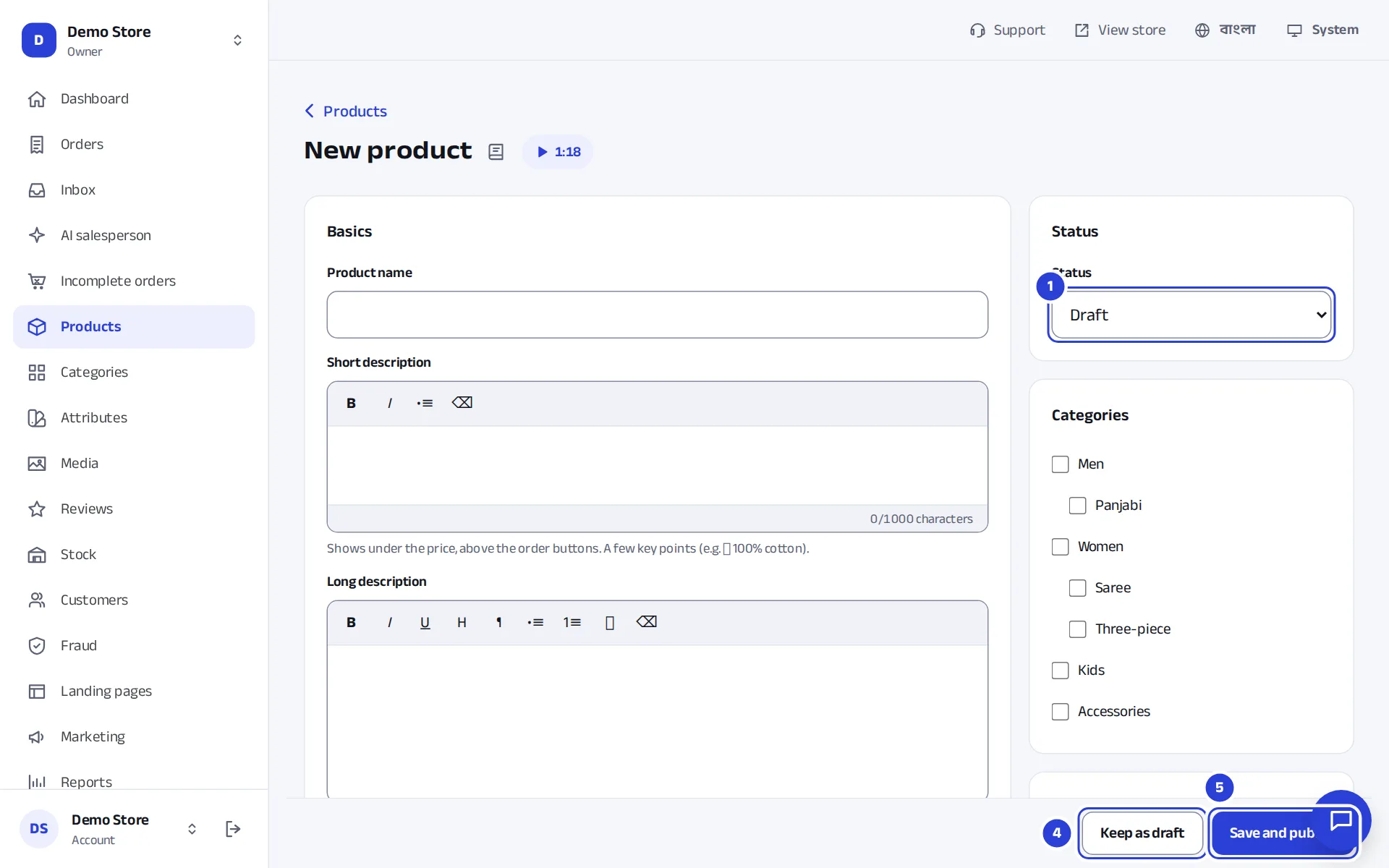
- Status on the right 1: Draft, Active or Archived. Only active products show in the store.
- Type at the top of Prices and stock: Standard, Digital or Combo. Digital adds the Digital files card; a combo gets What’s in the combo in place of stock (Combos). Once a product has orders or stock history it can’t switch between a combo and another type.
- Only for a Standard product, Track stock beside it: when ticked, orders hold stock and the product stops selling when it runs out. Untick it and the stock column goes away; it sells without limit. Digital products never count stock; a combo’s stock comes from its parts.
Categories, brand and tags
- Categories: tick every category the product belongs to (several are fine). With several, the ☆ picks the main one; the store’s breadcrumbs and “related” use it. No categories yet? Create them first.
- Brand / supplier: the brand or who you buy from, if you like.
- Tags: type and press comma or Enter. Tags may contain spaces. Up to 20.
Digital files
For e-books, courses, templates and the like, buyers download files after buying.
- Set Type to Digital.
- In Digital files, press Add files. Any file type, up to 200 MB each and up to 20 files per product.
- In the box next to each file, type the Name the customer sees.
- Save.
How the buyer gets them:
- The files open once the order is fully Paid or Delivered.
- By email: if the order has an email (turn on the email field in the checkout form), the buyer gets an email with the download links as soon as the files open, once per order, whether or not your store can send SMS. It goes in your store’s name, in your store’s language, even if order emails are off in SMS and email. The email has one Download your files button that opens your store’s tracking page with the files; it works for 7 days, and each time it gives fresh links. The email never holds a file link itself.
- On the tracking page: the buyer opens the store’s order tracking page with the order number and phone number. The download links show only after a 6-digit code sent to the phone, so nobody can take the files just by knowing a phone number and an order number. Even when the store tracks by “order number + mobile only”, the order shows at once and a code goes out for the files (each code uses SMS credits).
- When the store can’t send SMS (no credits, no gateway), the tracking page shows the order but not the links. If the order has an email, it says the links were emailed (to an address shown like
r***@gmail.com); otherwise it tells the buyer to contact you for the files. A buyer signed in to their customer account (with a mobile code) also finds the links on the order’s page. - Each file link works for 1 hour. Opening the tracking page again later gives fresh links.
- Lost the email, or the 7 days are over? On the order page, the Download files card has Resend download email: see The order page.
- How payments get verified: Order payments.
Good to know
Digital products with files don’t count stock, so they never show as sold out. To sell gift cards, keys or accounts, add codes instead: the codes left are then the stock. See Digital codes and subscriptions.
Save and publish
In the bar at the bottom of the page:
- On a new product, Keep as draft 4 saves without showing it in the store.
- Save and publish 5 saves and makes it active straight away.
- A saved product has Save; an active product has only that.
Delete or archive
Delete is at the very bottom of a product’s page, just above the save bar.
- A product can be deleted only while it has no stock history. Opening stock, a delivery or a single order already creates history; then Archive it instead.
- Archiving stops sales and keeps old orders and figures intact. Archived products don’t count toward your plan’s product limit.
Read next: The product list, Attributes, Stock and stock history, Importing from Excel/CSV.