Store pages (about us, return policy…)
Create pages like About us, Return policy and Terms. Each page gets its own link and can show in the store's footer.

On this page
Plain text pages such as “About us”, “Return policy” or “Terms” are made here. A new store has no pages yet, so create the ones you need. Customers often look for the return policy before they order, so that is a good one to start with.
Create a page
- Open Settings › Store pages.
- Press New page.
- Type the Page name 1, for example “Return policy”. Up to 120 characters.
- You can leave Link (slug) 2 empty; one is made from the name.
- Write the page in Text (up to 20,000 characters). Leave a blank line between paragraphs.
- Published 3 and Show in footer 4 start ticked; change them if you need to.
- Press Save.
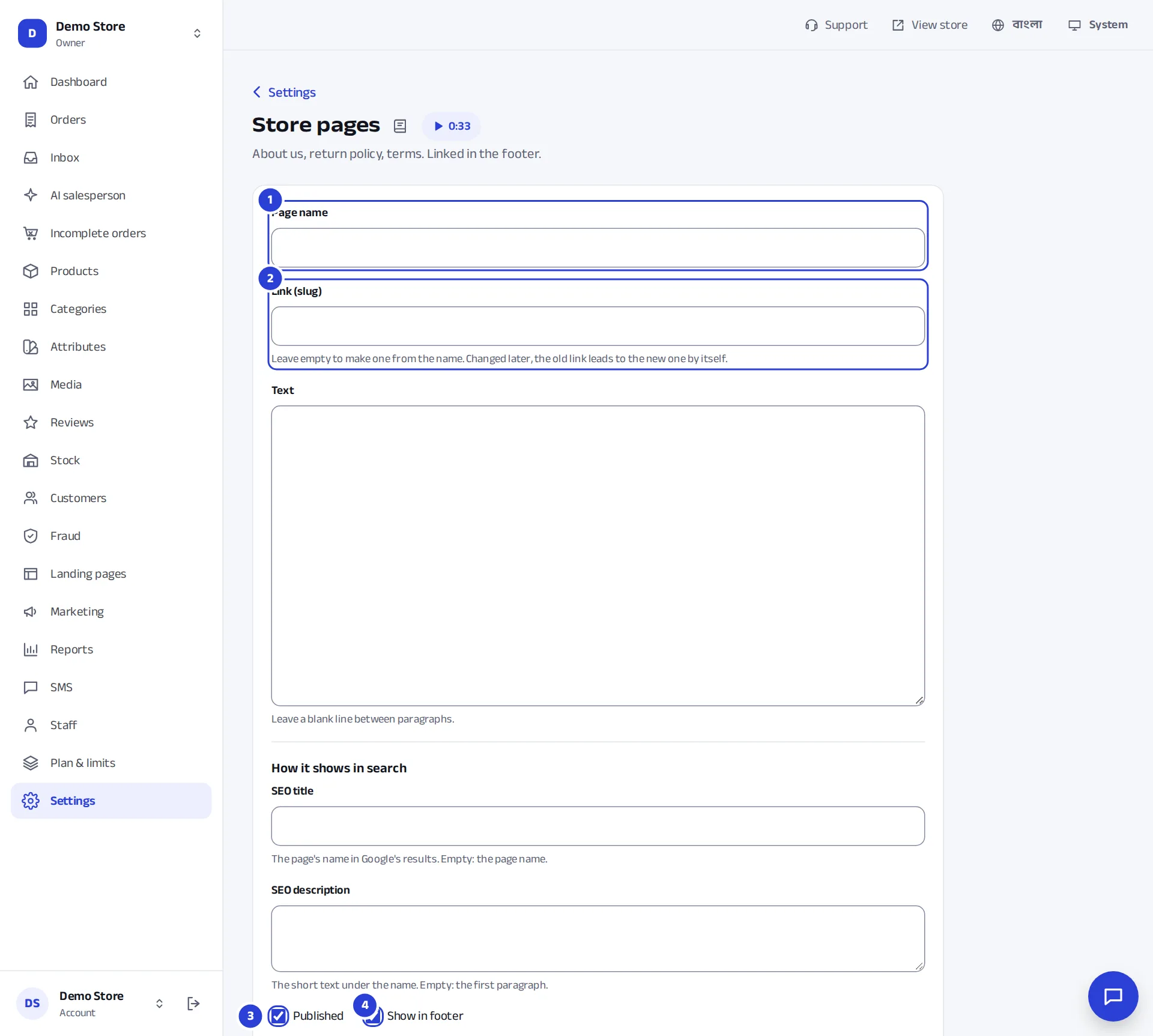
The page’s link (slug)
A page lives at your store’s address followed by /pages/<slug>, for example /pages/return-policy.
- Links use English letters only. Bangla is spelled out in English letters: “ফেরত নীতি” becomes
ferot-niti. - Two pages can’t share a link. You’ll see: “This link (slug) is already in use.”
- If you change a link later, the old address moves to the new one by itself (a 301 redirect), so links you shared keep working. Still, update them when you can, such as on your Facebook page.
Published and footer
- Without Published, customers can’t open the page, and the list marks it Unpublished.
- With Show in footer (and the page published), a link to it shows in the store’s footer. Footer pages are listed by name.
- View beside a published page opens it on your store in a new tab.
- A published page with the link
privacyorprivacy-policyis your privacy policy: the web chat’s privacy line links to it. Without one, it links to the platform’s privacy page.
Tip
Your phone number, address and Facebook link don’t need a page. Put them in the footer part of Store design and they show in the footer and on the store’s contact page by themselves.
How it shows in search
Under How it shows in search in the page form:
- SEO title 1: the page’s name in Google’s results (up to 70 characters). Empty: the page name.
- SEO description 2: the short text under it (up to 300 characters). Empty: the page’s first paragraph.
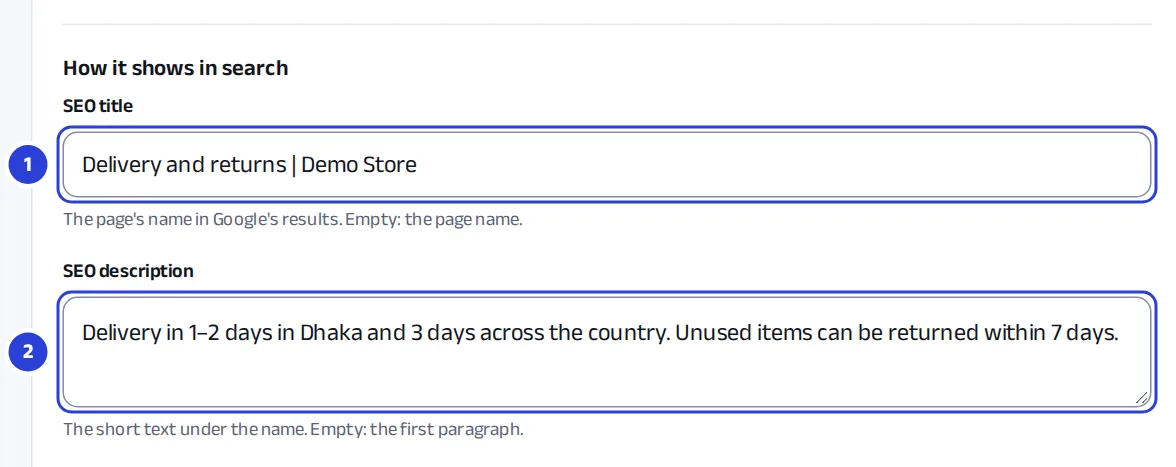
The store’s other search settings are in SEO & AI search.
Edit or delete
- Press Edit beside a page, make your changes, then Save.
- Delete asks you to confirm. A deleted page can’t be brought back; to just hide it, untick Published.
See also: Store design, Checkout form.