Delivery charges and zones
Set the delivery charge for each area with zones. An extra charge for heavier orders, free delivery above an amount, a separate charge per courier and each courier's default parcel weight.

On this page
At checkout, the delivery charge appears by itself once the customer picks a district and area. Charges come from zones: each zone holds some districts or areas, and their charge. You’ll find them in Settings › Delivery charges & zones (the page is called Delivery charges). The owner, admins and staff whose role includes settings can change them.
The three starting zones
A new store starts with three zones; change them as you like:
| Zone | Covers | Charge | Each extra kg |
|---|---|---|---|
| ঢাকা শহর (Dhaka city) | Dhaka district + Dhaka city areas | ৳60 | ৳15 |
| ঢাকার আশেপাশে (Around Dhaka) | Gazipur, Narayanganj + Dhaka upazilas such as Savar and Keraniganj | ৳100 | ৳20 |
| ঢাকার বাইরে (Outside Dhaka) | everywhere else | ৳120 | ৳20 |
Each includes up to 1,000 grams in its base charge.
Zone fields
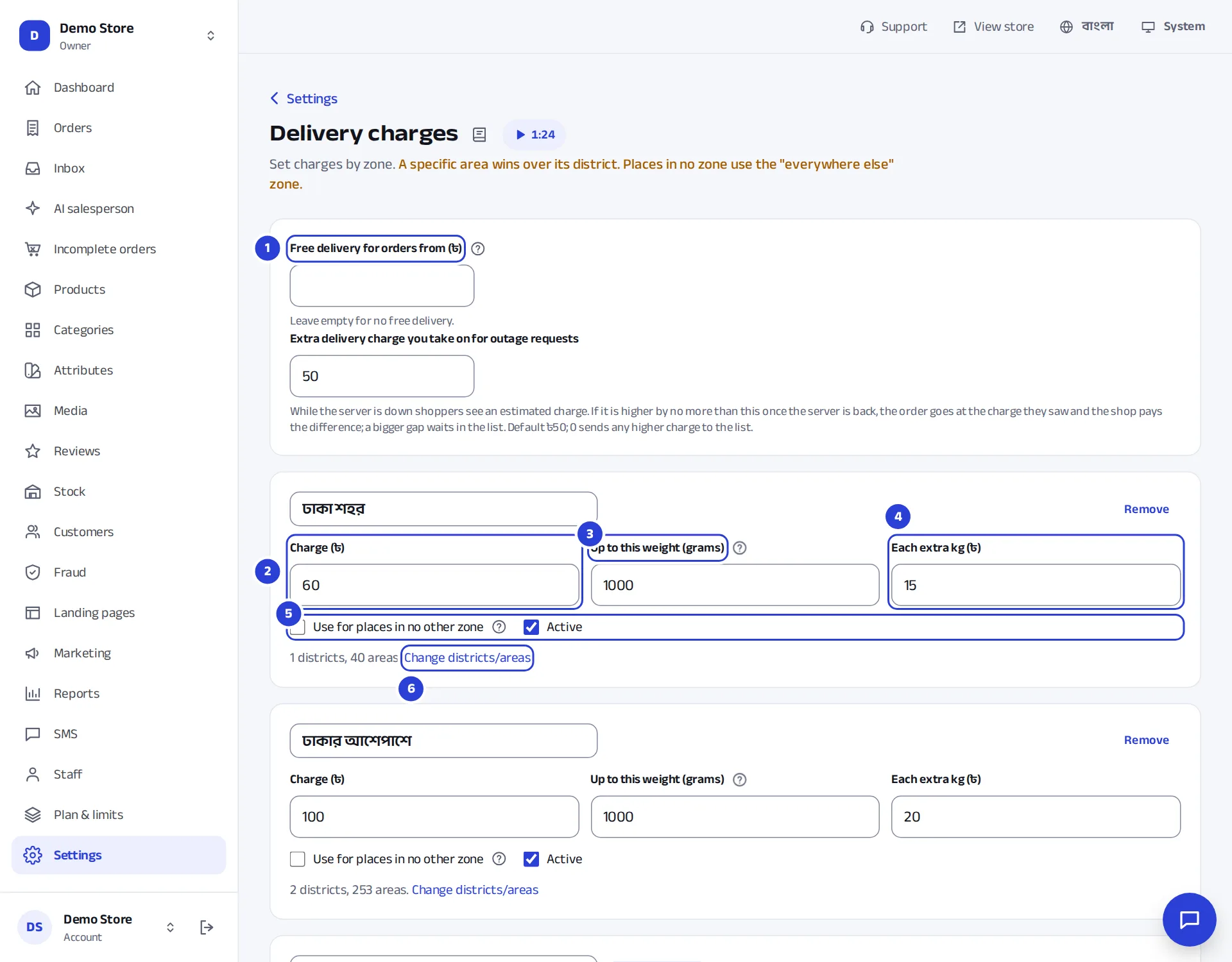
- Zone name: the field at the top of the card, for your own reference.
- Charge (৳) 2: the base delivery charge.
- Active: untick it to switch the zone off (an Off badge), as if it weren’t there.
- Remove: deletes the zone.
New zone: press Add zone (it starts at ৳100, 1,000 grams, ৳20 per kg). After all changes, press Save at the bottom; nothing is kept until you do.
The weight rule
- Up to this weight (grams) 3: the base charge covers up to this weight.
- Each extra kg (৳) 4: above it, this amount is added for every started kilogram.
Example: ৳60 up to 1,000 grams, ৳15 per extra kg. A 2,300-gram order has 1,300 grams extra, counted as 2 kg, so the charge is ৳60 + ৳30 = ৳90. Weight comes from the weights on your product variants; a product with no weight adds nothing to it (the others still count), so a heavy item in the same cart as one without a weight still gets the extra charge. Give every variant a weight for the right charge.
Districts and areas
- On the zone card, press Change districts/areas 6.
- On the left, tick districts. Find a district searches.
- On the right, under Specific areas (city), tick single areas.
- Press Close.
The card shows how many districts and areas it covers. A district or area already in another zone is greyed out with that zone’s name; a place can be in one zone only.
Everywhere else
The zone with Use for places in no other zone 5 ticked gets the Everywhere else badge: its charge applies to every place no other zone covers. Only one zone can be like this. Without one, customers in places outside your zones can’t place an order.
Which zone applies
- The active zone that lists the customer’s area (an area beats its district).
- Otherwise the zone that lists their district.
- Otherwise the “Everywhere else” zone.
A district split across zones (the starting zones put Dhaka’s city areas at ৳60 and Savar, Keraniganj and the other upazilas in “near Dhaka” at ৳100) needs its area: with no area picked, or one typed under “other”, the dearest of those zones is charged, and checkout says that picking the area may lower the charge. So nobody outside the city pays the city’s charge by skipping the area.
The area must be one of the chosen district’s: an order, a delivery quote or an edit with an area from another district (a Dhaka city area with Gazipur as the district, say) is refused (“This area is not in the district you chose”), so nobody gets the city’s charge from outside it.
At least one zone must stay active, and you can have up to 30 zones.
Free delivery
At the top of the page, enter an amount in Free delivery for orders from (৳) 1. When the products add up to that amount or more (delivery not counted), delivery is free in every zone. Leave it empty for no free delivery.
The same card’s second field, Extra delivery charge you take on for outage requests (৳50 to start with), only matters for orders asked for while our server was down (the delivery-charge limit). Both are saved with the page’s Save.
Charge per courier
If a courier costs something different for a zone, set it in the Charge per courier table in Settings › Couriers, on the Checkout & charges tab. Rows are zones, columns are your connected couriers.
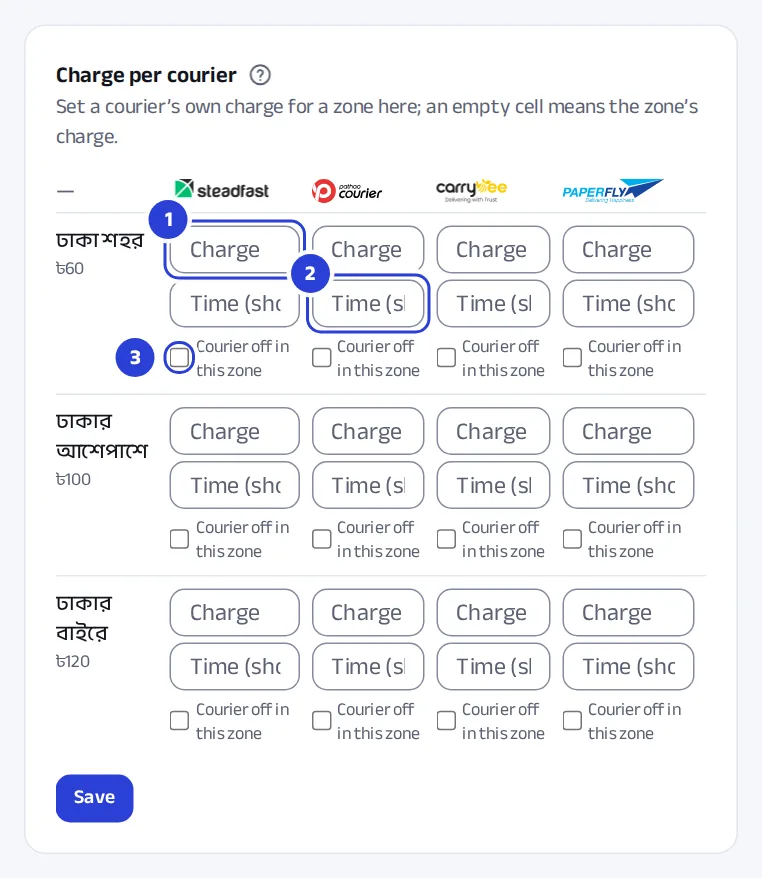
- Charge 1: the full charge for this zone with this courier, whatever the weight (the zone’s extra-kg charge isn’t added to it). An empty cell means the zone’s own charge, weight rule included.
- Time (shown to customers) 2: for example “2-3 days”, shown next to the courier at checkout.
- Courier off in this zone 3: customers in this zone can’t pick this courier at checkout.
Press Save when done. This table only applies when the courier choice at checkout is on. The free-delivery rule applies here too.
Default parcel weight
On the same Checkout & charges tab, the Default parcel weight card has one field per connected courier 1: the weight in grams (50 to 25,000; 500 to start with).
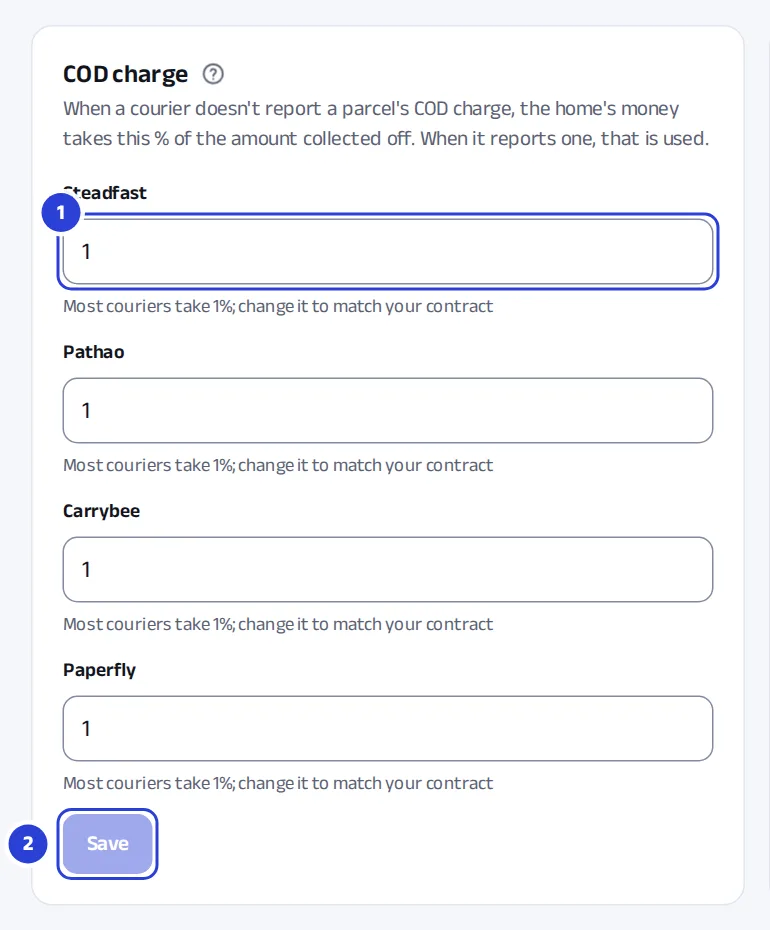
- It is the weight a parcel is booked with when the order’s products have no weight. The booking form starts with it, and you can change it on each booking (booking a parcel).
- It is the same setting as Default weight (grams) in that courier’s booking defaults: change it in either place and the other shows it.
- Press Save 2 under the fields.
It doesn’t change what customers pay: the delivery charge at checkout comes from the zones and the weights on your products (the weight rule).
What customers see
- When they pick a district and area at checkout, the zone’s charge is added to the total. Free delivery shows as such.
- With the courier choice on, each courier is listed with its charge and time, and the one they pick sets the charge. If they pick none, the order goes with the courier the checkout showed (your default courier, else the first one offered there), at its charge. When Required is set but no courier is offered for that zone, the order takes the zone’s charge with no courier.
- Landing page order forms use the same calculation. A page that pays delivery still needs a zone for the address: with no zone covering it the order is refused, as at the checkout.
- If the total goes up between the shopper seeing it and pressing order (a flash sale ended, a price changed), the order isn’t placed: the page shows the new total and the shopper presses again to order at it.
More: Connecting a courier · Payment methods