Flash sales
Special prices on chosen products for a set time, as a percentage off or a sale price. The store shows a countdown, and prices go back by themselves when it ends.

On this page
A flash sale lowers some prices for a while, like “Eid flash sale: 20% off until midnight”. The product’s own price doesn’t change: while the sale runs the store shows the sale price with the old price crossed out. When it ends, prices go back everywhere at once.
What shoppers see while it runs:
- a strip at the top of every store page with the sale’s name and the time left (“⚡ Eid flash sale · ends in …”); tapping it opens the store’s Offers list;
- a “⚡ Flash sale” badge on the cards of the products in the sale;
- on such a product’s page, the same countdown under the price.
Good to know
Flash sales are on Starter, Growth and Pro (Plans). The page needs the marketing permission, like coupons.
New flash sale
- Open Marketing and go to the Flash sales tab.
- Press New flash sale.
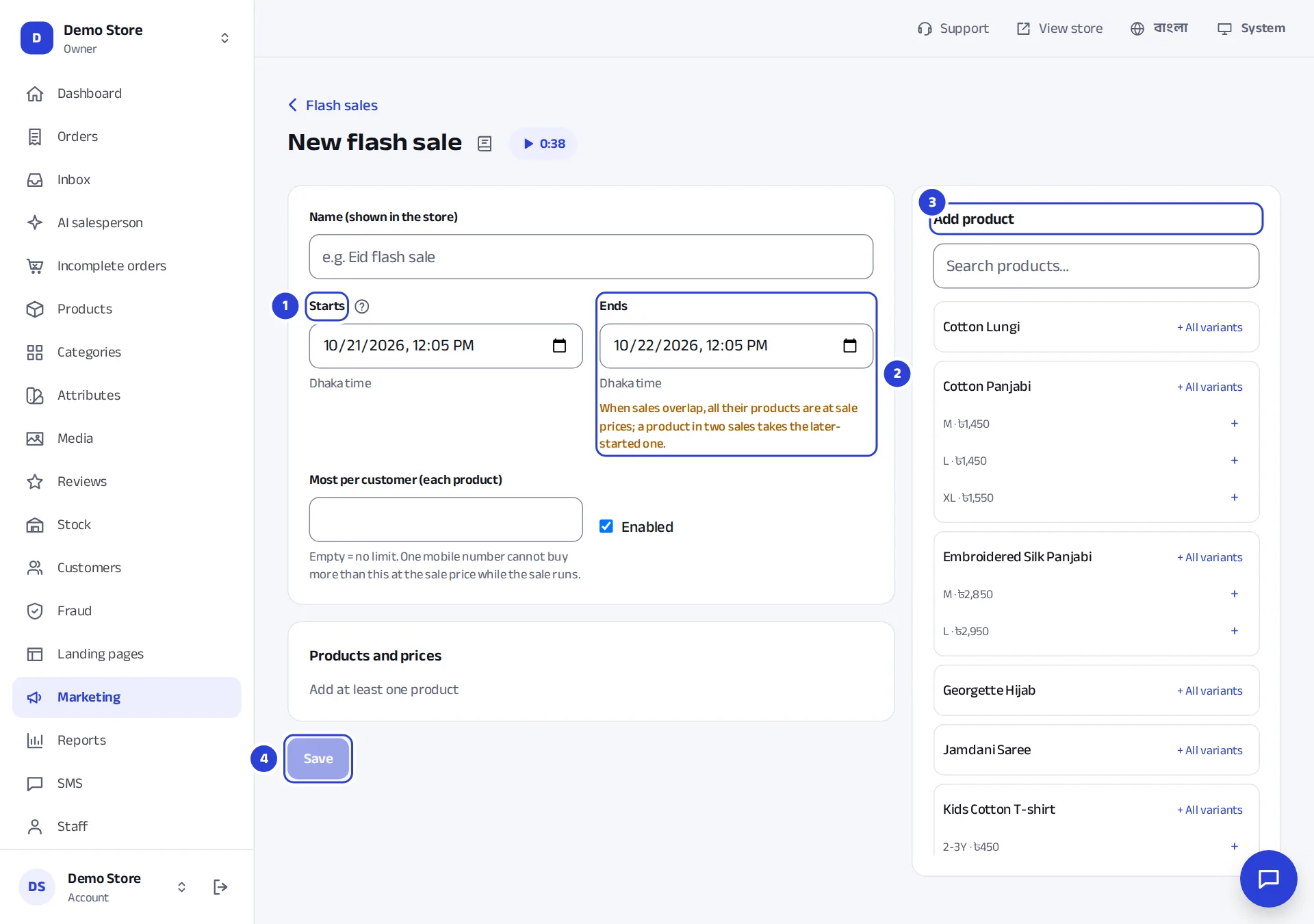
- Give it a Name (shown in the store), like “Eid flash sale”. Shoppers see this name.
- Set Starts 1 and Ends 2 (see timing below).
- On the Add product 3 card on the right, type in Search products… and add products (see products and prices).
- Leave Enabled ticked and press Save 4.
Timing
- Starts and Ends are in Bangladesh time (Dhaka time beside the box), whatever your phone’s or computer’s clock says. A new sale starts an hour from now and ends 24 hours after that; change them.
- The end must be after the start.
- The sale switches on by itself at the start and off at the end. You don’t press anything.
- To stop early, untick Enabled and press Save.
Overlapping sales
Sales can overlap: a week-long sale and a two-hour flash hour on other products both apply, each product at its own sale’s price. A product in both takes the one that started last (a single variant’s own line still beats “All variants” of another sale). The strip at the top counts down to the sale that started last; a product’s page counts down to its own sale.
Products and prices
- Type a name in Search products….
- Press + All variants for the whole product, or the + next to one variant for just that size or colour.
- For each product added on the left, pick % off (1–100) or Sale price (৳).
- Type the number next to it. Below it shows the old price and what it is “now”.
- Press Delete to take one out.
The search shows active products only, up to 30 at a time. A sale holds up to 200 products or variants, each listed once. If a product has both “All variants” and a single variant listed, that variant’s own line wins. A sale price above the normal price doesn’t apply; the normal price stays. Save works once the sale has a name and at least one product.
A percent off gives a whole-taka price, rounded down in the shopper’s favour: ৳999 at 15% off is ৳849.
Most per customer
Most per customer (each product) caps how many of each product in the sale one mobile number can buy at the sale price while the sale runs (orders not cancelled, counted since the sale started). An order past it is refused with what is left to buy: “At the offer price one customer can buy at most 2 of …”. Empty means no limit. Orders you take by hand aren’t held to it.
Sale prices apply in the store, on orders you take by hand and on orders the AI salesperson takes. On landing pages the page’s own prices come first (editor); a product the page gives no price of its own sells at the sale price there too. A coupon can be used on top of a sale.
Statuses
The Flash sales list shows each sale’s Name, When, Products, Orders (store orders, not cancelled, that bought its products at the sale price while it ran) and Status:
- Upcoming: not started yet.
- Live: running now; the store shows the sale prices.
- Ended: the end time has passed.
- Off: Enabled is unticked.
Tap a name to open a sale, change it and press Save. Delete removes it for good.
See also: Coupons