SMS and email
Order updates to your customers by SMS and email. How credits are counted, where to buy them, which updates go out and what they say, and how many SMS go out a day.
On this page
Order received, confirmed, shipped: each update goes to the customer’s phone by SMS. Which updates go out, what they say, which route they take and what they cost all live on the SMS page in the left menu (or Settings › SMS & email). It has four tabs: Setup & credits, Message text, Email and Sent SMS.
SMS credits
1 credit = 1 SMS part. A long SMS is split into parts, and each part is a credit:
| Text | One part | Each part when split |
|---|---|---|
| English only | 160 characters | 153 characters |
| Has Bangla or emoji | 70 characters | 67 characters |
So a 120-character Bangla SMS is 2 parts, 2 credits. A single emoji makes the whole SMS count the Bangla way.
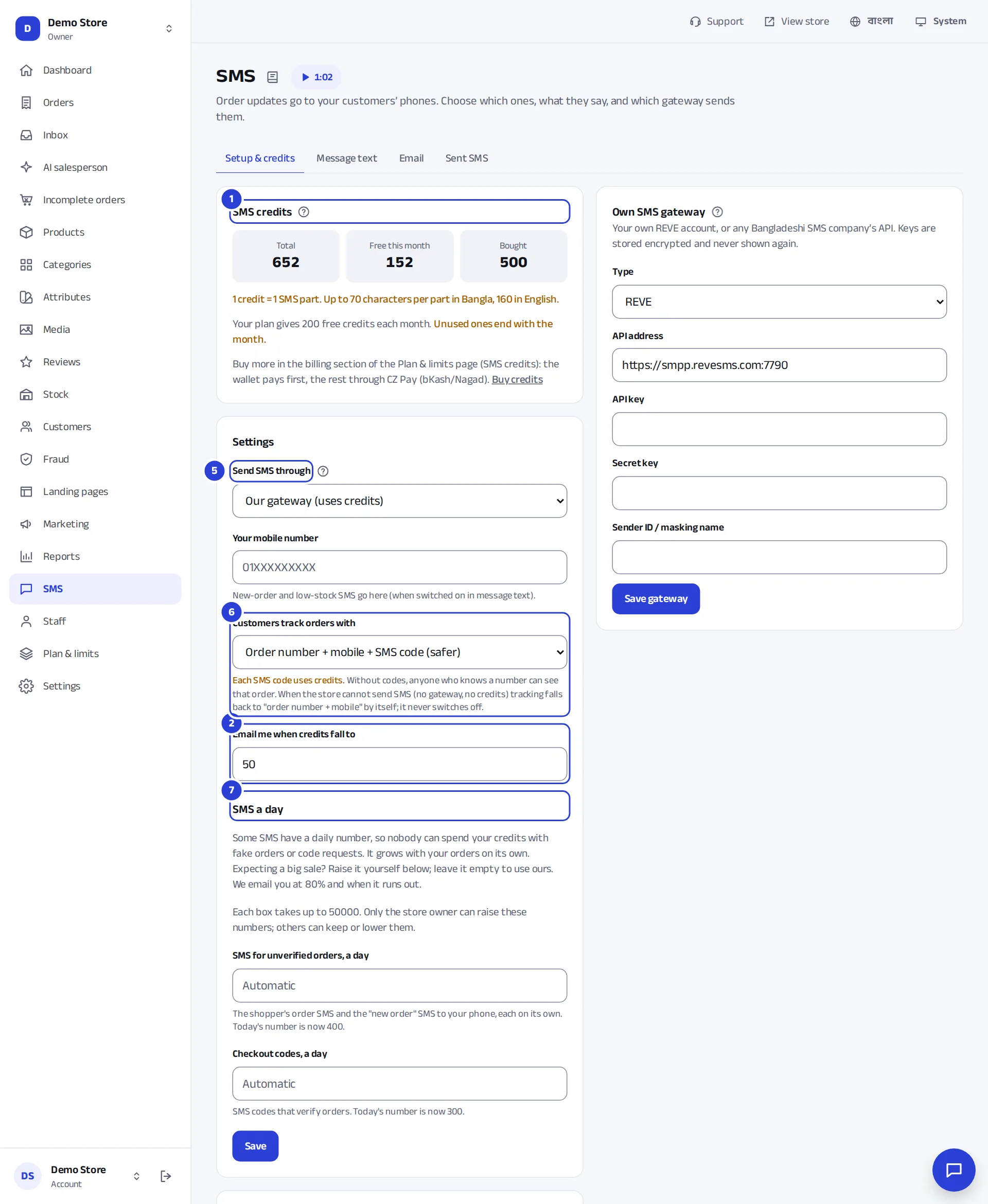
The SMS credits 1 card on Setup & credits shows three numbers: Total, Free this month and Bought. Free credits are used first, then bought ones.
- Free credits each month: your plan adds some every month; the card says how many (“Your plan gives … free credits each month.”), and the plan list shows each plan’s. Unused free credits end with the month; bought credits stay.
- Changing plans: this month’s free credits go up or down to the new plan’s at once; the history says “plan changed, free credits for … follow the new plan”. Bought credits are not touched.
- No credits left: order SMS stop, but taking orders keeps working.
- The gateway refused an SMS: its credits come back. An SMS that was sent but never reached the phone keeps its credits (the gateway charges for it).
- Credit history lists every change: Added, Monthly free, Spent, Refund, Correction, Expired.
Email when credits run low
Put a number in Email me when credits fall to 2 (it starts at 50) and press Save. When credits fall to it, the store owner gets an email, at most once a day.
Buy credits
Credits are bought on the store’s Plan & limits page, by the owner or anyone the owner gave the billing permission (the Buy credits link under the SMS credits card on the SMS page leads there):
- In the store you’re buying for, open Plan & limits.
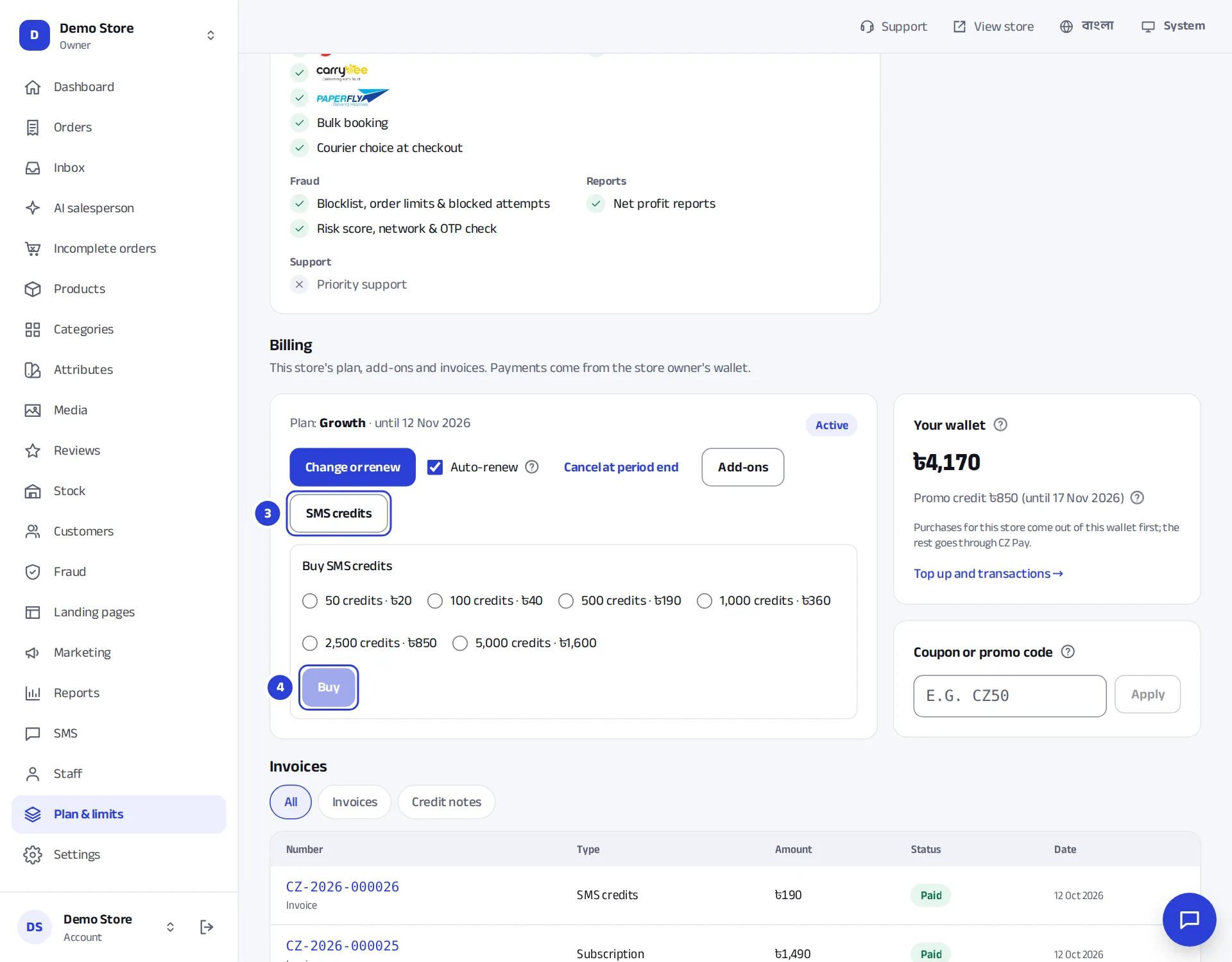
- In the billing section at the bottom, press SMS credits 3.
- Pick a pack (like “500 credits · ৳…”). Packs and prices change from time to time.
- Press Buy 4. The wallet pays what it can; the rest goes through CZ Pay (bKash/card) (payment summary).
- Once paid you’ll see “Done” with the credits added, and they are in the store straight away.
Buying for a store that is paused (it stopped taking new orders because of your account’s store limit), the payment page says so first: the credits only go to SMS for its existing orders until you open the store again.
More about the wallet: Billing.
Which gateway sends them
Send SMS through 5:
- Our gateway (uses credits): on for everyone, nothing to set up.
- My own gateway (no credits): send through your own REVE account or another SMS company. It’s on Pro, and the gateway has to be saved first: Your own SMS gateway.
Your own gateway is used only when all four hold: it is chosen here, it is saved, your plan includes it, and the platform allows own gateways. If any is missing, SMS go through our gateway under our sender ID and use credits. Each sent SMS in Sent SMS shows the sender ID it went out under, so you can see which one sent it (Sent SMS).
On the same card, put Your mobile number: the new-order and low-stock SMS (to you) go there, once you switch them on under Message text.
Order tracking
Customers check an order on the store’s tracking page with the order number and their mobile. Under Customers track orders with 6 pick:
- Order number + mobile + SMS code (safer): a code goes to the phone, valid for 5 minutes. Each code uses credits.
- Order number + mobile only: no code, but anyone who knows someone’s number and order number can see that order. Download links for digital products still need a code: when a paid order has files, a code goes to the phone for them (it uses credits).
When the store can’t send SMS (no credits, no gateway), tracking falls back to “order number + mobile” by itself; it never switches off.
Which updates go out, and what they say
The Message text tab has a card per update. On a new store:
| Update | To | At the start |
|---|---|---|
| Order received | customer | on |
| Order confirmed | customer | on |
| Shipped | customer | on |
| Arriving today | customer | off |
| Delivered | customer | off |
| Cancelled | customer | off |
| Advance payment received | customer | on |
| Tracking code | customer | Always on |
| Order verification code (checkout) | customer | Always on |
| Incomplete-order recovery | customer | text and on/off in Automatic recovery SMS |
| Inbox “Send SMS” (after Messenger’s 7 days) | customer | Always on |
| Review request (on/off: Products → Reviews) | customer | off; on/off and how many days after, in the review rules |
| New order (to you) | you | off |
| Low stock (to you) | you | off |
| Code delivery (digital products; the link goes, not the code) | customer | on |
| Expiry reminder (digital products) | customer | on; Days before 3 at the start |
- An Always on SMS can’t be switched off, only reworded. The checkout code goes out only when the SMS code check asks an order for one. The inbox SMS goes only when someone presses Send SMS in the inbox.
Digital codes. When you sell gift cards, keys or accounts (digital codes) there are two updates:
- Code delivery (digital products; the link goes, not the code): when an order gets its codes (after the payment is verified, or on delivery), and when you press “send again” or “replace” on the order page. The SMS never carries the code itself, only a link to the tracking page (
{codes_link}) where the buyer sees and copies it; the link works for 7 days, after that the tracking page shows the codes with the order number and phone. A replaced code’s SMS says it is a new one. A buyer who gave an email gets the codes by email too (see Order emails). - Expiry reminder (digital products): for variants with a validity, once, Days before the end (1 to 14, 3 at the start): “Your
runs out on . Renew: ”. Never at night (10 pm to 9 am). Not for cancelled, returned or refunded orders, and not once the same number bought the same variant again. Change the days on this card; the email follows them. Like recovery, it doesn’t go to a number that sent “STOP”.
Good to know
Arriving today is not sent by itself (you can still edit its text). When you need it, send that text by hand with Send SMS on the order page.
Your own order statuses can have an SMS of their own, written on Settings › Orders, not in this tab. When it is on, it goes once when an order enters that status, instead of the stage’s SMS from here. In Sent SMS its event is called Your own order status (text: Settings → Orders).
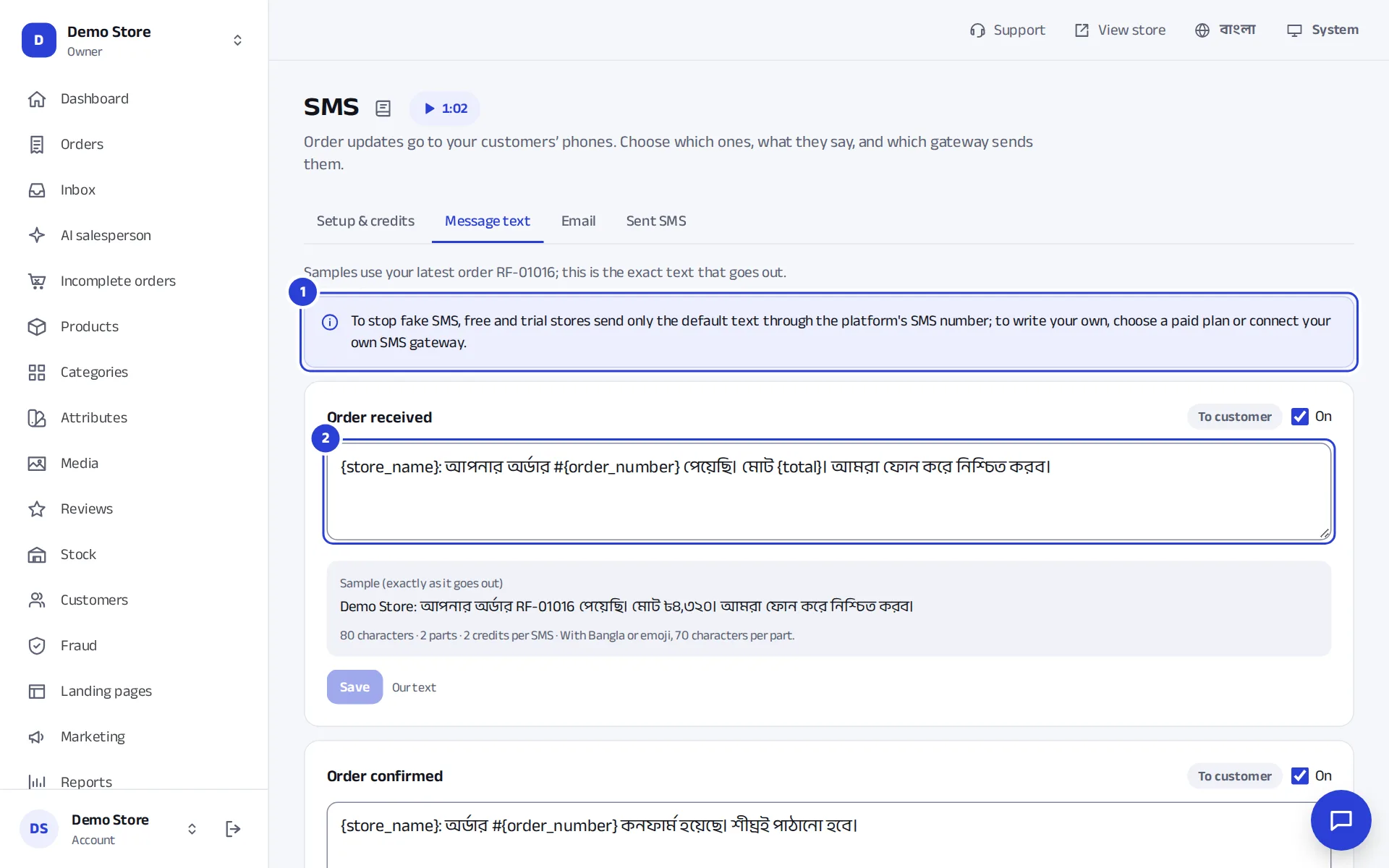
Free plan and trials. A store on the free plan or in a trial that sends through the platform’s SMS number sends only our texts: the cards show them read-only 2, with the reason above them 1, and the on/off switches still work. This stops anyone from sending fake SMS under the number every store’s codes go out with. To write your own texts (here, in your own order statuses and in the recovery steps), choose a paid plan or connect your own SMS gateway. Texts you saved earlier are kept and used again once you pay. On those stores a store name with more than 4 digits goes out without its digits, so a name can’t carry a phone number. Through the platform’s SMS number (on any plan) the same goes for the name a shopper typed. An order shipped without a courier gets its own “shipped” text, without a courier’s name.
To change a text (paid plan or your own gateway):
- Type your own text in the card.
- Tap a name next to You can insert: to add it:
{customer_name}{order_number}{total}{due}{courier}{tracking_url}{store_name}{store_url}{recovery_link}{coupon}{otp}{product}{stock}{store_phone}{review_link}{codes_link}{renew_link}{expiry_date}. The last three belong to the digital codes’ two updates: the link to see the codes, the product page’s link and the day it runs out.{store_phone}is your store’s contact number (Settings › Store), but only when it is the verified mobile number of the owner or a staff member; otherwise it stays empty.{total},{due}and{courier}are as they were when the order moved: a “shipped” SMS that goes out a little late, after the order was already delivered, still says what to pay at the door. - Sample (exactly as it goes out) shows the SMS with your latest order’s details, and below it the characters, parts and credits. More than 2 parts turns yellow.
- Tick On and press Save. Below it says Own text or Our text.
Back to our text brings back the original. An unknown {name} or a text longer than 6 parts won’t save.
The two code SMS (Tracking code, Order verification code (checkout)) have three more rules: the text must contain {otp}, it can’t carry a link, and with the longest store name in it it can’t run past 2 parts. Otherwise it won’t save (“A code SMS must contain {otp}: that is where the code goes.” and so on).
When a text saved earlier breaks a rule made since, its card says in yellow “This text breaks a current rule …”, and the SMS goes out with our text. Fix the text and save it again.
Good to know
A customer SMS can’t carry a link or web address you type yourself, so fake links can’t be spread in your name. For a link, insert
{tracking_url},{store_url}or{recovery_link}; they lead to your store’s own address. A text with a link of its own won’t save. A text saved like that earlier goes out as our text instead, and your own status or recovery text with a link isn’t sent (Sent SMS shows The text has a link of its own). A store or customer name with a dot in it (likebkash.top) goes out with a space for the dot.
How many SMS a day
So that nobody can spend your credits with fake orders or by asking for codes again and again, some SMS have a daily number. A day is a Dhaka calendar day, starting over at midnight. The numbers grow with your orders on their own: “confirmed a day” means the larger of the last 14 days’ average and today’s confirmed orders.
| SMS | At least, a day | For a bigger store |
|---|---|---|
| Checkout codes | 300 | 4 times confirmed a day |
| Tracking and shopper sign-in codes | 200 | 2 times |
| The shopper’s order SMS on unverified orders | 400, plus half of today’s incoming orders | 3 times |
| The “new order” SMS to your phone on unverified orders | 400, plus half of today’s incoming orders | 2 times |
| Incomplete-order recovery SMS | 100 | 1 time |
| The whole store | 2,000 | more, the ones above together |
- SMS on orders whose shopper typed the code, orders made by hand and orders you confirmed don’t use the “unverified” numbers.
- A number with no sign-in, and no verified, confirmed or delivered order at this store, gets at most 60% of the code numbers.
- One number gets no more than 10 SMS an hour and 30 a day from one store. Codes are fewer: 10 an hour and 20 a day to one number.
Raising them before a big sale
- On the Setup & credits tab, go to SMS a day 7.
- Type what you need in SMS for unverified orders, a day and Checkout codes, a day (up to 50,000). Today’s current number shows under each field.
- Press Save.
Your number only raises a limit, never lowers it; leave it empty (Automatic) to use ours. The first field covers the shopper’s order SMS and the “new order” SMS to you, each on its own. You pay for these SMS. Only the store owner can raise them (up to 50,000); staff with permission to change settings can keep or lower them.
Near or at a limit
- At 80% of any of these numbers, the store’s owner gets an email (“80% of today’s … used”).
- When one runs out, another email goes (for example “order SMS paused for today”, “shopper codes paused for today”), with how to raise it. The same kind of email goes at most once in 24 hours.
- Once a number runs out, that kind of SMS waits until midnight; in Sent SMS they show as Not sent with the reason. When codes run out, an order that needed one is taken on hold (unverified orders and holds).
- The owner is also told when the store’s hourly codes (150) are used up; with the CAPTCHA on, shoppers who pass the box still get their code.
Sent SMS
The Sent SMS tab lists every SMS, newest first, 20 a page (the footer under it picks 20, 50 or 100 and moves between pages): time, number, which update, the full text, status and Credits. The number box and Filters at the top narrow it (below).
SMS sent by hand from the order page are here too: under the update’s name when you picked one of these texts, or as Own words from the order page when you wrote your own.
An SMS that went out also shows its sender ID as it is 1 (like innerc or 096…): the name or number it really went out from at that moment, our gateway’s sender ID or, through your own gateway, your own REVE account’s or other company’s Sender. Hover it for which gateway and the number it went to; the number is also beside it, smaller. SMS sent before 18 October 2026, and SMS that never went (for example no credit), show no sender. The order’s timeline shows the same sender for each SMS of that order (Notes and timeline).
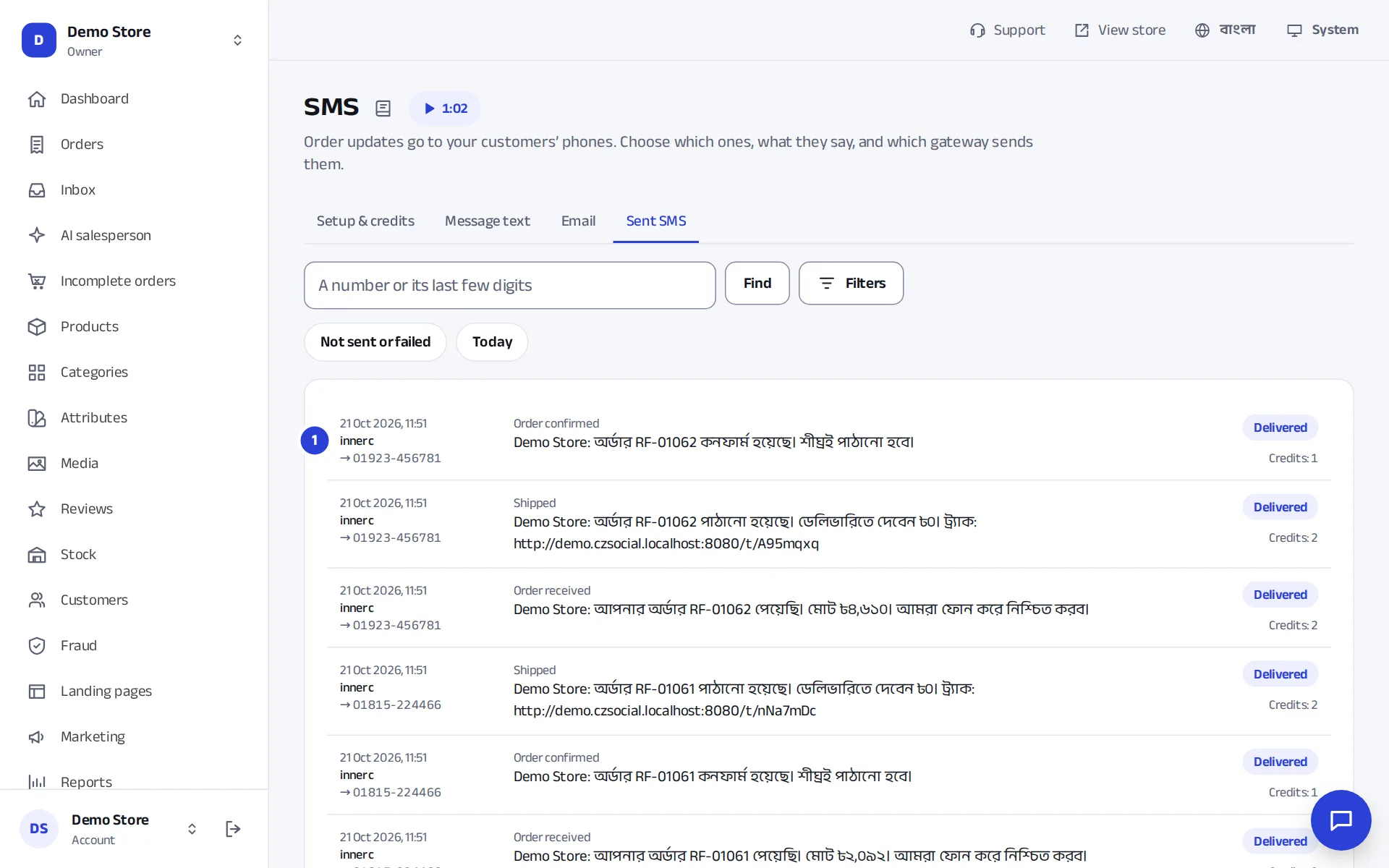
| Status | Meaning |
|---|---|
| Waiting | in the queue |
| Sent | the gateway took it |
| Delivered | reached the phone (we ask our gateway a few times to find out) |
| Failed | the gateway did not send it, or it never reached the phone (undelivered next to it means it never reached the phone) |
| Not sent | we held it back; the reason is shown next to it |
Reasons for Not sent:
- No credits: credits ran out.
- Too many SMS to this number this hour: one number gets at most 10 SMS an hour.
- Too many SMS to this number today: this number already got many SMS from this store today.
- Daily limit reached: the whole store’s SMS for today are used up.
- Today’s code limit reached, Today’s SMS limit for unverified orders reached, Today’s limit of “new order” SMS to your phone reached, Today’s reminder SMS limit reached: that kind’s number for today is used up (how many SMS a day).
- The text has a link of its own: the text had a link you typed (above).
- This number got many SMS today for unverified orders from all stores together, so this one was not sent (no credit used): one number gets at most 10 SMS a day for unverified orders from all stores together, so nobody can order on many stores with a stranger’s number and spend every store’s credits.
- A free or trial store can send its manual orders’ SMS and the recovery SMS it sends by hand to 30 new numbers a day; today’s are used up (no credit used): on the free plan or a trial, through the platform’s SMS number. A number already texted today still gets more.
blocked: the number is on your blocklist; a blocked number gets no SMS at all and no credit is used.opted_out: recovery SMS, your own words sent from the order page, review requests and the inbox’s follow-up SMS; that number asked for no more.default_only: a free or trial store tried to send its own words by hand through the platform’s number, which only sends our texts.
These are platform limits, so a broken form or a bug can’t burn all your credits. If SMS are not going out: When SMS are not sent.
Filters
- The number box at the top: type a whole number (such as 01711-222333, Bangla digits too) or a few of its digits (such as 2333), then tap Find.
- Filters opens a panel (from the bottom on a phone, from the side on a computer); pick and tap Show results:
- Status: one or more, such as Not sent and Failed together.
- What it was for: one or more updates, such as Tracking code.
- Order: About an order, or No order (codes, recovery).
- Gateway: Our gateway or Your own gateway.
- Sent on: from and to (Bangladesh days, both days included).
Each filter that is on shows as a chip above the list; tap its × to take it off, or Clear all. Quick filters do it in one tap: Not sent or failed and Today. Save filters keeps your own under a name. The filters are in the page’s address: a copied link opens the Sent SMS tab with the same list. The number box never finds an SMS whose number is shown hidden (one about an order over your plan’s monthly limit).
Order emails
Customers who give an email at checkout can get order updates by email too. Emails use no credits.
- Open the Email tab.
- Tick Send order emails (off at the start).
- Optionally set Sender name (empty = the store name) and Replies go to (empty = the store contact email).
- Under Which updates tick Order received, Order confirmed, Shipped (these three are on at the start) and Cancelled.
- Press Save.
Digital codes: Code delivery (the codes by email) and Expiry reminder have their own switches, on at the start. They go to a buyer who gave an email even with Send order emails off (like download links: it is what the buyer paid for). The codes email shows each field of each code on its own line, the expiry date when there is one, and the tracking page’s link. The codes are only in the email’s body: never its subject or our logs.
Changing the Sender name or Replies go to is reported to the store owner, with the old and the new value, so nobody can quietly send your customers’ replies elsewhere.
Emails go from our server in your store’s name. To send from your own address, fill in the Own email server (SMTP) card next to it, Host, Port (25, 465, 587 or 2525; picking 465 ticks TLS from the start (port 465) for you), User, Password and Send from, press Save SMTP, then put an address in Test email and press Send a test email. The password is stored encrypted and never shown again; Remove deletes it. Own SMTP is on Growth and Pro.
Limits on customer emails from our server:
- The store’s numbers an hour and a day come with your plan. The “order received” email and the rest (confirmed, shipped, cancelled, download links, staff invitations) are counted apart, so a flood of fake orders can’t hold back the emails that follow real orders.
- One address gets up to 20 a day from all stores together (each of those two kinds on its own).
- On the platform’s very busy days, a store that already sent many emails that day sends the rest later.
Past a limit emails aren’t lost: they wait and go out when there is room again; one still waiting after 48 hours is not sent. When the store’s own numbers hold them, the owner gets an email (“store emails are waiting”), once in 24 hours. Your own SMTP has none of these limits.
See also: Your own SMS gateway · Automatic recovery SMS