Signing in and resetting your password
Sign in once at the dashboard's address with your email or mobile number to reach all your stores, the two-step code, what happens after too many wrong tries, and a new password by a link to your email or mobile.
On this page
Everything is in one place, the dashboard at dashboard.{root}: all your stores, and for an account owner the wallet, invoices, referral and support. Owners and staff sign in there with the same email or mobile number and password, once for every store.
Sign in
- Open
dashboard.{root}, or press Log in on our website. The page says Sign in. - Enter your email or mobile number in Email or mobile number.
- Enter your Password. The eye icon shows what you typed.
- Press Sign in.
Where you land:
- With one store, straight into its dashboard.
- With several, the store you opened last in this browser; without one, My stores (several stores).
- With none yet, Open your first store (opening a store).
A link that asked you to sign in, from an email or a bookmark, takes you back to that page once you are in.
When the platform has them on, the sign-in page also has Continue with Google and Continue with Facebook (signing in with Google or Facebook).
Tip
Staff sign in at the same address, and see only the stores they work in. Bookmark
dashboard.{root}in the phone’s browser. How staff join a store: Staff and roles.
Older addresses
The addresses used before still work and lead to the dashboard:
- The store’s address followed by
/admin(for examplerahim-fashion.{root}/admin), or the word the owner chose instead (the word that opens the dashboard), opens that store on the dashboard. A longer path, such as/admin/orders, opens the same page there. - The old merchant portal address,
merchants.{root}, opens the matching page of the dashboard: the stores, the wallet, referral or support.
If you aren’t signed in yet, you sign in first and then land on that page. Bookmarks and links in older emails keep working this way.
The two-step code
If you turned on two-step login, an Authenticator code field appears after the password. Enter the 6-digit code your authenticator app shows right now; the sixth digit signs you in by itself, no need to press Sign in again. The code changes every 30 seconds, so use the latest one.
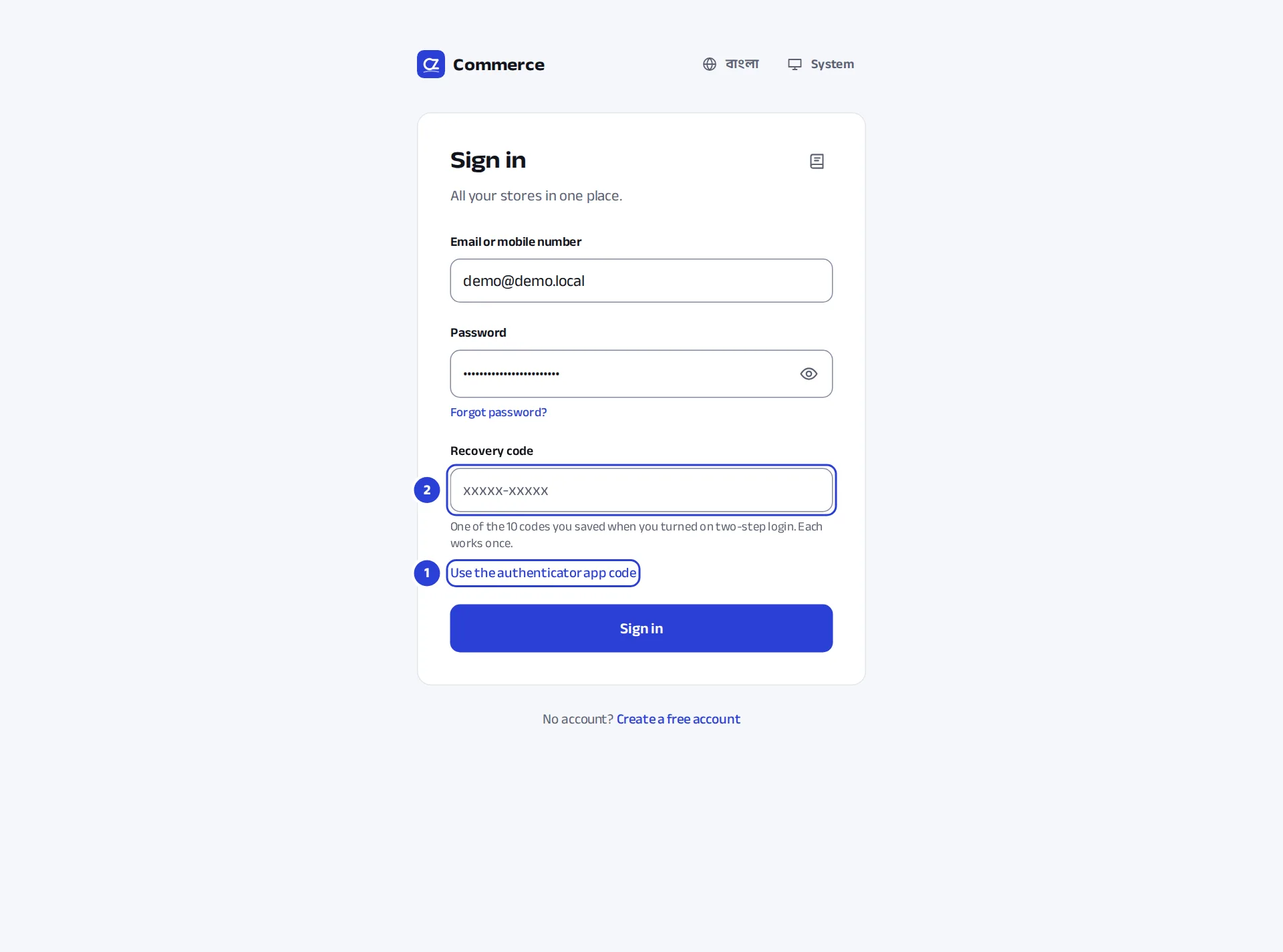
Lost your phone or the app? Press No app? Use a recovery code and enter one of the recovery codes you saved when you turned two-step login on in Recovery code 2, then Sign in. Use the authenticator app code 1 goes back to the app’s code. Each code works once, and we email you when one is used (recovery codes).
After you sign in
- Mobile check: if your account’s mobile number is not verified yet, Verify your mobile number comes first. The panel opens once you enter the SMS code (mobile number).
- Trust this device? Asked once after every sign-in. On your own phone or computer press Trust and you stay signed in for 30 days. With Not now you are signed out when you close the browser or after 12 hours without activity. On a shared or public computer choose Shared computer: this browser won’t remember you (trusted devices).
Too many wrong tries
After 5 wrong passwords (or wrong two-step codes) on one account (its email and number together) within 15 minutes, the account is not locked, so nobody can keep you out on purpose with wrong passwords.
- From then on, signing in from a connection you haven’t used for this account in the last 30 days (a new mobile data connection, say) shows an “are you a person” box (CAPTCHA). Tick it and press Sign in again. Your usual connections don’t need it.
- 5 wrong tries from the same connection block signing in from that connection for 15 minutes: “Too many failed attempts. Try again in 15 minutes.” Wait, try from another connection, or reset the password now.
- A successful sign-in clears the count.
- A daily limit stays whatever box is ticked: after 50 wrong tries on the account in a day (or 10 wrong two-step codes), connections you haven’t used lately are refused for up to 24 hours, and we email you once. Your usual connections still get in. Someone else is probably guessing your password: change it.
Good to know
“Account suspended” means the platform has put your merchant account on hold. The reason and how to reach us are shown right there (when a store or account is suspended).
Forgot your password
Passwords are reset from the dashboard’s sign-in page, with your email or mobile number. Owners and staff alike.
- On the sign-in page at
dashboard.{root}press Forgot password?. - Enter your account’s Email or mobile number.
- Press Send reset link. If there is such an account, a link is on its way. Typed your verified mobile number? It comes there by SMS (handy when you lost the mailbox, or the Google account your email came from). Typed your email? It goes to that email if it is verified, otherwise by SMS to the verified mobile number. With neither verified, nothing is sent.
- Open the link. It works for 1 hour, and only once. Asking for a new one ends the earlier link sent the same way.
- On Set a new password, type the new password and press Set password.
- Press Sign in and use the new password.
Setting a new password signs you out on every phone and computer, and your verified email and mobile are told.
- Changed your email or number in the last 7 days? You can enter the old one too. The account’s current address then gets the usual link, and the old one gets a “take your account back” link (24 hours). This way the account comes back only after 24 hours, and its current owner can cancel it meanwhile (waiting account recovery).
- Limits: 3 links an hour and 6 a day for one address; a browser that signed in to the account in the last 30 days gets its own extra allowance. By SMS, 3 a day to one number (5 from a known browser). Past a limit you see the same message, but nothing is sent.
- With the platform’s CAPTCHA on, an “are you a person” box shows here too.
Watch out
No link? Check the email’s spam folder and your phone’s messages. “This link is invalid or has expired” means you should start again from step 1 for a fresh link. If you can use neither the account’s email nor its mobile any more, tell us through the contact page on our website.
See also: Sign-in security, changing your password from the profile.