Setting up the Carrybee webhook
Copy our address and the secret we made for you into Carrybee's Webhook Integration page, tick All events and press Add Webhook. Carrybee checks the address at once.

On this page
With the webhook, Carrybee sends every pickup, delivery and return the moment it happens, and the order moves by itself. Like the other couriers, Carrybee gets a secret we make for your store: you copy it into Carrybee’s form.
Good to know
Connect Carrybee first (Connecting a courier). The webhook address and the secret only appear once it is connected.
Copy the address and the secret
- Open Settings › Couriers.
- On the Couriers tab, press Open beside Carrybee. On its card, find Webhook: automatic order status.
- Tap Copy next to Webhook address (Callback URL) 1.
- Tap Copy under Token / Secret 2. Show shows it first if you want to check it.
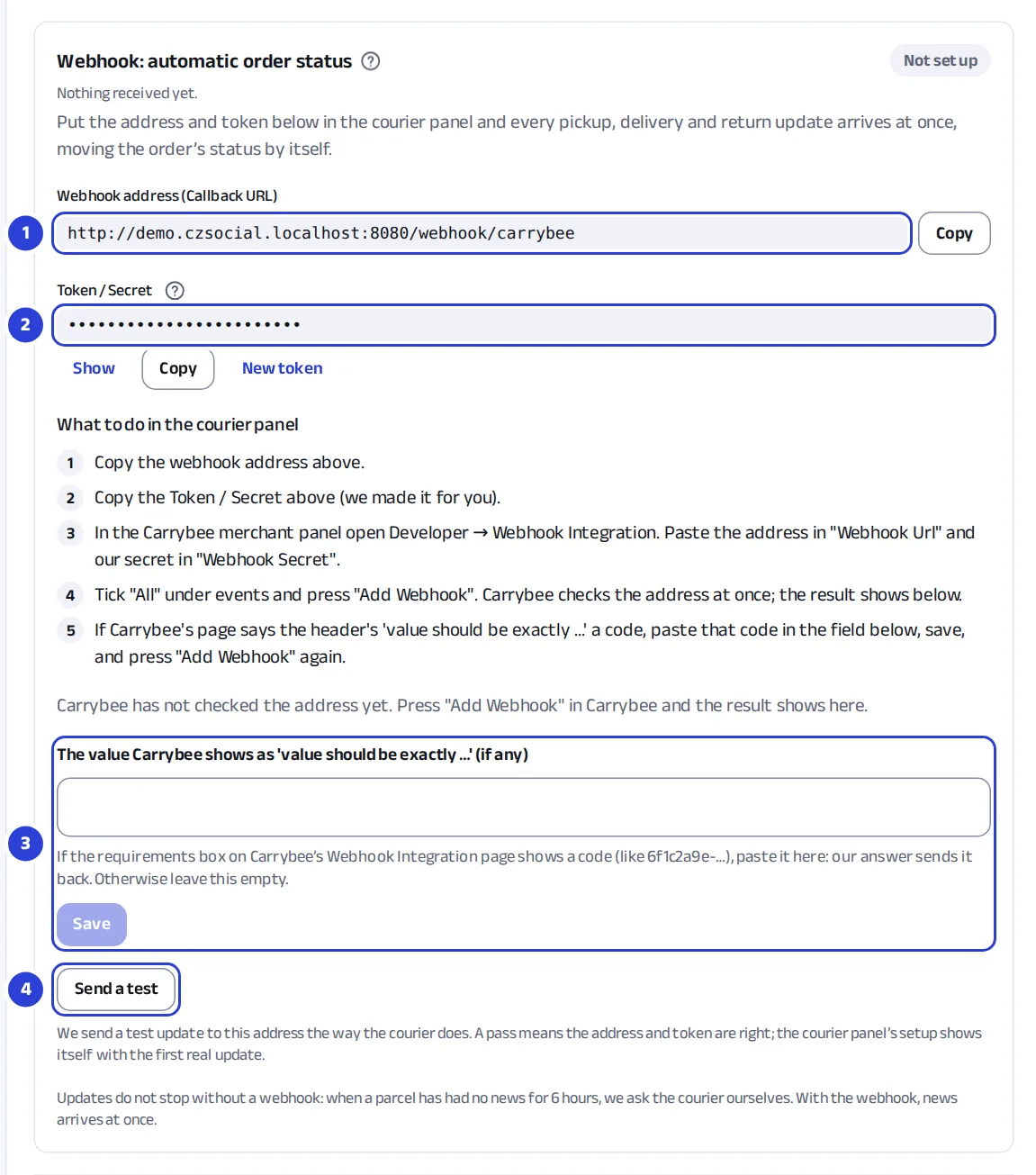
The address looks like https://your-store.{root}/webhook/carrybee. The secret is ours, made for your store; Carrybee does not give you one.
Set it up in the Carrybee panel
- Log in to the Carrybee merchant panel and open Developer → Webhook Integration.
- Paste the address in Webhook Url.
- Paste our secret in Webhook Secret (Carrybee requires it).
- Under events, tick All.
- Press Add Webhook.
Carrybee checks the address straight away: it sends us a check signed with the secret, and we answer the way its page asks (status 202). The card then says “Carrybee checked the address ✓” with the time. If it says “Carrybee’s check did not pass”, the secret in Carrybee is not ours: copy it again, paste it in Webhook Secret and press Add Webhook again.
Carrybee’s “value should be exactly …”
Carrybee’s requirements box says our answer must carry the header X-CB-Webhook-Integration-Header, and on some accounts it adds that its “value should be exactly” a code (it looks like 6f1c2a9e-3b7d-…).
- If your page shows such a code, copy it into The value Carrybee shows as ‘value should be exactly …’ (if any) 3 on our card and press Save. Saved appears next to it. Then press Add Webhook in Carrybee again.
- If it shows no code, leave the field empty: we answer with your secret.
Paste only the code, without quotes; we drop quotes copied with it. Emptying the field and saving removes it. The code is only used to answer Carrybee’s check: parcel updates still need our secret.
Check that it works
In your dashboard, press Send a test 4. We send a test update the way Carrybee does, signed with your secret.
- “The address works and the token matches.” means our side is right.
- With the first update from Carrybee the card says Working. Token mismatch means Carrybee sends a different secret: copy ours into Carrybee again.
A new secret
New token on our card makes a new secret. The old one stops at once, so paste the new one in Carrybee’s Webhook Secret too and press Add Webhook again, or updates stop arriving.
Set up Carrybee’s webhook earlier, when you pasted a secret from Carrybee’s page into ours? It keeps working: the card shows that secret as yours until you press New token.
More: What a webhook is and why · When the webhook doesn’t work