Landing pages
A separate page for one product, made for Facebook ads, with the order form right on it. Start from a template, and see how many your plan allows.

On this page
A landing page is one long page that sells one product (or a few): big pictures, benefits, reviews, the price and, at the bottom, the order form. Shoppers order right there, with no bag or checkout. Pointing a Facebook ad at one usually sells better than the store page.
The list
Open Landing pages in the left menu; the All pages tab is the list. You need the Marketing: coupons, flash sales, landing pages permission (owner, admins and managers have it). For each page you see:
- Page: its name and address (
/lp/…). - Status: Draft (only you see it) or Published (everyone can). Next to a published one, Open page ↗ opens the live page.
- Orders (30 d): orders from the page in the last 30 days (not counting cancelled).
- Last change: when it was last edited.
Tap a name (or Edit in the row menu) to open the editor.
Filters
Filters above the list opens a panel (from the bottom on a phone, from the side on a computer). Pick what you need and tap Show results:
- Status: Published or Draft.
- Template: the template a page started from, one or more.
- Product: type a product’s name or SKU and pick it; the list keeps the pages that sell it (in the draft or the live page).
- Orders (30 days): from and to, such as up to 0 for pages that brought no order.
- Date: from and to, by Last change or the day it was Made.
Each filter that is on shows as a chip above the list; tap its × to take it off, or Clear all. Quick filters do it in one tap: Published, and No orders coming (published pages with no order in the last 30 days, worth a look at their ad or offer). Save filters keeps your own under a name. The filters are in the page’s address too, so a copied link opens the same list. The count above the list (“3 / 5 pages”) is always every page you have, whatever the filters.
Overview
The Overview tab next to All pages shows how many orders and how much in sales each page brought. Pick the days on top (Last 30 days, This month, Custom range and so on).
- The cards: orders from all pages together, sales, the page with the most orders, and conversion.
- The bars: each page’s share of those orders.
- The table: every page’s orders, sales, average order, cancelled, delivered, returned, incomplete and conversion. Tap a page’s name to open its editor; See the orders opens that page’s orders in the order list.
The Reports page has the same figures in its Landing pages tab, with a download to Excel. How they are counted: Landing page figures.
How many you can have
Above the list it says how many you have and how many you may have, like “2 / 3 pages”. Drafts and published pages both count. Out of the box:
| Plan | Landing pages | Premium templates |
|---|---|---|
| Free | 1 | no |
| Starter | 3 | no |
| Growth | 10 | yes |
| Pro | unlimited | yes |
At the limit you can’t create or duplicate a page. Delete an old one, move up a plan, or buy “5 more landing pages” with Add-ons in the billing section of the store’s Plan & limits page (Add-ons). Plans and prices: Plans.
After a move to a smaller plan, pages beyond its limit are unpublished and show Inactive — plan limit; they can’t be published until there is room, and come back as they were by themselves (when your plan gets smaller).
Templates
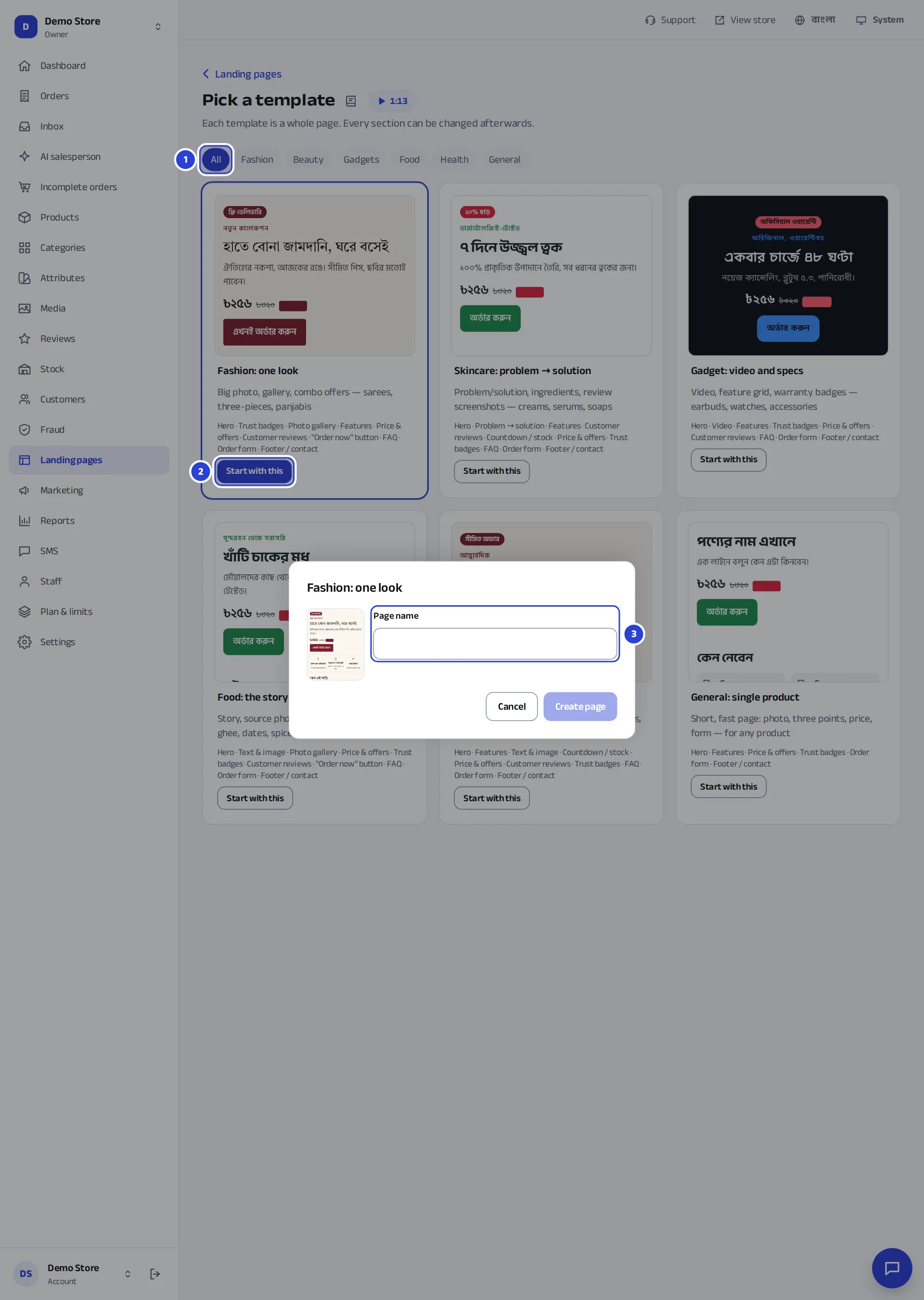
Each template is a whole page; every word, picture and section can be changed afterwards. Filter by category 1: All, Fashion, Beauty, Gadgets, Food, Health, General.
Each card shows a small picture, the name, what it suits, and its sections. Templates with the Premium badge are on Growth and Pro; on other plans the card says Not in your plan. Which templates are premium can change over time.
Create a page
- On Landing pages press New page.
- Press Start with this 2 on the template you like.
- In the popup that opens, type a Page name 3, like “Eid panjabi offer”. The name is for you and goes into the SEO title.
- Press Create page. The address is made from the name, the editor opens, and the page is a Draft.
Then pick products, change the words and pictures, and publish in the editor. To use it in an ad: Landing pages in Facebook ads.
Good to know
Landing page order forms have no coupon field, and the store’s flash sale prices don’t apply there. Make your offer with the page’s own prices, combos and quantity prices.