Webhooks: order status by itself
With a webhook, the courier sends every pickup, delivery and return the moment it happens and the order moves by itself. The address, token, status badges, the test, and what happens without one.

On this page
A webhook is the courier’s way of telling your store the news. When a parcel is picked up, delivered or returned, the courier tells us and the order’s status changes by itself. You set it up once per courier.
Where to find the address
In Settings › Couriers, open a connected courier (Open on the Couriers tab): its card has Webhook: automatic order status. The list shows each courier’s webhook in one line, for example “Webhook: Working · Last update: …”.
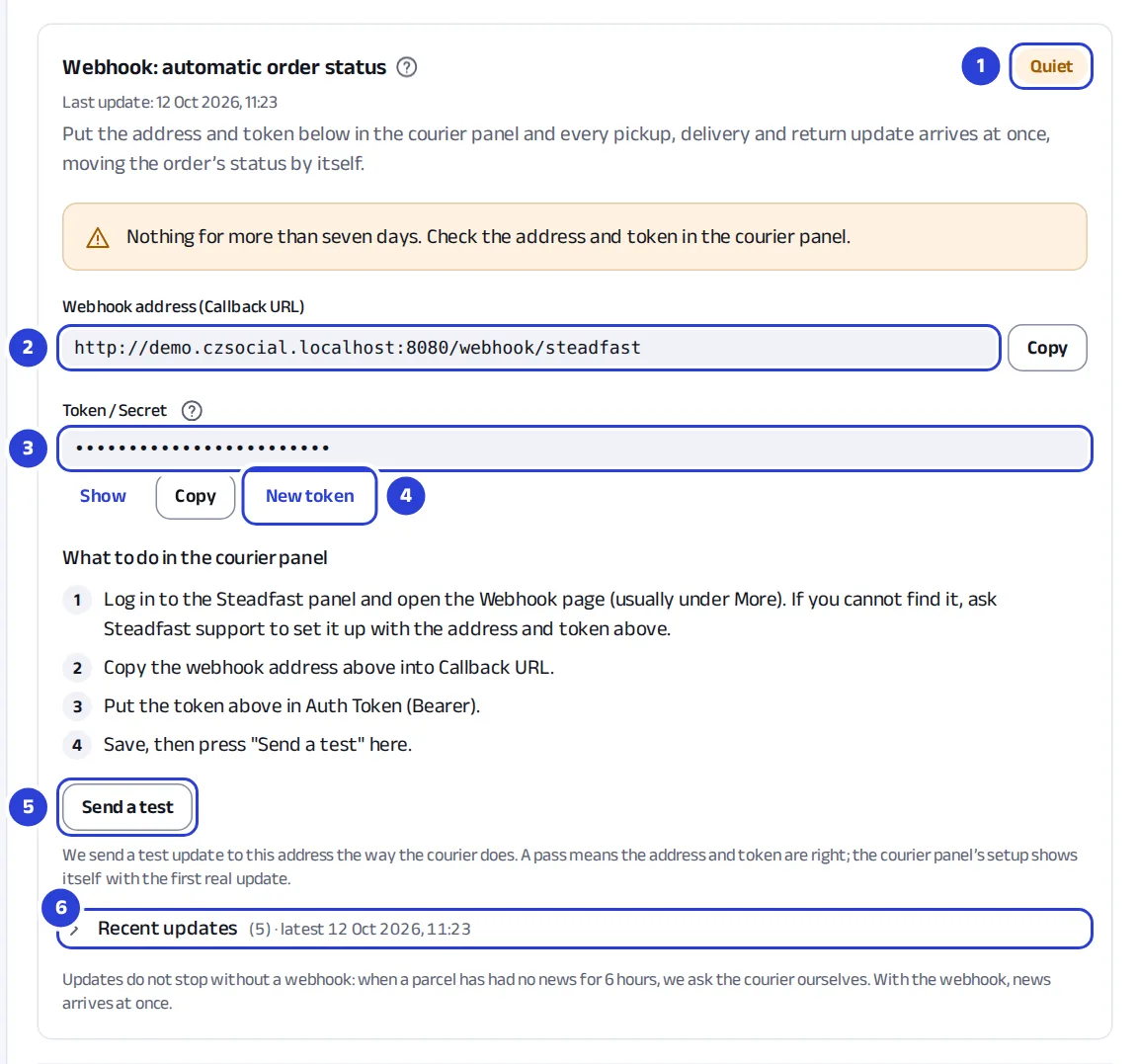
The Webhook address (Callback URL) 2 always looks like https://your-store.{root}/webhook/steadfast (the last word is the courier: steadfast, pathao, carrybee, paperfly). Use it even if your store has its own domain; it keeps working whatever happens to the domain. Copy next to it copies it.
Token
The Token / Secret 3 proves that an update really comes from the courier. We make the token for you, for every courier.
- Show / Hide: shows or hides the token.
- Copy: copies it for the courier panel.
- New token 4: makes a new token. The old one stops at once, so paste the new one in the courier panel too, or updates stop arriving.
Only make a new token if you think someone else knows it. Reconnect does not change the token.
Status badge
The badge next to the title 1 tells you whether news is arriving:
- Working: an update arrived in the last seven days.
- Not set up: nothing has arrived yet. A fresh setup stays like this until the first real update (a test does not count).
- Token mismatch: the last update was refused because the token did not match. Copy the token into the courier panel again.
- Quiet: nothing for more than seven days. Check the address and token in the courier panel.
Recent updates
Recent updates 6 starts folded: its line says how many there are and when the latest came. Press it to open the last 5 updates with their time and the courier’s event name:
| Badge | Meaning |
|---|---|
| Applied to the order | the news reached the parcel and the order |
| Queued | received, applied in a moment |
| Refused | the token or secret did not match, so we did not take it |
| Unknown parcel | we never booked this parcel (for example, booked in the courier’s own panel) |
| Nothing to change | the news is not about a parcel’s status (a pickup-store change in the courier panel, for example) |
| Could not read | the update could not be read |
Refused updates are listed up to 50 an hour per courier; your webhook address is public, so beyond that (or for anything oversized) we only turn them away and keep nothing.
Send a test
Send a test 5 sends a test update to your address exactly the way the courier does. No order changes.
- “The address works and the token matches.”: both are right.
- “The address could not be reached…”: try again in a minute; if it keeps failing, tell support.
A pass means our side is right. Whether the courier panel is set up correctly shows with the first real update. You can test up to 10 times in 10 minutes.
Without a webhook
News does not stop: when a live parcel has had no news for some hours, we ask the courier ourselves. Set how many hours in Hours without news before we ask the courier on the For every courier card, Checkout & charges tab (1 to 72, 6 to start with). Refresh status on the order page asks right away.
Still, set the webhook up: news arrives instantly.
Steps per courier
Each card lists the steps under What to do in the courier panel. In detail:
Steadfast
Fill in Callback URL and Auth Token (Bearer). See Setting up the Steadfast webhook.
Pathao
Fill in Callback URL and Secret, then bring Pathao’s Integration Secret back to us. See Setting up the Pathao webhook.
Carrybee
Paste the address in Webhook Url and our secret in Webhook Secret, tick All and press Add Webhook; Carrybee checks the address at once and the card shows the result. See Setting up the Carrybee webhook.
Paperfly
Fill in URL and Secret Key and select all events. See Setting up the Paperfly webhook.
Updates not arriving? See When the webhook doesn’t work.