SMS not going out
Customers aren't getting their order SMS? The Sent SMS list shows the status and the reason for every message. Find out why, and buy credits if that's what it takes.

On this page
A customer says the order SMS never came? Every SMS leaves a line in your dashboard: whether it went out and, if not, why. Start there.
Open the Sent SMS list
- Open Settings › SMS & email.
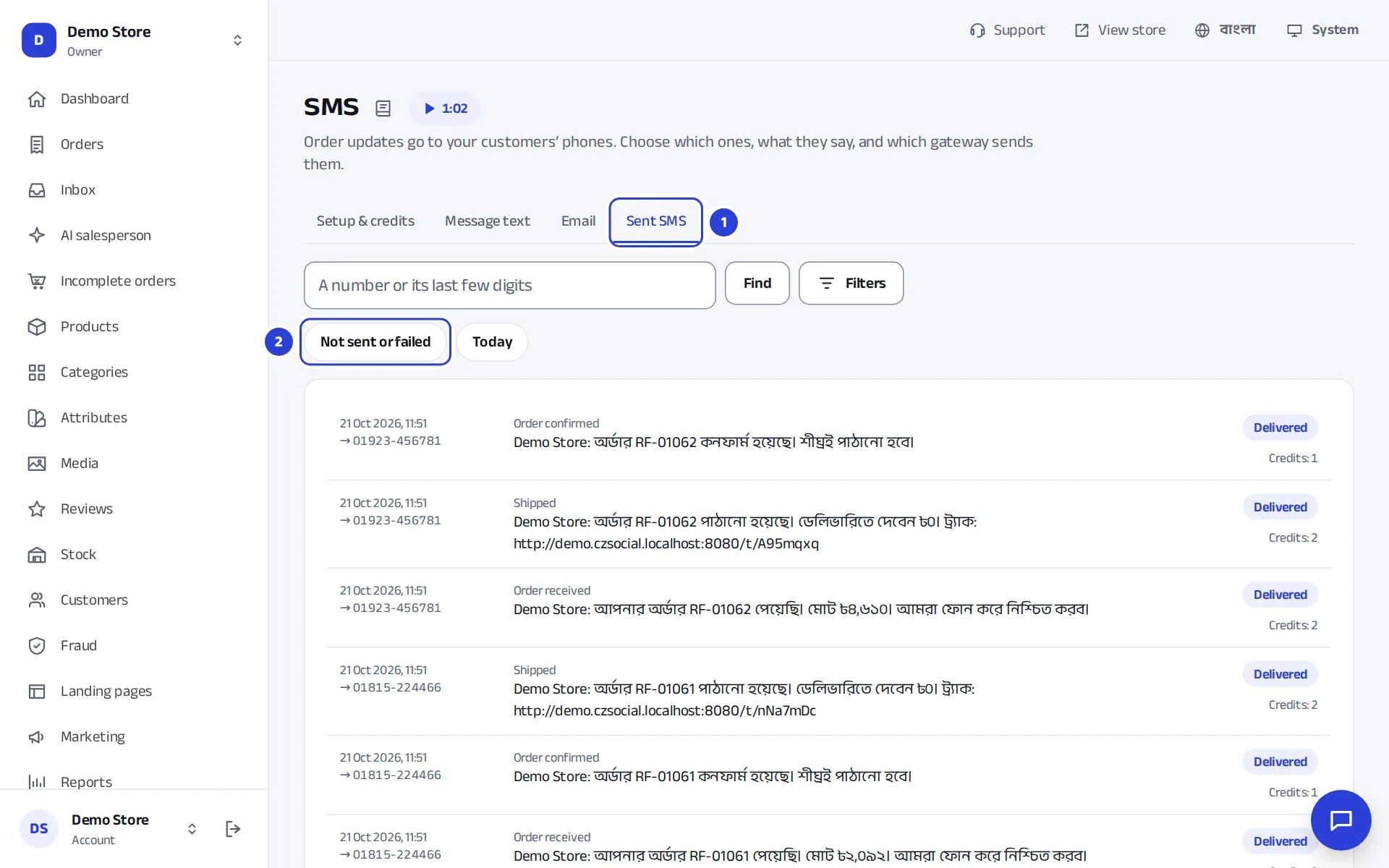
- Press the Sent SMS tab 1 at the top. Each SMS shows its time, number, text, status and how many credits it used.
- To see only the problems, press Not sent or failed 2 above the list (or pick Not sent or Failed under Status in Filters).
| Status | Meaning |
|---|---|
| Waiting | In the queue, goes out in a moment |
| Sent | The gateway accepted it |
| Delivered | It reached the customer’s phone |
| Failed | The gateway couldn’t send it, or it never reached the phone |
| Not sent | We didn’t send it; the reason is shown next to it |
Good to know
Delivered only shows for SMS through our gateway, because we ask the operator for delivery reports. SMS through your own gateway stay at Sent.
Why an SMS was not sent
Next to Not sent you’ll see the reason:
- No credits: credits ran out. Orders keep coming in, but no SMS go out until you buy credits (see below).
- Too many SMS to this number this hour: no more than 10 SMS go to the same number in an hour. This happens when one customer’s order changes status many times in quick succession.
- Too many SMS to this number today: no more than 30 SMS go to the same number from this store in a day.
- Daily limit reached: the whole store’s SMS for today are used up (2,000 at least, more for a bigger store). This stops runaway sending.
- Today’s code limit reached, Today’s SMS limit for unverified orders reached, Today’s limit of “new order” SMS to your phone reached, Today’s reminder SMS limit reached: that kind of SMS has used up today’s number; it starts over at midnight (Dhaka time). Before a big sale you can raise the first two yourself: how many SMS a day.
- The text has a link of its own: your own status or recovery text has a link you typed; use a field like
{tracking_url}for links (message text). - This number got many SMS today for unverified orders from all stores together…: one number gets only so many SMS for unverified orders a day, counting every store; no credit was used.
- A free or trial store can send its manual orders’ SMS… to 30 new numbers a day…: on the free plan or a trial, the SMS of manual orders and the recovery SMS you send by hand go to at most 30 new numbers a day; no credit was used.
opted_out: only on recovery SMS, your own words sent from the order page, review requests and the inbox’s follow-up SMS (never on order or code SMS). The number asked not to get them any more.blocked: the number is on your blocklist, which gets no SMS from your store at all; no credit was used.default_only: a free or trial store tried to send its own words by hand through our number, which only sends our texts.
Tip
The daily numbers grow with your confirmed orders on their own, and you are emailed at 80%. If your store still regularly needs more, write to support.
The SMS isn’t in the list at all
No line at all means we never tried to send it:
- The message is switched off: on the Message text tab, On isn’t ticked for that update. Tick it and press Save; it goes out from then on.
- Arriving today: you can edit this message, but it isn’t sent at the moment, even when it’s on.
- The order never reached that status: for example, the confirmation SMS only goes out once the order is Confirmed.
SMS in the wrong language
Our default messages go out in the store’s default language, not your dashboard’s language. For Bangla SMS, set Store default language to Bangla in Settings › General (details). Your own text goes out exactly as you wrote it.
Problems with your own gateway
Sending through your own gateway (REVE or another company) uses no credits, but when something goes wrong, Failed shows the gateway’s own answer (usually in English).
- On the Setup & credits tab, go to Own SMS gateway.
- Enter your own number in Test number and press Send a test SMS.
- If it says “The gateway did not send it”, show the text after it to your SMS company. Common causes are a wrong API key, an empty balance or a sender ID that isn’t approved.
When the gateway is down for a while, we try a few more times before marking the SMS Failed. Details: Your own SMS gateway.
Which gateway sent it
Every SMS that went out shows “Sender ID: …” beside it (in the list and in the order’s timeline). Your own sender ID means it went through your gateway and used no credits; ours means it went through our gateway and used credits.
Chose your own gateway but still see our sender ID? Check all four: My own gateway (no credits) is picked and saved under Send SMS through, the gateway itself is saved, your plan includes an own gateway, and the platform allows own gateways (if it’s the last one, write to support). If any is missing, SMS go through our gateway (Which gateway sends them). SMS sent before 18 October 2026 show no sender ID.
Good to know
If our gateway couldn’t send an SMS at all, the credits come back. If it was sent but never reached the phone (switched off, wrong number), the credits don’t come back, because the operator charges for it.
Recovery SMS not going out
Automatic SMS for incomplete orders have their own rules. If they seem stuck, open the incomplete order and look at its history:
- Stopped (“Auto SMS stopped”): the number asked for no more SMS, the number, device or IP address is blocked, or the attempt looks fake (not from your store’s pages, or a number typed in one go with no address). The line says which; see attempts that look fake.
- Waiting: during quiet hours they wait for the morning; one number gets at most one in 24 hours, counting every store; when the store’s Max SMS per day (whole store) is used up, they go later.
- No credits: the history shows “SMS not sent”, and we try again 6 hours later.
Details: Automatic recovery SMS.
Buy credits
The SMS page may still say “Contact us”, but the owner, or anyone the owner gave the billing permission, can buy credits online:
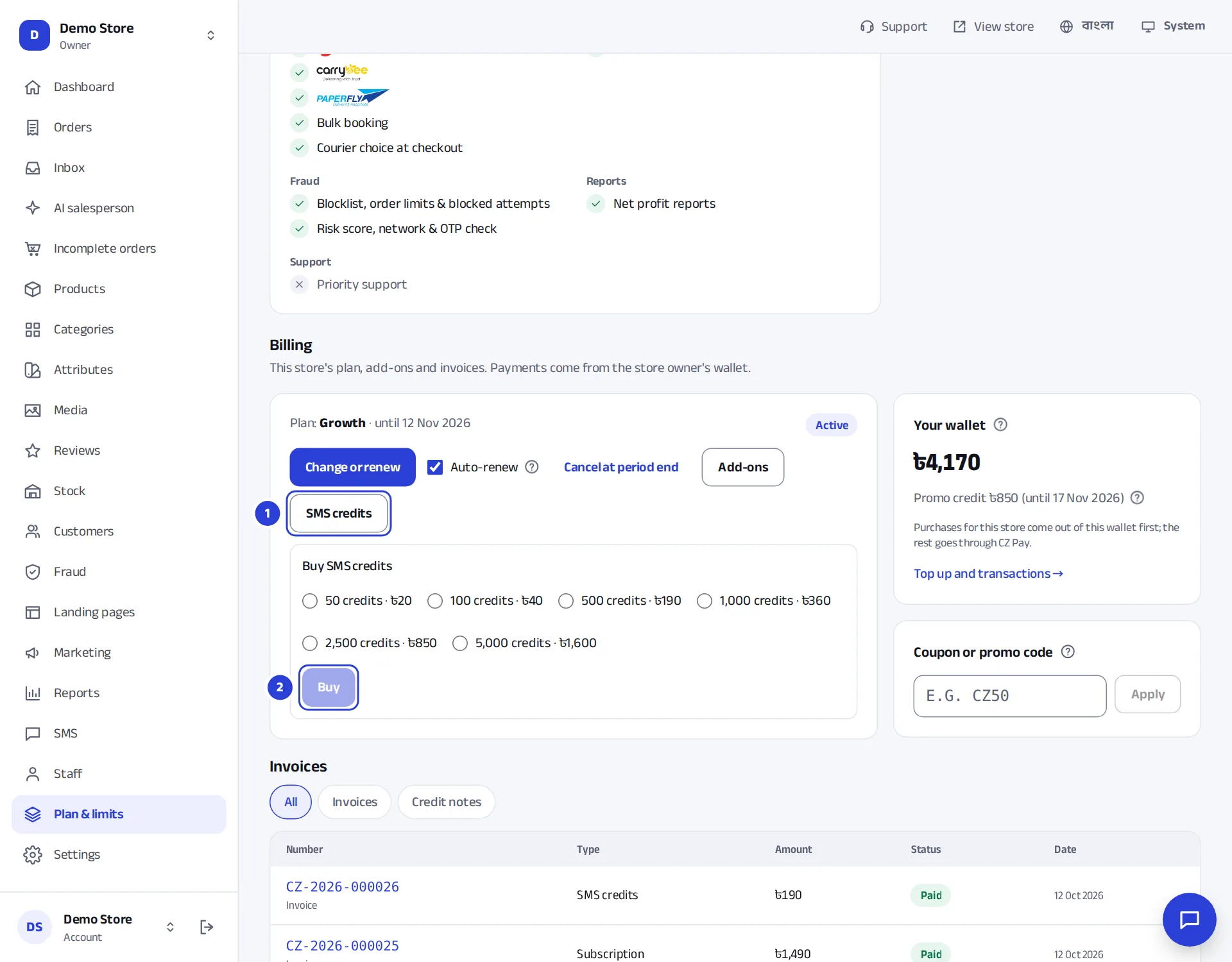
- In the store, open Plan & limits.
- In the billing section at the bottom, press SMS credits 1.
- Pick a pack and press Buy 2.
- Wallet money is used first; pay the rest with CZ Pay (bKash/card).
The credits are added as soon as the payment goes through. Your plan’s free monthly credits are used first and the unused ones end with the month. Bought credits don’t expire at the month’s end. To hear before you run out, put a number in Email me when credits fall to on Setup & credits.
See also: SMS and email, Billing and the wallet.