Payment methods
Choose how customers pay at checkout - cash on delivery, bKash, Nagad, Rocket or bank transfer with a TrxID - and set an advance rule to cut fake orders.

On this page
Choose the ways customers can pay at checkout and on landing page order forms in Settings › Payment methods. After your changes, press Save at the bottom. The page is for the store owner and staff with permission to change settings.
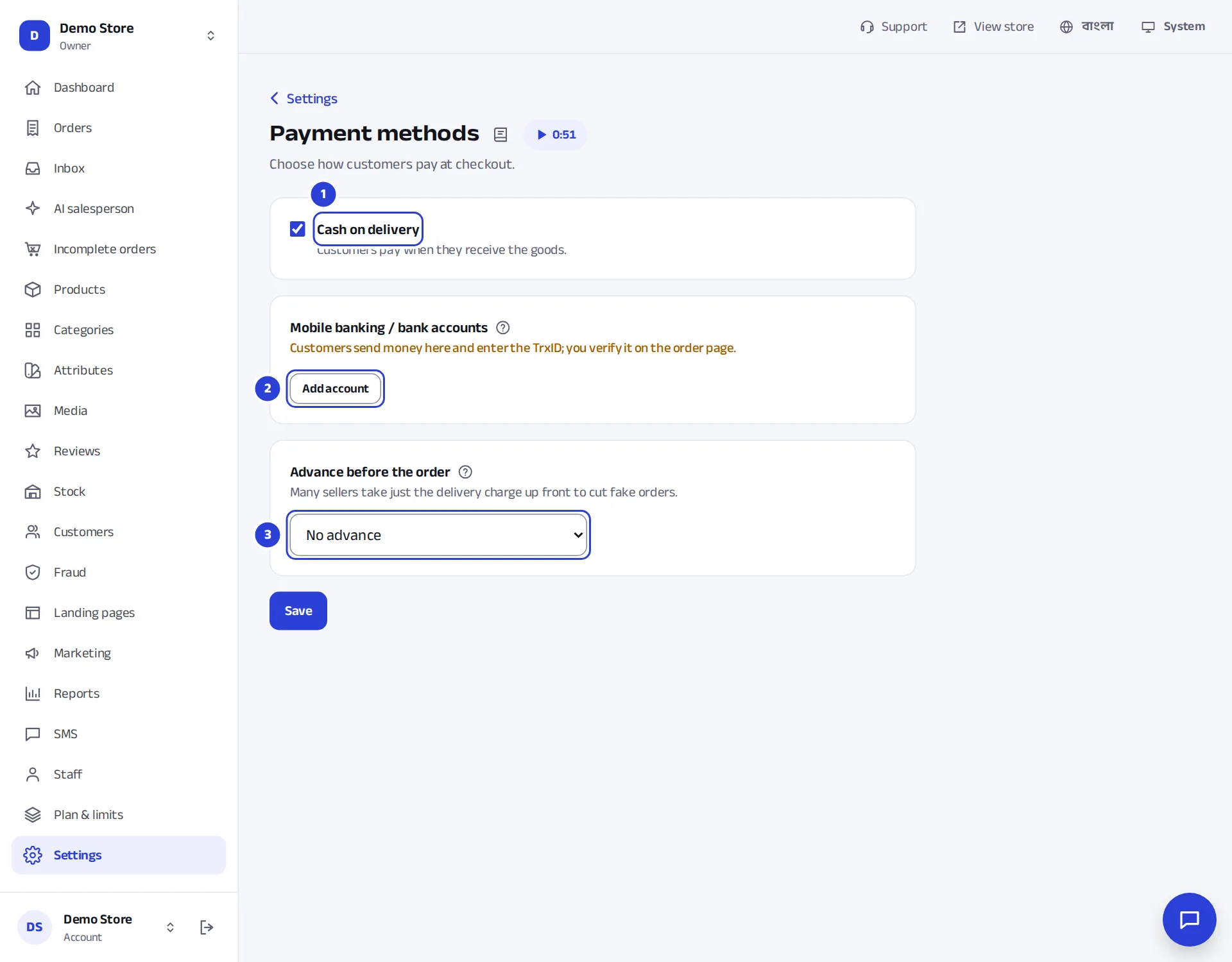
Cash on delivery
With Cash on delivery 1 ticked, customers pay the rider when the goods arrive. New stores have it on. When you book the parcel, the courier’s COD is the order total minus verified payments.
Mobile banking and bank
Under Mobile banking / bank accounts, add your numbers. Customers send money there and enter the TrxID.
- Press Add account 2.
- Pick the method: bKash, Nagad, Rocket or Bank.
- Enter a Display name (what checkout shows, e.g. “bKash”).
- Enter the Number / account details, for example
01XXXXXXXXX (Personal), or the bank, account name and number. - Tick On. Untick it to pause an account; Delete removes it.
You can keep up to 8 accounts.
- A name or details line can’t ask for a PIN, an OTP code or a password; such a text won’t save (“A payment account name or text cannot ask for a PIN, an OTP code or a password. …”). Shoppers never type those on a shop page.
- When an account is added or its number changes, the store owner is told (by email, or by SMS without a verified email), with the old and the new number. If someone quietly points the payment number at themselves, the owner finds out.
At checkout, when customers pick a method they see your number and how much to send. They enter the number they sent from and the TrxID (they can also order without a TrxID). The same TrxID can’t be used on two orders.
Verifying the TrxID
- The order page’s Payments card shows the customer’s payment with the To verify badge.
- Check the TrxID and amount in your own bKash, Nagad, Rocket or bank account.
- If they match, press Verified. The amount counts as paid and comes off the COD. The customer gets the Advance payment received SMS (when it is on under Message text on the SMS page; it starts on).
- If not, press Reject.
When a customer pays you over the phone, use Record a payment to note it yourself. More: Order payments.
Advance payment
Many sellers take some money before the order to cut fake orders. Choose under Advance before the order 3:
- No advance
- Delivery charge only: the address’s delivery charge (the zone’s, or the chosen courier’s). It stays the same when delivery is free for the shopper (your free-delivery amount, a free-delivery coupon or a landing page that pays delivery): it is a deposit against fake orders, and it comes off what the rider collects.
- Fixed amount: enter the Amount in taka.
- Percent of total: enter the Amount as 1 to 100 percent. It is worked out on the total after discounts, delivery charge included, in whole taka: 10% of ৳1,065 is ৳107.
An advance is never more than the order total.
With an advance rule on, no shopper order goes as plain cash on delivery: not from the checkout, a landing page or the AI salesperson, and not from an old page either (the shopper is told how much to send). The customer sends the advance by one of your accounts and pays the rest on delivery. Orders you take by hand can still be cash on delivery. Without a rule, a customer who picks bKash or another account pays the whole amount up front. The order page shows what was asked under Advance required.
Orders of digital products only
When every product of an order is digital (a gift card, a key, a file; for a combo, all its parts), the checkout and landing pages ask no address, district, courier or delivery charge, and offer no cash on delivery. Whatever the advance rule, the whole amount is sent first by mobile banking or bank; with no account switched on, such orders can’t be placed. The email box is always there (optional): once the payment is verified, the code goes by SMS and, if given, by email. These orders are never sent to a courier.
Rules
- Keep at least one way to pay: cash on delivery, or at least one account that is on.
- An advance needs at least one account that is on.
- Fixed amount and percent need an amount.
No online payment gateway
There is no card or automatic bKash gateway for your customers: money comes as cash on delivery, or by sending to your number with a TrxID that you verify. CZ Pay is only for paying the platform (plans, add-ons, SMS credits).
More: Delivery charges and zones · Fake orders and the blocklist