Incomplete orders
Shoppers who left items in the bag or typed their name and phone at checkout and went away. Call them, send an SMS, or make the order for them.

On this page
Plenty of shoppers pick products, type their name and phone at checkout, and leave without ordering. We keep what they typed so you can call or text them and win the order back. Incomplete orders are on every plan.
What counts, and when it is saved
What the shopper types is saved as they type; we don’t wait for the order button. The step they stopped at shows in the Stopped at column:
| Step | When |
|---|---|
| Added to cart | Opened the bag page but not the checkout |
| Opened checkout | Opened the checkout without a valid phone number |
| Gave name and phone | Typed a valid mobile number |
| Gave address | Also picked a district and typed an address |
| Order failed to go through | Pressed order but it did not go through (the reason shows in red) |
They come from the store checkout and from landing page order forms. The Cart and its value are what the order would cost: today’s prices with a running flash sale, or a landing page’s own prices, combos and quantity prices for the products picked there. Several tries from one phone within 24 hours are tied together and listed on the detail page under Earlier attempts from this phone.
When the shopper places an order later on their own, their incomplete order closes by itself (see statuses).
The list, tabs and filters
- Open Incomplete orders in the left menu. The number next to it counts new incomplete orders with a phone from the last 24 hours.
- Pick a tab 1: With phone number (people you can call) or Cart only (no phone, just a bag).
- Under them, the status tabs with how many each holds, the same row as on the orders list: All, Open, each status, and Stopped (on a phone the row scrolls sideways).
- Search by Name / phone / address if you need to, or use Filters (stage, calls, SMS, dates, amount, district; see Filters).
- Press Download CSV 2 to take the list to Excel (it needs permission to follow up incomplete orders and to export orders). The file follows your filters; over 2,000 rows it is made in the background and you get an email (the Exports page).
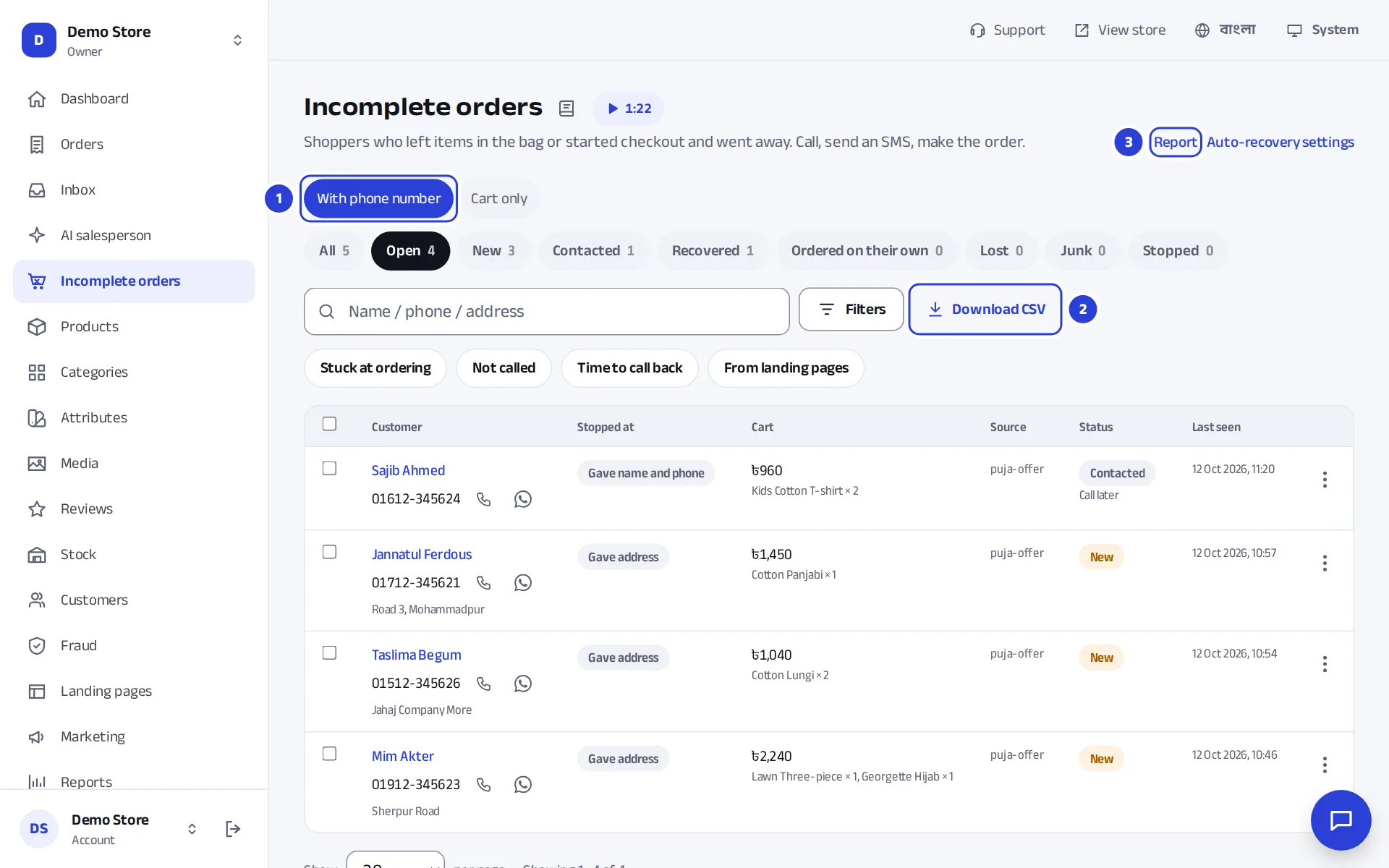
The list opens on Open, which means New and Contacted only. Pick All or a status tab to see the rest; All leaves out the blocked shoppers’ captures, which have their own tab. The Report 3 link at the top has the full picture (Incomplete orders report); Auto-recovery settings beside it opens the automatic recovery SMS settings (shown only with permission to follow up incomplete orders). The Source column shows the campaign the shopper came from (when the link had one), else where they came from. The list shows 20 a page; the footer under it picks 20, 50 or 100 and moves between pages (the list footer).
Good to know
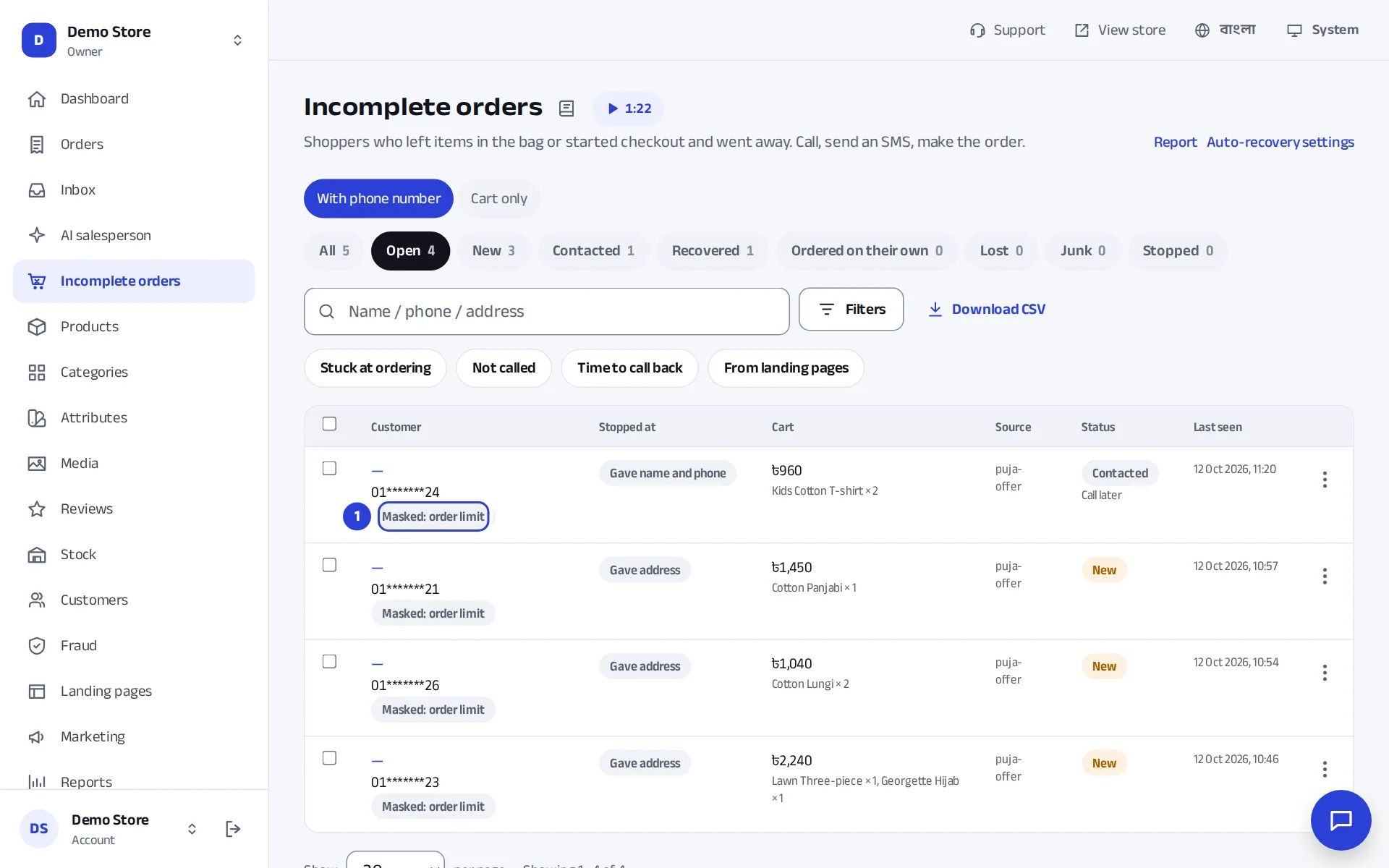
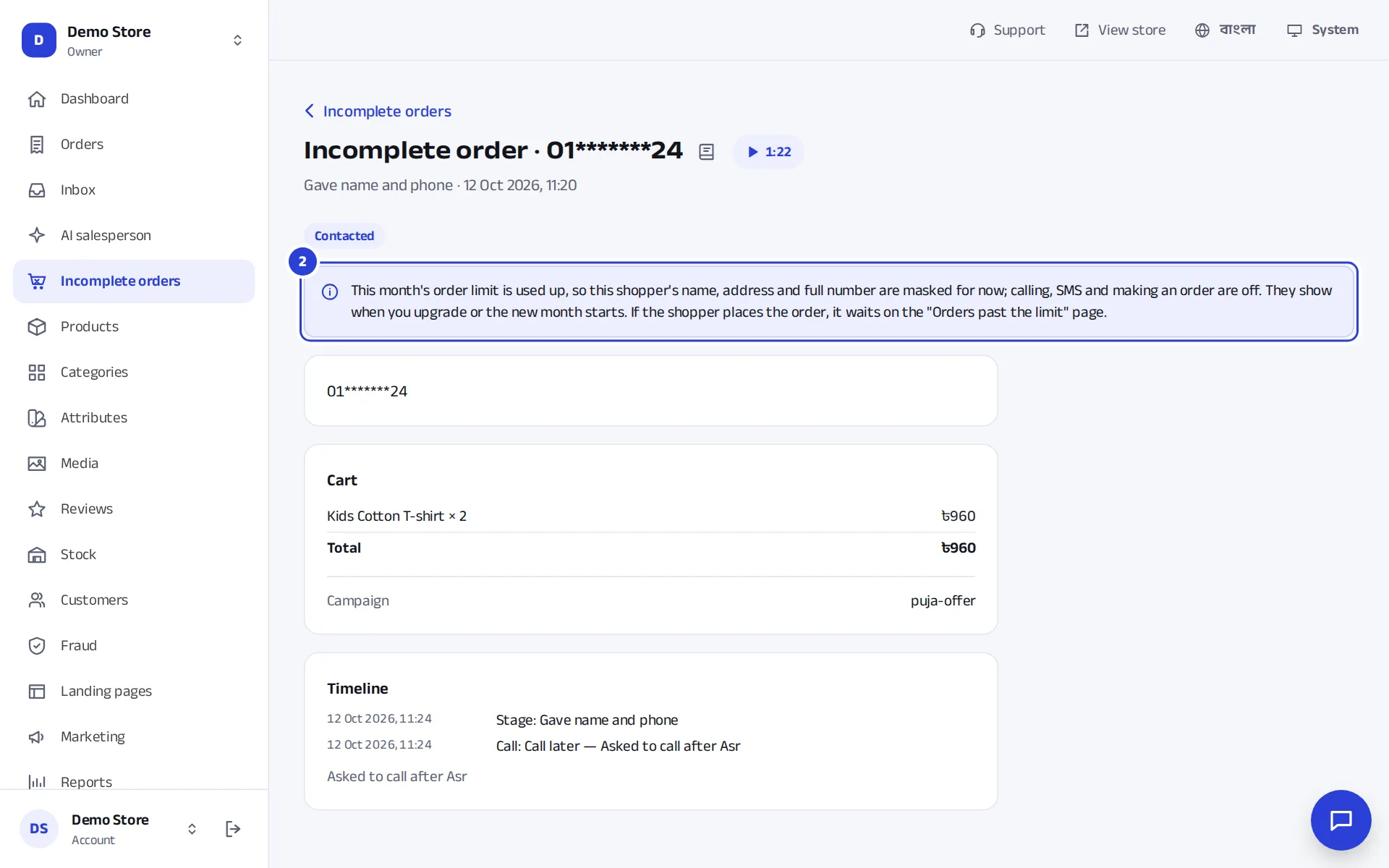
While your month’s order limit is used up, this month’s incomplete orders show Masked: order limit 1: only the start and end of the number (like 01*******89), no name or address, and search doesn’t find them. Calling, SMS, making the order and blocking are off for them (picking them and pressing Mark junk still works). They show in full again when you upgrade or the new month starts; one whose number placed an order past the limit stays masked. A shopper who finishes the order lands in orders past the limit. Opened, one says so at the top 2.
Many at once
Tick a few rows and a bar appears at the bottom:
- Send recovery SMS: step 1’s text goes to everyone ticked. Rows without a phone, masked ones, blocked numbers and numbers that asked for no more SMS are skipped.
- Mark junk: they all become Junk and leave the list.
Both act only on New and Contacted ones; the bar then says how many it was done for.
Ticks count only for the rows on screen: another page, tab or filter starts a new selection, so an SMS never goes to rows you can’t see. The ticks and the bar show only for staff who may change incomplete orders.
Filters
Press Filters beside the search to open the filters (from the bottom on a phone, from the side on a larger screen). Only what matches everything you pick is shown; Show results changes the list. You can pick several values of one filter (two stages, say).
- Checkout: Stage (where they stopped) and Left from (website, landing page or manual).
- Follow-up: Call outcome (like No answer, or Not called yet), whether a Recovery SMS went out, and Call again: a time is set, or that time has come.
- Date and amount: a date range, by Last activity or First captured, and the Cart amount from and to.
- Place: District (the one the shopper gave at checkout).
The filters that are on show as chips above the list; a chip’s × takes it off, Clear all takes them all off (the phone/cart tab and the status tab stay as they are). The status tabs’ numbers follow these filters too.
The quick filters at the top are one tap each: Stuck at ordering, Not called, Time to call back, From landing pages. Press Save filters to keep your own pick; one tap opens it again later, and only you see it.
The filters are in the page’s link: send the link to someone or open the page again and the same list shows, and the browser’s Back button returns to the filters before. Download CSV makes its file with these filters.
Following one up
Tap a name to open its page. Under the title is where it stands (New, blocked, Stopped, no more SMS, or a link to the order it became). Then two columns:
- On the left: the customer card, the Cart (with the Campaign they came from and the Last problem that stopped the order under it), the Timeline (which step and when, who called, which SMS went) and Earlier attempts from this phone.
- On the right: the Make an order and SMS card (only while it is New or Contacted), under it the Courier record with their success ratio at the couriers (customer’s courier record), and last Call outcome.
A step our support team took from inside your store (support mode, with your consent) says so in the timeline: “Your name (CZ support: their name)”.
The customer card
The Customer card has two parts, side by side on a wide screen and one under the other on a phone:
- Contact and device: the name, under it this number’s earlier orders, deliveries and returns; the mobile number with two small icons for call and WhatsApp; the device (a random id the store gives the browser, with the browser’s description under it on one line; tap it to read it all) and the IP.
- Address: the Full address, Thana and district and the shopper’s Note.
Under the mobile, device and IP is its state (Not blocked or “Blocked · 7 days left”), with a small Block or Unblock button beside it. At the bottom, Same person, elsewhere: how many orders and checkouts came From this number, From this device and From this IP, with List and All orders links. The risk reasons and the record at other shops (with the plan) are there too. All this used to be a separate “Fraud and blocks” card. More: the customer card on the order page.
Call or WhatsApp
- Tap the phone icon beside the number to call, or the WhatsApp icon to open a chat (hover it to read “Contact on WhatsApp”). The list has the same two icons beside each number.
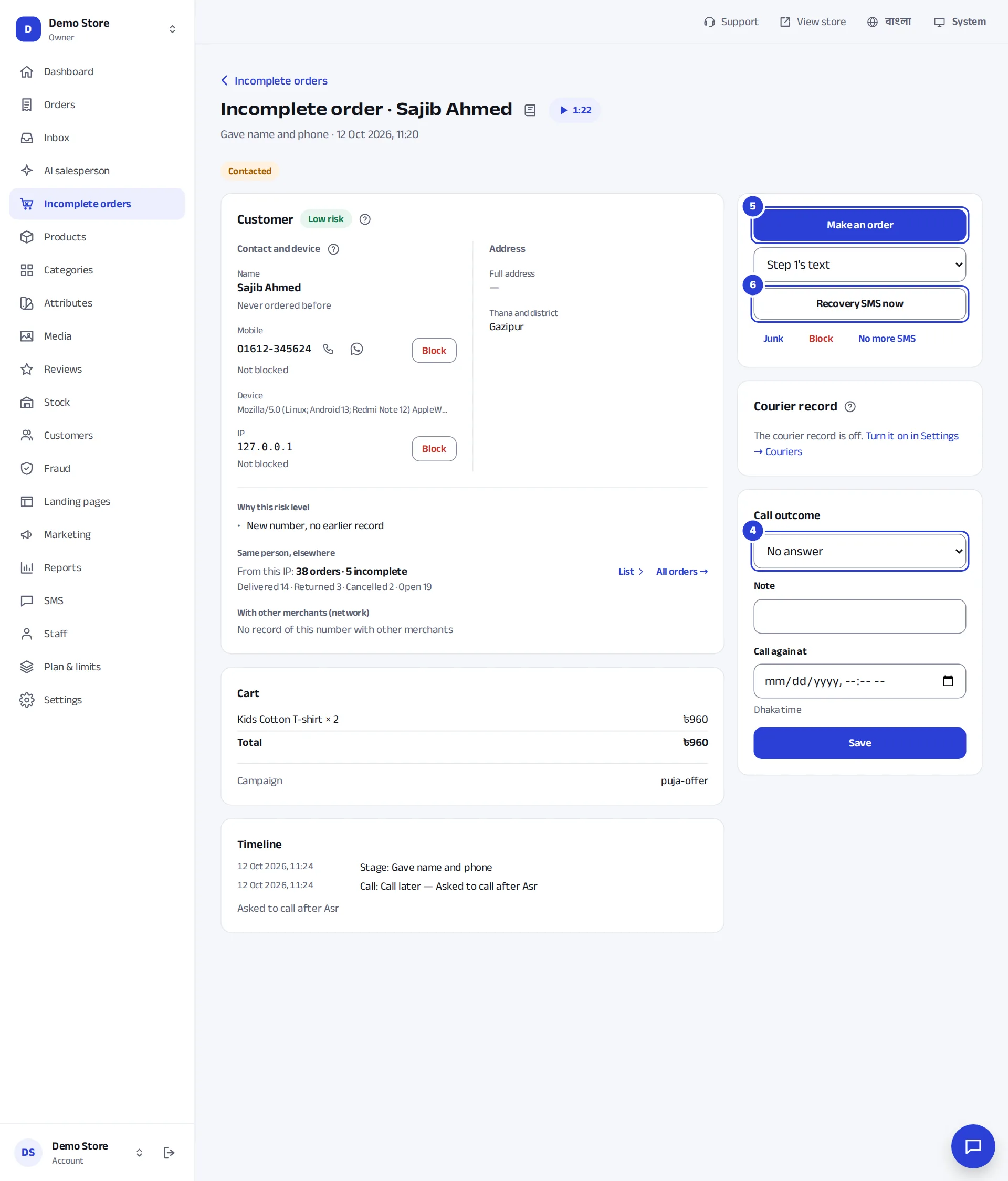
- After the call, pick the result under Call outcome 4, at the bottom of the right column: Confirmed, No answer, Call later, Not interested or Wrong number.
- Add a Note if you like, and set Call again at for a follow-up. That time shows in the list in yellow.
- Press Save. A New one becomes Contacted.
Good to know
Not interested and Wrong number stop the automatic recovery SMS for this one.
Make the order
When the shopper agrees on the phone, press Make an order 5. The manual order form opens with the name, phone, address and cart already filled in. Check it and confirm (Taking an order by hand). Once the order is placed, the incomplete order closes and links to it.
Recovery SMS now
- Pick which text to send: Step 1’s text, step 2 or step 3 (set in the automatic recovery SMS settings).
- Press Recovery SMS now 6. You’ll see “The SMS has been queued” and a line in the timeline.
The SMS carries a link that opens the shopper’s bag and form filled in as they left them. A landing page’s attempt opens that page again with the shopper’s picks (products, combos and quantities) and form filled in, and its order counts as recovered. It uses SMS credits (none with your own gateway). Sending by hand works on every plan; sending on its own needs automatic recovery.
Junk, block and no more SMS
- Junk: marks it junk and takes it off the list.
- Block (needs permission to manage customers): opens the block dialog; block the phone, device or IP, and with Mark this checkout as junk ticked it becomes junk in the same step. The list shows blocked next to it. To block just one thing, press Block beside it in the customer card, which shows the same person’s other orders too. Once the checkout is junk, lost or closed, Block moves next to the customer card’s title.
- When a blocked shopper starts a checkout again it becomes junk by itself and no SMS goes out; open the Stopped status tab to see them, with the Stopped badge.
- No more SMS: the shopper told you they want no more texts. Your store sends no more recovery SMS to that number, and the page says “This number asked for no more recovery SMS”. Order SMS (order received, shipped and so on) are not affected.
Reopen
A Junk or Lost one has a Reopen button. It goes back to New, and the automatic SMS may start again from step 1. Ones that became orders (Recovered, Ordered on their own) can’t be reopened.
What the statuses mean
| Status | How it gets there |
|---|---|
| New | The shopper stopped; nobody has done anything yet |
| Contacted | You saved a call outcome or sent a recovery SMS by hand |
| Recovered | The shopper ordered from the recovery SMS link, or you used Make an order |
| Ordered on their own | The same phone placed an order later by itself (usually within 72 hours) |
| Lost | With automatic recovery on: every step was sent and nothing happened for the set number of days (how many) |
| Junk | You or your staff marked it junk |
How long they are kept
Incomplete orders are deleted a set number of days after their last change, by plan. Out of the box that is 30 days on Free and Starter, 90 on Growth and 180 on Pro; a plan that says Unlimited never deletes them. Plans can change, so check yours on Plan & limits. After a move to a smaller plan (or when a paid plan ends), the old plan’s number of days still holds for 30 more days: upgrade again in that time, or Download CSV first.
See also: Automatic recovery SMS · Incomplete orders report