Connecting a courier
Connect your Steadfast, Pathao, Carrybee or Paperfly account, test the connection, and set the checkout courier choice, default courier, parcel weight and return rules.

On this page
Connect your own courier account once and you can book a parcel from any order with one tap, while delivery news reaches the order by itself. There are four couriers: Steadfast, Pathao, Carrybee and Paperfly. You can use several at once.
What each courier needs
Get the keys and passwords from the courier’s merchant panel, or ask their support.
| Courier | What you enter | Sandbox |
|---|---|---|
| Steadfast | Api-Key, Secret-Key | No |
| Pathao | Client ID, Client Secret, Username / email, your Pathao password | Yes |
| Carrybee | Client ID, Client Secret, Client Context | Yes |
| Paperfly | Username / email, Password, Your store name at Paperfly | No |
All keys are stored encrypted and never shown again. Pathao’s token runs out every few days, so your Pathao username and password are kept encrypted too: we use them to get a fresh token ourselves.
The page’s tabs
Settings › Couriers has four tabs:
- Couriers (opens first): one row per courier with where it stands (Connected, Off, Not connected) and one line worth knowing, such as when its webhook last reported or that Pathao needs its login again. Open, or Set up for a courier not connected yet, shows that courier’s card on its own; ← All couriers goes back to the list.
- Checkout & charges: the For every courier card, the Charge per courier table and the Default parcel weight card.
- Customers’ success ratio: which couriers show a customer’s delivery record on the order page (details).
- Status mapping: the Order status on courier news card (details).
Leaving a tab or a courier’s card with changes you have not saved asks first: Keep editing or Discard.
Connect a courier
- Open Settings › Couriers. The Couriers tab lists the four couriers.
- Press Set up beside the courier you want. Its card opens.
- Fill in the fields above.
- For a test account only, tick Sandbox (test account) (Pathao and Carrybee have it).
- Press Connect. We test the connection straight away.
- “Working: …” means you are done. “Not working: …” shows the courier’s reason: fix the key and press Reconnect.
Good to know
With Pathao, a wrong username or password is refused at once and nothing is saved.
Once connected, the card shows Webhook: automatic order status. Set it up next: What a webhook is and why.
The card’s buttons
A connected courier’s card opens with Open on the Couriers tab.
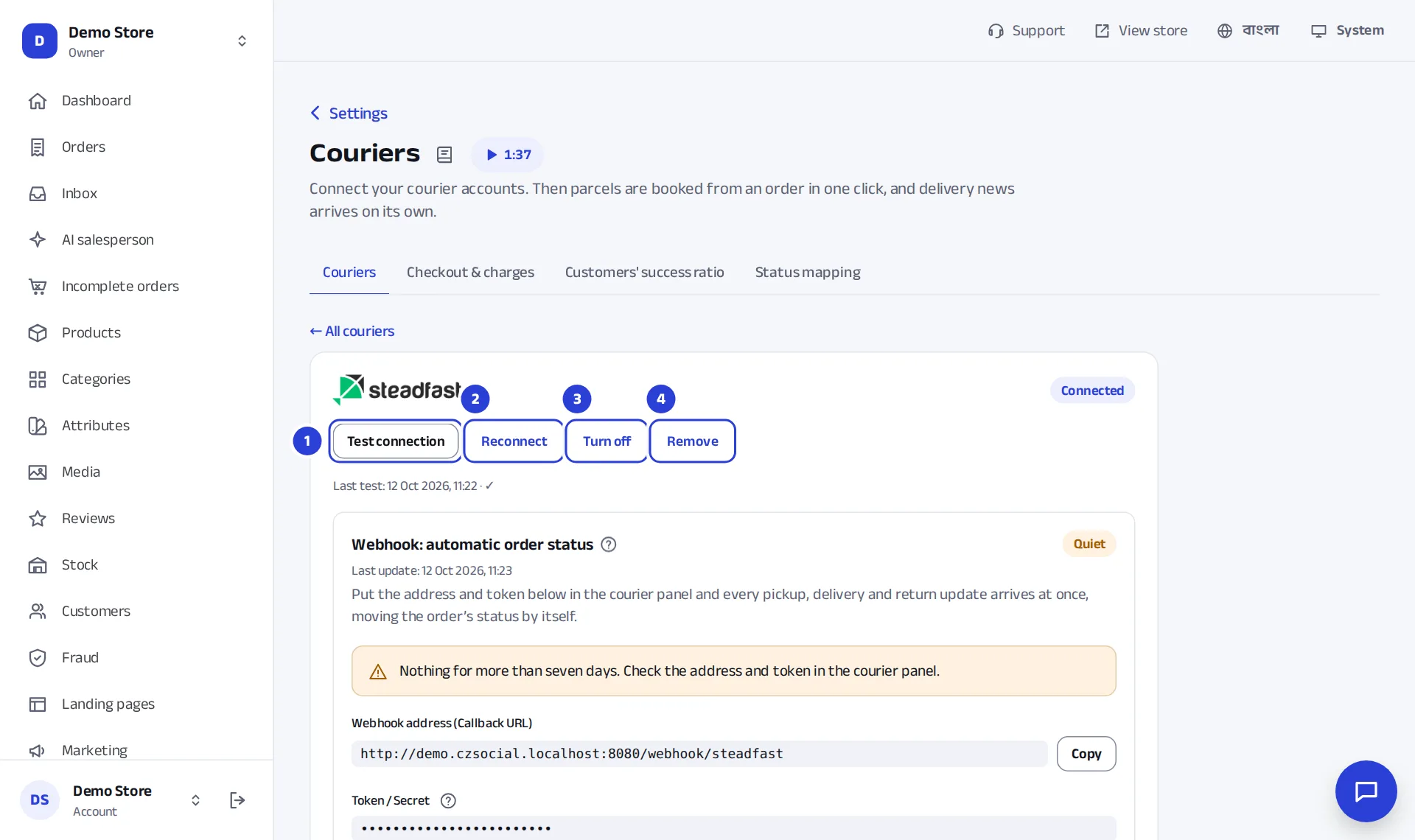
- Test connection 1: tests again. The card keeps the time and result of the last test. Up to 10 tests in 10 minutes.
- Reconnect 2: enter new keys, for example after changing them in the courier panel. The webhook token stays the same.
- Turn off 3: the courier is no longer offered for new bookings or at checkout, but parcels already booked keep sending news. Turn on brings it back.
- Remove 4: deletes the keys and stops this courier’s parcel news. Connecting again later makes a new token, which you must paste in the courier panel too.
When Pathao asks for the password again
If the Pathao row says Needs the username and password again and its card shows a yellow message asking for your username and password (an older connection, or you changed the password at Pathao), enter both and press Save. The Client ID and Secret stay as they are.
When the courier refuses the keys
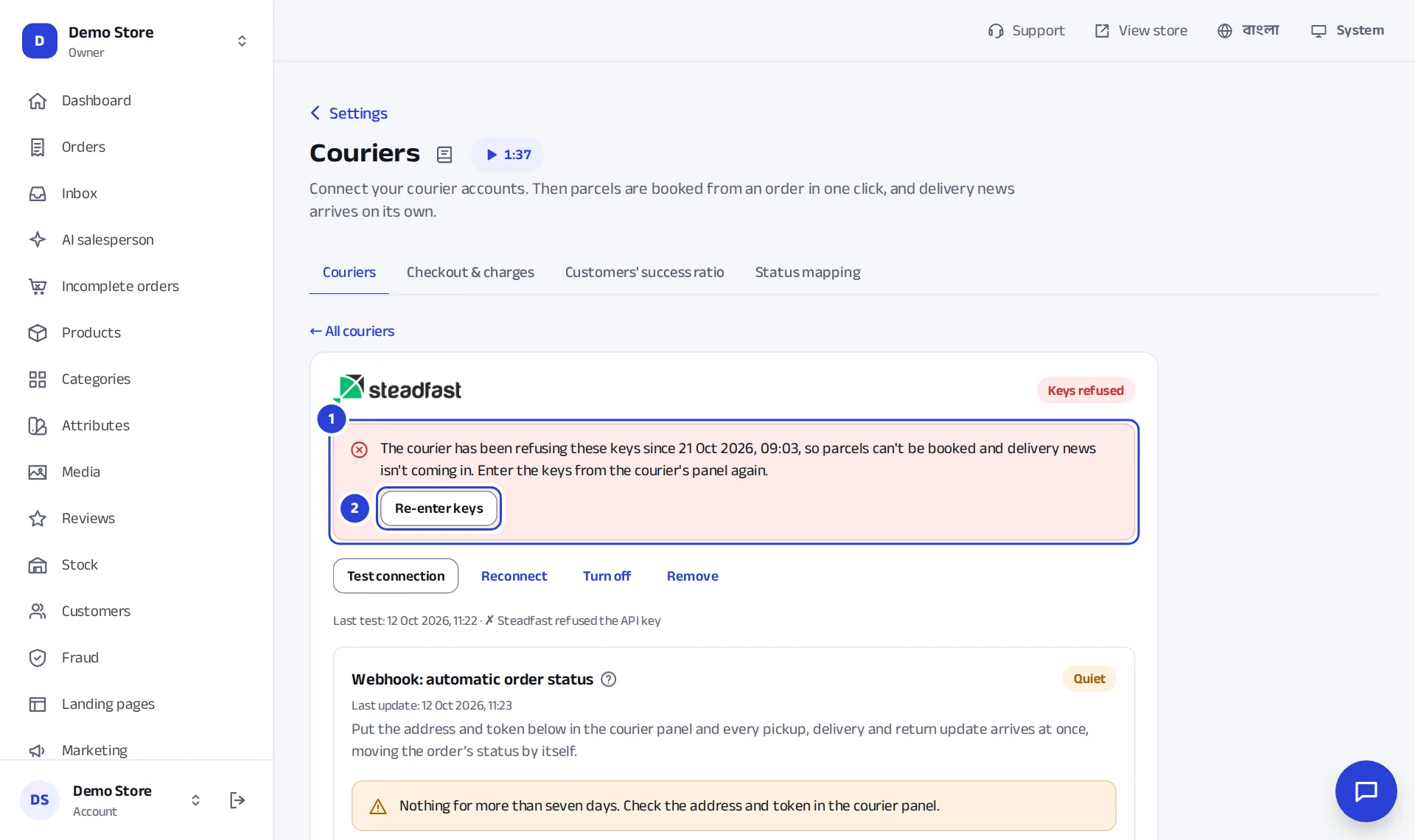
When the courier refuses your saved keys in the store’s own work (checking parcels, booking), the card shows a red notice saying since when 1, and the courier’s row on the Couriers tab says “Keys not working since …: enter them again”. Until then parcels can’t be booked with it and delivery news doesn’t come in. The store’s owner also gets an email, at most once a day. Press Re-enter keys 2 and enter the keys from the courier’s panel again (they may have been changed or reset there). The notice goes by itself once the courier takes the keys again.
What your plan includes
- Each courier is a plan feature. When one is not in your plan, its card says This courier is not in your plan. Today every plan, Free included, has all four.
- Booking many orders at once (bulk booking): Starter, Growth and Pro.
- Letting customers choose a courier at checkout: Growth and Pro.
Prices and details: Plans.
For every courier
The For every courier card is on the Checkout & charges tab. Change what you need and press Save.
Courier choice at checkout
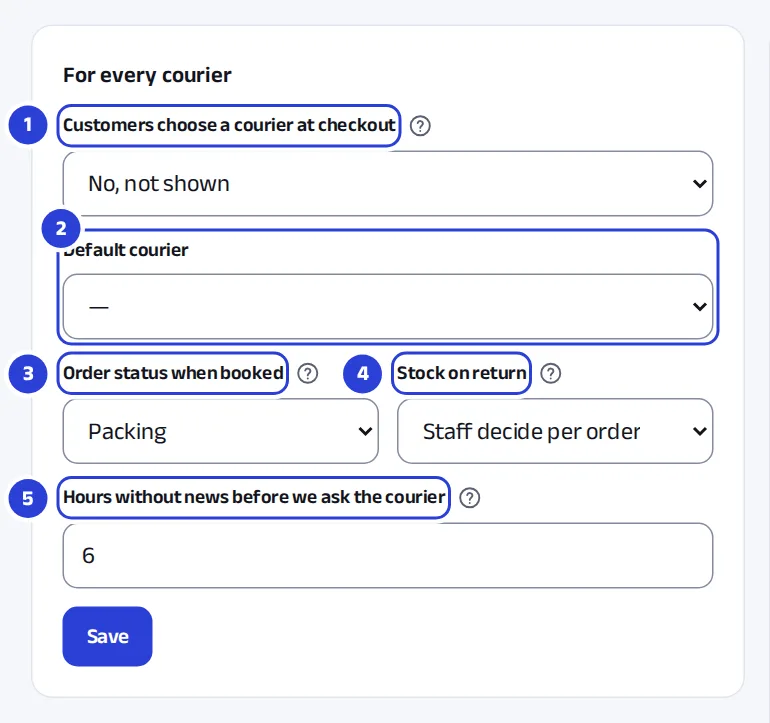
Customers choose a courier at checkout 1:
- No, not shown: customers pick nothing and pay the zone’s charge.
- Optional (default preselected): the default courier is ticked; customers may switch.
- Required: customers must pick a courier.
Checkout lists only connected couriers that are turned on, each with its charge and delivery time (if you set a charge per courier). On the order page, the customer’s pick is marked Customer’s choice on its booking button. When your plan does not include it, the field is locked.
Default courier
Default courier 2: with the checkout choice on, this courier is preselected, and its charge applies when the customer picks none. Only connected couriers that are turned on are listed.
The other three
- Order status when booked 3: see Order status when booked.
- Stock on return 4: see Returned parcels and stock.
- Hours without news before we ask the courier 5: 1 to 72 hours, 6 to start with. See Without a webhook.
On the Status mapping tab, the Order status on courier news card chooses which of your own statuses an order takes on each piece of courier news. See Order status on courier news.
Default parcel weight
The Default parcel weight card on the Checkout & charges tab has one field per connected courier: the weight in grams (50 to 25,000; 500 to start with) a parcel is booked with when the order’s products have no weight. The booking form starts with it and you can still change it on each booking. It is the same setting as Default weight (grams) in the courier’s booking defaults, so a change in one place shows in the other. It doesn’t change what customers pay at checkout. More: Default parcel weight.
COD charge
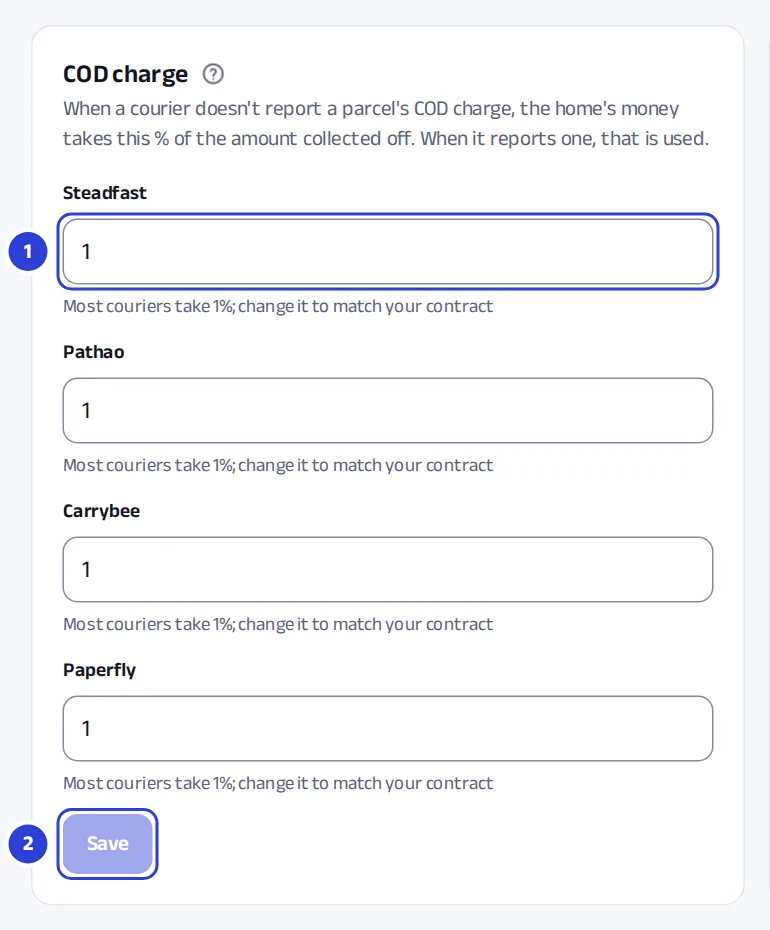
The COD charge card on the Checkout & charges tab (and COD charge (%) in the courier’s booking defaults) holds each connected courier’s COD charge as a % of what it collects from the customer, 0 to 10 (1 to start with: most couriers take 1%; change it to match your contract): when a courier doesn’t report a parcel’s COD charge, the home’s Cash received takes this % off, and when it does, the courier’s own figure. Type the % in each courier’s field 1 and press Save 2; all the couriers’ fields are saved together.
A parcel that comes back pays no COD charge: one the courier quoted at booking goes to 0 when the parcel is back. What a courier takes for a returned parcel goes in Return charge (৳ per returned parcel) in the courier’s booking defaults (0 to start with): couriers take it off their payouts but seldom report it per parcel, so it is counted for a returned parcel whose return charge the courier did not report.
Next: set up the webhook, then book a parcel from an order.